Accessing DataCore AI
Explore this Page
- Overview
- Accessing DataCore AI from a Web Browser
- Accessing DataCore AI from the DataCore Management Console
- Next Steps
Overview
This document helps you sign in to DataCore AI from a web browser or from the DataCore AI panel in the DataCore Management Console.
DataCore AI has no separate accounts. To sign in, you must use your existing SANsymphony credentials.
Accessing DataCore AI from a Web Browser
To sign in from a web browser:
- In a web browser, go to
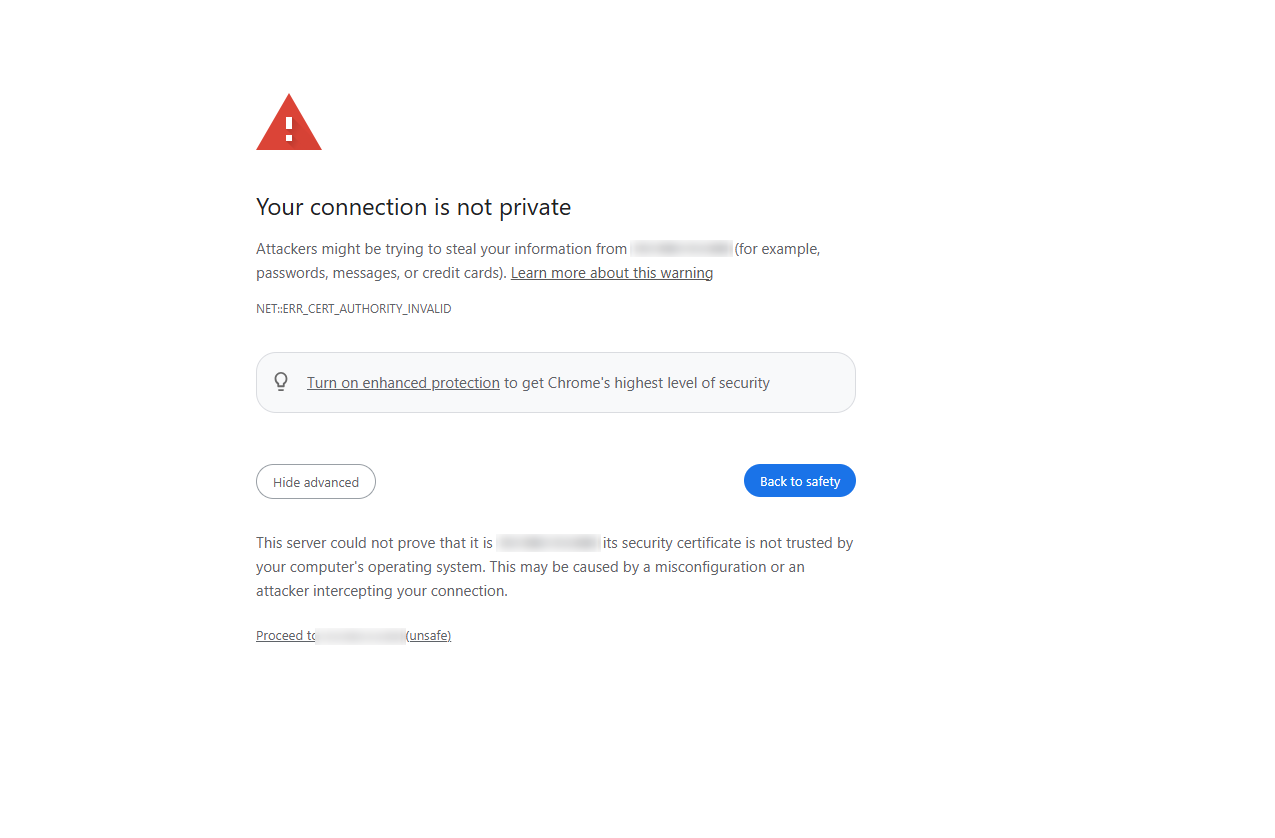
https://<DataCore AI Agent IP address>:8443, where<DataCore AI Agent IP address>is the IP address of the DataCore AI host. In the DataCore AI panel, this address appears as Agent Location. If you selected a different port during installation, use that port instead. - If the browser displays a certificate warning, accept it to continue. By default, DataCore AI uses a generated self-signed certificate, which causes this warning. For details, refer to Connection and Certificate Settings.
- In Google Chrome, the warning page reads Your connection is not private. Click Advanced, and then click Proceed to <DataCore AI host> (unsafe). Other browsers show a similar page.
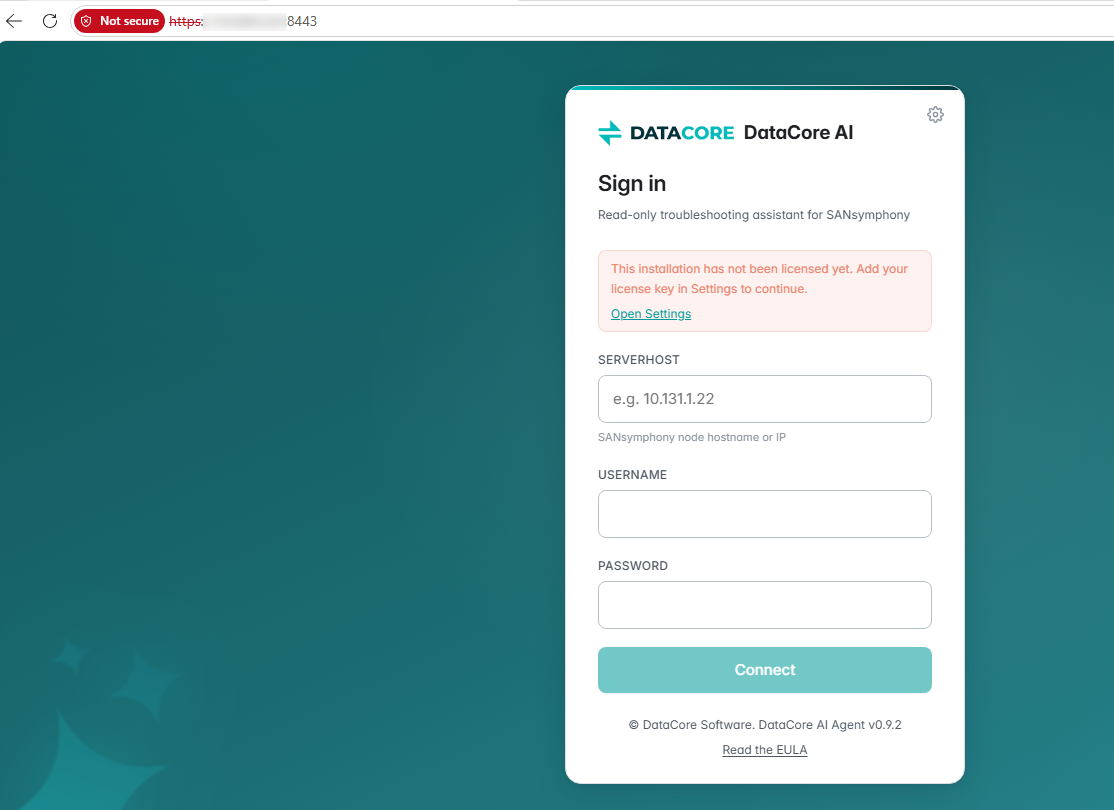
- If DataCore AI is not licensed, the Sign in page shows a red warning message: This installation has not been licensed yet. Add your license key in Settings to continue. You cannot sign in until you activate the license. To activate the license, refer to Activating the License from a Web Browser.
- On the sign-in page, in ServerHost, enter the DataCore Server that you want to connect to. Do not include a port.
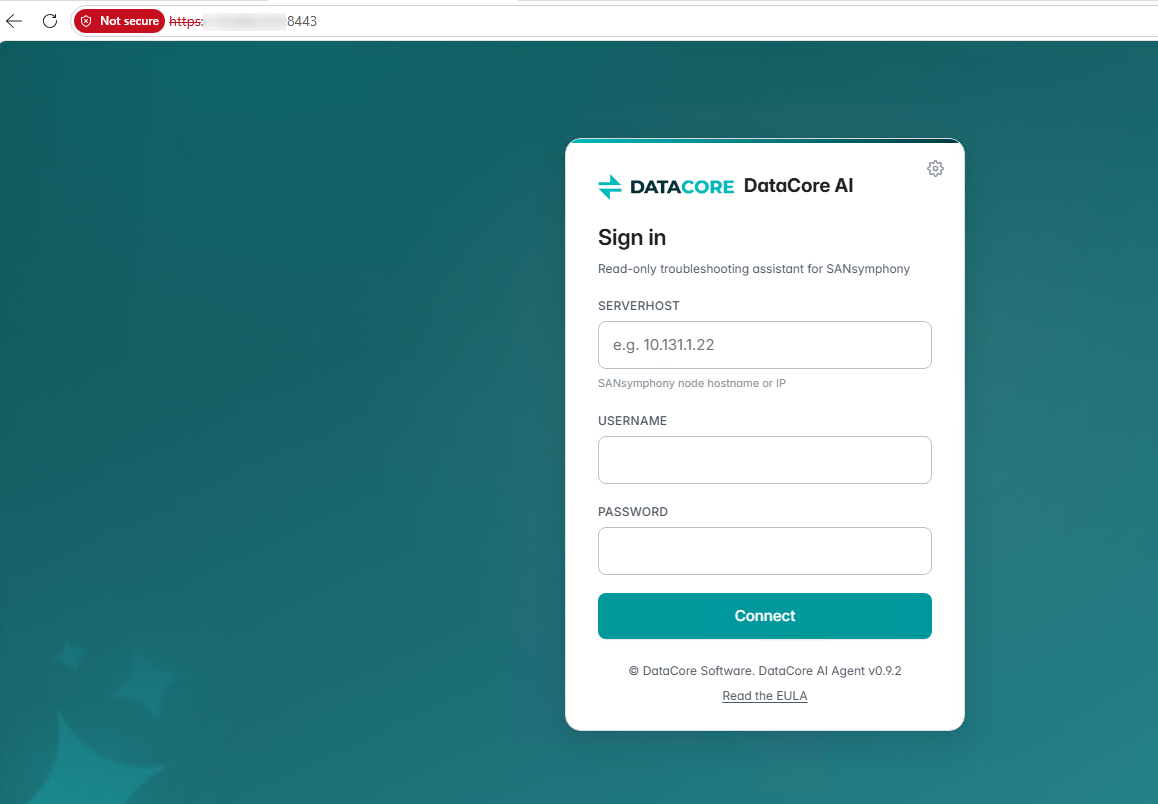
- In Username and Password, enter your SANsymphony username and password.
- Click Connect.
- The DataCore AI window opens in your browser. You can now type your questions in the message box. For information about the messages and indicators that DataCore AI displays, refer to Messages and Indicators in DataCore AI.
The first sign-in after a period of inactivity can take up to a minute while the SANsymphony REST service starts.
Accessing DataCore AI from the DataCore Management Console
To use the DataCore AI panel, you must have the DataCore Management Console installed. When you install the DataCore Management Tools, you must select DataCore Management Console in the list of components. For details, refer to Installing the DataCore Management Tools.
To open DataCore AI in the DataCore Management Console:
- On the ribbon, click DataCore AI.
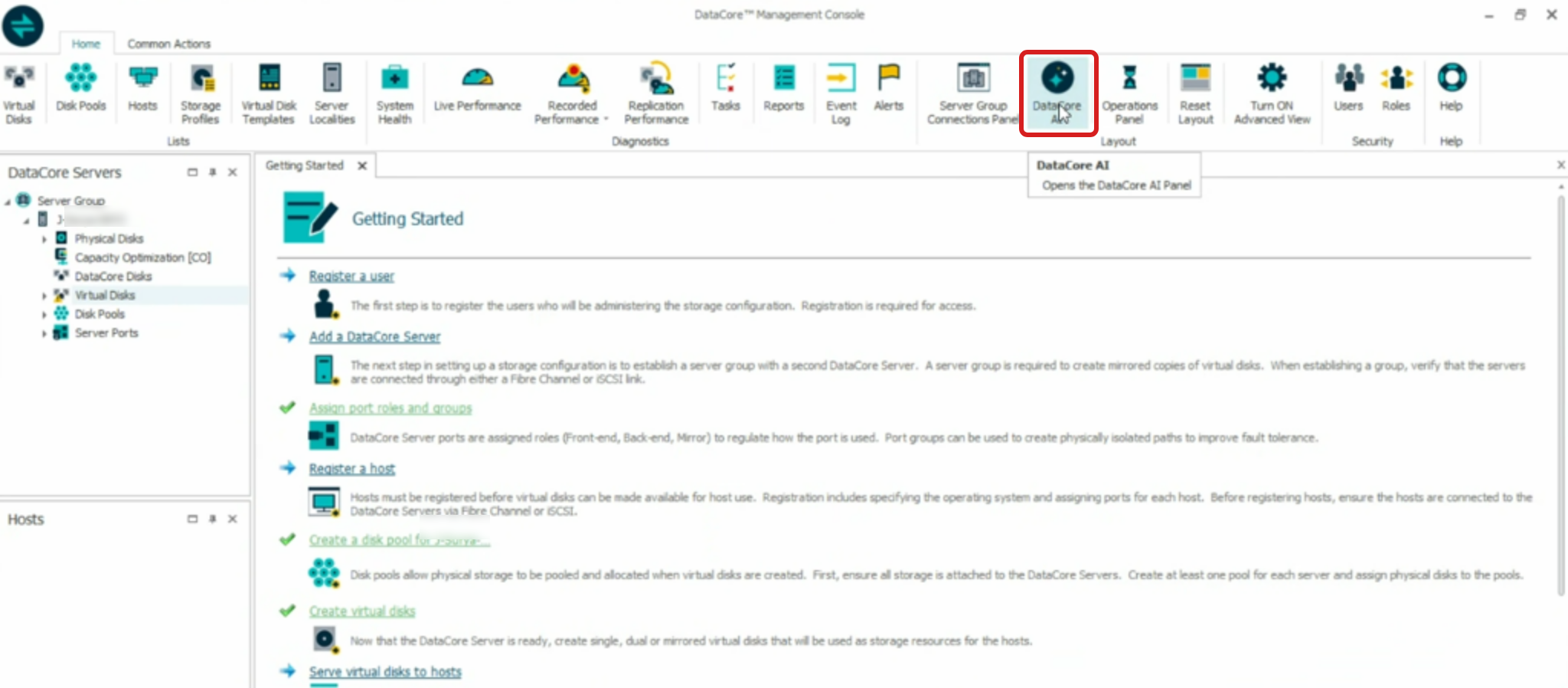
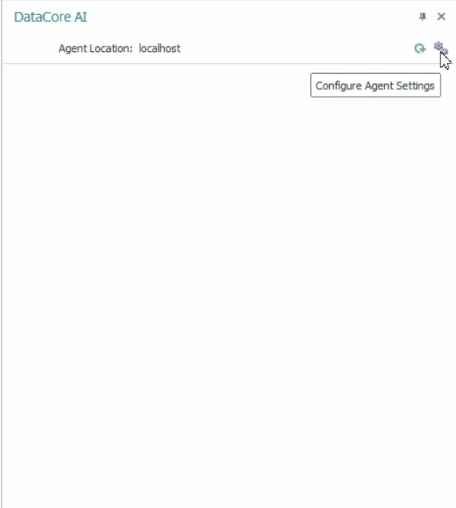
- The first time you open the panel, click the Settings (gear) icon in the panel header. Configure Agent Settings opens.
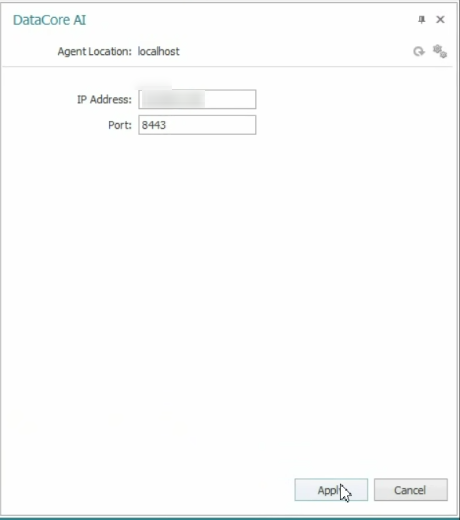
- Enter the IP Address and Port of the DataCore AI host, and then click Apply. The port is 8443 unless you changed it during installation. The panel header shows the host in use as Agent Location.
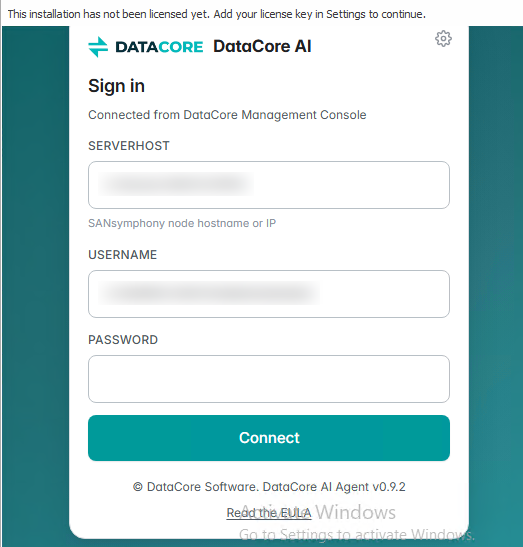
- The panel signs you in with the console connection and opens the chat. In the following cases, the panel cannot sign you in automatically. Instead, it displays the sign-in page with ServerHost and Username already filled in:
- The console connects with Windows credentials (Use default credentials). In this case, enter your SANsymphony password, and then click Connect.
- The SANsymphony REST service is temporarily unavailable.
- DataCore AI has reached its session limit.
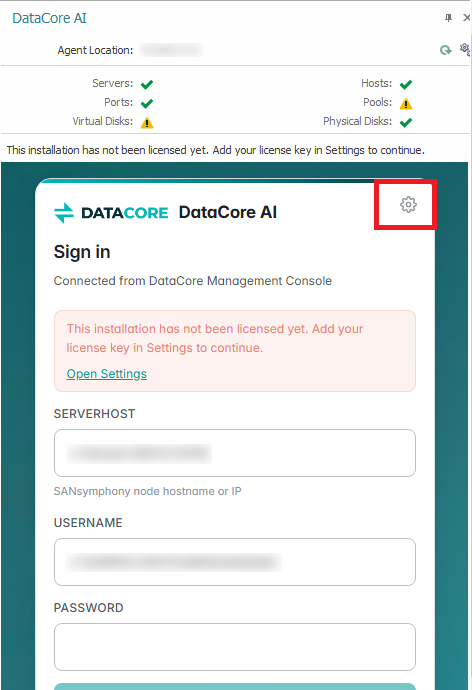
- If DataCore AI is not licensed, the sign-in page shows a warning, and you cannot sign in until you activate the license. To activate the license, refer to Activating the License from the DataCore Management Console.
- After you activate the license, the sign-in page opens, with ServerHost and Username already filled in. Enter your SANsymphony password, and then click Connect.
- The DataCore AI window opens in the DataCore Management Console. You can now type your questions in the message box. For information about the messages and indicators that DataCore AI displays, refer to Messages and Indicators in DataCore AI.
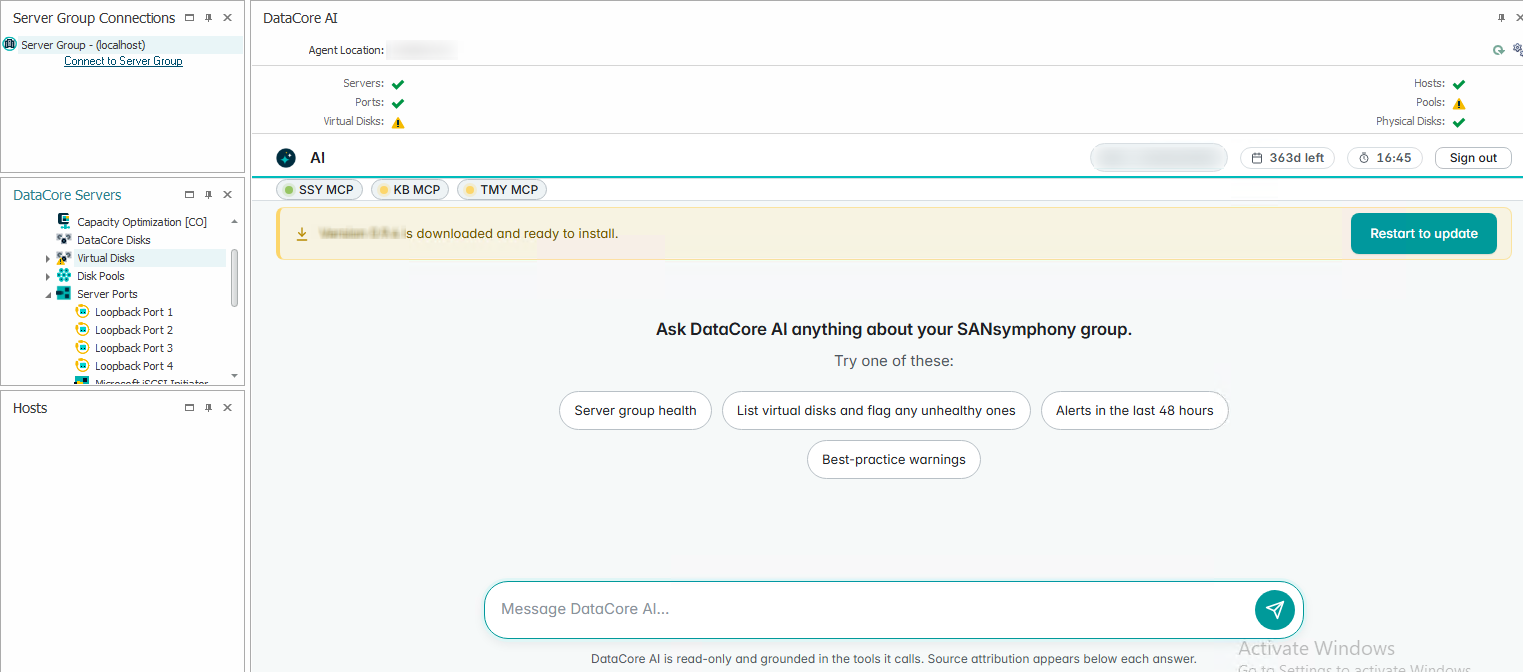
- The panel connects to DataCore AI over HTTPS only.
- If DataCore AI uses a certificate from a certificate authority that the console machine does not trust, set the certificate name in the console configuration. For the steps, refer to Certificates and the DataCore AI Panel.
- The panel also refuses the generated certificate when the address you enter is not one that the certificate lists, such as a DNS alias or an address behind NAT.
- If the panel layout is incorrect after an upgrade, click Reset Layout in the Layout group on the ribbon. You do not need to restart.
Next Steps
After you sign in and the DataCore AI window opens, refer to the following topics:
- Using DataCore AI: Ask questions, read answers, and manage your session.
- Messages and Indicators in DataCore AI: Understand the messages, banners, and indicators that DataCore AI displays.
- Troubleshooting DataCore AI: Resolve sign-in, license, and connection problems.
Learn More