Connection and Certificate Settings
Explore this Page
- Overview
- SANsymphony REST Service Address
- Web Interface Port and Address
- Anthropic API Key
- HTTPS Certificates
- Internet Proxy
- Trusting This Machine's CA Certificates
Overview
This document helps you change the connection and certificate settings of an existing DataCore AI installation. These settings control how DataCore AI connects to the SANsymphony REST service and to Anthropic, and how your browser connects to DataCore AI.
You can change these settings in one of the following ways:
- From the DataCore AI web interface.
- By editing the configuration file on the DataCore AI host.
- By running the installer again.
SANsymphony REST Service Address
You must set the SANsymphony REST service address during installation.
Changing the Address from the Web Interface
To change the address from the web interface:
- In a web browser, go to
https://<DataCore AI Agent IP address>:8443, where<DataCore AI Agent IP address>is the IP address of the DataCore AI host. In the DataCore AI panel, this address appears as Agent Location. If you selected a different port during installation, use that port instead. - On the DataCore AI sign-in page, click the Settings (gear) icon.
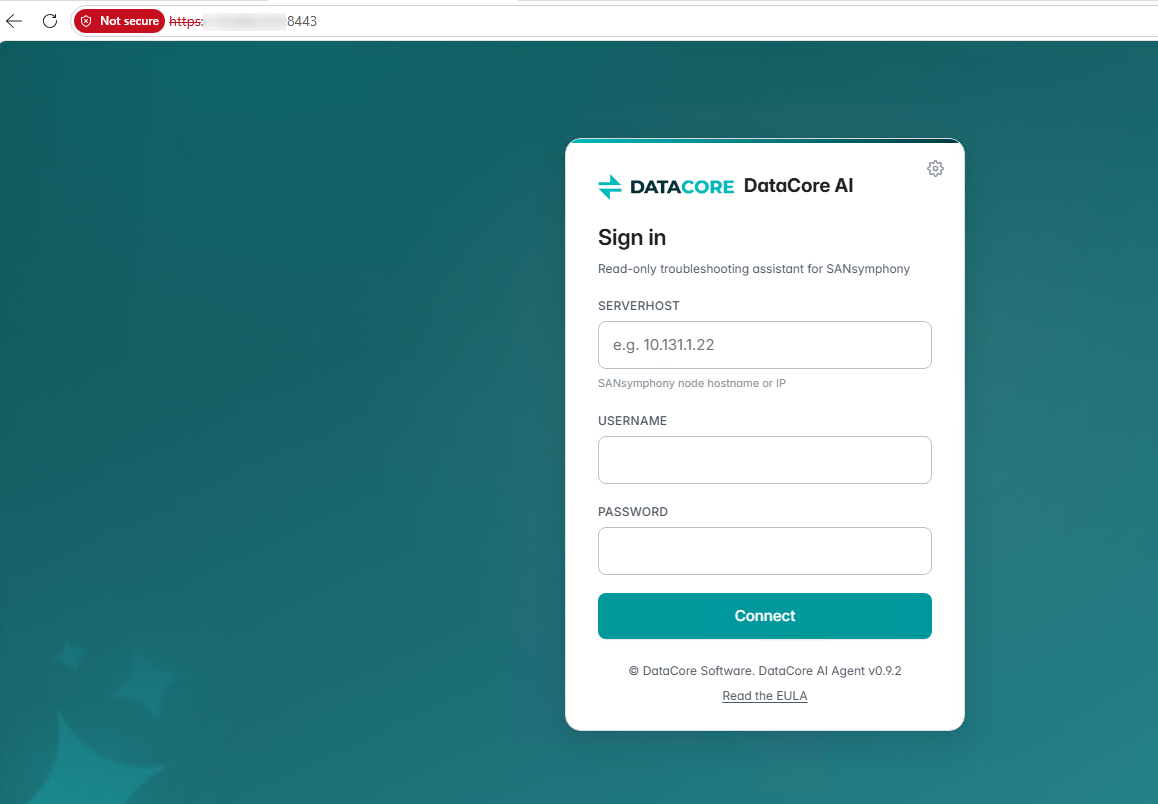
- In the Connection section, enter the new address in REST server IP address (or hostname). The field shows the full address that DataCore AI will connect to.
- Click Save. The change takes effect at the next sign-in for everyone who uses this installation. You do not need to restart.
Changing the Address on the Host
An address that you save from the web interface takes precedence over AGENT_REST_BASE_URL. To see which address is in effect, check rest.base_url in the output of curl -sk https://127.0.0.1:8443/api/healthz. Refer to Managing the DataCore AI Service. If you run the installer again, it keeps the saved address unless you change the REST address. In an unattended run, specifying --rest-ip counts as a change.
To change the address on the DataCore AI host instead of from the web interface:
- Sign in to the DataCore AI host (the Linux host where DataCore AI is installed) with an account that has root access (
sudo). - Open the
/etc/ssy-agent/compose.envfile in a text editor. For example, to open the file in vi, run: - Set
AGENT_REST_BASE_URLto the address of the SANsymphony REST service. For example: - Save the file.
- To apply the change, restart DataCore AI:
Anyone who can open the sign-in page can change the Connection setting and the License settings, including Remove license, without signing in. DataCore AI logs each change, with the requester's IP address, in /var/lib/ssy-agent/logs/ssy_agent.log. To restrict access, use a firewall to limit access to the web interface port, or set AGENT_PUBLISH_ADDR=127.0.0.1 so that only the DataCore AI host can connect. Setting AGENT_PUBLISH_ADDR=127.0.0.1 also blocks the DataCore AI panel in a DataCore Management Console on another machine.
Web Interface Port and Address
Setting in /etc/ssy-agent/compose.env |
Description | Default |
|---|---|---|
AGENT_PUBLISH_PORT
|
The port of the web interface. | 8443 |
AGENT_PUBLISH_ADDR
|
The network address that the web interface listens on. | 0.0.0.0 (all addresses) |
After you edit the file, run sudo dcai restart, and then reload the page in your browser. Use the new port if you changed it.
Anthropic API Key
DataCore AI encrypts the Anthropic API key before it saves the key to disk. As a result, copying the configuration files does not expose the key. However, anyone with root access on the host can still read the key, because DataCore AI must be able to use the key without user interaction.
To replace the key, for example, when the key expires or when you rotate it, run the following command:
The command prompts you for the new key and hides it as you type. The command then restarts DataCore AI, which signs out all users.
To run the command from a script, supply the key in a file:
HTTPS Certificates
DataCore AI serves its web interface over HTTPS only.
Default Certificate
By default, the installer generates a self-signed certificate with the subject CN=DataCoreAIAgentSelfSignedCert, which lists the host's own names and IP addresses. Browsers display a certificate warning for this certificate.
Using a Certificate from Your Certificate Authority
To use a certificate from your organization's certificate authority, run the installer with the --tls-cert and --tls-key options:
-
These options work with the wizard and with an unattended (
--silent) installation. - If you run the installer again without them, it keeps the certificate.
- Both files must be in PEM format, and the private key must not be encrypted.
-
The installer copies the files to
/var/lib/ssy-agent/tls.
Certificates and the DataCore AI Panel
The DataCore AI panel in the DataCore Management Console trusts the generated certificate when the address you enter in the panel is one that the certificate lists. The panel rejects a DNS alias or an address behind NAT.
If DataCore AI uses a different certificate, and the console machine does not trust its certificate authority, set the certificate name in the console configuration on the console machine:
- Open
DcsConsole.exe.configin a text editor. The file is in the folder where the DataCore Management Console is installed, by defaultC:\Program Files\DataCore\Management Console. - In the
appSettingssection, add the following line. Replace<subject>with the certificate's subject withoutCN=. - Save the file.
- Restart the DataCore Management Console. The panel reads the setting only after a restart.
If the panel rejects a certificate, it shows the name of the certificate that it received.
Internet Proxy
To set, change, or remove the proxy that DataCore AI uses to reach the internet, refer to Using DataCore AI Behind a Proxy.
Trusting This Machine's CA Certificates
To trust this machine's CA certificates for a proxy that inspects HTTPS, refer to Proxies That Inspect HTTPS.
Learn More