Managing the DataCore AI Service
Explore this Page
- Overview
- Command Reference
- DataCore AI Behavior After a Host Restart
- Checking the Health of DataCore AI
- DataCore AI Logs
Overview
This document helps you manage the DataCore AI service on the DataCore AI host (the Linux host where DataCore AI is installed). It describes the dcai commands that you use to manage DataCore AI, how DataCore AI behaves when the host restarts, how to check the health of the service, and where to find the logs.
The installer adds the dcai command to the host. DataCore AI starts automatically when the host starts.
Command Reference
Use the dcai commands on the DataCore AI host to control and maintain DataCore AI. For example, you can use them to:
- Check whether DataCore AI is running.
- Apply the changes that you make to
compose.env. - Replace the Anthropic API key.
- Activate a license.
- Collect the logs and the Agent ID that DataCore Technical Support may ask for.
Commands that require root access start with sudo.
| Command | Description | Requires root |
|---|---|---|
dcai status
|
Show whether DataCore AI is running. | Root or membership of the docker group |
sudo dcai start
|
Start DataCore AI. | Yes |
sudo dcai stop
|
Stop DataCore AI. | Yes |
sudo dcai restart
|
Apply the changes you made to compose.env. This restarts the services whose settings changed and leaves the rest running. |
Yes |
dcai logs
|
Show the logs. Add -f to follow them. |
Root or membership of the docker group |
dcai version
|
Show the installed version. | No |
dcai config
|
Show the configuration, including the Agent ID that DataCore Technical Support may ask for. | No |
sudo dcai set-llm-api-key
|
Replace the Anthropic API key and restart DataCore AI, which signs everyone out. | Yes |
sudo dcai activate-license
|
Activate a license on an unlicensed installation. | Yes |
sudo dcai check-connectivity
|
Check that each internet service is reachable. Add --retest-proxy to send the proxy user name and password again, after the proxy refused them. |
Yes |
sudo dcai set-proxy
|
Set or change the internet proxy and restart DataCore AI. Takes --proxy-url, --proxy-username, and --proxy-password-file, as the installer does. Add --remove-proxy-authentication to keep the proxy and remove its user name and password, or --apply-anyway to apply a setting that failed its test. |
Yes |
sudo dcai clear-proxy
|
Remove the internet proxy and restart DataCore AI. | Yes |
sudo dcai trust-host-certificates
|
Trust this machine's CA certificates too. | Yes |
sudo dcai untrust-host-certificates
|
Stop trusting this machine's CA certificates. | Yes |
sudo dcai collect-logs --out-dir <folder>
|
Create a support bundle (ssy-agent-logs-<host>-<time>.tar.gz) that contains the logs and a configuration snapshot without secrets. |
Yes |
sudo dcai uninstall
|
Uninstall DataCore AI. Add --purge to also remove all records, or --remove-image to also remove the container images. |
Yes |
dcai help
|
List the commands. | No |
Commands That Restart DataCore AI and Sign Everyone Out
The following commands restart DataCore AI, which signs out every user:
sudo dcai set-llm-api-keysudo dcai set-proxy,clear-proxy,trust-host-certificates, anduntrust-host-certificates, which also check connectivity afterward. Refer to Checking Connectivity to Internet Services.
Installing an accepted update also restarts DataCore AI and signs out every user. Refer to Upgrading DataCore AI.
In the DataCore Management Console, after one of these restarts, the DataCore AI panel shows SANsymphony sign-in expired and asks for your password again. This is expected. Refer to Messages and Indicators in DataCore AI.
DataCore AI Behavior After a Host Restart
DataCore AI starts automatically after the host restarts or loses power.
If you stopped DataCore AI with sudo dcai stop, it stays stopped after the host restarts. To start it again, run sudo dcai start.
Checking the Health of DataCore AI
To check the health of DataCore AI, run the following command on the DataCore AI host:
If the installation is healthy, the response contains "ok": true. This means that:
- The SANsymphony REST service is responding.
- All DataCore AI services are running.
- DataCore AI can open another session.
The response also shows:
- The version.
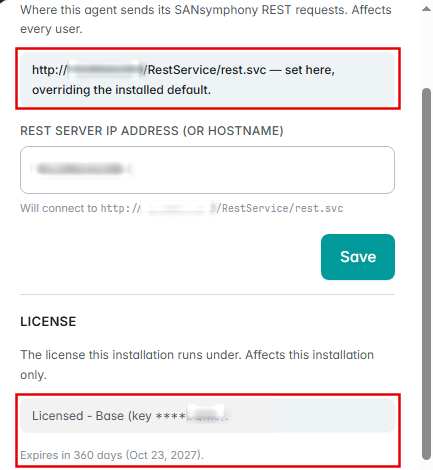
- The address of the SANsymphony REST service in use (
rest.base_url). - The license state (
license.status).
You can also see the REST service address and the license state in Settings on the DataCore AI sign-in page.
DataCore AI Logs
The logs record operational activity, such as starts, stops, errors, and timings. They do not contain your questions or answers, except the answers that you rated and chose to share.
DataCore AI writes the logs to /var/lib/ssy-agent/logs/. In addition, each run of the installer and each update writes its own log:
- Installer:
install-<timestamp>.log - Update:
update-<timestamp>.log
DataCore AI rotates the service logs when they reach a fixed size, so the logs do not keep growing.
Learn More