Messages and Indicators in DataCore AI
Explore this Page
- Overview
- Sign-in Page Messages
- Top Bar Indicators
- Source Indicators
- Conversation Banners
- Status Messages for DataCore AI Upgrades
- Messages in the Conversation
- Messages Near the Message Box
- Answer Tags and Symbols
- Settings Indicators
Overview
This document describes the banners, messages, and indicators that DataCore AI displays, where each one appears, when it appears, and what to do when you see it.
DataCore AI uses the following colors in all its messages and indicators to show how urgent each one is:
| Color | Meaning | Example |
|---|---|---|
| Green | Working normally, or an action succeeded. |
Connection check: Responded like a SANsymphony REST service. Shown in Settings after you check the REST server address. |
| Amber (yellow) | Attention needed soon. DataCore AI still works. | This session will expire soon due to inactivity (m:ss left)… |
| Red | Action required now, or an action failed. | This license has expired. Contact your account team to renew it. |
| Grey | Information only. | Connected from DataCore Management Console |
To find out what a specific message means and what to do, look it up in the following sections.
Sign-in Page Messages
The following messages appear on the sign-in page. Most of them relate to the license or to failed sign-in attempts.
| Message | Color | When it appears | What to do |
|---|---|---|---|
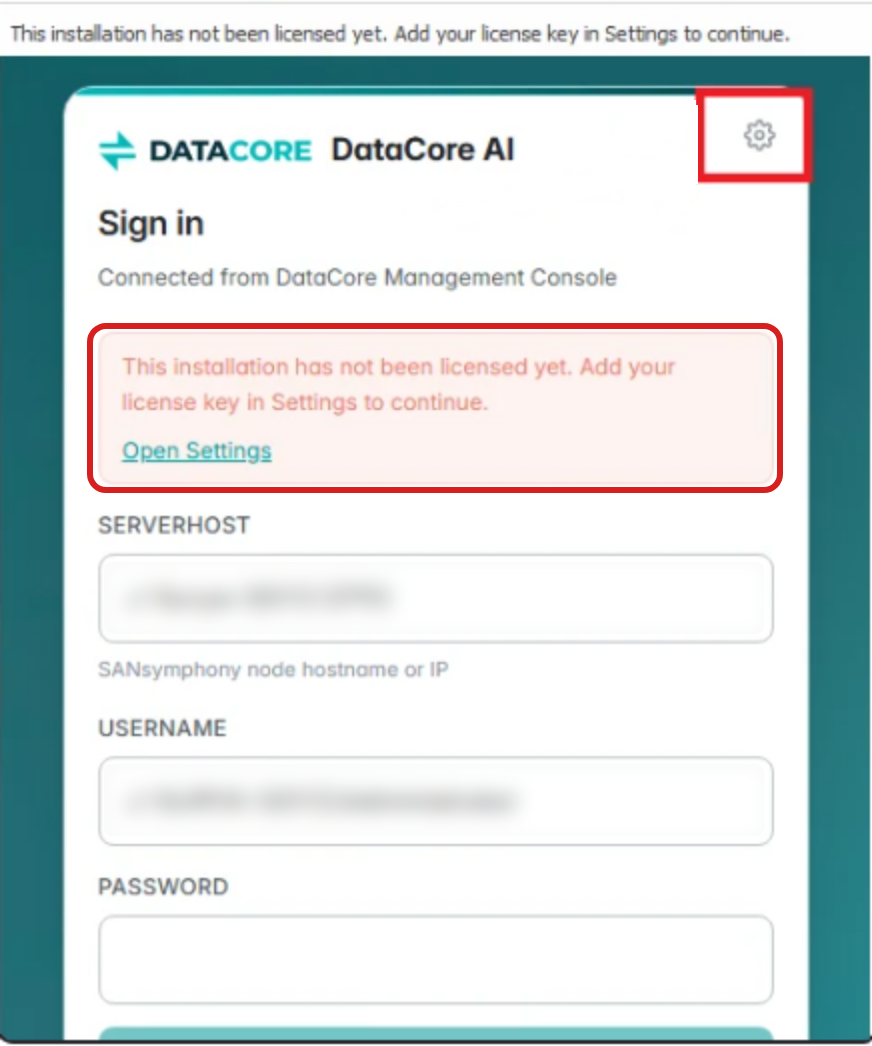
| This installation has not been licensed yet. Add your license key in Settings to continue. | Red | No license is active. Connect is disabled. | Click Open Settings and activate a license. |
| This license has expired. Contact your account team to renew it. | Red | The license service reports that the license has expired. | Renew the license with your DataCore account team. |
| This license was revoked. / This installation has been blocked. | Red | The license service reports that the license was revoked or that the installation was blocked. | Contact DataCore Technical Support. |
| This installation was deactivated and cannot be reactivated… | Red | The license service reports that the installation was deactivated. | Run sudo dcai uninstall, install DataCore AI again, and activate the new installation. |
| DataCore AI has not been able to check in with the DataCore license service for 30 days, so sign-in is blocked… | Red | 30 days have passed without a successful license check-in. | Restore access to api.dis.io, and then click Retry in Settings > License. |
| Too many sign-in attempts. Try again in N minutes. | Red | There were too many failed sign-ins from this computer or for this account within 15 minutes. | Wait, and then sign in with the correct password. |
| SANsymphony is refusing sign-ins for this account after repeated failed attempts… | Red | SANsymphony has locked the account after failed attempts. | Wait, and then try again. |
| Connected from DataCore Management Console | Grey | You opened the page from the DataCore AI panel. | None. |
For example, when no license is active, the sign-in page shows the following message, and the Settings (gear) icon opens the license settings:
Top Bar Indicators
The top bar shows how much time remains on the license and in the current session.

| Indicator | Normal | Amber | Red |
|---|---|---|---|
| License days remaining (for example 45d left) | Grey, or Perpetual | 30 days or fewer until the license expires. | Not used. |
| Session timer (minutes:seconds) | Grey | The last 5 minutes before the session ends. | expired: The session has ended. |
Source Indicators

The three indicators under the top bar, SSY MCP, KB MCP, and TMY MCP, show which information DataCore AI can reach. For the status colors and their meanings, refer to Source Indicator Status in Using DataCore AI.
If an indicator is red (Unavailable), the source cannot be reached. For troubleshooting steps, refer to Health Check Times Out or SSY MCP Is Unavailable or KB MCP or TMY MCP Is Unavailable. After SSY MCP recovers, DataCore AI asks you to sign in to SANsymphony again the next time you send a message.
Conversation Banners
The following banners appear above the conversation while you use DataCore AI.
| Banner | Color | When it appears | What to do |
|---|---|---|---|
| This session is approaching the assistant's maximum length (N% used)… | Amber | The conversation reaches 75% of the maximum length. At 95%, the session ends. | Start a new session soon. |
| This session will expire soon due to inactivity (m:ss left)… | Amber | 5 minutes before the 30-minute inactivity limit. | Send a message to keep the session open. |
| DataCore AI cannot connect to the DataCore license service to check in… Sign-in will be blocked in N days. | Amber, then red | Amber from 24 hours to 27 days after the last successful license check-in. Red for the last 3 days. At 30 days, the banner is replaced by the sign-in block. | Restore access to api.dis.io, and then click Retry in Settings > License. |
A license check-in failure is silent for the first 24 hours, so short network interruptions do not raise a warning. If DataCore AI rejects the license key or cannot find it, the banner appears immediately.

For the messages that appear while DataCore AI is upgraded, refer to Status Messages for DataCore AI Upgrades.
Status Messages for DataCore AI Upgrades
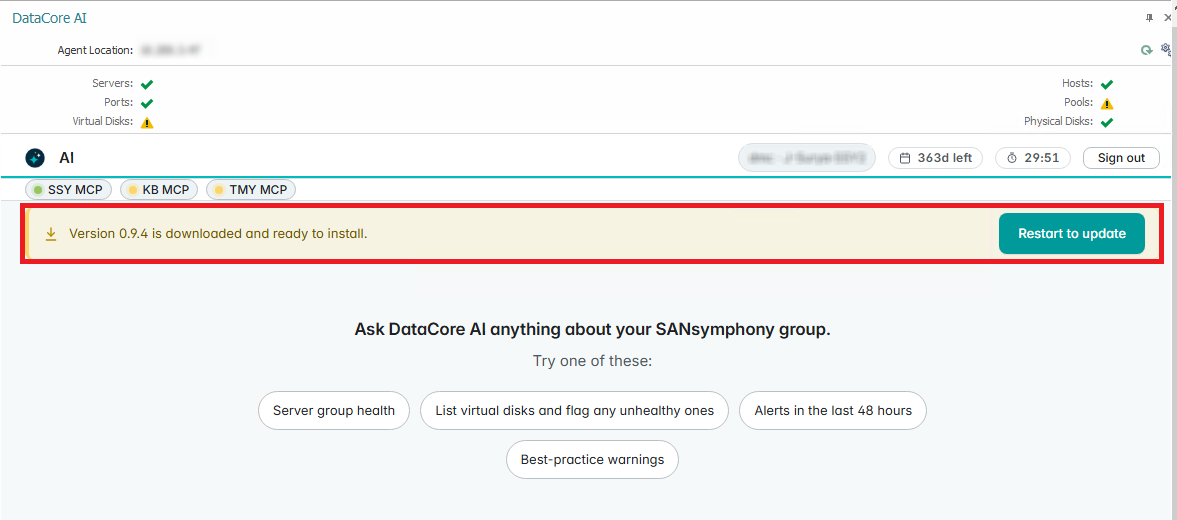
The following messages tell you the status of an update. DataCore AI displays them in a banner above the conversation. In the messages, X stands for the version number.
| Message | Meaning |
|---|---|
| Downloading version X… | The new version is downloading in the background. |
| Version X is downloaded and ready to install. | To install it, click Restart to update. |
| Installing version X… the assistant will restart shortly. | The update is in progress. |
| Version X could not be installed — the current version is still running. | DataCore AI could not download or install the update, and the current version is still running. Click Retry, or contact DataCore Technical Support. |
| Version X did not pass its health check, so the current version was kept. It will not be offered again on this server. | The new version did not start correctly, so DataCore AI restored the previous version. It offers the next version when one is available. |
| The update check is not succeeding. | The host cannot reach the update service. Check outbound HTTPS access. |
If DataCore AI is not available again within five minutes, run sudo dcai status on the host.
Messages in the Conversation
The following message appears in the conversation as the answer to your question.
| Message | Color | When it appears | What to do |
|---|---|---|---|
DataCore AI could not reach the Anthropic API, which writes every answer. An administrator can find the cause with sudo dcai check-connectivity on the DataCore AI host. |
Red | DataCore AI cannot reach the Anthropic API, for example, because the proxy is down, its address is wrong, or it refuses the password. | Run sudo dcai check-connectivity on the DataCore AI host. Refer to Using DataCore AI Behind a Proxy. |
Messages Near the Message Box
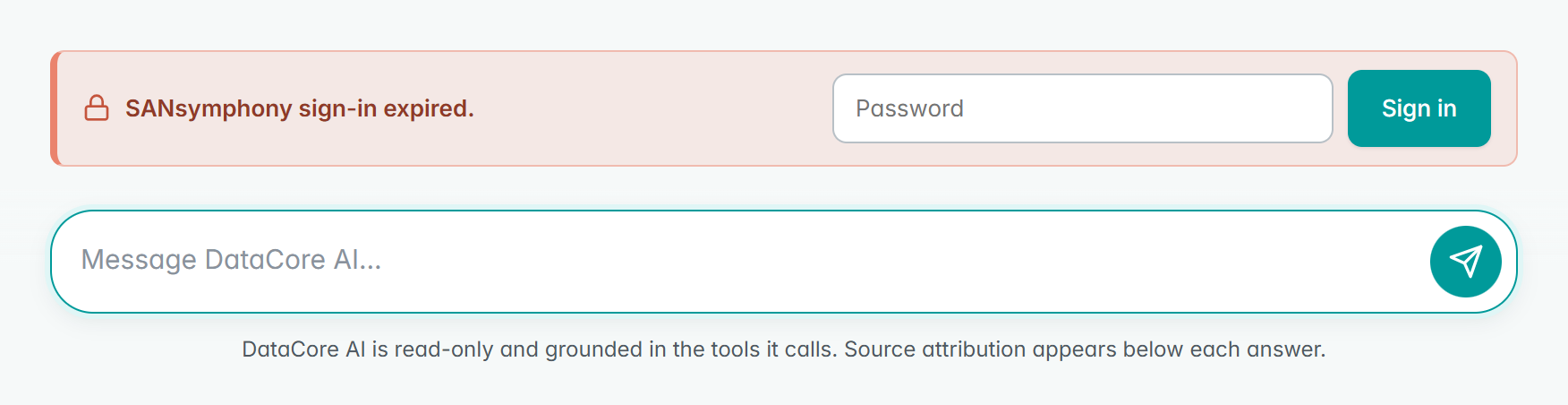
The following messages appear near the message box when your sign-in, session, or connection is interrupted.
| Message | Color | When it appears | What to do |
|---|---|---|---|
| SANsymphony sign-in expired. | Red | Your SANsymphony sign-in expired during the session. | Enter your password and click Sign in. DataCore AI keeps your conversation. |
| Session expired / Session reached its maximum length | Red | The session ended because of inactivity, the 8-hour limit, or the maximum conversation length. | Click Copy summary to keep a record, and then click Start new session. |
| The assistant is being updated and will be back in a moment. Your message was not sent. | Red | You sent a message while an update was installing. | Wait, and then send the message again after the restart. |
| Reconnecting… please retry in a moment. | Red | The connection to DataCore AI was interrupted. | Wait, and then send the message again. |
Answer Tags and Symbols
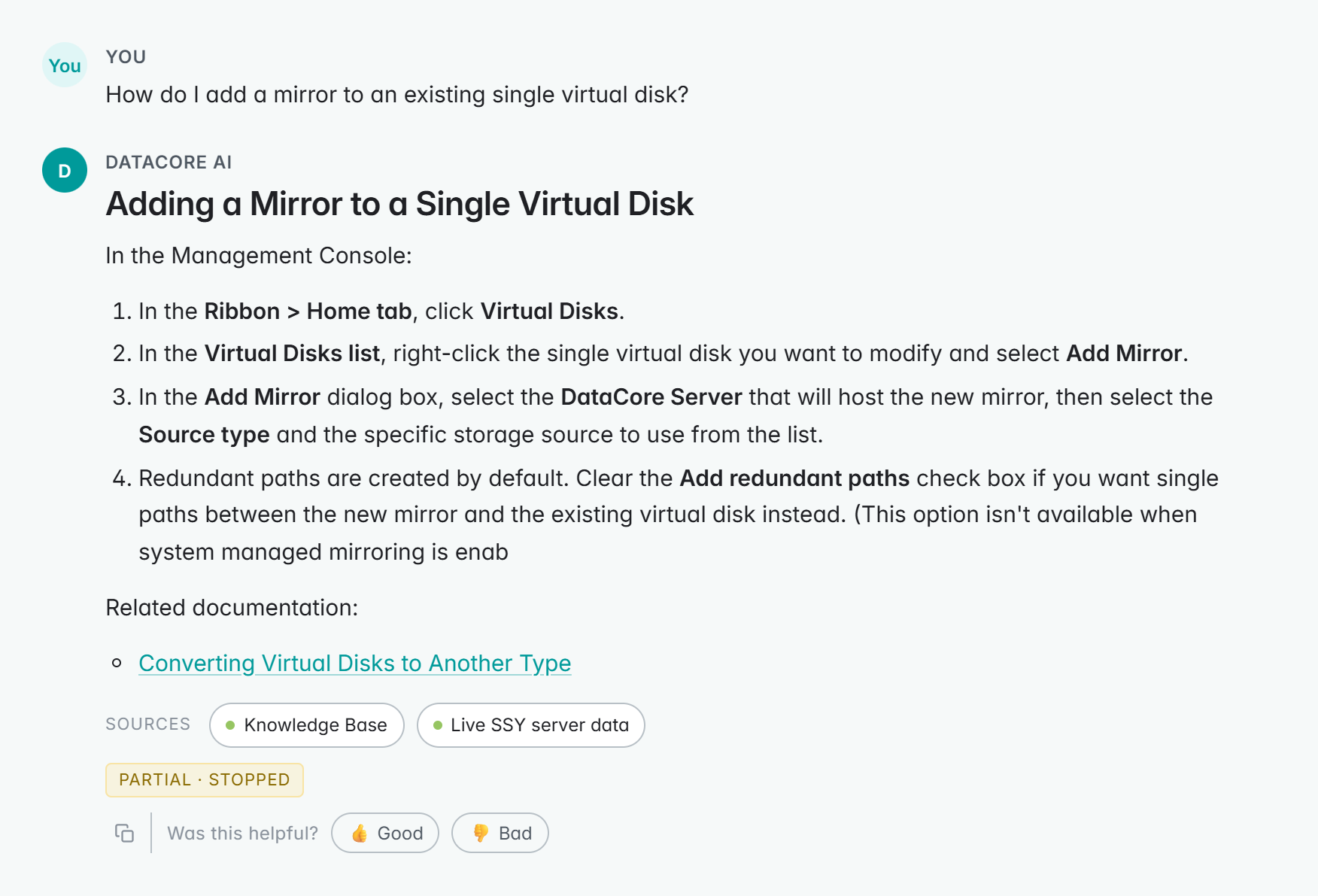
The following tags and symbols appear in answers. They show whether an answer is complete, which sources DataCore AI used, and the result of a check.
| Element | Color | Meaning |
|---|---|---|
| PARTIAL tag, with the reason: STOPPED, TIME LIMIT REACHED, TOOL LIMIT REACHED, or INTERRUPTED | Amber | The answer was not completed. If the reason is TIME LIMIT REACHED or TOOL LIMIT REACHED, ask a narrower question. |
| Sources line: Live SSY, Knowledge Base, Telemetry | Green dot | DataCore AI used the source. An amber dot with (unavailable) means that DataCore AI needed the source but could not reach it. |
| Sources line: general knowledge | Grey | DataCore AI did not use any source. |
| Performance Verdict card: ✓ NORMAL, ⚠ DEVIATION, ✗, and other symbols | Shown by symbols | Shows the result of a performance check. |
| Data Path card: ✓ ALL PATHS OK, · INFO, ⚠ WARNING, ✗ ERROR, ✗ CRITICAL, or ▢ INCOMPLETE | Shown by symbols | Shows the result of a data path check. |
Settings Indicators
The following elements appear in Settings when you view the license, check the connection, or confirm a change.
| Element | Color | When it appears |
|---|---|---|
| License expiry line: Expires in N days (date). | Amber | When 30 days or fewer remain until the license expires. |
| License message: This installation is not licensed yet. | Grey | When no license is active for the installation. |
| License message: Enter your license key. | Red | When you click Activate without entering a license key. |
| License message: That license key was not recognized. Check that it was copied correctly and try again. | Red | When the license key that you entered is not valid. |
| License message: This installation is now licensed. | Green | When the license is activated. |
| License message: This installation's license key is missing. Enter your license key in Settings. Sign-in will be blocked in N days. | Grey | When DataCore AI cannot find the stored license key. An amber banner with the same message also appears after you sign in. |
License message: Could not reach the DataCore licensing service. Make sure the DataCore AI host can reach api.dis.io, and try again. |
Red | When you click Activate and DataCore AI cannot reach the licensing service. |
License message: Could not reach the DataCore licensing service, so the license was not released. Nothing has changed on this installation — make sure the DataCore AI host can reach api.dis.io, and try again. |
Red | When you click Remove license and DataCore AI cannot reach the licensing service. |
| Connection check: ✓ Responded like a SANsymphony REST service. | Green | When the address that you entered responds as a SANsymphony REST service. |
| Connection check: ⚠ No response… or Could not connect… | Red | When the address that you entered does not respond as expected. You can still save the address. |
| Confirm change button | Red | When you save a new SANsymphony REST service address. The change affects everyone who uses this installation. |
| Confirm removal button | Red | When you remove the license from the installation. |
Learn More