Using DataCore AI
Explore this Page
- Overview
- How DataCore AI Answers a Question
- The DataCore AI Window
- Source Indicators
- Source Indicator Status
- Reading an Answer
- Stopping an Answer and Queuing Questions
- Renewing an Expired Sign-in
- Sessions
- Example Questions
- Answer Behavior
Overview
This document helps you use DataCore AI after you sign in. It explains how DataCore AI answers your questions, describes the DataCore AI window, and shows you how to read an answer, manage your session, and find example questions.
After you sign in, DataCore AI opens a chat. You can type a question in plain language. DataCore AI gathers the information it needs from your server group, the documentation, and telemetry, and then writes the answer.
How DataCore AI Answers a Question
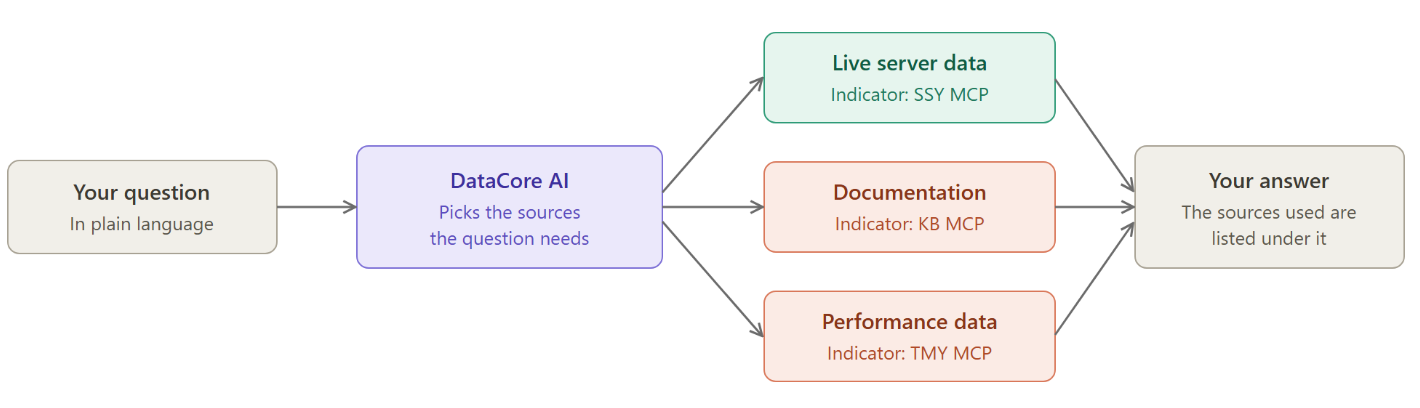
When you ask a question, DataCore AI picks the sources that the question needs, gathers the information, and lists the sources it used under the answer.
The DataCore AI Window
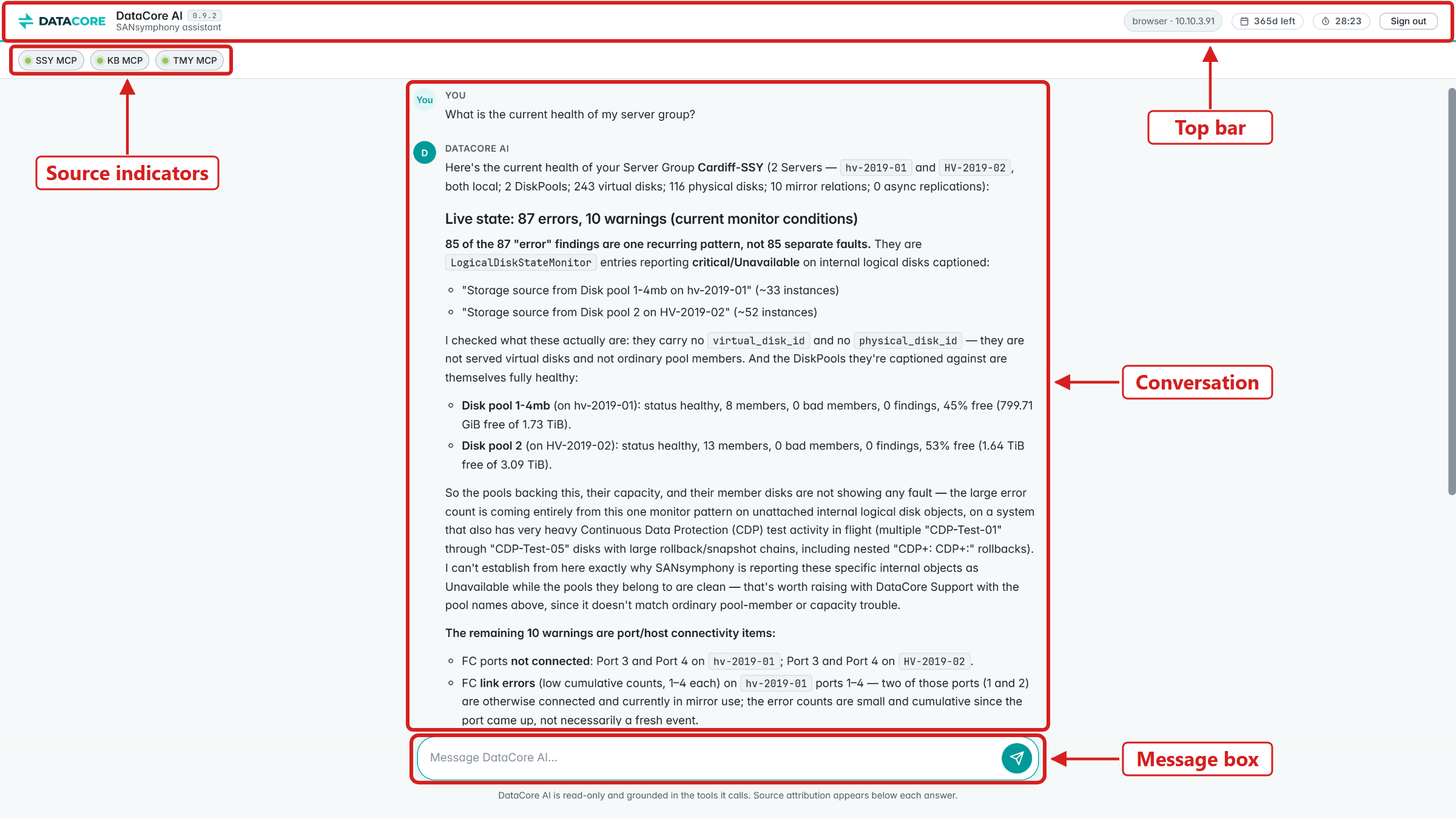
The following image shows the DataCore AI window. For a description of each of its four main areas, see the table below.
| Area | Description |
|---|---|
| Top bar | Shows how you signed in and the DataCore Server you are connected to (for example, browser · 10.0.0.5), the DataCore AI version, the days remaining on your license, the time remaining in your session, and Sign out. |
| Source indicators | The status of the three information sources. Refer to Source Indicators. |
| Conversation | Your questions and the answers. Answers appear as they are written. |
| Message box | Type a question and press Enter. |
Source Indicators
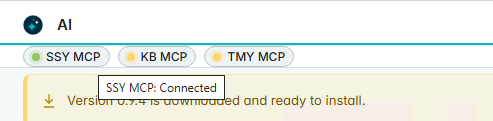
DataCore AI selects the sources that each question needs. You do not choose them. The indicators use short labels to save space.
| Indicator | Source |
|---|---|
| SSY MCP | Live information from the SANsymphony server group. When you hover over an indicator, it shows the full name of the source and its status. For the meaning of each status, refer to Source Indicator Status. |
| KB MCP | SANsymphony documentation. |
| TMY MCP | Performance baselines from telemetry. |
Source Indicator Status
Each indicator shows the status of its source in color. Hover over an indicator to see the reason for its status.
| Status | Color | Meaning |
|---|---|---|
| Connected | Green | The source is working normally. |
| Degraded | Amber | The source is responding slowly or only partially. Answers may be slower or less complete. If the status continues, refer to Troubleshooting DataCore AI. |
| Sign-in required (SSY MCP only) | Amber | Your SANsymphony sign-in has expired. Refer to Renewing an Expired Sign-in below. |
| Unavailable | Red |
The source cannot be reached. DataCore AI cannot answer questions that need it until it recovers. For troubleshooting steps, refer to Health Check Times Out or SSY MCP Is Unavailable or KB MCP or TMY MCP Is Unavailable. After SSY MCP recovers, DataCore AI asks you to sign in to SANsymphony again the next time you send a message. Refer to Renewing an Expired Sign-in. |
| Not configured | Grey, dashed | The source is not set up for this installation. This is not an error. |
| Checking… | Grey, pulsing | Shown briefly after you sign in, while DataCore AI determines the status. |
Reading an Answer
An answer can include the following elements:
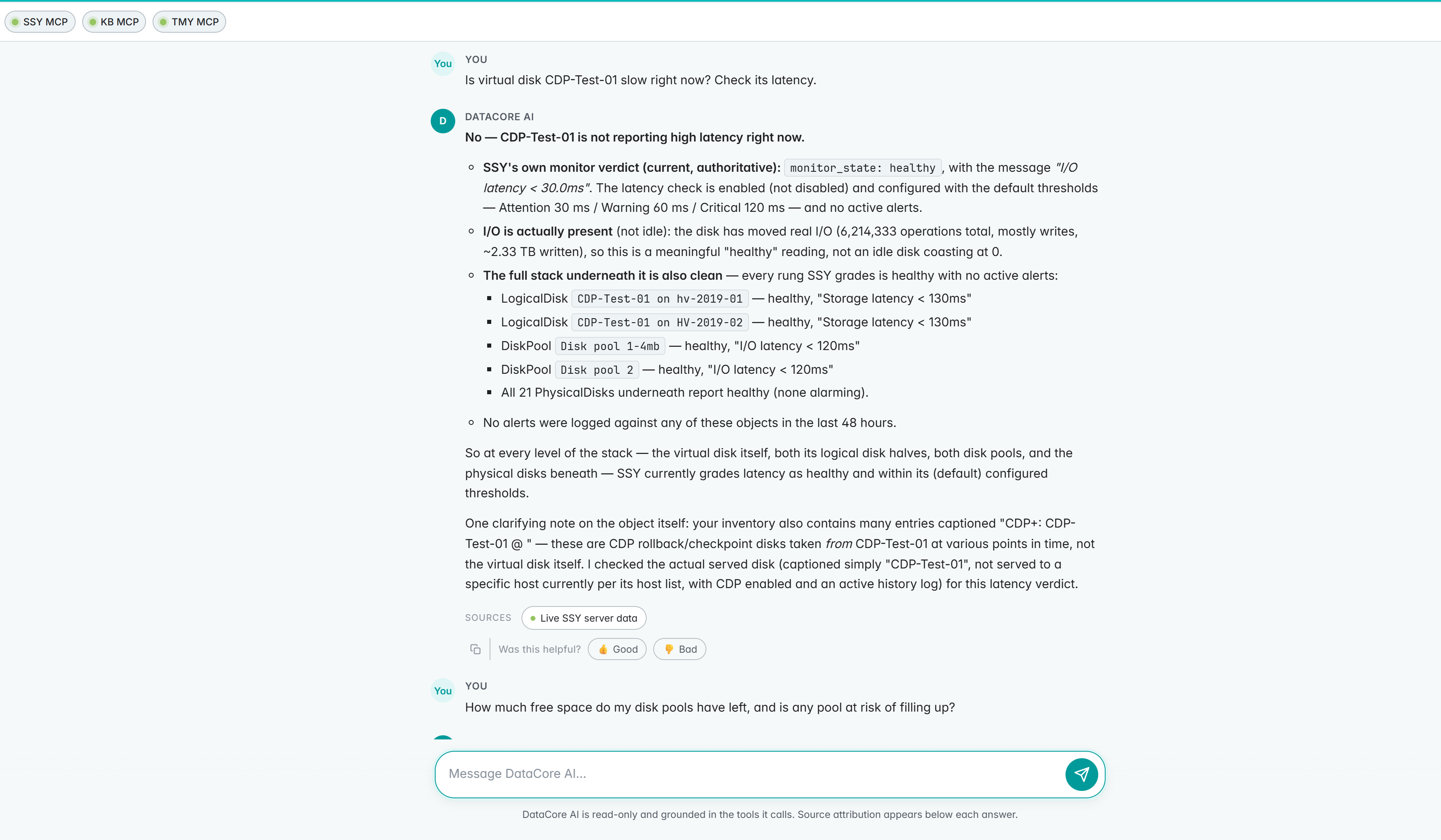
- Sources: Under the answer, Sources lists what DataCore AI used: Live SSY server data, Knowledge Base, or Telemetry. If an answer used no source, it shows general knowledge.
- Documentation links: Listed under Related documentation. These are links to the documentation topics that the answer is based on.
- Performance Verdict card: Shown for performance questions. It tells you whether latency is normal or unusual for the time of day, followed by an explanation.
- Data Path card: Shown for data path questions. It shows ALL PATHS OK, INFO, WARNING, ERROR, CRITICAL, or INCOMPLETE, followed by the details.
- Partial tag: The answer was not completed. The tag gives the reason: stopped, time limit reached, tool limit reached or interrupted. DataCore AI may also answer a very broad question only in part. If a time or tool limit was reached, or the question was very broad, ask a narrower question.
- Copy and feedback: Copy a question with its answer or copy a code block. Rate an answer with Good or Bad (or press 1 or 2 while the message box is empty) and add an optional comment. The Share this exchange & recent context with DataCore Corporation check box is selected by default. Clear it to send only your rating and comment. Select View transcript to see what will be sent. You can edit the text before you send it. Refer to Data Privacy and Security.
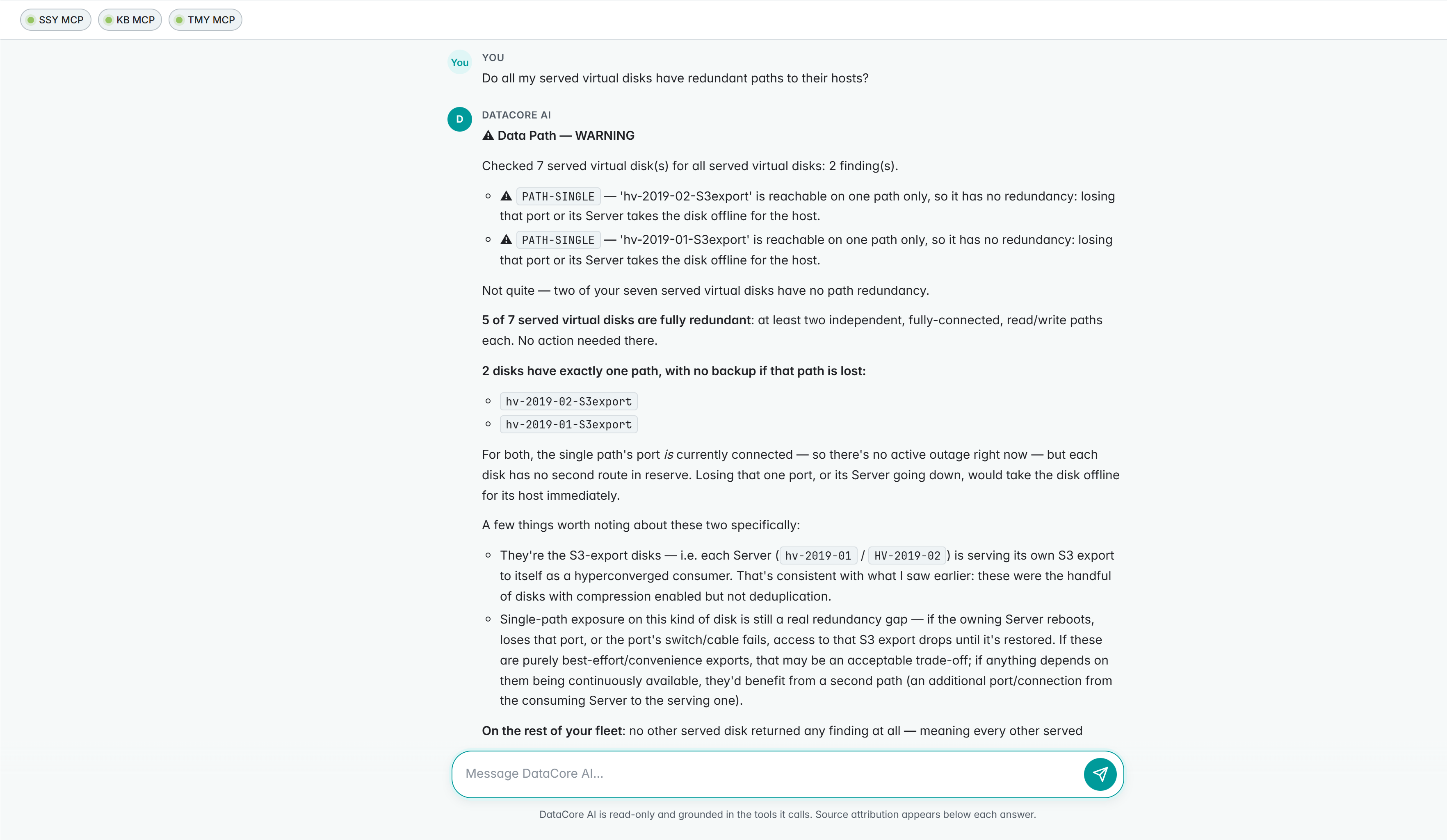
The following examples show two typical answers:
- Answer to a latency question: The Sources line under the answer shows that DataCore AI used live SANsymphony server data. Below it are the copy button and the Good and Bad buttons.
- Answer to a data path question: The answer starts with the Data Path card, which shows the overall result (here, WARNING) and then the findings.
Stopping an Answer and Queuing Questions
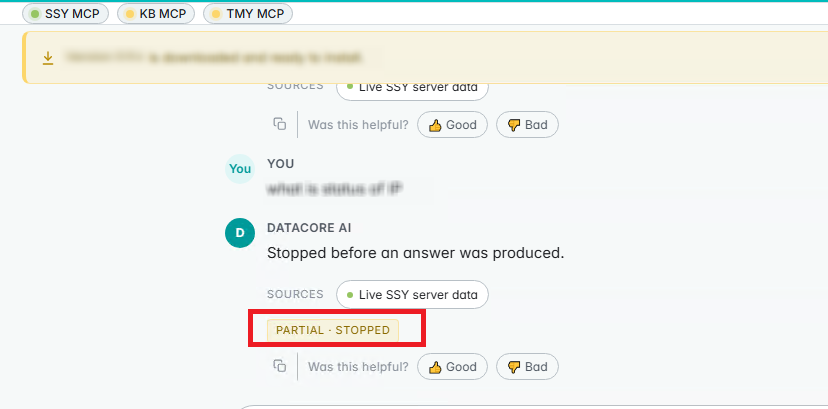
While DataCore AI writes an answer, the send button changes to a stop button with the tooltip Stop (Esc). To stop the answer, click the stop button or press Esc. The text written so far remains and is tagged partial · stopped.
You can send more questions while DataCore AI is writing an answer. DataCore AI marks each of them as Queued and answers them in the order that you sent them. To remove a queued question before DataCore AI answers it, click its ×.
Renewing an Expired Sign-in
If your SANsymphony sign-in expires during a session, the message SANsymphony sign-in expired. appears above the message box. To sign in again, enter your password and click Sign in. DataCore AI keeps your conversation.
Sessions
| Limit | Behavior |
|---|---|
| 30 minutes without activity | The session ends. A banner appears 5 minutes before. Sending a message resets the timer. |
| 8 hours after sign-in | The session ends. |
| Maximum conversation length | A banner appears at 75% of the maximum length. At 95%, the session ends. |
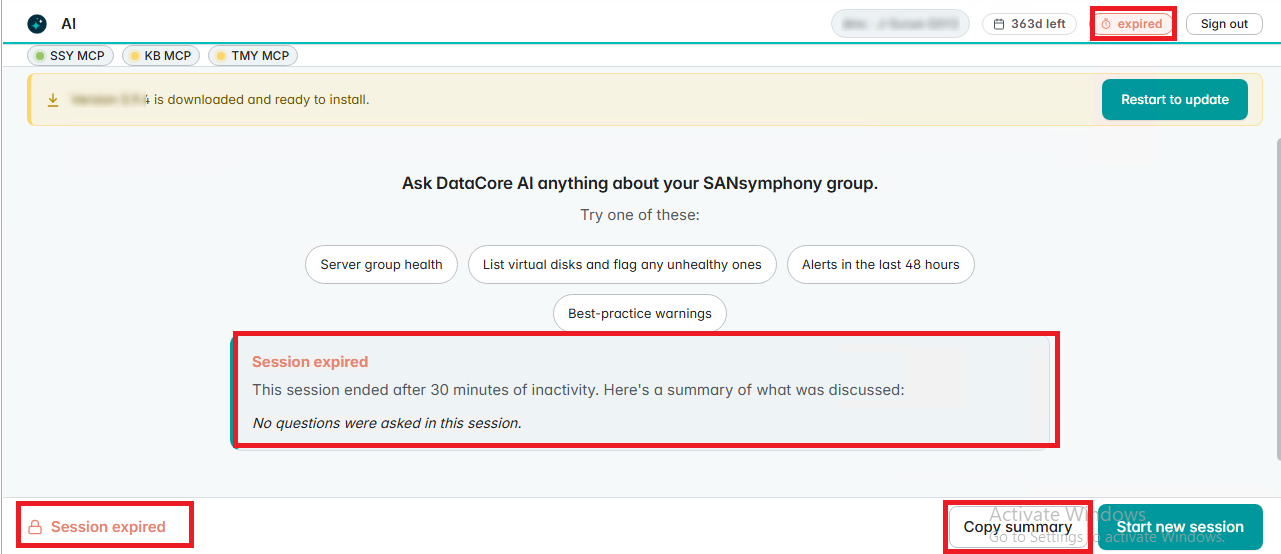
When a session ends, your conversation stays on screen in read-only form, with a summary at the end. Click Copy summary to keep a record, or click Start new session to continue. If the session ended because it reached its maximum length, Open support ticket is also available.
Example Questions
In the examples below, replace the names in angle brackets with names from your server group.
| Area | Example questions |
|---|---|
| Health and state | What is the current health of my server group? List all virtual disks and flag any that are unhealthy. Are any servers not online? |
| Capacity | Which disk pools are running low on free space? Which physical disks are in <pool>, and how full are they? |
| Alerts and logs | Are there any alerts in the last 48 hours? Are there unacknowledged high-priority alerts? What happened around 3 PM yesterday? |
| Replication and mirroring | Are all asynchronous replications healthy? Is the mirror of <virtual disk> healthy? |
| Data path and hosts | Does every virtual disk have a redundant path to its hosts? Are any ports down? Which host is <virtual disk> served to? |
| Continuous Data Protection | How far back can <virtual disk> be rolled back? Is CDP keeping up on the protected virtual disks? |
| Performance | Is telemetry connected? Is there a latency problem on <virtual disk> right now? |
| Best practices and known issues | Show recent best-practice warnings. Are there disk pools with only one physical disk? Is this a known issue fixed in a later release? |
| How-to | How do I back up the configuration before upgrading? How do I shut down all servers in the server group safely? How do I connect a new ESXi host? Which cmdlet serves a virtual disk to a host? |
Answer Behavior
DataCore AI follows these rules when it answers your questions:
- DataCore AI reads live information fresh for each question. It does not reuse information from earlier in the conversation.
- Documentation answers use the documentation for the SANsymphony version that your server group runs.
- DataCore AI shows object names exactly as SANsymphony reports them.
- When DataCore AI cannot confirm a term or abbreviation, it asks you what it means instead of assuming.
- DataCore AI presents a match with a known issue as a lead to confirm with DataCore Technical Support, not as a diagnosis.
Learn More