Installing the DataCore Management Tools
Explore this Page
- Overview
- Prerequisites
- Installing the DataCore Management Tools
- Unattended Installation
- Verifying the Installation
- Uninstalling the DataCore Management Tools
Overview
This document helps you install the DataCore Management Tools. DataCore AI reads your server group through the SANsymphony REST service, which the DataCore Management Tools install.
You must install the DataCore Management Tools with DataCoreManagementTools.exe.
Install the DataCore Management Tools before you install DataCore AI, so that the REST service is available when DataCore AI connects to it. During installation, DataCore AI asks for the IP address or host name of the Windows machine where you installed the DataCore Management Tools.
You can install the DataCore Management Tools on a DataCore Server or on a separate Windows machine. DataCore AI reaches all DataCore Servers in the server group through one REST service.
The DataCore Management Tools installer includes the following components:
| Component | Description |
|---|---|
| REST Support | The SANsymphony REST service that DataCore AI connects to. |
| DataCore Management Console | The DataCore Management Console, including the DataCore AI panel. |
| DataCore Cmdlets for Windows PowerShell (optional) | PowerShell cmdlets for managing a SANsymphony storage configuration. |
| DataCore Intelligence |
Telemetry. DataCore AI uses the Telemetry Service (DataCore Intelligence Service) for performance-related answers through TMY MCP. To enable these answers, ensure that Telemetry Service version 1.9.2 or later is installed on the DataCore Servers in your server group. The DataCore Management Tools installer does not install the Telemetry Service. If the Telemetry Service is already installed on the machine where you run the installer, the installer updates it. If the required version is missing or outdated on a DataCore Server, install or update it separately from the Downloads page. |
Prerequisites
- Run the installer with administrator rights.
- Close the DataCore Management Console and any PowerShell sessions that use DataCore cmdlets. The installer reports any open sessions it detects.
- The DataCore AI panel requires the Microsoft Edge WebView2 Runtime. The DataCore Management Console installation installs it automatically if it is not already present. If the automatic installation fails, the installer displays the following message:
Unable to automatically install the Microsoft WebView 2 runtime. The installation can be ran manually from the <installation folder> location.
In that case, run
MicrosoftEdgeWebView2RuntimeInstallerX64.exefrom the installation folder to install it manually. By default, the installation folder isC:\Program Files\DataCore\Management Console.
Installing the DataCore Management Tools
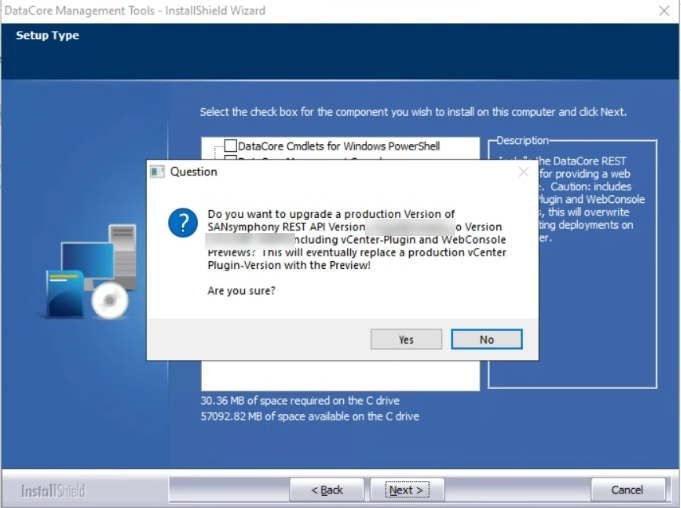
If your DataCore Servers run an older SANsymphony PSP version, DataCore recommends not installing the DataCore Management Tools on a production DataCore Server. The DataCore Management Tools include a preview version of the vCenter Plugin (VCP). If you install them on a server that runs your production VCP, the installer replaces the production VCP with the preview version. To keep your production VCP, install the DataCore Management Tools on a separate Windows system.
To install the DataCore Management Tools:
- Download
DataCoreManagementTools.exefrom the DataCore Downloads page, and copy it to the Windows machine where you want to install the DataCore Management Tools. - Right-click the file and select Run as administrator.
- Read the DataCore End User License Agreement and accept it to continue.
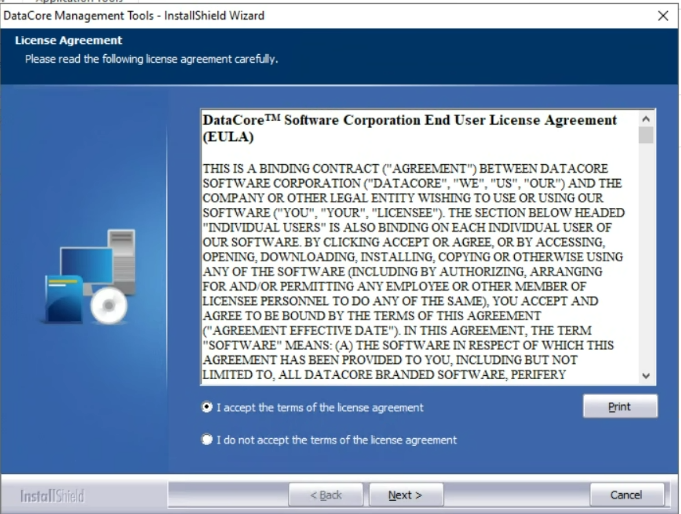
- Click Next.
- Select REST Support, DataCore Management Console, and DataCore Cmdlets for Windows PowerShell (optional). The installer does not install the Telemetry Service. If the Telemetry Service is already installed on this machine, the installer updates it. For performance answers (TMY MCP), DataCore AI needs the Telemetry Service on all DataCore Servers.
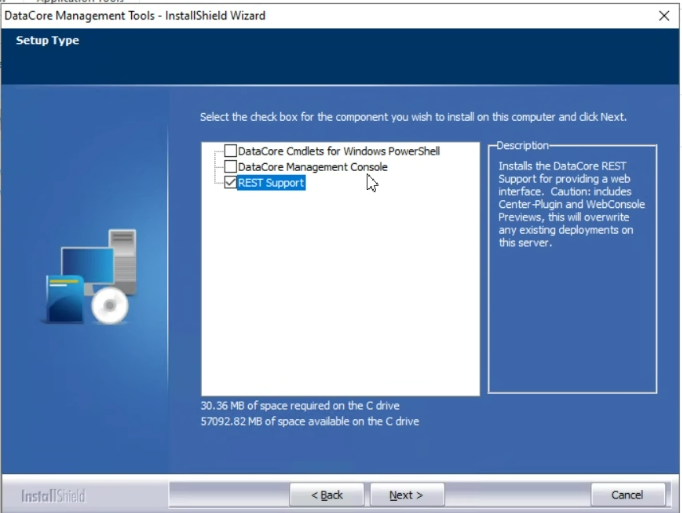
- Click Next.
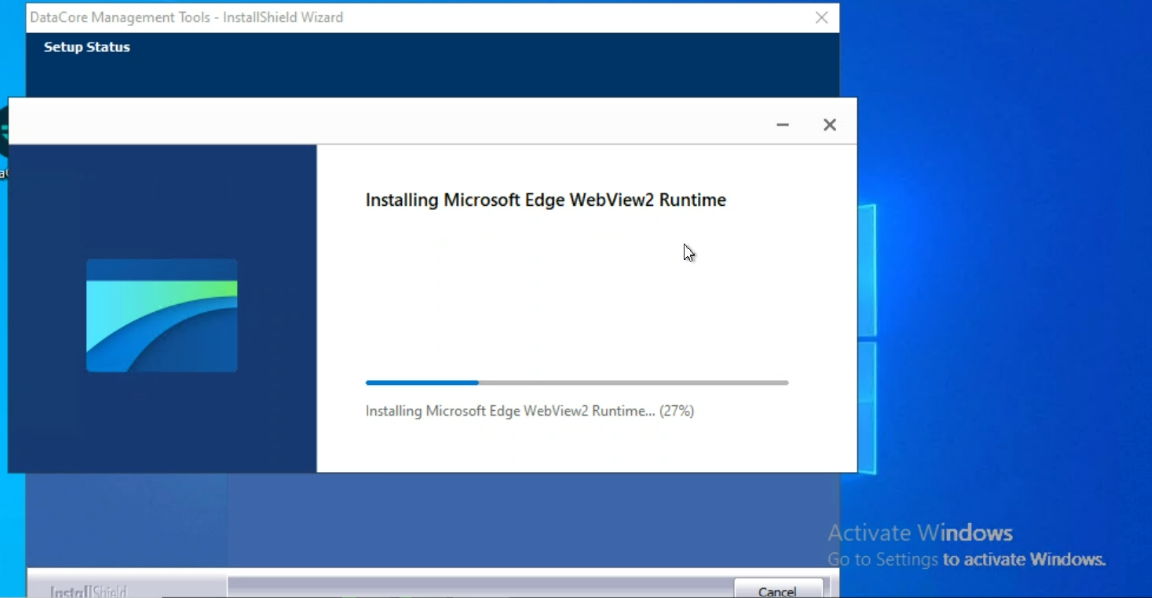
- If the installer asks whether to upgrade a production version of the SANsymphony REST API, read the message carefully. Click Yes only if you want to replace the installed REST API, vCenter Plugin, and WebConsole with the versions in the DataCore Management Tools.
- The wizard verifies the system requirements and enables IIS if required. If a requirement is missing, correct it and run the installer again.
- Click Install.
- When the wizard displays InstallShield Wizard Complete, click Finish.
- Note an IP address or host name of this machine that the DataCore AI host can reach. You need it when you install DataCore AI.
Unattended Installation
You can install the DataCore Management Tools without the wizard and without any prompts. You must list each feature that you want to install. There is no option to install all features at once. The installer does not prompt you to restart.
An unattended installation does not ask before it upgrades the SANsymphony REST API. If you run the command on a server that runs your production vCenter Plugin (VCP), the installer replaces the production VCP with the preview version without prompting. To keep your production VCP, run the command on a separate Windows system.
To install REST Support and the DataCore Management Console, run:
To also install the DataCore Cmdlets for Windows PowerShell, run:
The commands use the following options. Separate them with commas, as shown in the examples. The options are not case sensitive.
| Option | Description |
|---|---|
/scripted
|
Run without displaying the wizard. |
console
|
Install the DataCore Management Console. |
rest
|
Install REST Support. |
powershell
|
Install the DataCore Cmdlets for Windows PowerShell. |
Verifying the Installation
To verify the installation:
- Check that DataCore Management Tools is listed in Programs and Features.
- Check that the DataCore Management Console can connect to a DataCore Server in your server group.
Uninstalling the DataCore Management Tools
To uninstall the DataCore Management Tools, use one of these methods:
- In Programs and Features, select DataCore Management Tools, click Uninstall, and confirm the removal.
- Run
DataCoreManagementTools.exeagain as administrator. On the maintenance page, select Remove, click Next, and confirm the removal.
On a DataCore Server, uninstalling the DataCore Management Tools also removes the DataCore Management Console, REST Support, the PowerShell cmdlets, and the telemetry that SANsymphony provides. To restore them, use one of these methods:
- Repair SANsymphony: In Programs and Features, select DataCore SANsymphony, click Modify, and then select Repair. This stops virtualization and requires a restart of the DataCore Server, because the repair reinstalls all SANsymphony drivers.
- Run the files directly: Run
DataCoreManagementConsole.exe,DataCorePowershellSupport.exe, andDataCoreRESTSupport.exefromC:\Program Files\DataCore\SANsymphony\. This does not require a restart.
To restore telemetry, download DataCoreIntelligence.msi from the Downloads page and install it.
Learn More