DataCore AI License Activation
Explore this Page
- Overview
- Generating a Base Tier License Key
- Activating the License
- Viewing the License
- Removing or Moving a License
- License Check-ins and the Grace Period
Overview
This document helps you activate and manage the license for DataCore AI. It describes how to generate a license key, activate, view, remove, or move a license, and what happens when the license check-in fails.
Each DataCore AI installation requires an active license before you can sign in to DataCore AI. To activate the license, you need the license key that DataCore provides. You must activate the license once for each installation, and the installation uses one seat of that license. A seat is one installation that the license allows. After activation, the installation checks in with the DataCore license service regularly.
You can activate the license in any of the following ways:
- During installation: In the installation wizard, enter the key in License key under Advanced. For an unattended installation, use the
--license-key-fileparameter. For details, refer to Installing DataCore AI. - From a web browser: Enter the key in Settings on the sign-in page. For the steps, refer to Activating the License from a Web Browser.
- From the DataCore Management Console: Enter the key in Settings in the DataCore AI panel. For the steps, refer to Activating the License from the DataCore Management Console.
- From the command line: Run
sudo dcai activate-licenseon the DataCore AI host. For the steps, refer to Activating the License from the Command Line.
Activation requires outbound HTTPS access from the DataCore AI host to api.dis.io.
Generating a Base Tier License Key
If you have an active SANsymphony license, you can generate a DataCore AI Base tier license key in the DataCore License Portal. The key is linked to your DataCore account.
If your account has no active SANsymphony license, the portal displays a message and does not generate a key. If the message is wrong, contact DataCore Technical Support.
If you do not have an active SANsymphony license, contact the DataCore orders team at orders@datacore.com. The orders team can provide a DataCore AI license, or an evaluation or not-for-resale (NFR) SANsymphony license first.
To generate a Base tier license key:
- Sign in to the DataCore License Portal.
- Click License Requests, and then click the AI Agent tab.
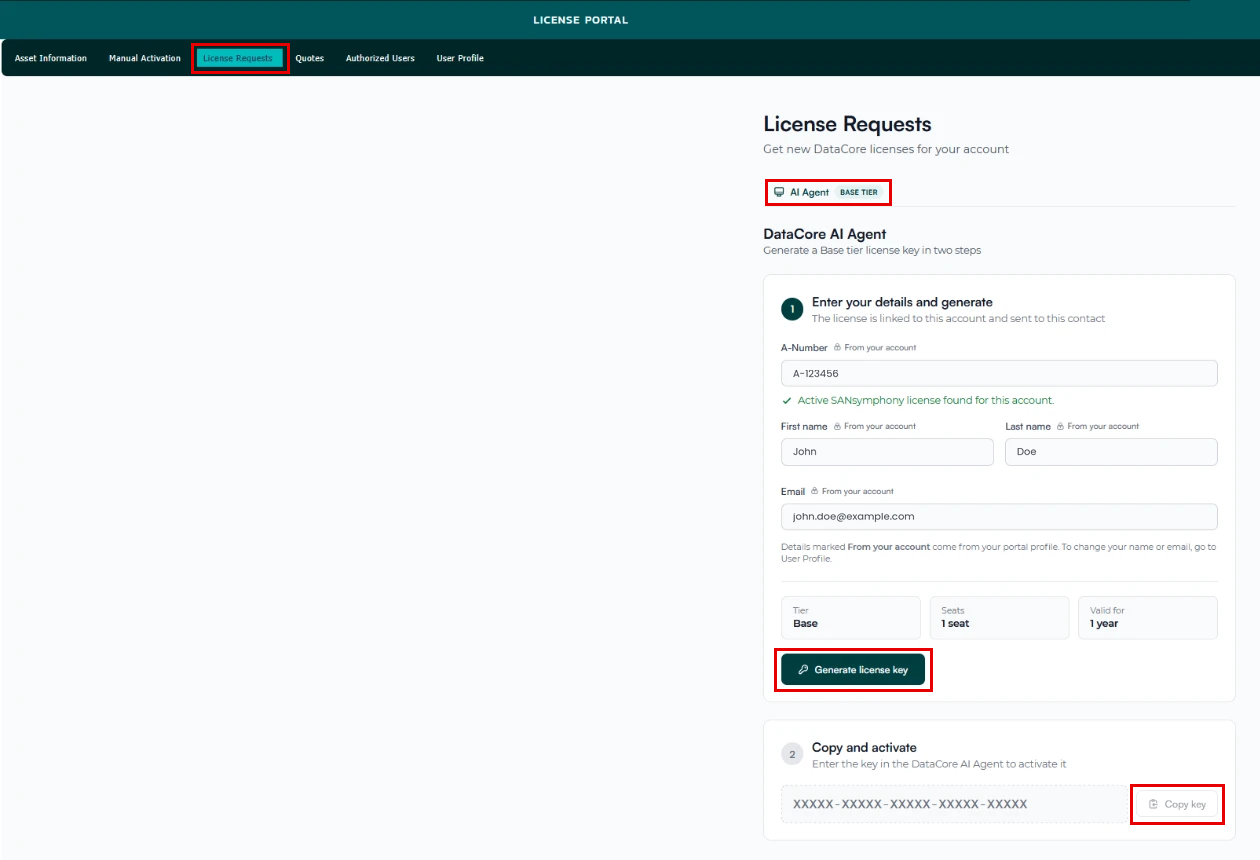
- In step 1, Enter your details and generate, enter or confirm the following:
- A-Number: Your DataCore account number, in the format
A-followed by 6 digits, for exampleA-012345. - First name, Last name, and Email: The name and email address of the contact who receives the key. If a field is already in your portal profile, it shows From your account.
- A-Number: Your DataCore account number, in the format
- Check the terms on the page: Tier: Base, the number of seats, and how long the key is valid.
- Click Generate license key. The portal checks that your account has an active SANsymphony license.
- In step 2, Copy and activate, click Copy key. The portal also sends the key by email to the contact that you entered in step 1. The subject of the email is Your DataCore AI Agent license key.
- Activate the key in DataCore AI, as described below.
Activating the License
If you did not activate the license during installation, you can activate it at any time by using one of the following methods:
- Activating the License from a Web Browser
- Activating the License from the DataCore Management Console
- Activating the License from the Command Line
If you do not have a license key yet, refer to Generating a Base Tier License Key.
Activating the License from a Web Browser
To activate the license from a web browser:
- Open DataCore AI in a web browser, as described in Accessing DataCore AI from a Web Browser. While the installation is unlicensed, the sign-in page displays a banner and sign-in is disabled.
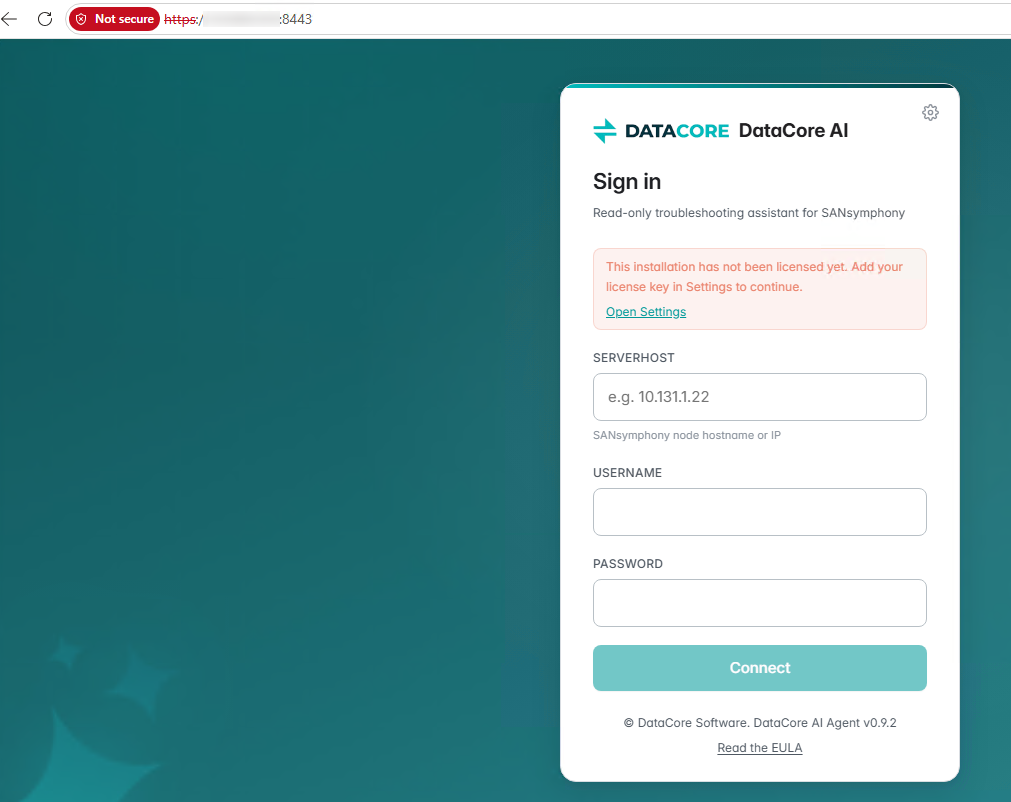
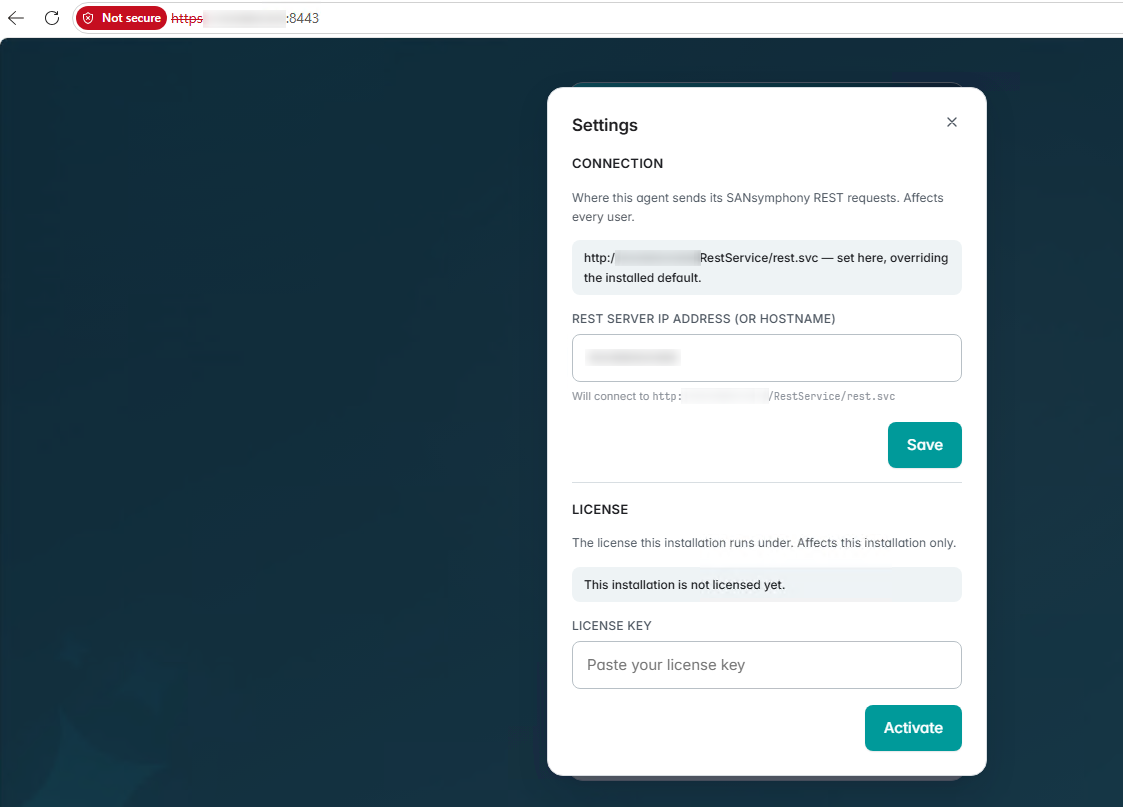
- Click Open Settings in the banner or click the Settings (gear) icon on the sign-in page.
- In the License section, paste the license key in License key, and then click Activate.
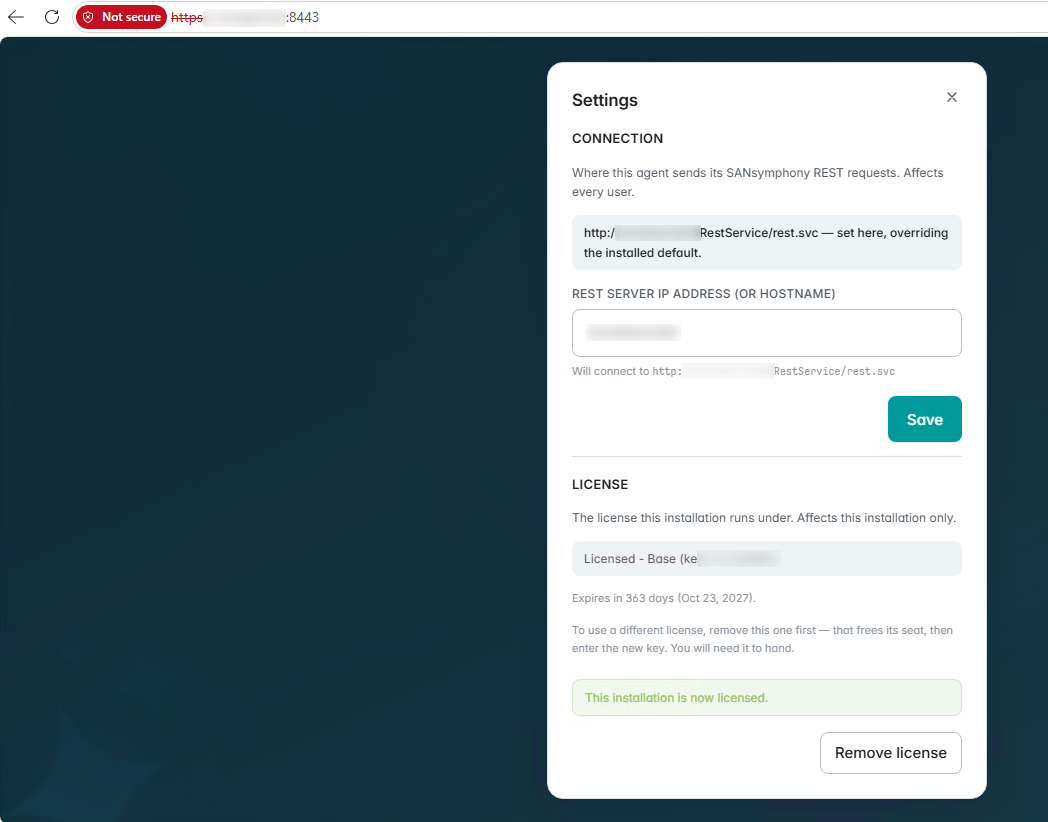
- The message This installation is now licensed. appears in the License section. Close Settings.
- On the sign-in page, enter ServerHost, Username, and Password, and then click Connect. The DataCore AI window opens.
Activating the License from the DataCore Management Console
To activate the license from the DataCore Management Console:
- Open the DataCore Management Console.
- On the ribbon, click DataCore AI. If this is the first time that you open the panel, enter the IP address and port of the DataCore AI host first. For the steps, refer to Accessing DataCore AI from the DataCore Management Console.
- If DataCore AI is not licensed, the sign-in page shows a warning, and you cannot sign in until you activate the license. To activate the license, click Open Settings below the warning, or click the Settings (gear) icon.
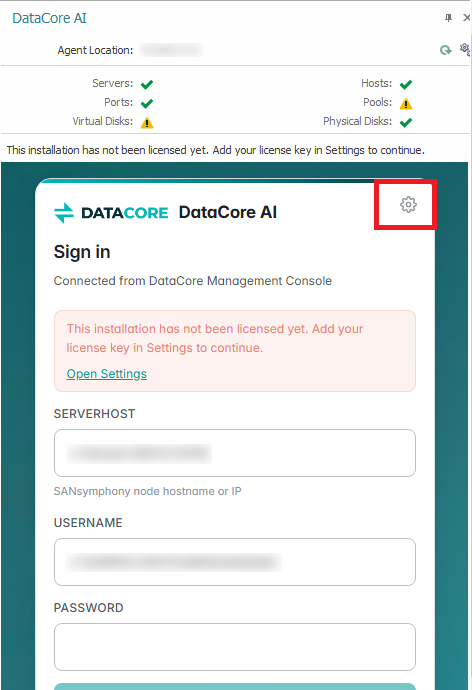
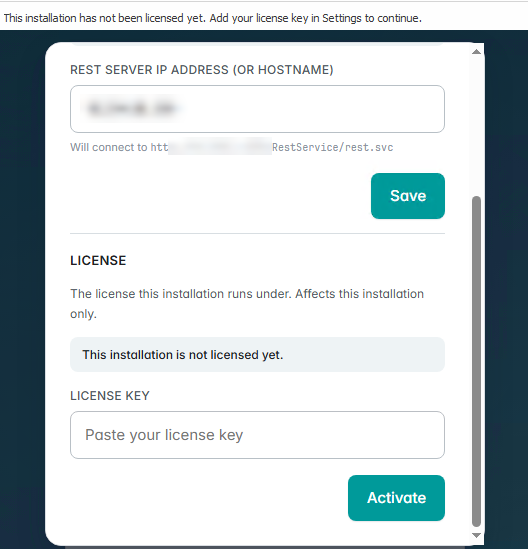
- In the License section, paste your license key in License key, and then click Activate. If you do not have a license key, refer to Generating a Base Tier License Key.
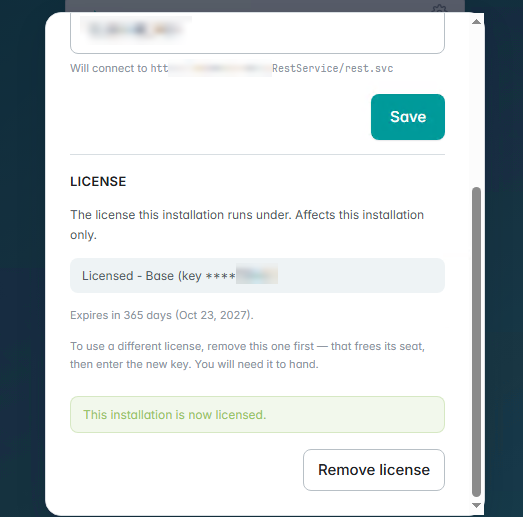
- The License section shows This installation is now licensed., together with the license type and expiration date. To use a different license, first click Remove license, and then enter the new license key.
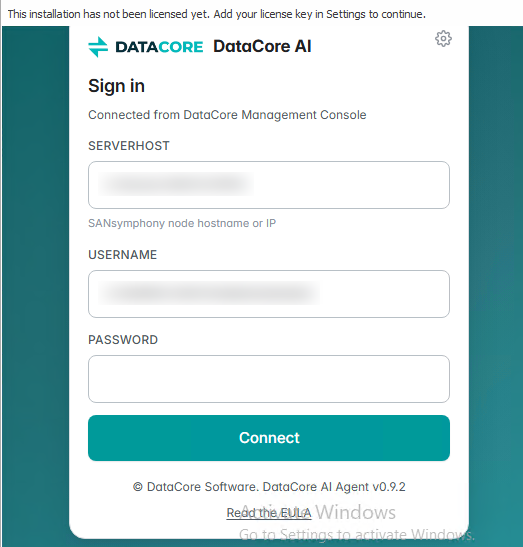
- Click Done. The sign-in page opens, with ServerHost and Username already filled in. Enter your SANsymphony password, and then click Connect.
Activating the License from the Command Line
To activate the license from the command line:
- Sign in to the DataCore AI host with an account that has root access (
sudo). - Run the following command:
- At the License key prompt, enter your license key. The key is not displayed as you type.
When activation succeeds, the command displays the following:
The tier name comes from the DataCore licensing service. If the service does not return a tier name, the second line is
License activated. - To activate the license from a script, specify a file that contains the license key:
The command exits with code 0 when activation succeeds.
Viewing the License
- In Settings (the gear icon on the sign-in page), the License section displays the license tier, the masked key, its status, and its expiration date.
- After you sign in to DataCore AI, the top bar displays the number of days remaining on the license. The indicator turns amber when 30 days or fewer remain. For the warnings that appear when check-ins fail, refer to License Check-ins and the Grace Period.
Removing or Moving a License
When you remove a license, its seat is released, so you can activate the license on another installation. Uninstalling DataCore AI also releases the seat, if DataCore AI is running.
Keep a copy of the license key before you remove it. Removing the license deletes the only copy stored on the installation, and you need the key to activate again. If DataCore AI cannot reach the license service, it does not remove the license and the installation stays unchanged.
To remove a license:
- In Settings > License, click Remove license.
- Read the warning, and then click Confirm removal.
- To use a different license on this installation, enter the new key and click Activate.
License Check-ins and the Grace Period
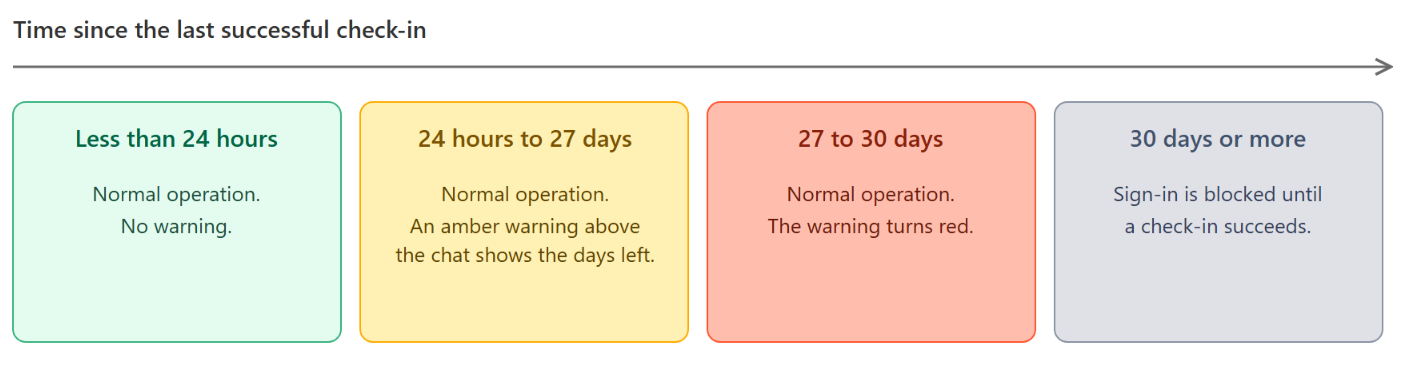
DataCore AI checks in with the DataCore license service regularly. If check-ins fail, for example because a firewall blocks api.dis.io, DataCore AI keeps working for 30 days from the last successful check-in.
Time since the last successful check-in
Recovering from a Failed Check-in
To recover:
- Restore access from the DataCore AI host to
api.dis.io. - Click Retry in Settings > License (the gear icon on the sign-in page).
The first successful check-in removes the warning and the block immediately. You do not need to restart DataCore AI or activate the license again. Restarting DataCore AI does not reset the grace period.
The grace period applies only when check-ins fail.
- If the license service reports that the license has expired or been revoked, or that the installation has been blocked or deactivated, sign-in is blocked from the check-in that reports it.
- If the license key is missing from the installation, DataCore AI reports it immediately, together with the date on which sign-in will be blocked: This installation's license key is missing. Enter your license key in Settings.
- If the license service no longer accepts the stored key, the message is: This installation's license key is no longer valid. Enter a new license key in Settings.
Learn More