Partner Access in DataCore Insight Services
Explore this Page
Overview
The DataCore Insight Services platform allows you to add users as partners and grant them access to your insights. Partner users can then view your metrics and insights through a dedicated Partner dashboard. See Partner Dashboard for more details.
From the Partner Dashboard, partners can access aggregated statistics, insights, licensed capacity, and other relevant information. This helps partners effectively manage your accounts and monitor key data.
Granting Access to a Partner
You can give partners access to your insights by adding them through the Partners tab. Partners can be added as individual users or via existing partner organizations. Once granted, they can view your metrics on the Partner Dashboard. Access is automatically revoked if the partner or their organization is removed.
Before granting access to a partner, refer to the important considerations.
- You must be self-registered with your DataCore account.
- The user you are adding as a partner must not belong to your organization.
- The email address must be associated with an active DataCore partner account to receive partner access.
- The partner account must belong to an organization classified as a "channel partner."
- If the email address is not linked to an active DataCore partner account with the required access rights, an error message will appear.
To grant access to your insights to a partner:
- Sign in to your DataCore Insight Services account.
- Click the User Profile icon at the top right and select Settings.
- Click the Partners tab. The table under the Partners tab displays the list of active partner organizations that you have granted access to your insights. Use the search bar to find a specific partner organization from the list.
- Click Add. The Add a Partner sidebar will be displayed.
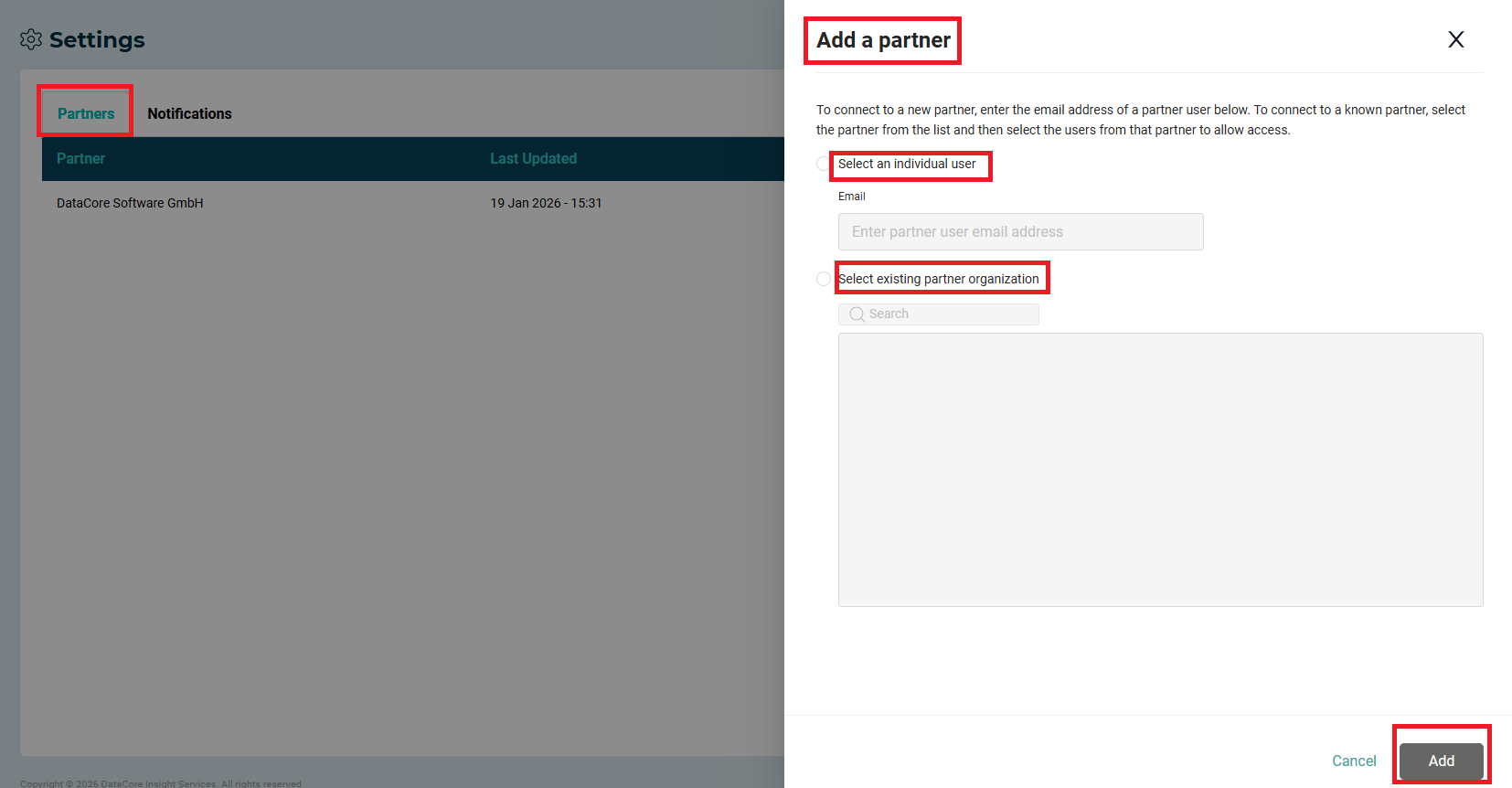
- In the Add a Partner sidebar, select one of the following options:
- Select an individual user: Enter the partner's email address and click Add to connect a new partner.
- Select existing partner organization: Search or select an existing partner organization and click Next. A list of users registered with the organization appears. Select one or more users and click Add.
- Once the partner is added:
- A confirmation message appears, and the partners table is updated with the newly added partner organization under the Partners column.
- The Added Users column displays the total number of users granted partner access from the selected organization. If the organization was already added, only the Added Users column is updated.
- The partner receives an email confirmation granting access to the Partner dashboard.
- You can also edit or remove partner access. See Managing Partner Access .
- If a partner organization is removed from the DataCore partner list, or if a user is no longer part of the organization, all associated users will lose partner access. They will no longer see your insights or receive notifications about your data.
- Users will still retain access to their individual dashboards, insights, and any personal data.
Managing Partner Access
You can manage partner access from the Partners tab by editing or removing partner users as needed. This allows you to control which users can access your insights and ensure that partner access stays up to date.
Editing Partner Access
Follow these steps to edit partner access:
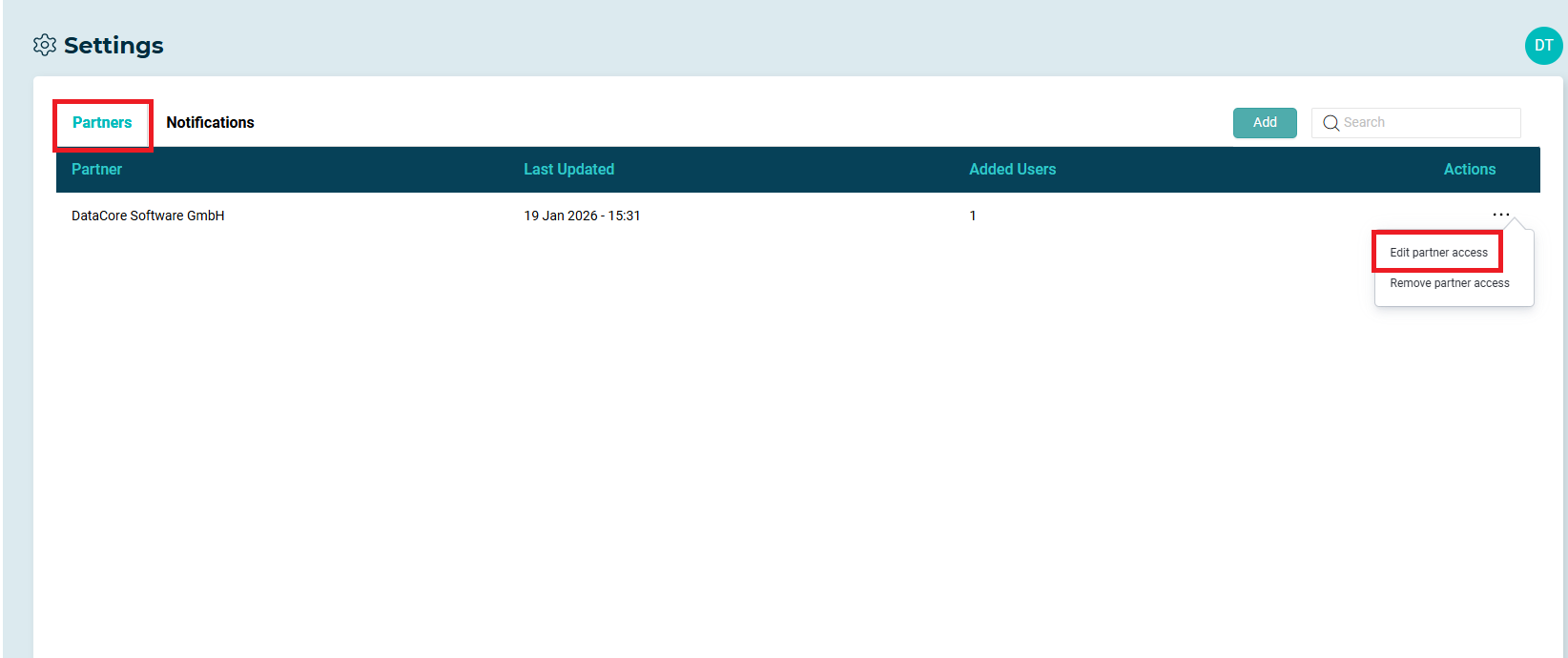
- Navigate to the Partners tab and locate the partner you want to update. Use the search bar if needed.
- Click the horizontal ellipses (Actions) on the partner’s row and select Edit Partner Access.
- In the Edit Partner Access sidebar, select the checkboxes next to the users from the displayed list of users.
- Click Save. A confirmation message appears.
Removing Partner Access
Follow these steps to remove partner access:
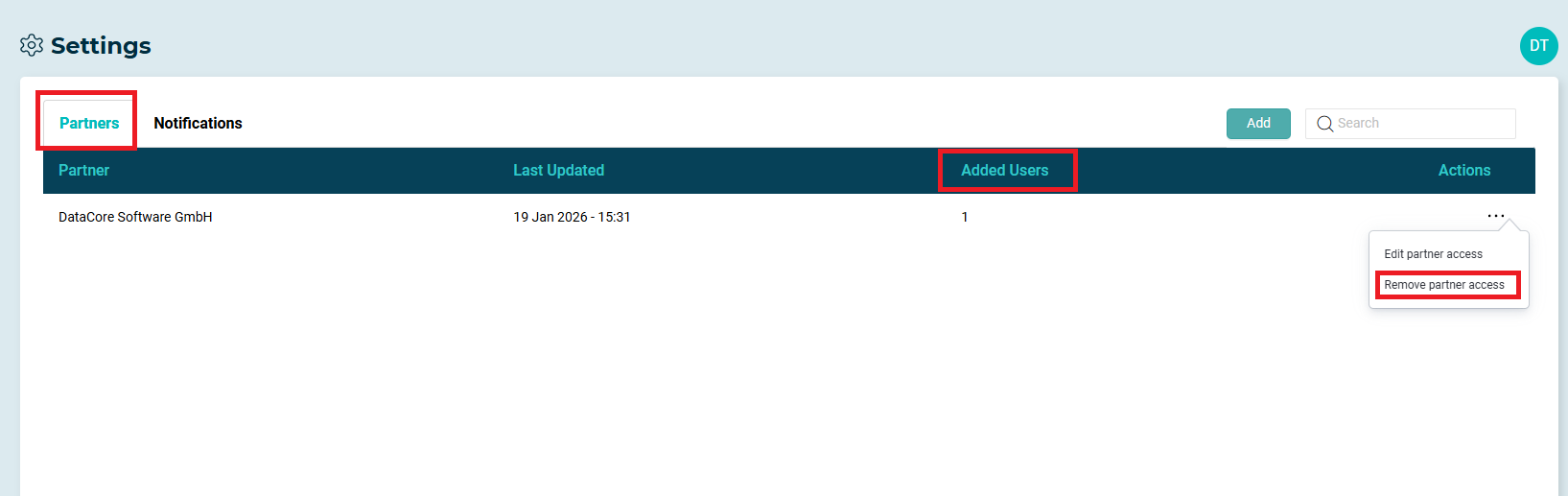
- Navigate to the Partners tab and locate the partner whose access you want to remove. Use the search bar if needed.
- Click the horizontal ellipses (Actions) on the partner’s row and select Remove partner access.
- In the confirmation pop-up, click Yes, remove access.
- A confirmation message appears, and the partner is removed from the Partner column.
- The partner receives an email confirming that partner access has been removed.
Learn More