Viewing Insights
Explore this Page
- Overview
- Viewing Insights
- Aggregated Statistics
- Viewing All Insights
- Insight Notification Preferences
Overview
The Insights page in DataCore Insight Services provides a centralized view of health and optimization insights for SANsymphony server groups. You can select a server group to review aggregated insight statistics and access detailed insights to understand issues, their impact, and recommended resolutions.
Viewing Insights
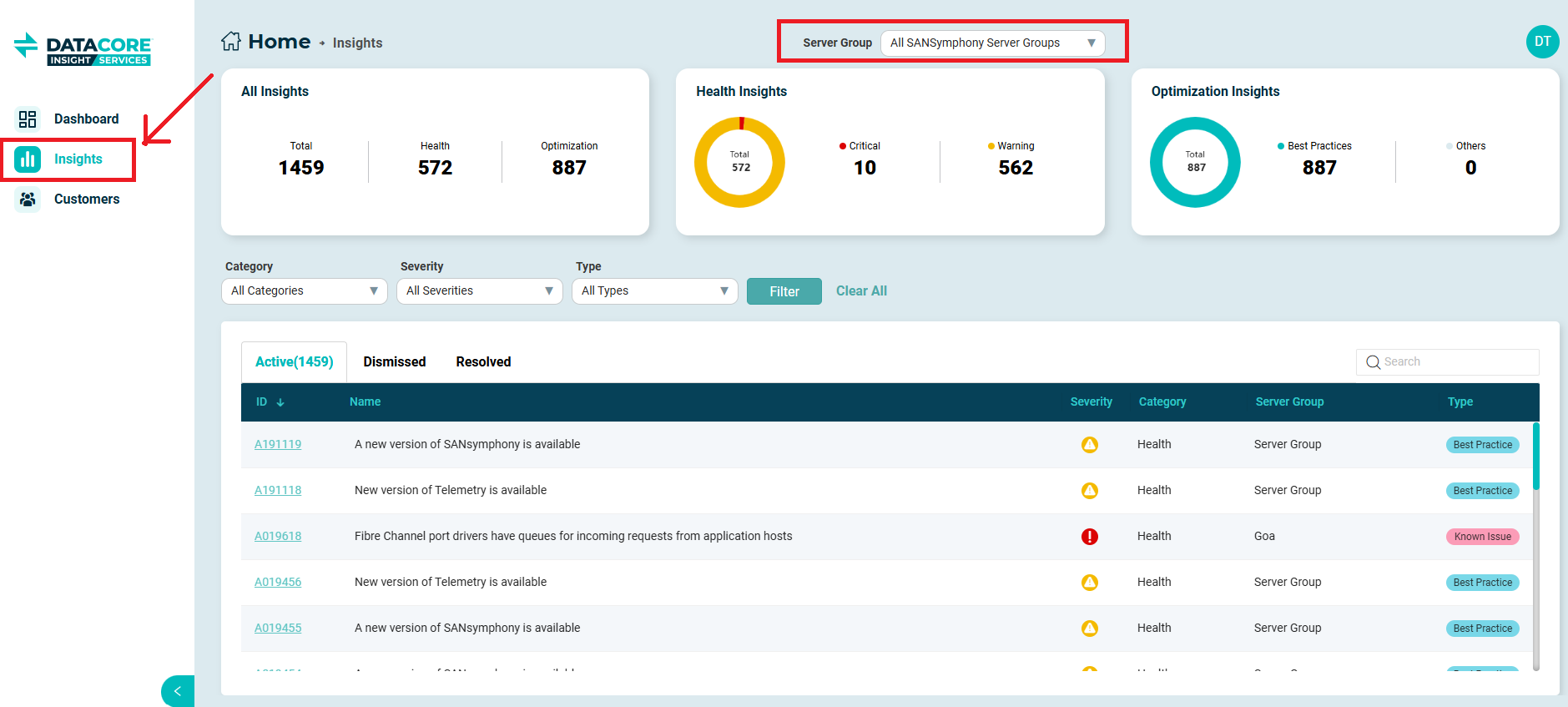
From the Insights page, you can select a server group from the Server Group drop-down to view insights specific to that server group.
The page displays aggregated insight statistics, filtering options, and a list of insights categorized as Active, Dismissed, or Resolved. Selecting an insight ID opens the Insight details pane, where you can view additional information and recommended actions.
Aggregated Statistics

The aggregated insight statistics are displayed as cards at the top of the page:
- All Insights: Displays the total number of active health and optimization insights for the selected server group.
- Health Insights: Displays the total number of active health insights, categorized by severity (Critical and Warning).
- Optimization Insights: Displays the total number of active optimization insights, categorized by type (Best Practices and Others).
Viewing All Insights
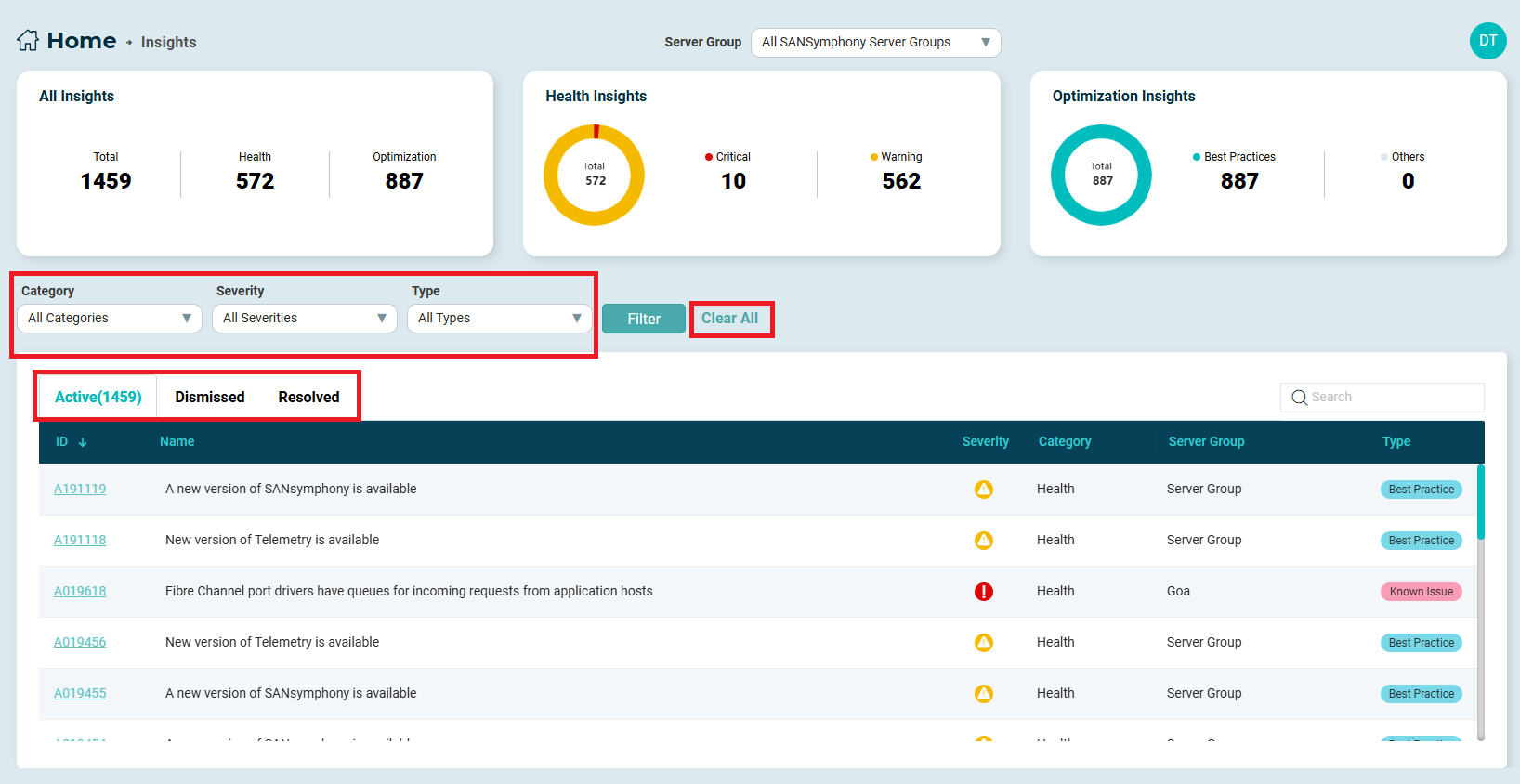
To view all insights, select All Categories, All Severities, and All Types. The insights list is displayed with Active, Dismissed, and Resolved insights.
You can refine the Insights list by applying filters based on Category, Severity, and Type. To apply a filter, select the required options from the drop-down lists and click Filter. To remove the applied filters, click Clear All. You can also use the Search field to search for an insight by product name or insight description.
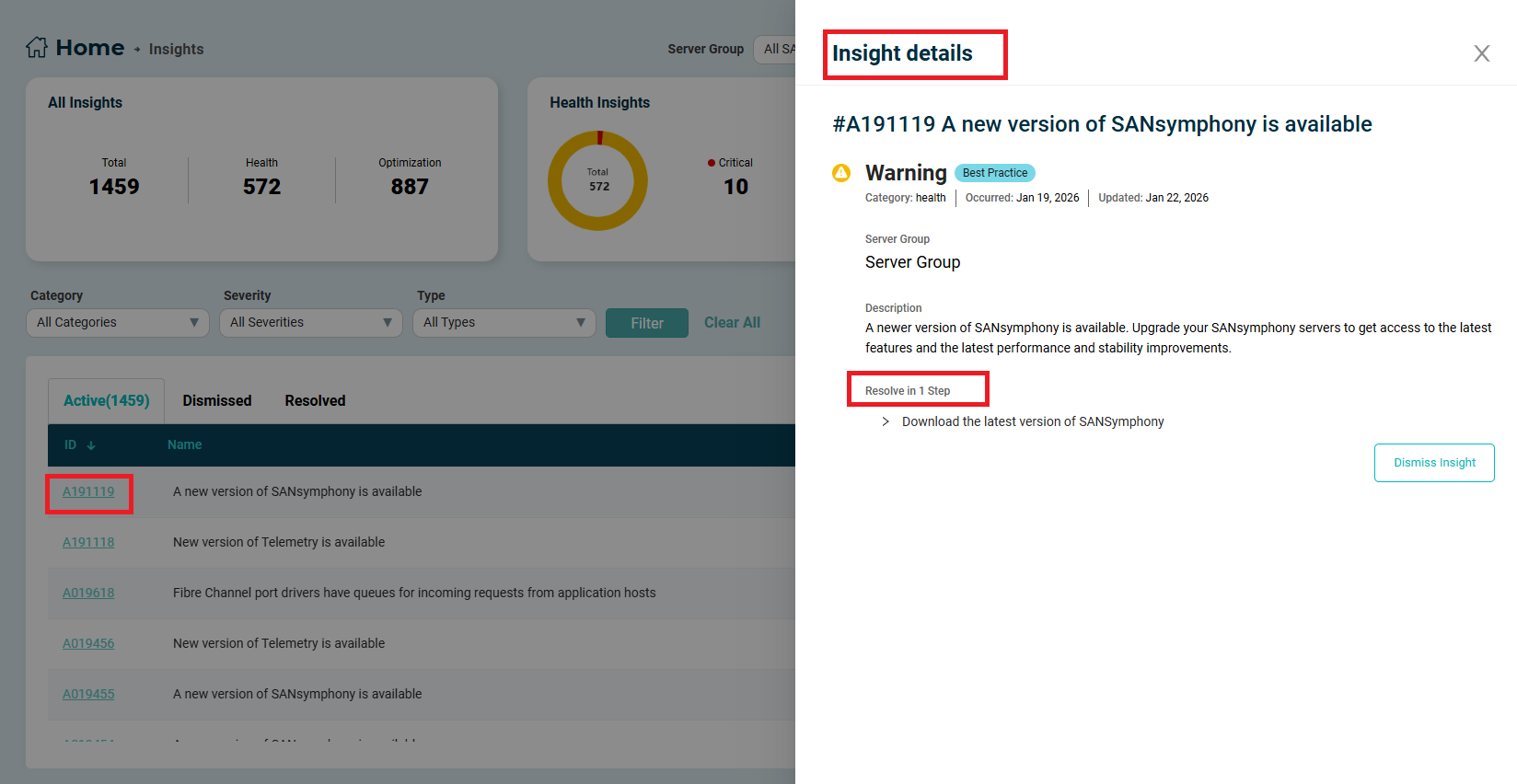
You can select the Active, Dismissed, or Resolved tab to view insights by state and hover over the severity icon to view its severity level. Clicking an insight ID opens the Insight details pane, which displays the cause, resolution, and time of occurrence for the selected insight.
Insight Notification Preferences
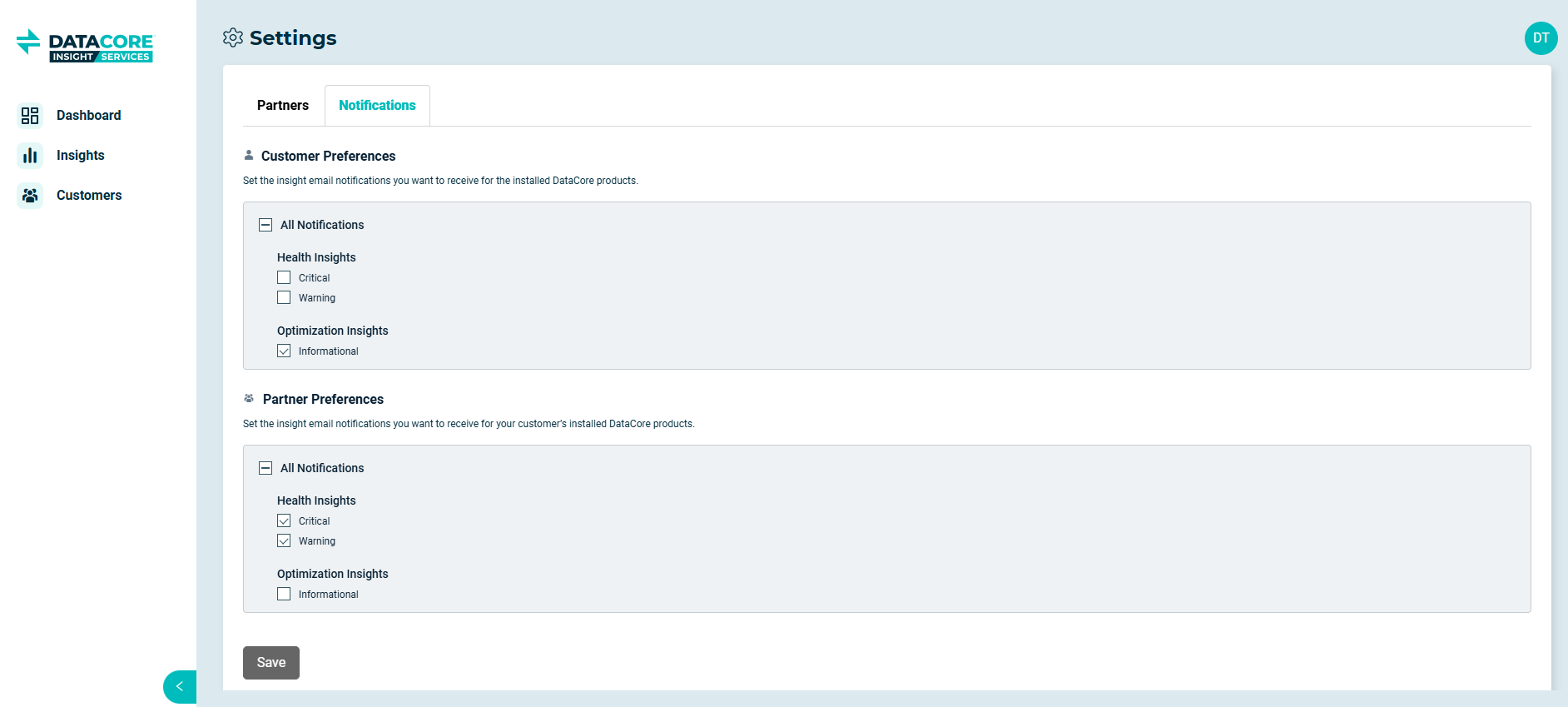
You can configure notification preferences for your installed DataCore products from the Notifications tab. Notifications can be customized based on insight category and severity level. Once enabled, applicable insight notifications are sent to your registered email address.
The Notifications page allows you to configure preferences separately for:
- Customer Preferences – notifications for your own installed DataCore products.
- Partner Preferences – notifications for your customers’ installed DataCore products.
The Partner Preferences section is displayed only if you belong to a channel partner organization and have access to the Partner Dashboard. When available, this section allows you to view and configure notification preferences for customer environments you are authorized to access.
To configure notification preferences, follow the steps below:
- Sign in to your DataCore Insight Services account.
- Click the User Profile icon at the top right and select Settings.
- Click the Notifications tab.
- Under Customer Preferences or Partner Preferences, expand All Notifications.
- Select the checkboxes for the insight categories and severity levels for which you want to receive email notifications (for example, Health Insights or Optimization Insights).
- Click Save. A confirmation message appears, indicating that your notification preferences have been updated.
Learn More