Getting Started with DataCore Insight Services
Explore this Page
- Overview
- Prerequisites
- Creating an Account
- Signing in to DataCore Insight Services
- License and Asset Information
Overview
This section describes the prerequisites for accessing DataCore Insight Services and explains how to create an account, sign in, and view license and asset information.
Prerequisites
- Your organization must have an active DataCore SANsymphony license. If the required license is missing, charts are not displayed and only static product information is shown.
- You must be registered on the DataCore Technical Support Portal and mapped to the correct organization.
- You must register for a DataCore Insight Services account using the same email address that is registered with the DataCore Technical Support Portal.
- To use the DataCore Insight Services platform with DataCore SANsymphony, outbound HTTPS (TCP port 443) connectivity from SANsymphony servers is required. For the complete list of required remote ports and URLs, refer to the Windows Security Settings Disclosure section in the SANsymphony documentation.
If you do not have a DataCore Insight Services account, you cannot sign in to the platform.
Creating an Account
Follow the steps below to create a DataCore Insight Service account. You must use an email address that is registered with the DataCore Technical Support Portal.
- Open a supported web browser.
- Go to the DataCore Insight Services URL (for example, https://dis.io/).
- Click Sign Up.
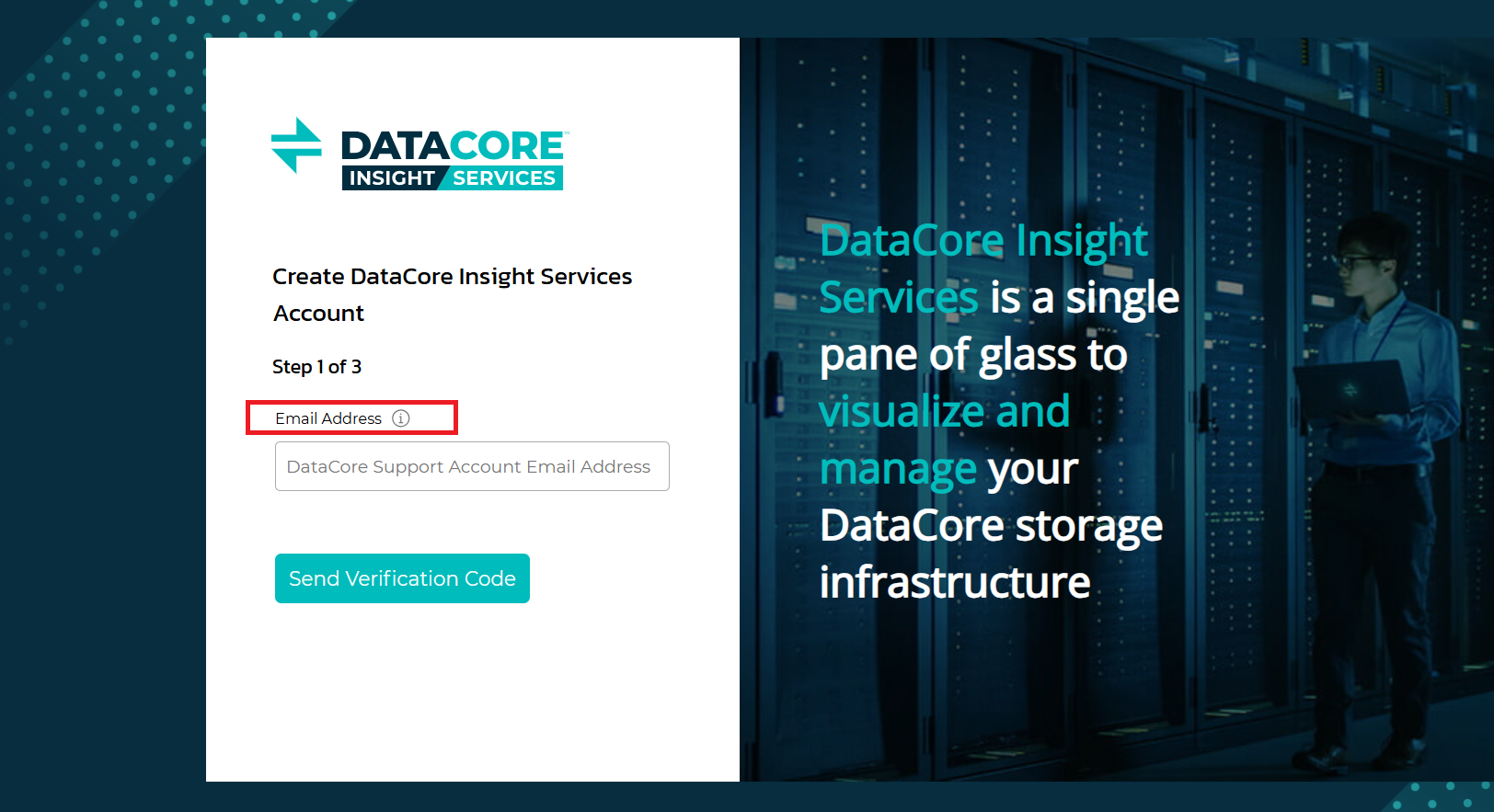
- In the Email Address field, enter the email address that is registered with DataCore Technical Support.
If you are not registered, select the information (i) icon next to the Email Address field and click Create one to register.
- Click Send Verification Code.
- Enter the verification code sent to your email address, and then click Verify.
- In New Password, enter a password, and then confirm it in Confirm New Password.
The password must be at least eight characters long and include at least three of the following: digits, uppercase letters, lowercase letters, or special characters. Allowed special characters are: `@ # $ % ^ & * ( ) - _ + = [ ] { } | / ? \ ' , " ; ~ ``.
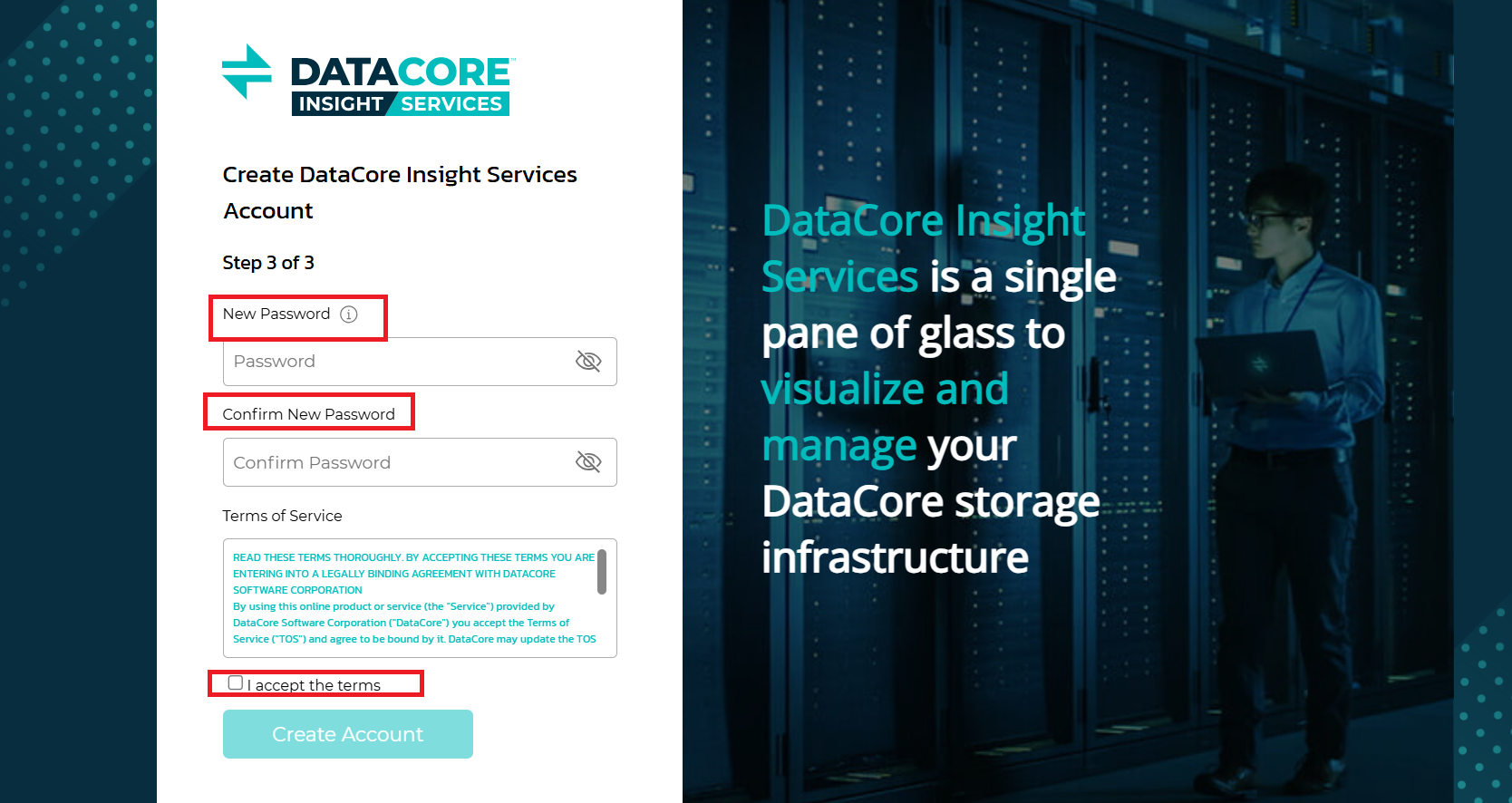
- Select I accept the terms to accept the Terms of Service.
- Click Create Account.
Signing in to DataCore Insight Services
Follow the steps below to sign in to DataCore Insight Services after you have created an account.
To sign in:
- Go to the DataCore Insight Services sign-in page.
- Enter your DataCore Insight Services email address and password.
- Click Sign In.
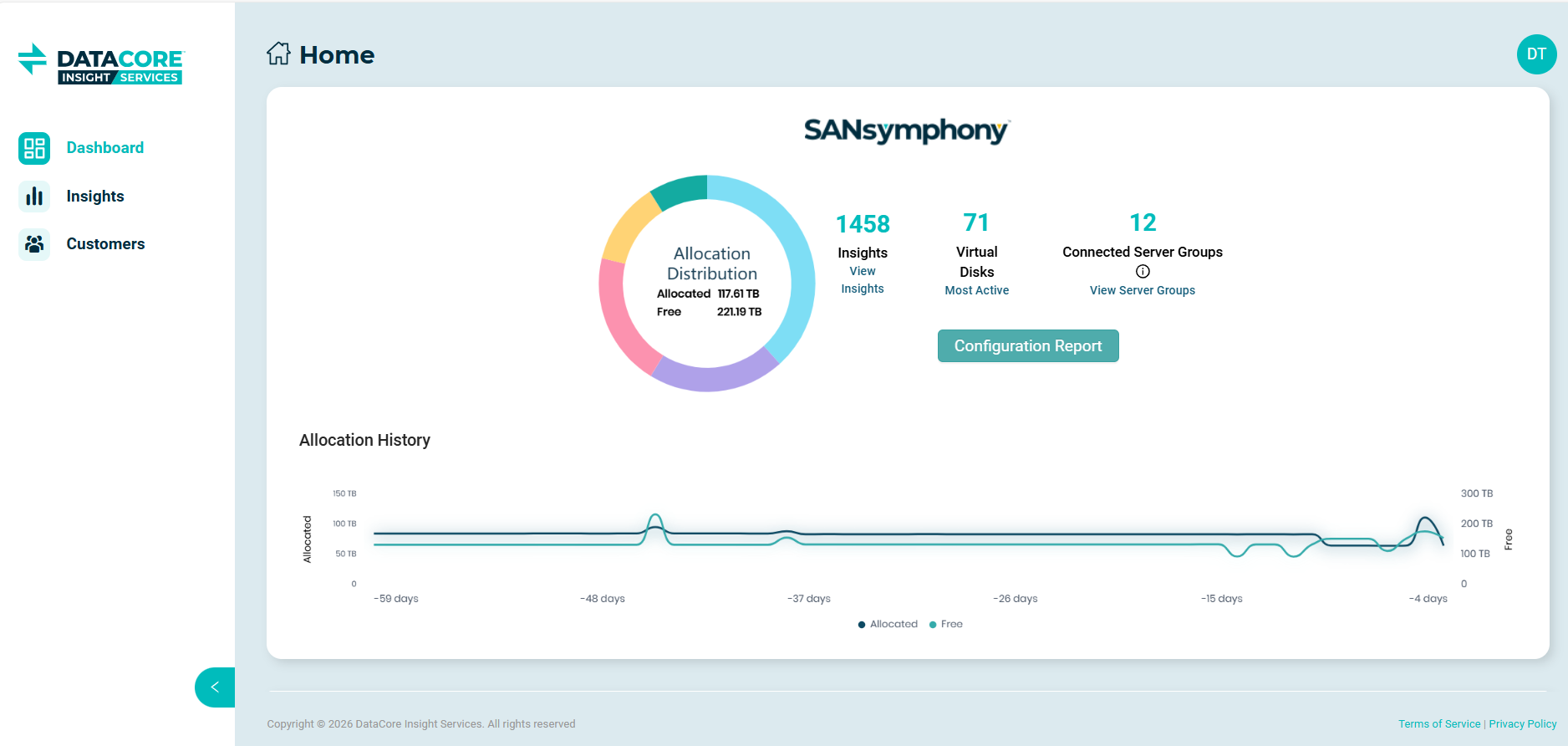
- After you sign in successfully, the dashboard is displayed.
If you forget your password, click Forgotten Password? to reset it. After resetting your password, you are redirected to the sign-in page.
License and Asset Information
The License and Asset Information page provides an overview of licensed capacity, usage, and upcoming license expirations across your DataCore Insight Services environment. This page helps you monitor license utilization and capacity trends at both the organization and server group levels.
Accessing License and Asset Information
To access license and asset information:
- Click the User Profile icon in the upper-right corner of the dashboard.
- Select Licenses/Assets. The Assets Information view is displayed with the following details:
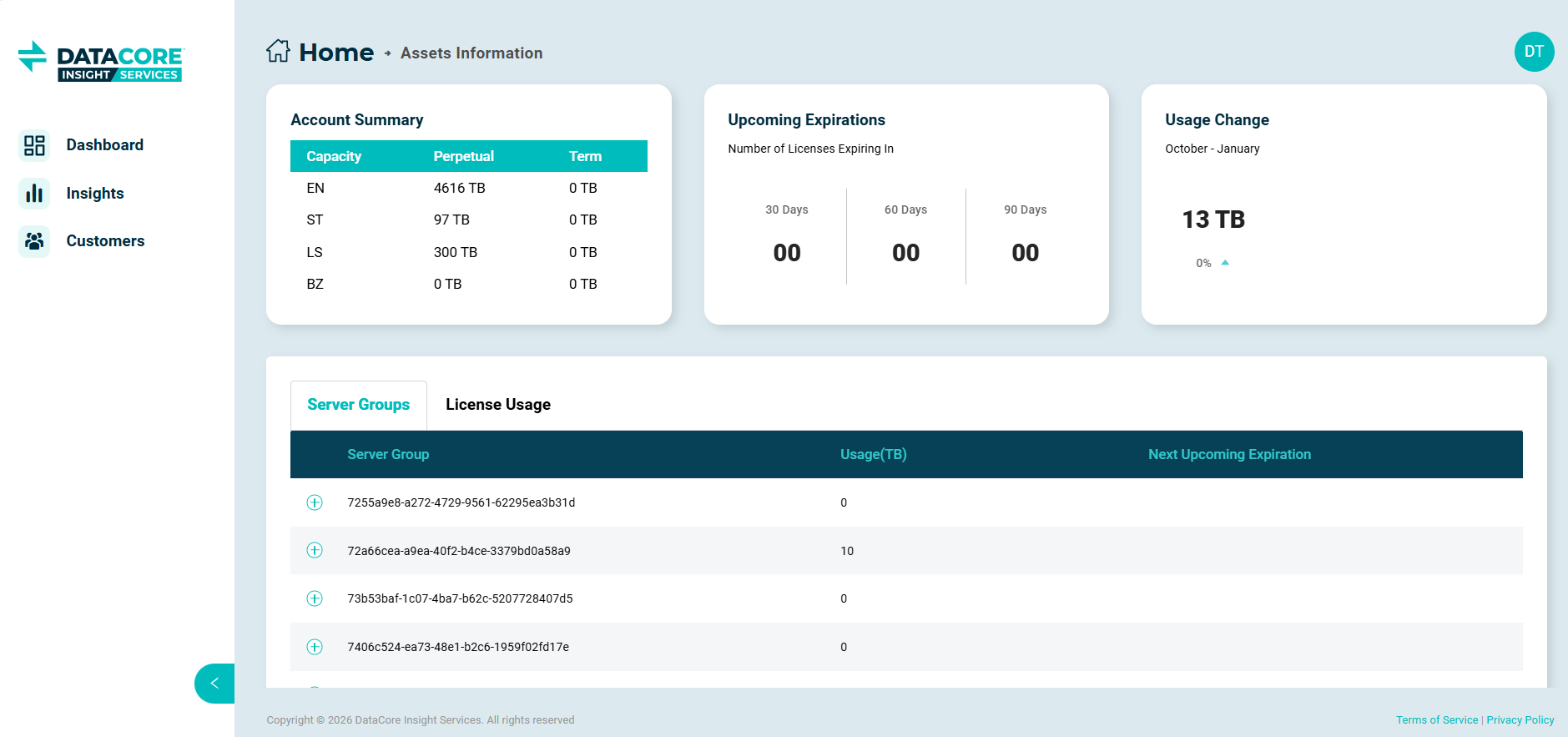
- Account Summary: Displays the total licensed capacity for the organization, grouped by license type (for example, perpetual and term licenses).
- Upcoming Expirations: Shows the number of licenses that are set to expire within the next 30, 60, and 90 days.
- Usage Change: Indicates changes in licensed capacity over a selected time period.
- Server Groups: Provides a detailed view of licensed capacity usage and upcoming expirations for each connected SANsymphony server group.
- License Usage: Shows a detailed breakdown for each license, including total capacity, used capacity, remaining capacity, license expiration details, and associated product information by license.
Learn More