Managing Disks in Capacity Optimization
Explore this Page
- Overview
- Adding Disks to Capacity Optimization (Inline Deduplication and Compression)
- Removing a Disk or Device from Capacity Optimization (Inline Deduplication and Compression)
- Replacing a Disk in Capacity Optimization (Inline Deduplication and Compression)
Overview
Capacity Optimization uses dedicated physical disks to store optimized data and support performance features such as L2ARC and Mirrored Special Device. These disks can be added, removed, or replaced as needed to maintain capacity and system performance.
This section describes how to manage disks used by Capacity Optimization, including adding storage or performance devices, removing disks, and replacing failed or unavailable disks.
Adding Disks to Capacity Optimization (Inline Deduplication and Compression)
To add a disk to Capacity Optimization, you must have one or more unused physical disks that can provide Capacity Optimization storage or create devices for improving the performance of Capacity Optimization on each server.
Adding Disks for Storage
-
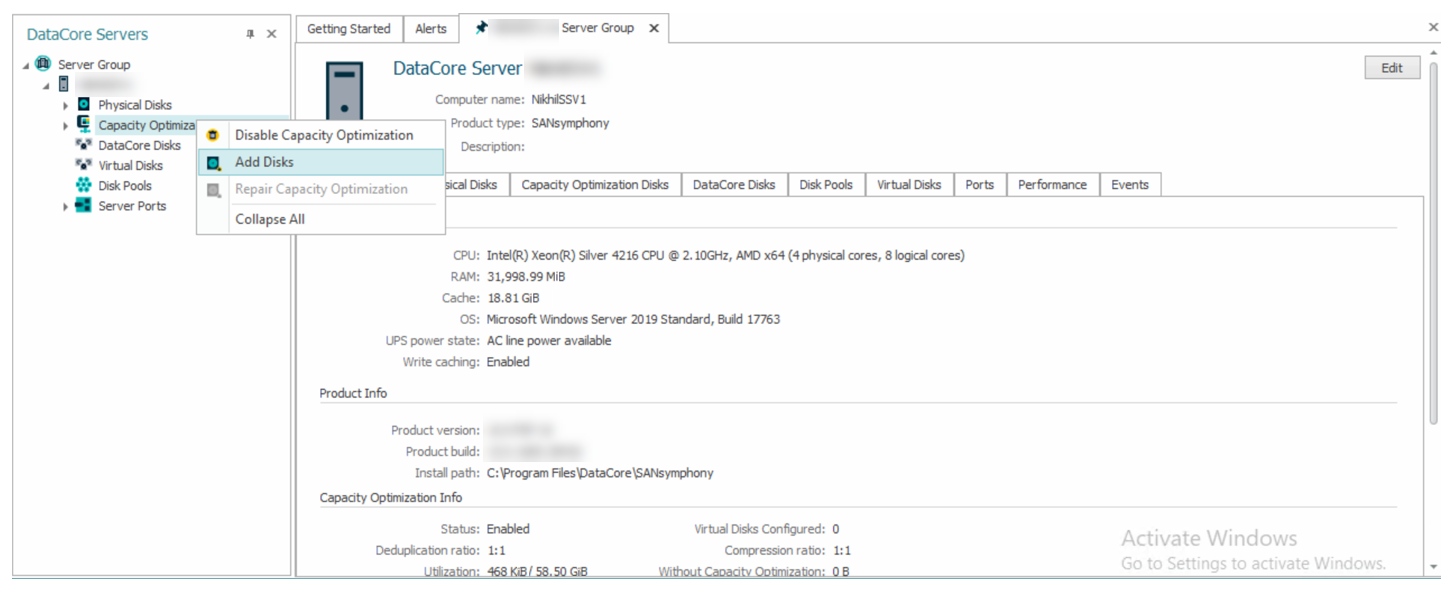
In the DataCore Servers panel, right-click Capacity Optimization and select Add Disks.
-
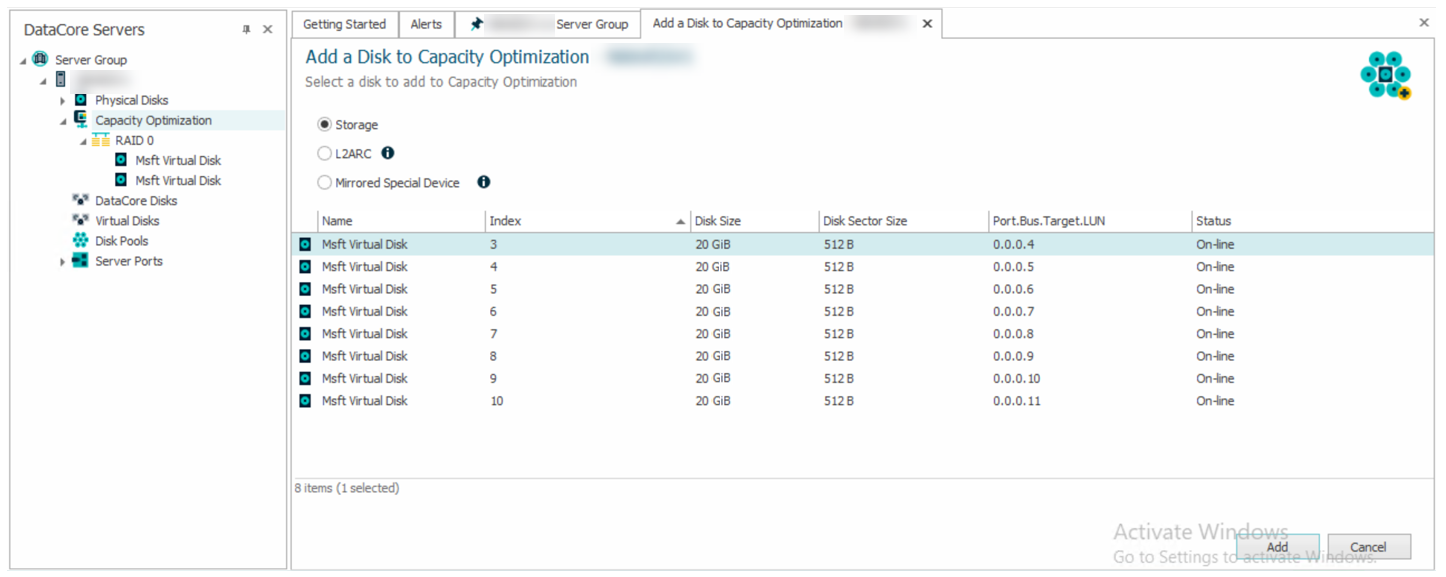
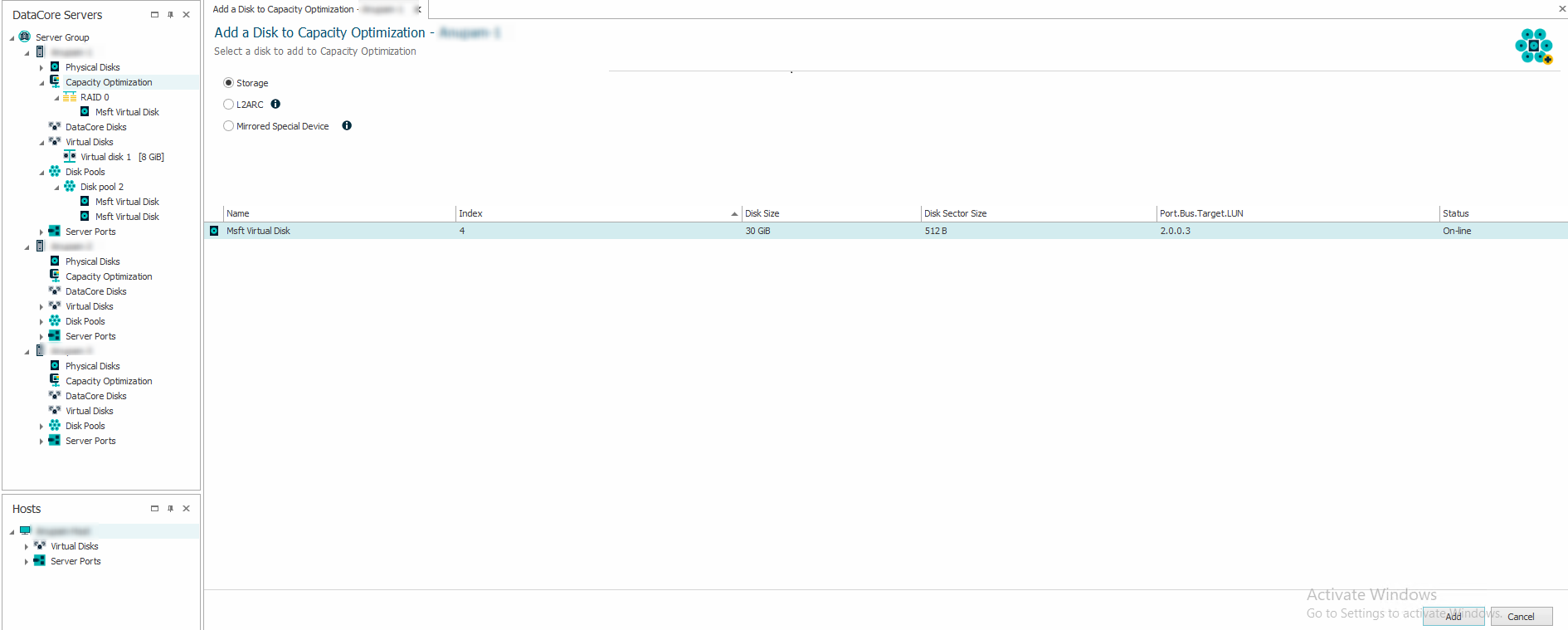
In the Add Disks to Capacity Optimization page, select Storage.
- If RAID 0 is enabled, select one physical disk to add from the list to RAID 0 group in Capacity Optimization.
- If RAID 5 is enabled, select the same number of physical disks in the existing RAID 5 group from the list to create a new RAID 5 group in Capacity Optimization.
- An appropriate capacity license is required for each physical disk selected.
- If RAID 0 is enabled, select one physical disk to add from the list to RAID 0 group in Capacity Optimization.
-
Click Add.
Adding a Disk as L2ARC
-
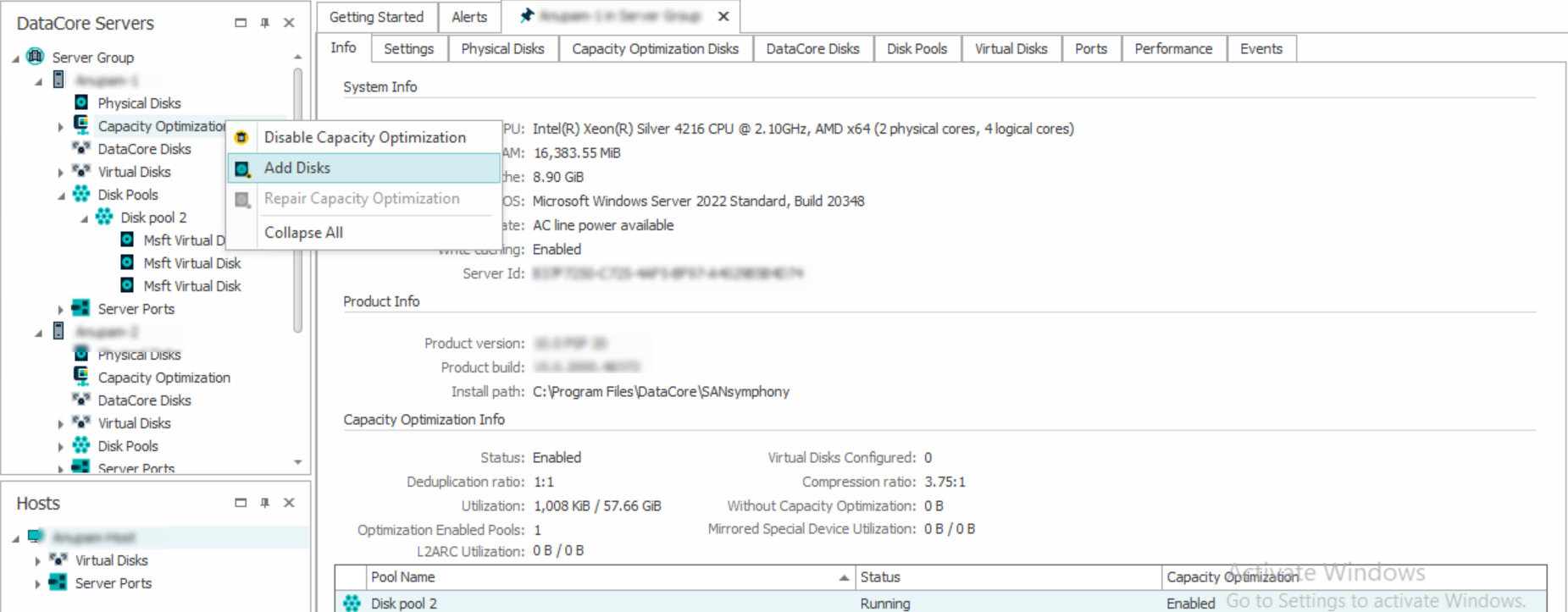
In the DataCore Servers panel, right-click Capacity Optimization and select Add Disks.
-
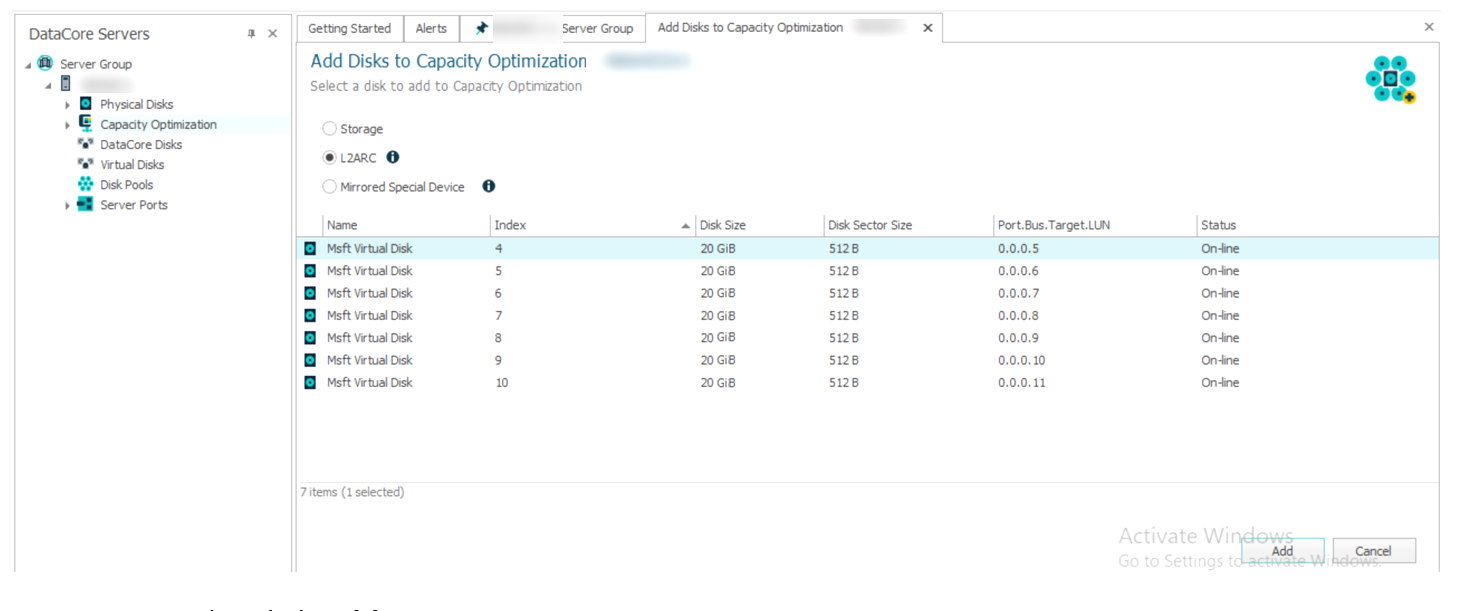
In the Add Disks to Capacity Optimization page, select L2ARC and one physical disk from the list.
-
Click Add.
- L2ARC can only be added once. This option will be greyed out if L2ARC is already configured.
- A capacity license is not required for L2ARC.
- L2ARC acts as a second level read cache for data stored in Capacity Optimization, boosting read performance.
- L2ARC can only be added once. This option will be greyed out if L2ARC is already configured.
Adding Disks as Mirrored Special Device
-
In the DataCore Servers panel, right-click Capacity Optimization and select Add Disks.
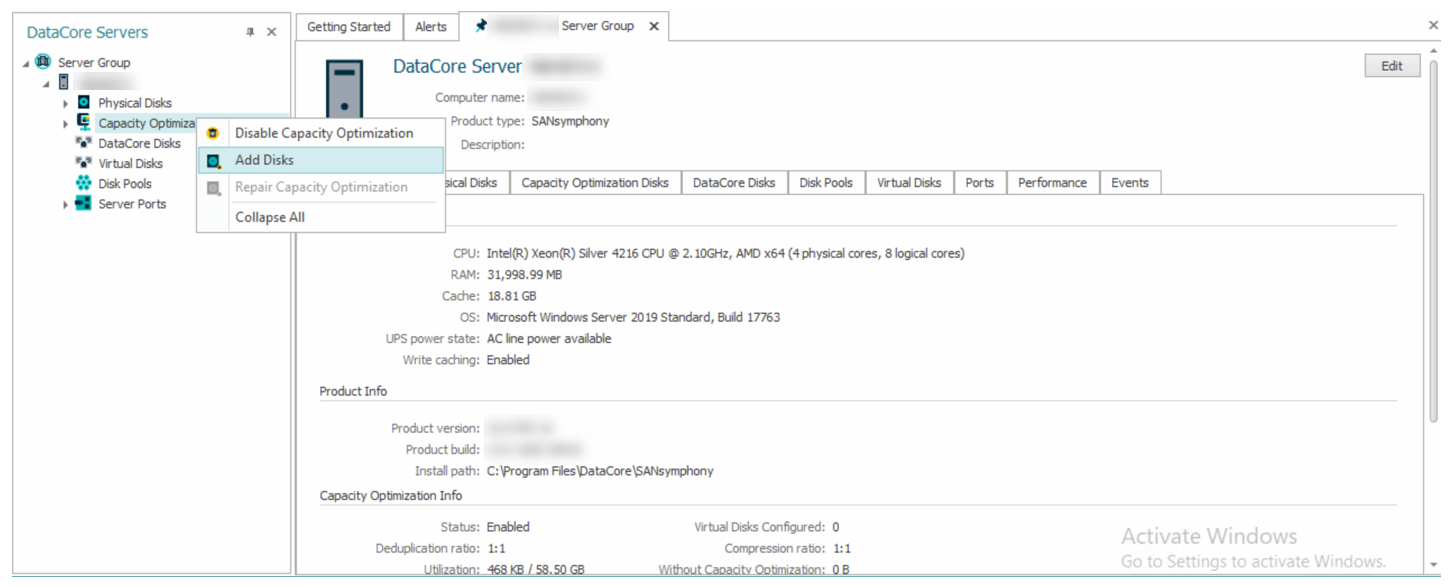
-
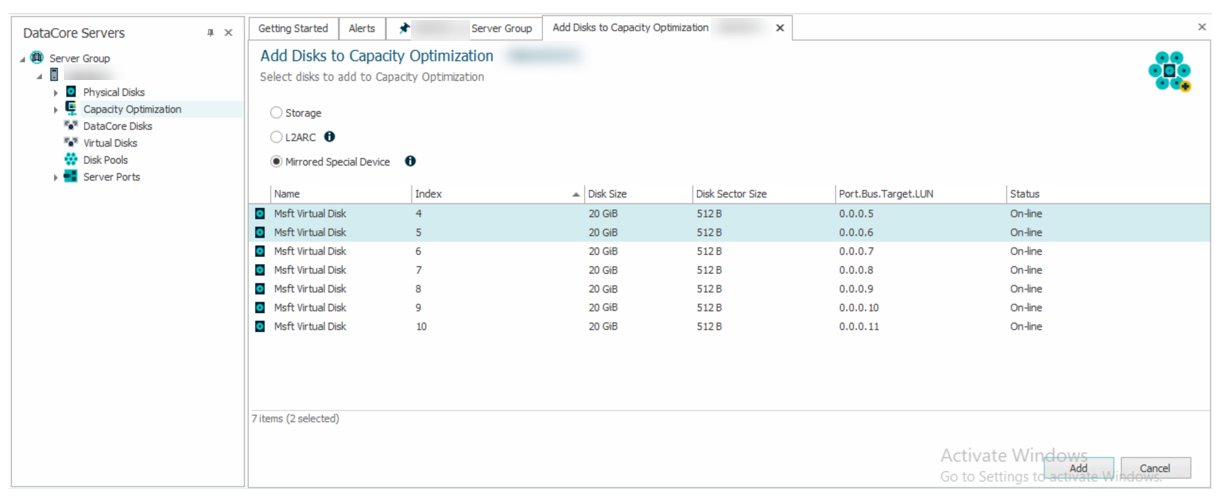
In the Add Disks to Capacity Optimization page, select Mirrored Special Device and two physical disks from the list.
-
Click Add.
- Mirrored Special Device can only be added once. This option will be greyed out if the Mirror Special Device is already configured.
- A capacity license is not required for Mirrored Special Device.
- Mirrored Special Device acts as a dedicated high-performance storage for deduplication meta-data, boosting deduplication processing and write operations.
- Mirrored Special Device can only be added once. This option will be greyed out if the Mirror Special Device is already configured.
Removing a Disk or Device from Capacity Optimization (Inline Deduplication and Compression)
Removing a RAID 0 Disk
When a physical disk is removed, the data on that disk will get migrated to other disks in the Capacity Optimization storage.
-
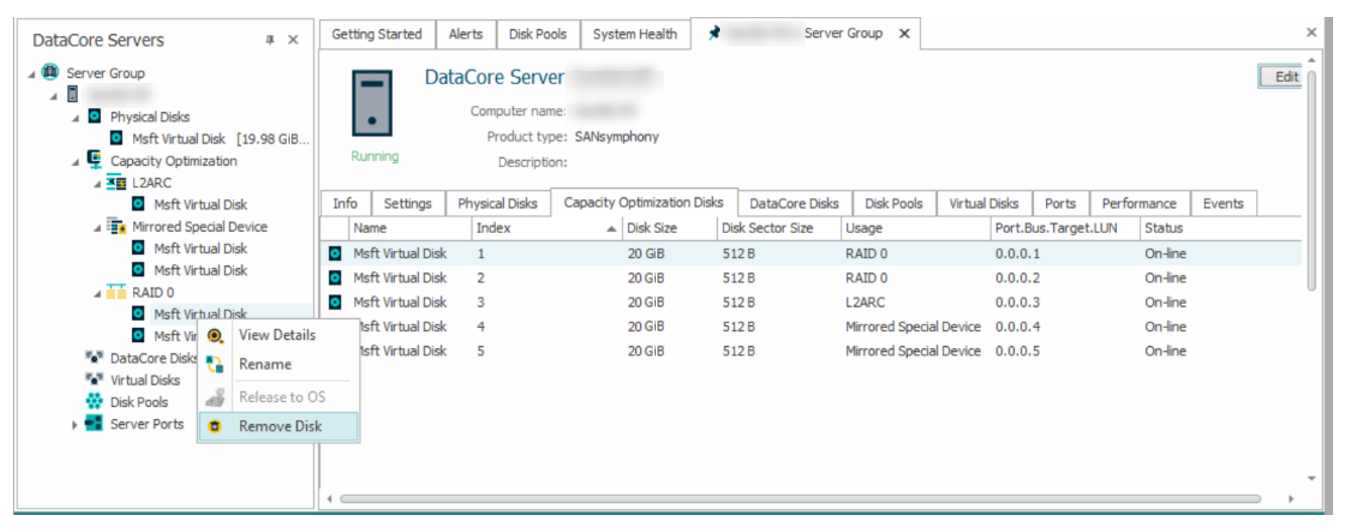
In the DataCore Servers panel, click the Capacity Optimization drop-down.
-
From the RAID 0 drop-down, right-click the disk to be removed, and select Remove Disk.
Removing an L2ARC Disk
-
In the DataCore Servers panel, click the Capacity Optimization drop-down.
-
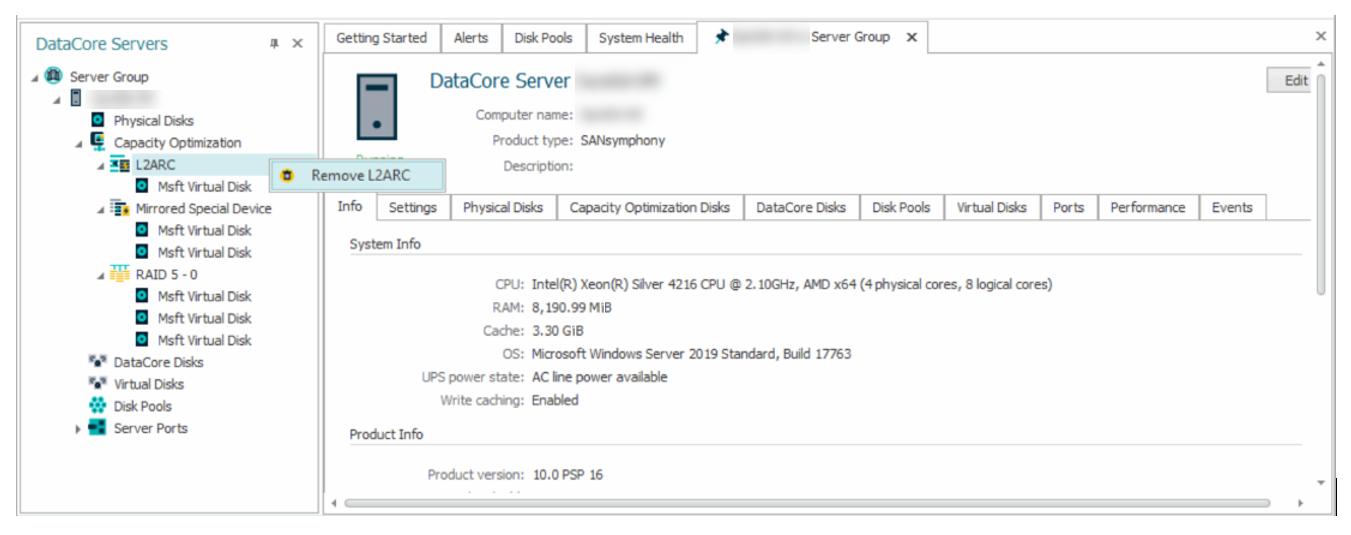
Right-click L2ARC, and select Remove L2ARC.
Removing a Mirrored Special Device Disk
-
In the DataCore Servers panel, click the Capacity Optimization drop-down.
-
Right-click Mirrored Special Device, and select Remove Mirrored Special Device.
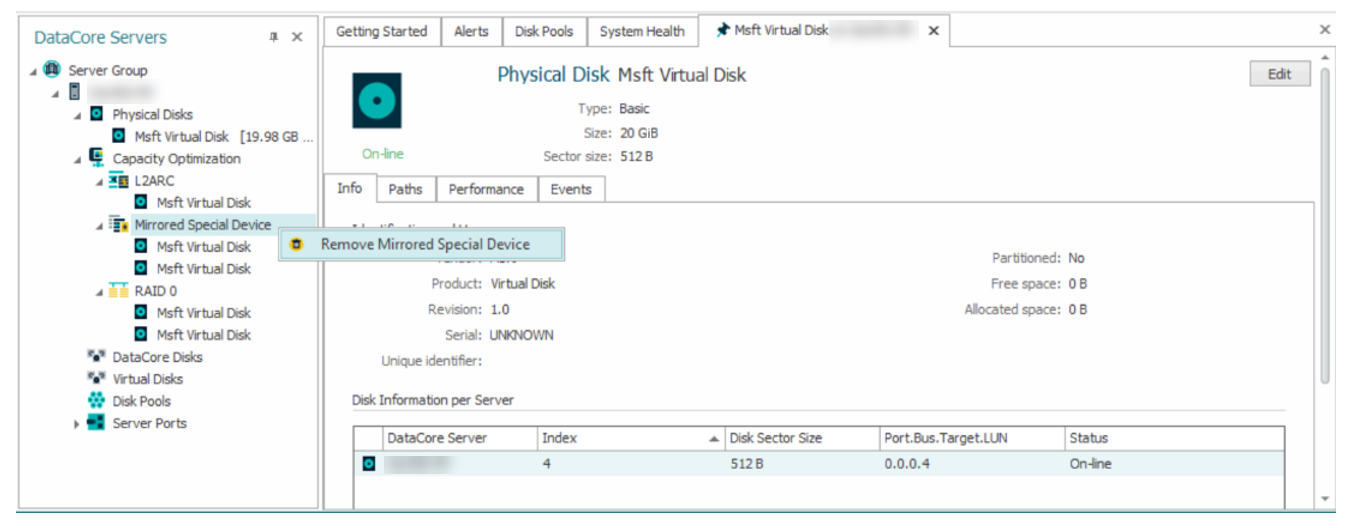
The Remove Mirrored Special Device option is only supported in RAID 0.
Replacing a Disk in Capacity Optimization (Inline Deduplication and Compression)
Replacing a Disk in RAID 5
The replacing a disk option is only supported by the Mirrored Special Device and RAID 5 group. The size of the disk to be added must be greater than or equal to the size of the disk being replaced.
- In the DataCore Servers panel, click the Capacity Optimization drop-down.
- From the RAID 5 drop-down, right-click the disk to be replaced, and then left-click Replace Disk.
- Select a replacement disk from the list.

Replacing a Disk in Mirrored Special Device
- In the DataCore Servers panel, click the Capacity Optimization drop-down.
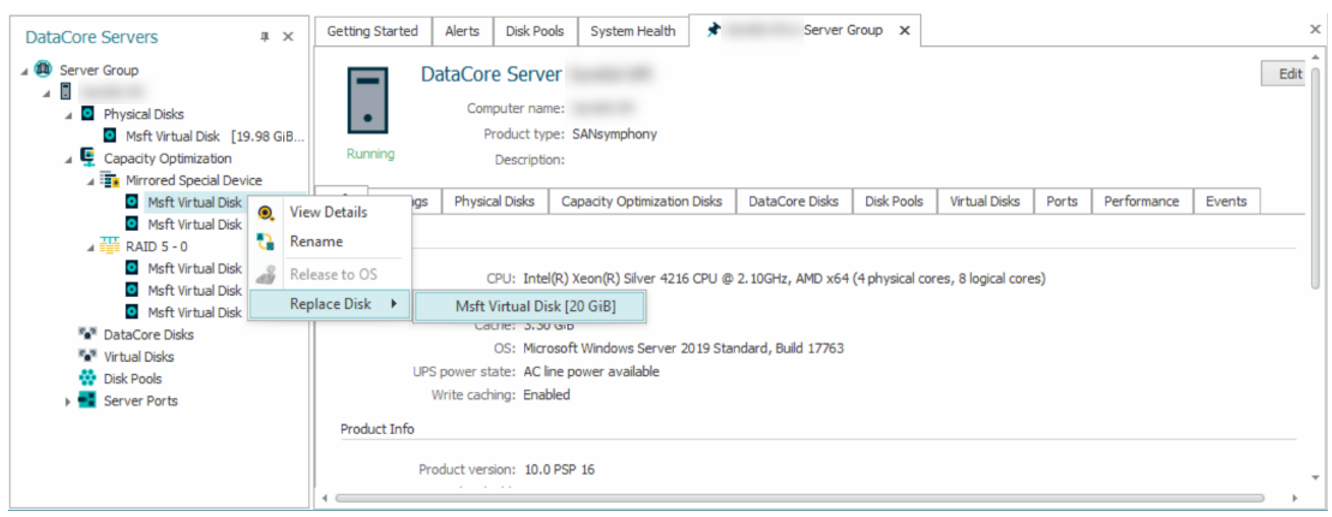
- From the Mirrored Special Device drop-down, right-click the disk to be replaced, and then left-click Replace Disk.
- Select a replacement disk from the list.
Learn More