Deduplication Tasks (Post-Processing)
Explore this Page
- Overview
- Creating a Deduplication Pool (Post-Processing)
- Deleting a Deduplication Pool (Post-Processing)
- Setting the Deduplication Schedule (Post-Processing)
- Changing the Deduplication Pool Size (Post-Processing)
- Moving Storage Sources between Deduplicated and Non-Deduplicated Pools (Post-Processing)
- Automated Deduplication Tasks (Post-Processing)
Overview
This section describes the tasks used to create and manage post-processing deduplication pools in SANsymphony. It explains how to create and delete deduplication pools, configure deduplication schedules, change pool size, move storage sources between deduplicated and non-deduplicated pools, and manage automated deduplication tasks that maintain the pool.
Creating a Deduplication Pool (Post-Processing)
Deduplication pools can be created from an existing DataCore SANsymphony disk pool ("storage source pool") by running a wizard in the console. The storage source pool does not need to be dedicated, but can be used for other purposes. In addition to creating the pool, the wizard also creates tasks used to maintain the pool and sets a deduplication schedule that will run background optimization.
Deduplication pools are created with the same Storage Allocation Unit (SAU) size as the storage source pool.
- The Windows' Data Deduplication must be enabled from Server Manager > Server Roles > File and Storage Services > File and iSCSI Services > Data deduplication. (Refer to the Microsoft documentation for more information.)
- A DataCore SANsymphony disk pool, referred to as the "storage source pool" is required to create a Deduplication pool in the DataCore Deduplication Console.
To create a deduplication pool:
In the DataCore Deduplication Console, click Create Deduplication Pool in the ribbon to open the wizard.
- Step 1: Create a deduplication pool:
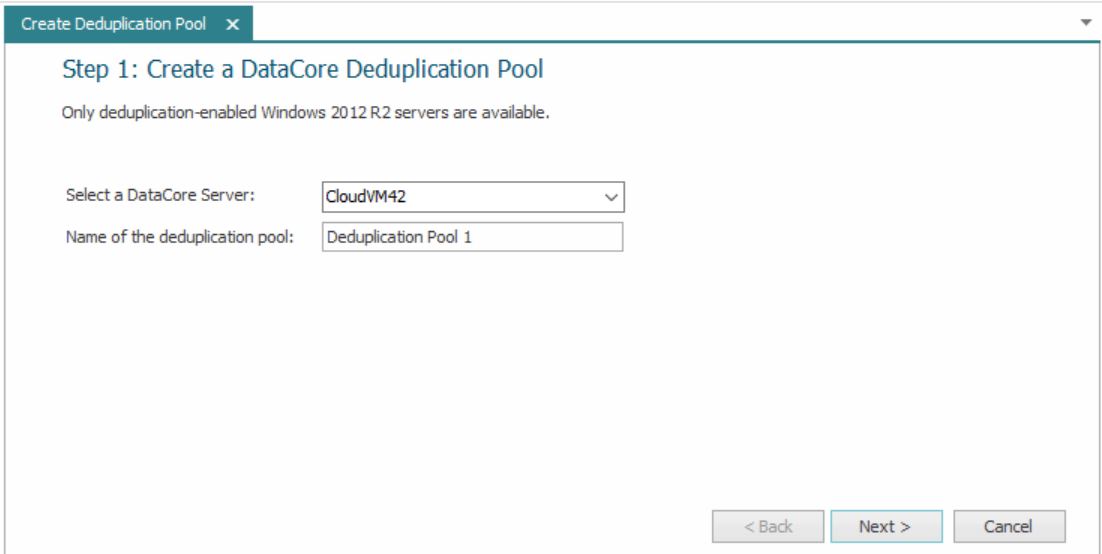
- Select the DataCore Server on which the deduplication pool should be created.
- Enter the name of the deduplication pool to be created.
- Click Next to continue.
- Step 2: Select a Pool
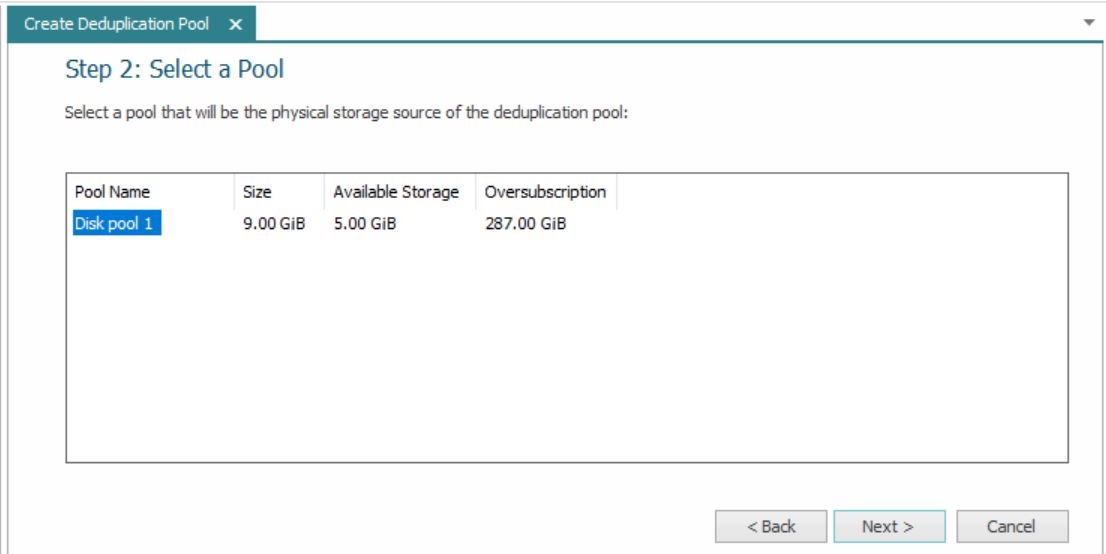
- In the list, select the existing DataCore SANsymphony disk pool to be used as the storage source of the deduplication pool.
- Click Next to continue.
- Step 3: Specify the properties of the Deduplication Pool.
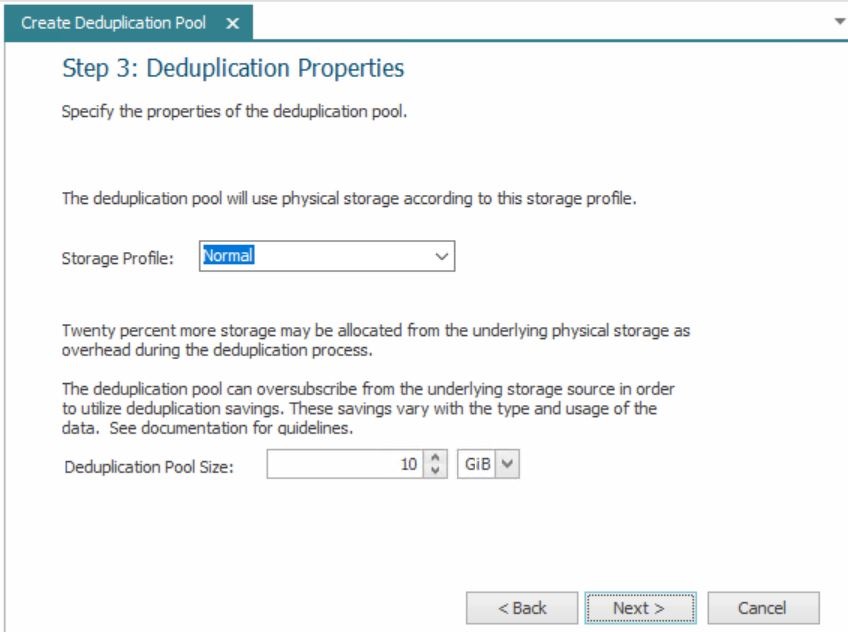
- Select the storage profile to use for the physical storage taken from the storage source pool. This underlying storage will be used to create the deduplication pool.
- Specify the size of the deduplication pool.
- The size of the deduplication pool can be oversubscribed in anticipation of estimated savings to be realized in the deduplication process.
Note: Savings will vary considerably based on the type and usage of the data.
- 20% more space than the size specified will be subscribed, but not necessarily allocated, from the storage source pool. For example, if the size of the deduplication pool is 100 GB, 120 GB will be subscribed from the storage source pool. This additional space is required to support the deduplication process.
- The size of the deduplication pool can be oversubscribed in anticipation of estimated savings to be realized in the deduplication process.
- Click Next to continue.
- Step 4: Confirmation Page
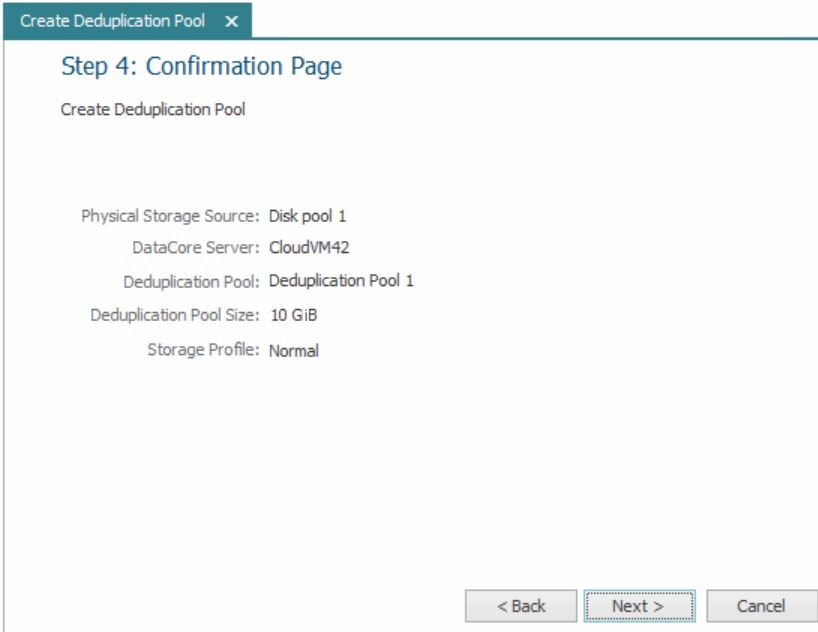
- Confirm your selections for the deduplication pool and click Next to continue.
- Click Start to begin the process of creating the deduplication pool. Creating the pool may take some time. Progress is indicated on the wizard page. Green check marks represent completed actions and a green circular arrow represents the current action being performed.
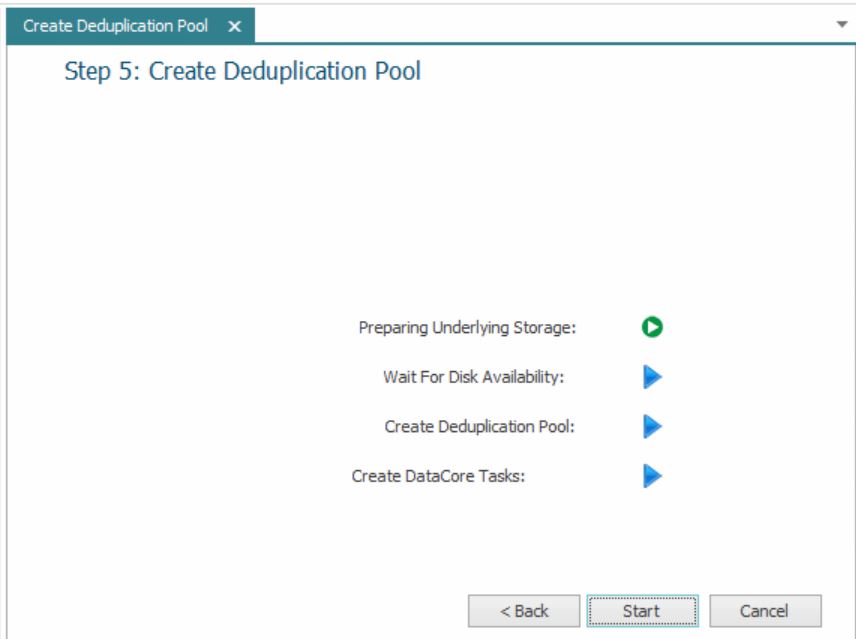
- When all tasks have been completed, click Finished to close the wizard.
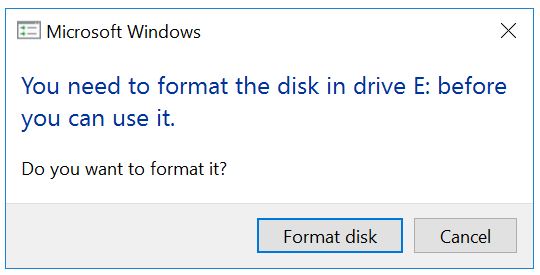
- During pool creation, the operating system on the DataCore Server where the pool was created will find a new disk which will generate a message asking if you would like to format it. Click Cancel on the message.
- Disable scheduled optimization for the volume created as the source of the deduplication pool.
- Find the drive letter of the volume in Disk Management (the volume will have the same name as the deduplication pool) or in tasks (the task description will identify the pool and drive).
- Open the Windows Defragment and Optimize Drives utility. Change the settings for the scheduled optimization so the drive is not selected for optimization. See Microsoft documentation for more information.
Deleting a Deduplication Pool (Post-Processing)
Just as with any pool, the pool cannot be deleted if it is used as a storage source in virtual disks; all virtual disks created from the pool must be deleted. Deleting the deduplication pool from the DataCore Deduplication Console will also delete the associated "Internal Use" objects that were created to support it.
To delete a deduplication pool:
- In the DataCore Deduplication Console > Deduplication Pools List, right-click on the pool to delete and select Delete from the context menu.
Alternatively, the pool can be deleted the from the DataCore Server Details page > Deduplication Pools tab in the tool.
Setting the Deduplication Schedule (Post-Processing)
Deduplication schedules can be set for background and throughput optimization in the console.
Deduplication is a processor and I/O intensive task and therefore best suited to run as a low-priority background task when the system is not busy with other processing. Data that has been written to the disk can be optimized post-processing on the disk at a convenient time during off hours.
When a deduplication pool is created, deduplication is automatically scheduled to run regularly as a background optimization, which runs deduplication at low priority and pauses when the system is busy. Deduplication can be set for both background and throughput optimization if necessary.
The Set Deduplication Schedule setting is a server setting and applies to all deduplication pools on a particular server.
To set the deduplication schedule for a DataCore Server:
- In the DataCore Deduplication Console
click Deduplication Schedule in the ribbon and select the DataCore Server from the list.
Alternatively, the Deduplication Schedule for a DataCore Server can be opened from DataCore Server Details page > Deduplication Schedule tab.
- Select the optimization type:
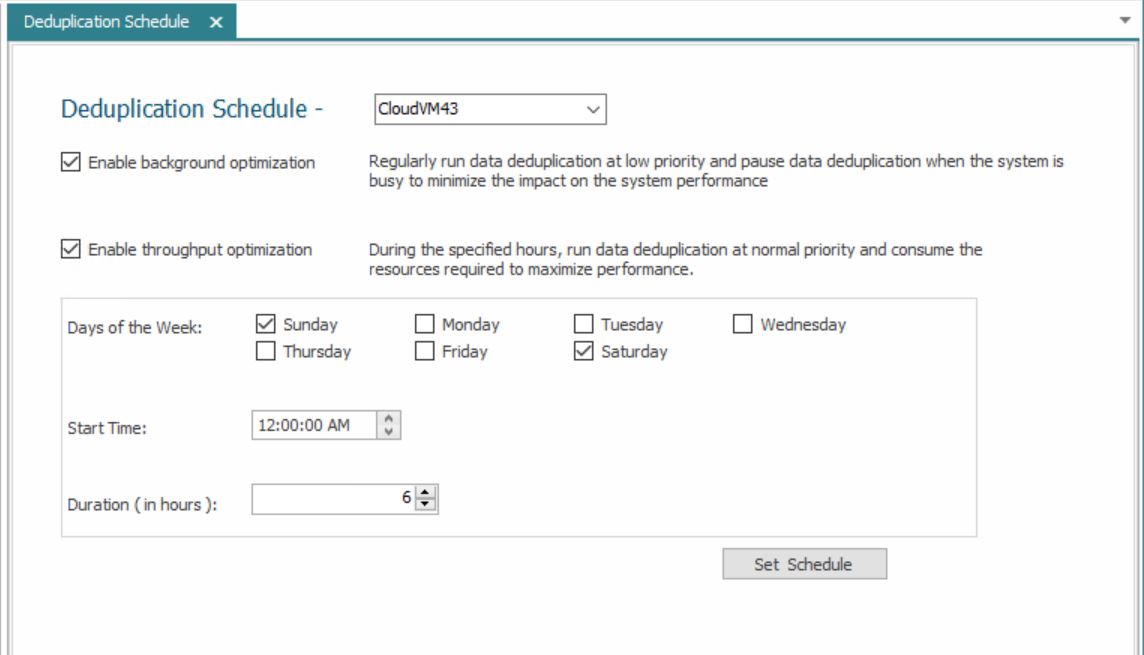
Either or both types may be selected.
- Background optimization will run deduplication at low priority whenever the system is not busy and pause whenever the system is busy.
- Throughput optimization will run only during the hours specified and will run at normal priority.
This mode will consume whatever system resources are necessary to optimize duplicated data.
- In Days of the Week, select or clear the check boxes so that only the days when deduplication should run are selected.
- In Start Time, enter the time when deduplication should begin.
- In Duration, enter the number of hours that deduplication should run.
- Click Set Schedule.
Changing the Deduplication Pool Size (Post-Processing)
Deduplication pools consist of one disk which is added to the pool when it is created. There are two recommended methods of increasing or decreasing a deduplication pool.
Adding disks to an existing deduplication pool can result in a loss of deduplication savings and is not advised as a permanent solution. (see Best Practices for Post-Processing Deduplication).
Method 1
Before beginning, see Replacing/Moving a Storage Source in a Virtual Disk for complete information about the Move operation.
- In the DataCore Deduplication Console, create a new deduplication pool of the desired size.
- In the DataCore Management Console, use the Move operation to move the existing storage sources from the current pool to the new pool.
The Move operation will move the virtual disk storage sources created from the pool while maintaining high availability during most of the process and only requires a log recovery. The storage sources must be mirrored in order to use the Move operation. Moving data can take several hours depending on the amount of allocated SAUs and the amount of I/O from the host during the operation.
Do not use the Replace operation to move the storage sources.
- After the move is complete, delete the original deduplication pool. See Deleting a Deduplication Pool (Post-Processing).
Method 2
Before beginning, see Removing Physical Disks from Pools for complete information about the Remove from Disk Pool operation.
- In the DataCore Deduplication Console, create a new deduplication pool of the desired size.
- In the DataCore Management Console, use the Remove from Disk Pool operation to remove the disk from the new deduplication pool. (The operation will only take a moment because virtual disk data has not been written to the disk.)
- Add the new physical disk from the new deduplication pool to the original deduplication pool.
- Use the Remove from Disk Pool operation to remove the original disk from the original deduplication pool.
The Remove from Disk Pool operation will cause copy the allocated SAUs from the original disk to the new physical disk. Copying data from the original disk to the new disk can take a considerable amount of time.
Moving Storage Sources between Deduplicated and Non-Deduplicated Pools (Post-Processing)
Virtual disk storage sources created from a deduplication pool may be moved to another pool (deduplicated or non-deduplicated) on the same server. Storage sources from non-deduplicated pools may also be moved to deduplicated pools on the same server.
Before beginning, see Replacing/Moving a Storage Source in a Virtual Disk for complete information about the Move operation.
To move storage sources:
- In the DataCore Management Console, open the Virtual Disks list.
- Select the virtual disks in the list and point to Move in the context menu and select the DataCore Server from where the storage sources will be moved.
- In the dialog box, select the pool on the same server where the storage sources will be moved.
- Click Move to continue with the operation.
Automated Deduplication Tasks (Post-Processing)
Two automated tasks are automatically configured for each deduplication pool that is created: Mount Dedup VHD and Run Deduplicaton. The tasks assist in the creation and maintenance of deduplication pools.
The script files and tasks described in this section are required to create and maintain the deduplication pool properly and should not be altered in any way.
Mount Dedup VHD
If the Deduplication Volume (VHD file) becomes unavailable for any reason, such as after a DataCore Server restart, the operating system will not automatically remount the Deduplication Volume. When a monitor detects that the state of the Deduplication Volume created from the storage source pool reaches the Healthy state, the PowerShell script MountVHD.ps1 is invoked to remount the volume.
Run Deduplication
Certain events can cause previously deduplicated data to "inflate" to full size. This task runs a high priority deduplication and prevents inflation so that the physical storage used to create the deduplication pool is not exceeded. (See Oversubscription and Inflation.)
The task has a trigger configured to monitor the available space threshold for the storage source pool. The task will be triggered when the monitored available space on the storage source pool falls below the Attention threshold (is greater than Healthy) as configured in the pool settings. When this happens, the PowerShell script RunDeDupJob.ps1 is automatically invoked to quickly deduplicate the inflated data.
A high priority task will consume all resources necessary to quickly deduplicate the pool and creates a significant workload on the system.
Details for tasks (such as last start time and the last stop time) can be viewed from the Tasks tool in the DataCore Management Console.