DataCore Puls8 Headlamp Plugin
Explore this Page
- Overview
- Requirements
- Installing the DataCore Puls8 Plugin in Headlamp
- Adding a Cluster
- Accessing the Home Dashboard
- Cluster Overview Dashboard
- DataCore Puls8 Dashboard
- Benefits of Puls8 Plugin in Headlamp
Overview
The DataCore Puls8 Headlamp Plugin provides a unified graphical interface for observing and managing DataCore Puls8 storage resources directly within the Headlamp Kubernetes User Interface (UI). It presents real-time cluster metrics, node health, volume status, storage pool capacity, Persistent Volume Claim (PVC) bindings, and snapshot activity in a single dashboard.
In addition to monitoring storage resources, the plugin allows you to perform lifecycle operations such as cordoning and draining nodes, scaling volumes, and managing storage pools. You can also activate and monitor the DataCore Puls8 license and collect a diagnostic support dump for troubleshooting, without leaving the Headlamp interface.
The plugin supports desktop Headlamp deployments.
This document explains how the DataCore Puls8 Headlamp Plugin works, how to install and use it, and the capabilities it provides to help you safely and efficiently manage DataCore Puls8 storage operations from the Headlamp interface.
The DataCore Puls8 Headlamp Plugin is tested and validated with Headlamp v0.44.0. DataCore recommends using this version to ensure full compatibility and support.
Requirements
Before installing and using the DataCore Puls8 Headlamp Plugin, ensure that both Headlamp and DataCore Puls8 environment requirements are met.
Headlamp Requirements
| Category | Requirement |
|---|---|
| Supported Deployment Modes | Desktop (Windows, macOS, Linux) |
| Supported Kubernetes Versions | Kubernetes v1.24 or higher |
| RBAC Permissions | Must have sufficient permissions to list, get, and watch Kubernetes resources (namespaces, nodes, volumes, pods, etc.) |
| Desktop Environment (if using Headlamp App) |
Supported OS: Windows, macOS (Intel and Apple Silicon), Linux (x86_64, ARM64) |
Access to kubeconfig file with cluster credentials |
|
| Network and Browser Requirements | WebSocket support enabled (used by Headlamp for live cluster updates) |
| Supported browsers: Chrome, Edge, Firefox, Safari (latest versions) |
DataCore Puls8 Requirements
Refer to the general requirements for detailed DataCore Puls8 environment and platform requirements.
- Both DataCore Puls8 components and Headlamp must connect to the same Kubernetes cluster context.
- The DataCore Puls8 Headlamp Plugin supports desktop Headlamp deployments.
Installing the DataCore Puls8 Plugin in Headlamp
To install the DataCore Puls8 Plugin in Headlamp:
- Download the bundle that contains the Headlamp application and the DataCore Puls8 Headlamp Plugin from the official DataCore Downloads page and extract it.
- Open the headlamp folder and extract the bundle for your platform:
- Install Headlamp using the installer for your platform.
- If Headlamp is already installed, keep your existing installation and go to the next step. DataCore recommends using the version included in the bundle, which is the version the plugin is tested against.
- The bundle contains the Headlamp desktop application exactly as published by the Headlamp project, and that application is not currently signed. On macOS, the application is blocked the first time you open it until the quarantine attribute is removed. On Windows, the operating system displays a warning; click More, and then Run Anyway. Refer to the Headlamp desktop application documentation for more information.
- This applies to the Headlamp application only. It does not affect the DataCore Puls8 Headlamp Plugin.
- Extract the DataCore Puls8 Headlamp Plugin from the same bundle. It expands to a puls8-headlamp-plugin folder that contains
main.jsandpackage.json. - Copy the puls8-headlamp-plugin folder to the default Headlamp plugin directory for your operating system, as shown below:
- Copy the whole folder, not the files inside it. The plugin directory must contain
puls8-headlamp-plugin/main.js. - If the plugin directory does not exist, create it.
- Once the plugin files are in place, restart the Headlamp application.
- After restart, the DataCore Puls8 Dashboard appears in the sidebar (left navigation panel) of Headlamp. From here, you can access cluster information, monitor nodes and volumes, and manage DataCore Puls8 storage resources directly through the Headlamp interface.
If Puls8 does not appear in the sidebar, confirm that the plugin directory contains
puls8-headlamp-plugin/main.jsandpuls8-headlamp-plugin/package.json, and then restart Headlamp again.
| Platform | Bundle | Headlamp Installer |
|---|---|---|
| Windows | bundle-win-x64.tar.gz
|
Headlamp-win-x64.exe
|
| macOS (Apple Silicon) | bundle-mac-arm64.tar.gz
|
Headlamp-mac-arm64.dmg
|
| Linux | bundle-linux-x64.tar.gz
|
Headlamp-linux-x64.tar.gz
|
| Operating System | Default Plugin Directory |
|---|---|
| macOS | $HOME/.config/Headlamp/plugins
|
| Linux | $HOME/.config/Headlamp/plugins
|
| Windows | %APPDATA%/Headlamp/Config/plugins
|
Adding a Cluster
Before accessing the Puls8 dashboard in Headlamp, you must add a Kubernetes cluster to the interface.
To add a cluster:
- In the bottom-left corner of the Headlamp navigation panel, click Add Cluster → Load from KubeConfig.
- A popup window opens. Click Choose file.
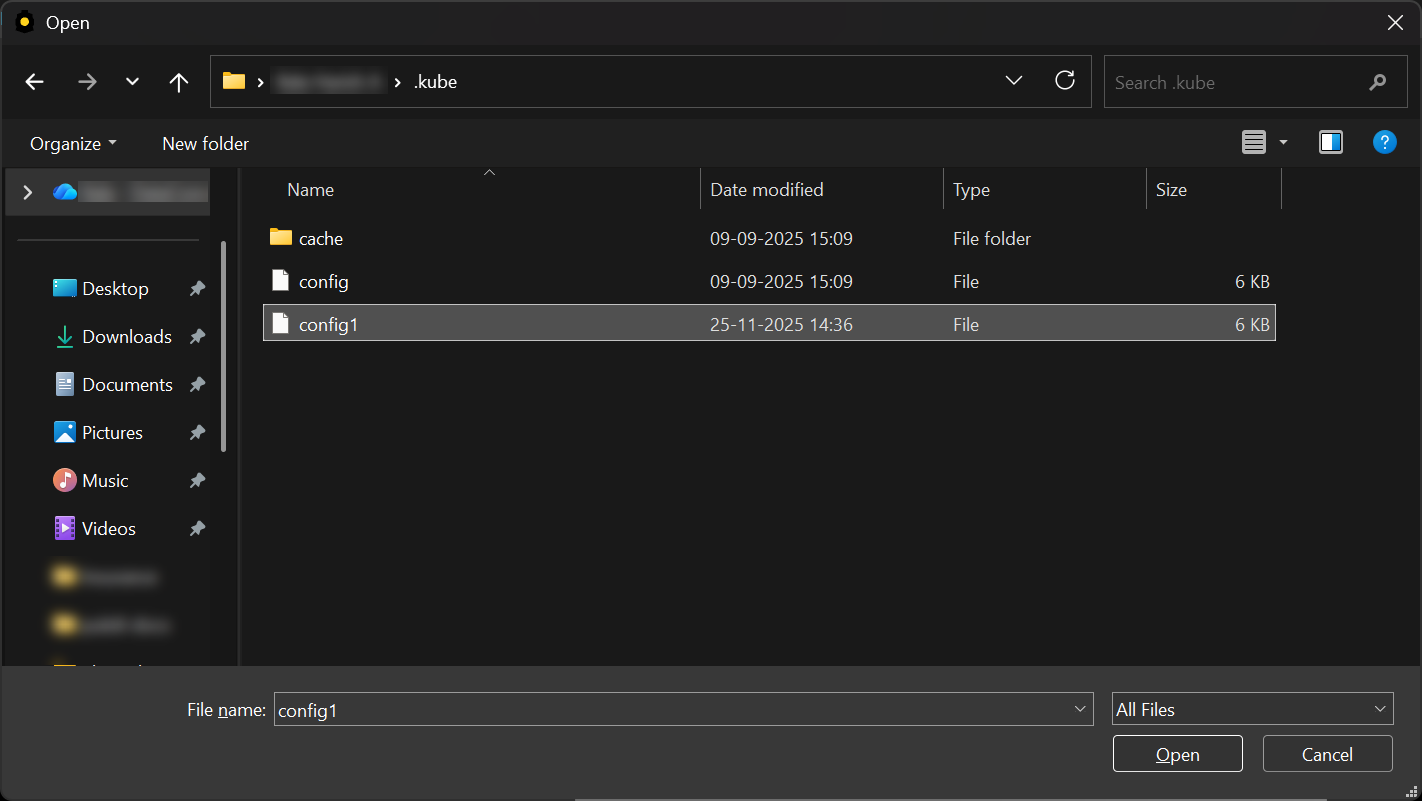
- Select your kubeconfig file (for example,
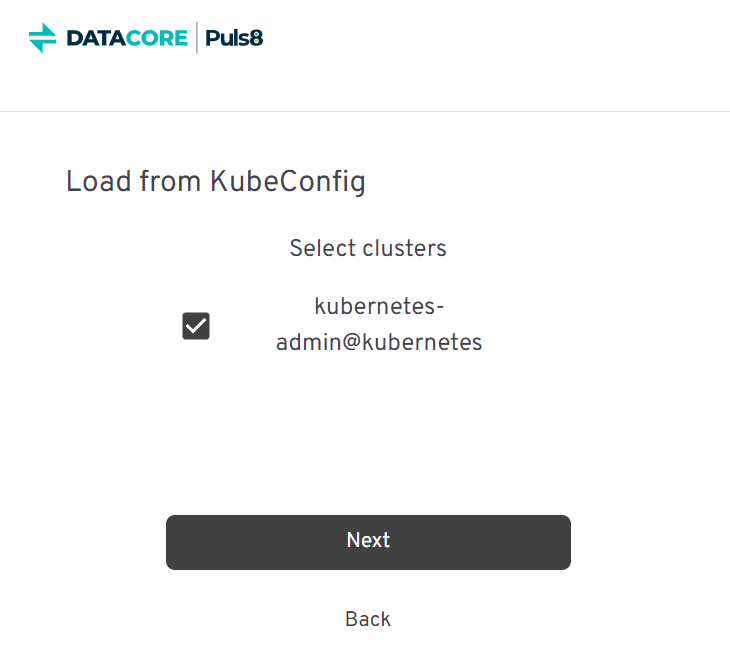
config,config1) and click Open. - A popup window appears showing the available clusters detected in the kubeconfig file.
- Select the cluster you want to add and click Next.
- A confirmation message appears: Clusters successfully set up!
- Click Finish to complete the setup.
- After the setup is complete, the newly added cluster appears in the Home Dashboard.
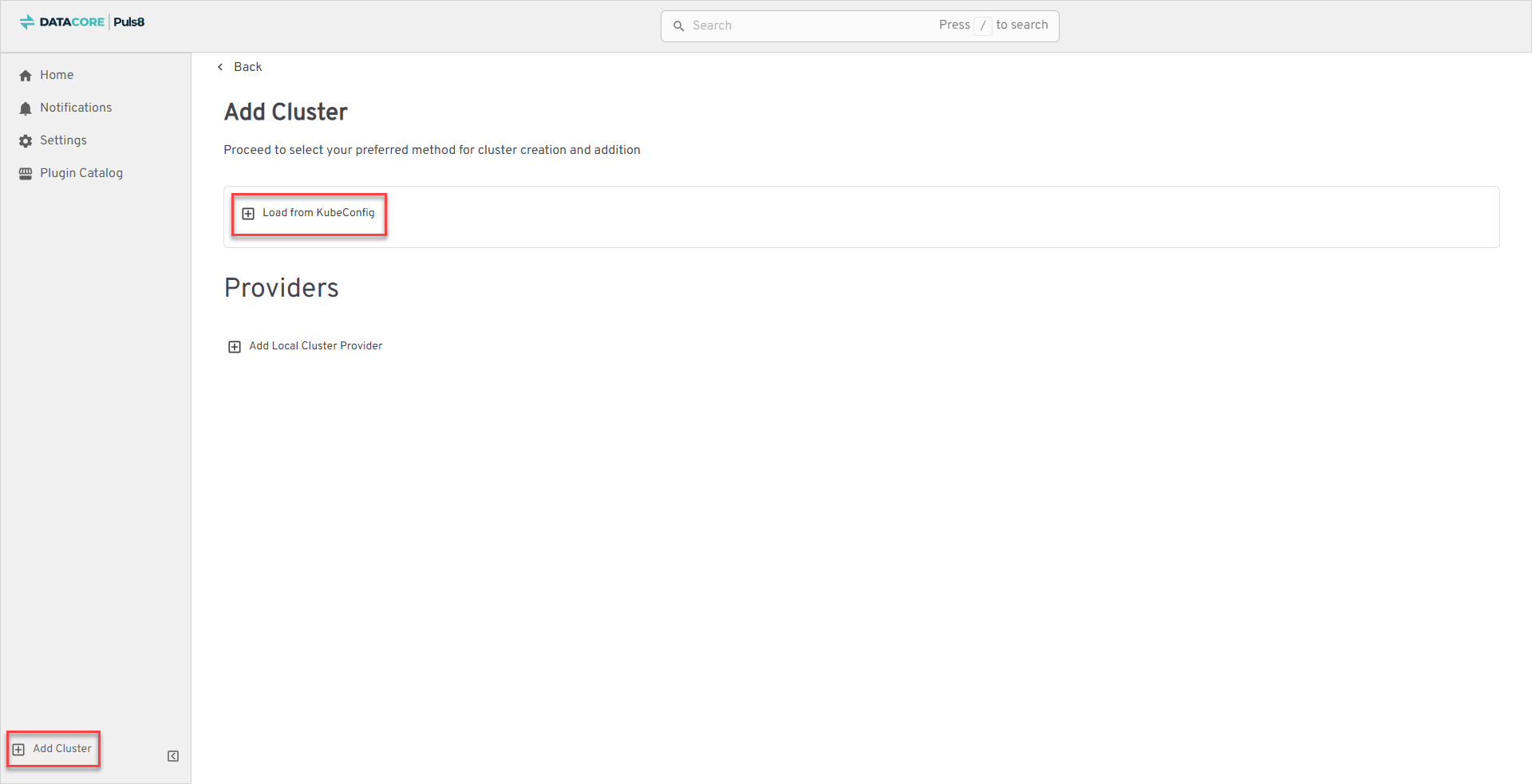
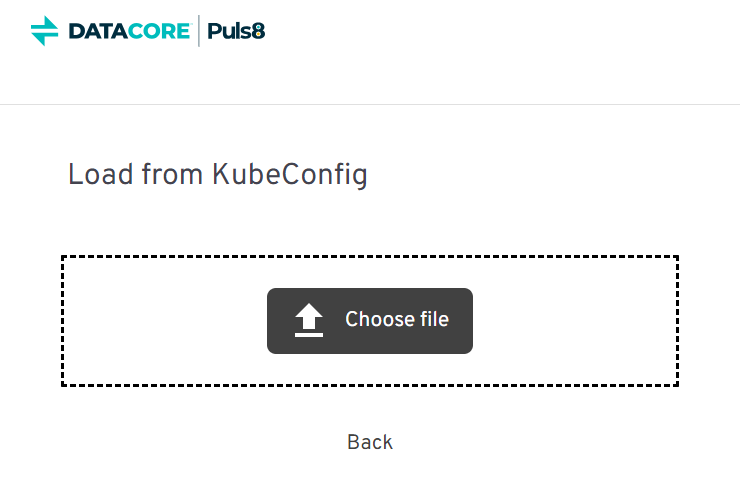
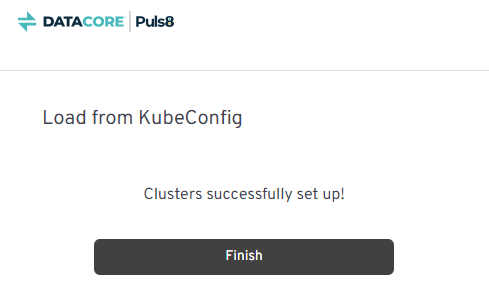
Once a cluster is added, the Puls8 Dashboard becomes available in the left navigation panel, allowing you to monitor and manage Puls8 storage resources.
Accessing the Home Dashboard
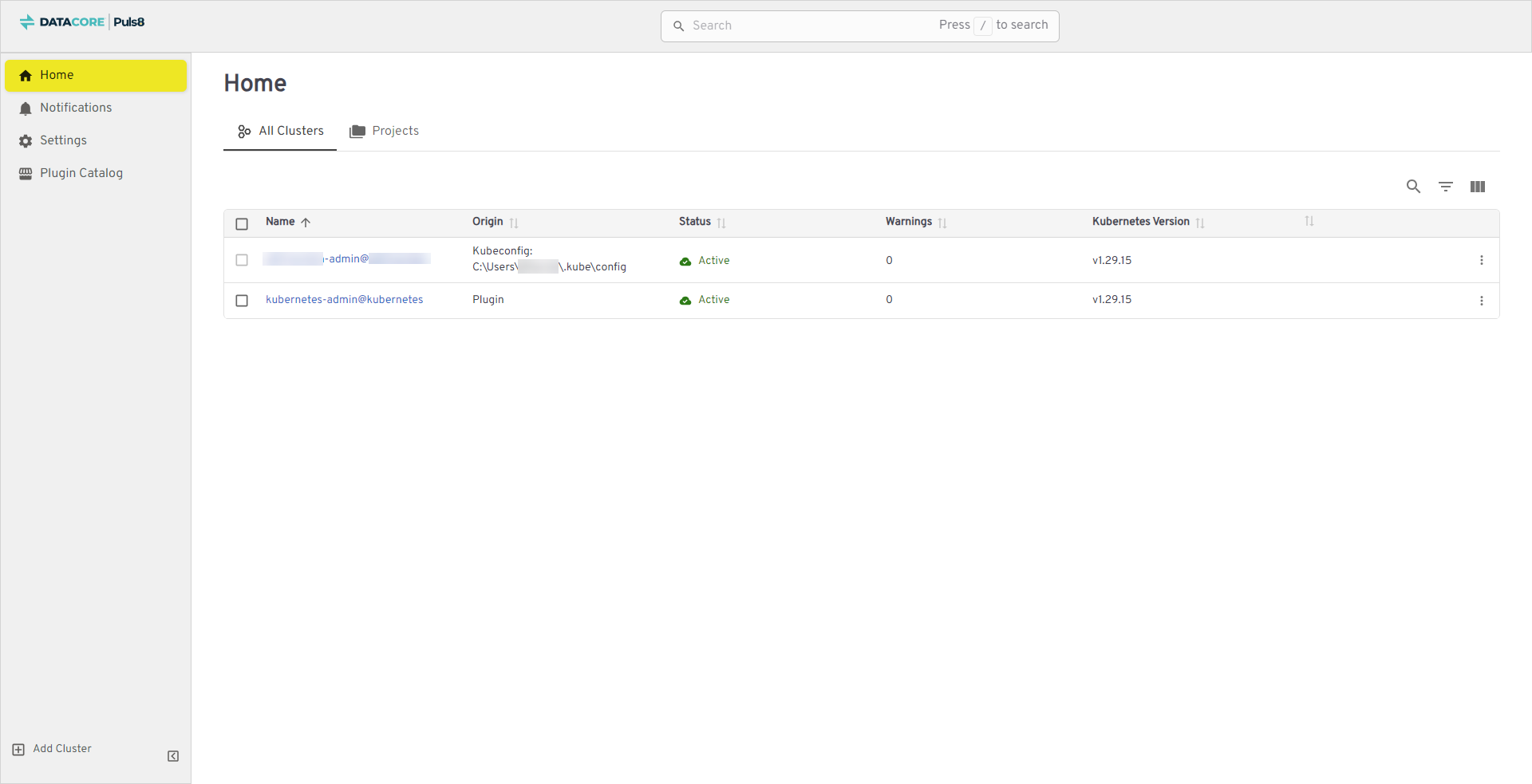
The Home Dashboard displays all connected Kubernetes clusters with their configuration details and connection status.
The dashboard provides the following information:
| Field | Description |
|---|---|
| Name | Cluster identifier (example, puls8-admin@puls8). |
| Origin | Source of the connection (example, kubeconfig path C:\\Users\\DC\\.kube\\config). |
| Status | Indicates if the cluster is Active or Inactive. |
| Warnings | Displays the number of warnings associated with the cluster. |
| Kubernetes Version | Kubernetes version of the connected cluster (example, v1.29.15). |
To access and view all connected clusters:
- From the left navigation panel, click Home.
- The Home Dashboard is displayed with a list of clusters and their details.
Cluster Overview Dashboard
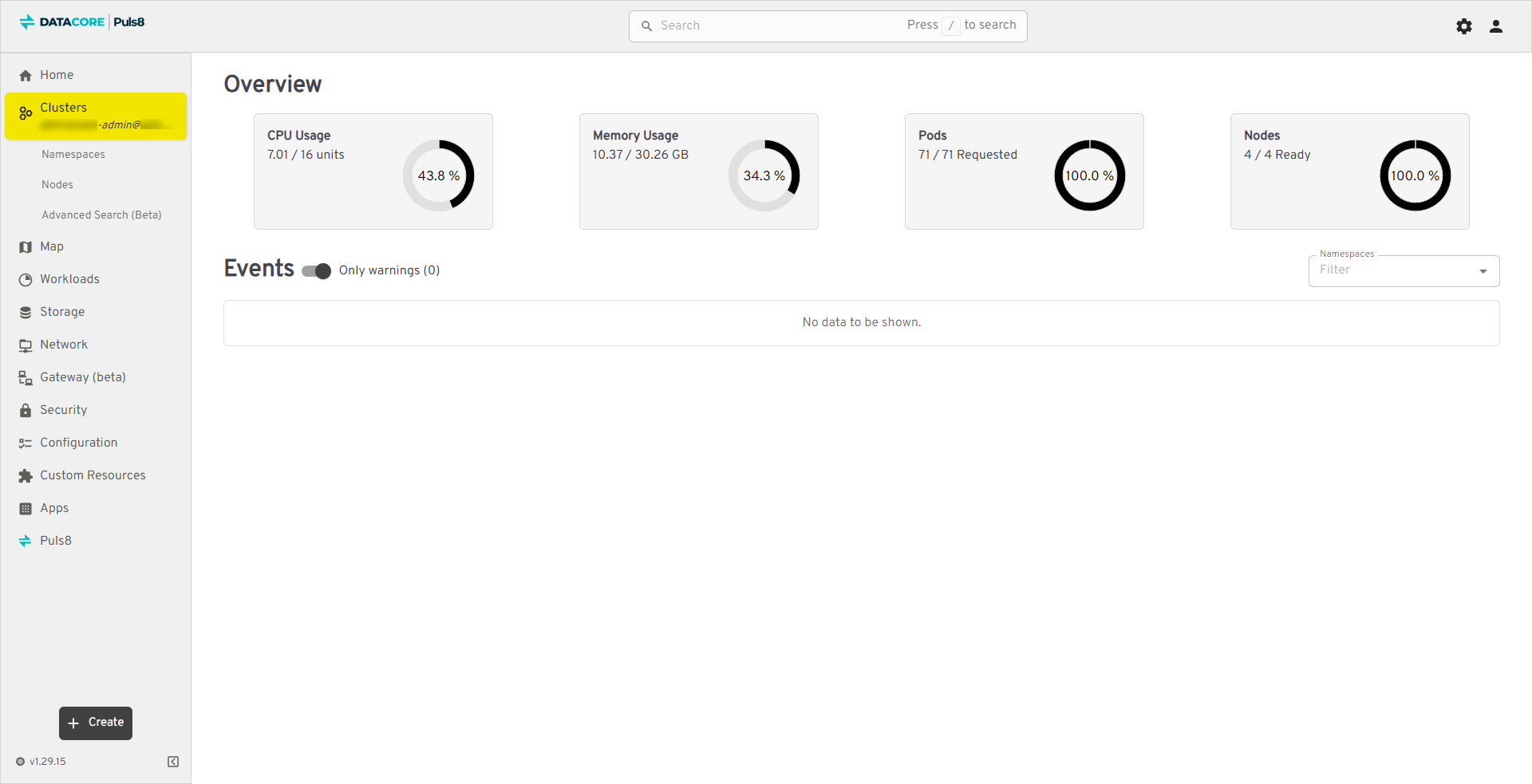
The Cluster Overview Dashboard provides real-time metrics on resource utilization and system health for the selected cluster.
The dashboard provides the following information:
| Field | Description |
|---|---|
| CPU Usage | Displays CPU utilization percentage. |
| Memory Usage | Shows memory consumption relative to total memory. |
| Pods | Indicates number of running pods vs total requested. |
| Nodes | Displays readiness state of nodes in the cluster. |
| Events | Lists cluster-level warnings and events. |
To monitor the overall health and performance of your cluster:
- From the Home Dashboard, click the cluster name you want to open (example,
puls8-admin@puls8). - The Cluster Overview Dashboard is displayed.
DataCore Puls8 Dashboard
The DataCore Puls8 Dashboard in Headlamp provides access to all DataCore Puls8 related resources, allowing monitoring and management of storage components.
The Dashboard includes the following sections that provide visibility into cluster, storage, and application resources.
| Section | Description |
|---|---|
| Nodes | Displays the cluster's nodes along with their resource and status information. |
| Volumes | Lists all active storage volumes provisioned through Puls8. |
| Storage Pools | Shows all configured storage pools and their capacity utilization. |
| Persistent Volume Claims | Displays PVCs created by workloads and their associated volumes. |
| Storage Classes | Lists all available storage classes defining provisioning and reclaim policies. |
| Volume Snapshots | Displays point-in-time snapshots of volumes for backup and recovery. |
| Volume Snapshot Classes | Displays available snapshot classes used to define snapshot behavior and policies. |
| Support Dump | Collects a diagnostic archive from the cluster and downloads it for troubleshooting or support requests. |
| License | Displays license status, node usage, and compliance, and lets you activate, verify, or deactivate a license. |
Storage Engines and Common Actions
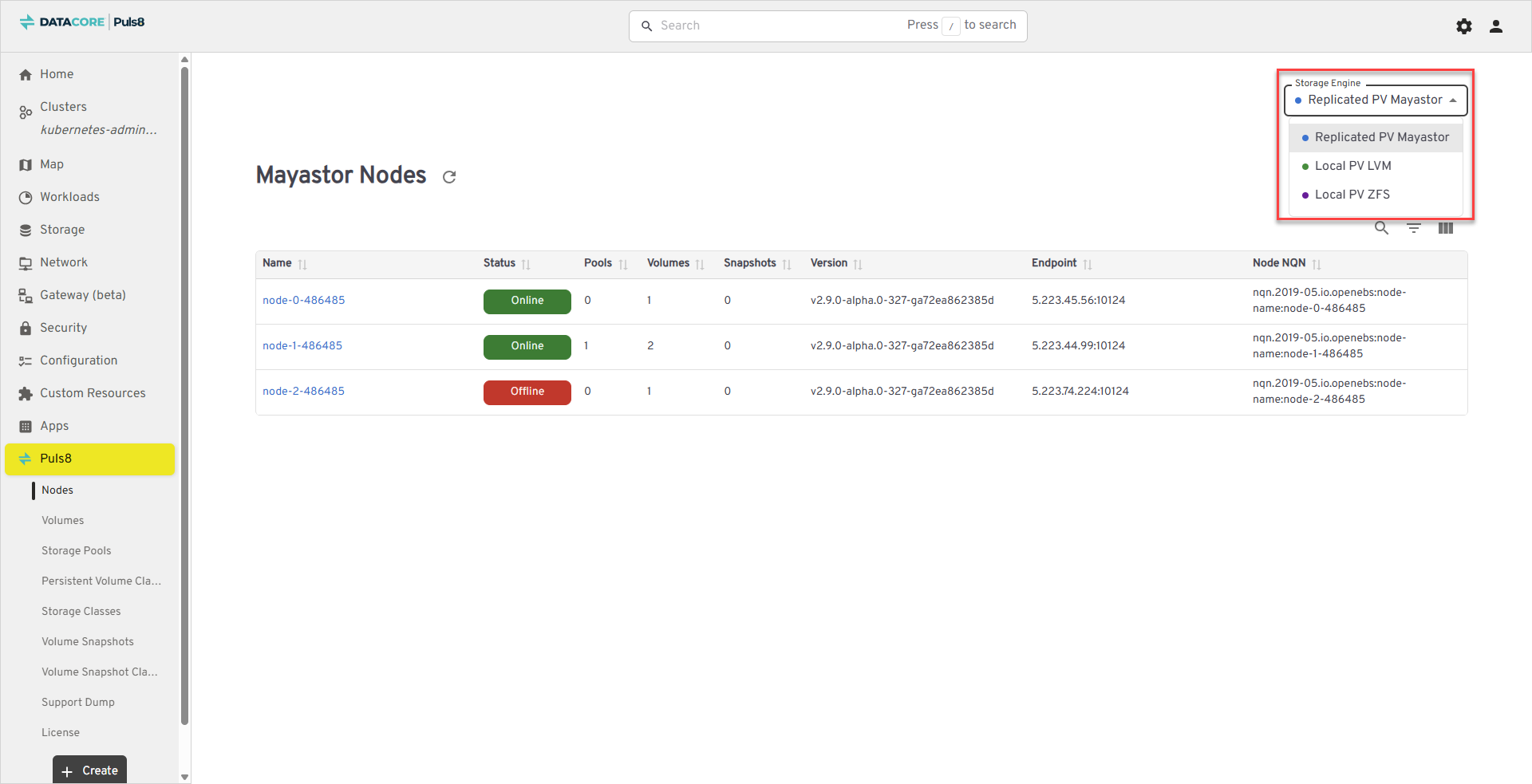
Most sections of the dashboard include a Storage Engine dropdown in the upper-right corner. Changing the selected engine changes the heading, the columns, and the actions available in that section. For example, the Nodes section is titled Mayastor Nodes, LVM Nodes, or ZFS Nodes depending on the selected engine.
Sections that list standard Kubernetes objects provide a row menu in the Actions column. Click the ⋮ icon at the end of a row to open it. The row menu provides the following actions:
| Action | Description |
|---|---|
| Edit | Opens the resource definition for editing. |
| Download | Downloads the resource definition as a YAML file. |
| View YAML | Displays the resource definition without editing it. |
| Delete | Deletes the resource. |
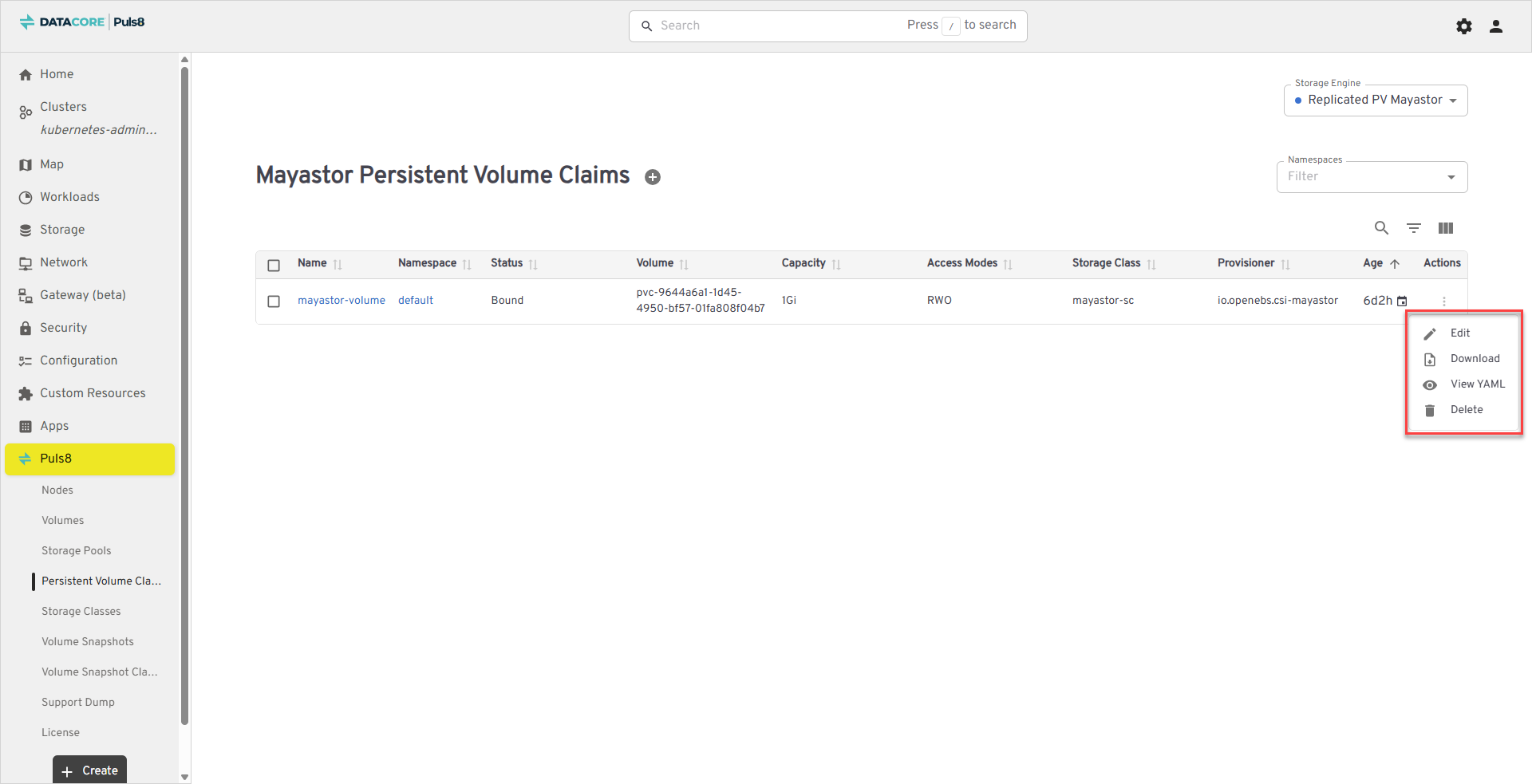
Tables specific to Replicated PV Mayastor do not provide a row menu. Instead, clicking a name opens a detail panel that provides the actions for that resource. These actions are described in each section.
Clicking a resource name in a Local PV LVM, Local PV ZFS, or Local PV Hostpath table opens the corresponding Headlamp resource page, where additional Kubernetes-level actions are available.
Nodes
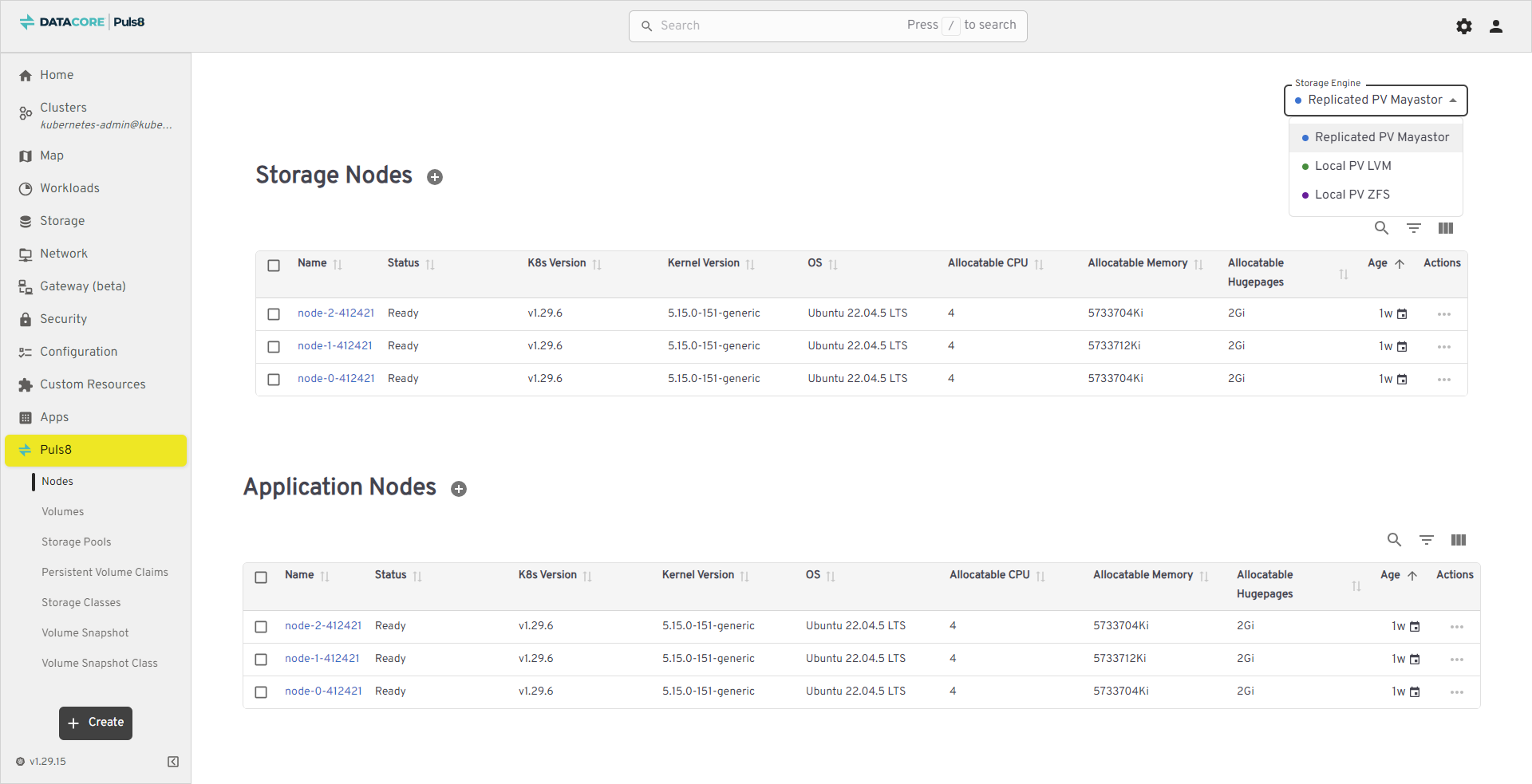
The Nodes section provides a consolidated view of the Kubernetes nodes in the cluster. The heading and fields shown depend on the selected Storage Engine:
- For Replicated PV Mayastor, the section is titled Mayastor Nodes, with each node's pool, volume, and snapshot counts.
- For Local PV LVM, the section is titled LVM Nodes. For Local PV ZFS, it is titled ZFS Nodes. Both list the cluster's Kubernetes nodes using standard node fields.
It enables you to monitor node availability, health, and configuration details at a glance. This ensures proactive detection of node-related issues and helps maintain a healthy infrastructure.
The table below lists the fields shown for Replicated PV Mayastor nodes.
| Field | Description |
|---|---|
| Name | Node identifier (clickable). Opens detailed node information. |
| Status | Node readiness/state (example, Online). |
| Pools | Number of storage pools hosted on the node. |
| Volumes | Number of volume replicas hosted on the node. |
| Snapshots | Number of volume snapshots hosted on the node. |
| Version | The storage engine version running on the node. |
| Endpoint | The node's gRPC endpoint address (example, 5.223.45.56:10124). |
| Node NQN | The node's NVMe Qualified Name (example, nqn.2019-05.io.openebs:node-name:node-0). |
For Local PV LVM and Local PV ZFS, the table lists the cluster's Kubernetes nodes and provides detailed information about their configuration, resource availability, and operational state.
| Field | Description |
|---|---|
| Name | Node identifier (clickable). Opens detailed node information. |
| Status | Node readiness/state (example, Ready). |
| K8s Version | Kubernetes version running on the node (example, v1.29.6). |
| Kernel Version | OS kernel version (example, 5.15.0-152-generic). |
| OS | Operating system and version (example, Ubuntu 22.04.5 LTS). |
| Allocatable CPU | Number of CPU units schedulable to pods on the node. |
| Allocatable Memory | Memory available to pods (displayed in Ki/Gi). |
| Age | Time since the node object was created/registered (example, 1mo). |
| Actions | Row menu (⋮) with node-specific management actions (view logs, cordon, etc.). |
Viewing and Managing Nodes
- From the left navigation panel, click Puls8.
- Select Nodes from the list.
- Click a Name to view node details, including System Info, Conditions, and Events.
- Use the Actions (⋮) menu for node operations (where available).
- Use the Storage Engine dropdown (upper-right corner) to switch between Replicated PV Mayastor, Local PV LVM, and Local PV ZFS views.
Node Actions
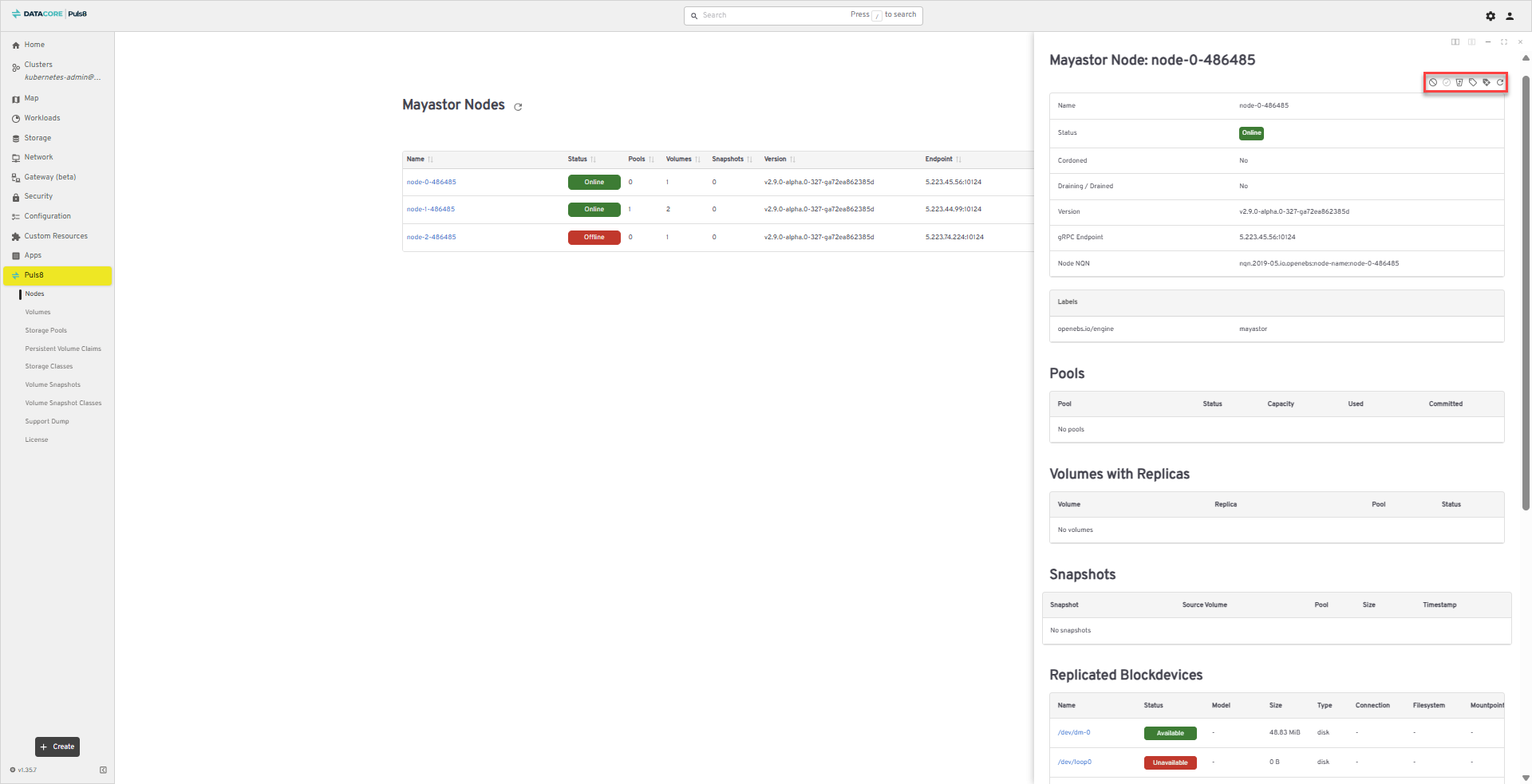
For Replicated PV Mayastor, clicking a node name opens a detail panel that shows the node's Labels, Pools, Volumes with Replicas, Snapshots, and Replicated Blockdevices. The following actions are available at the top of the panel:
| Icon | Action | Description |
|---|---|---|

|
Cordon Node | Marks the node as unschedulable so that no new volume replicas are placed on it. |

|
Uncordon Node | Returns a cordoned node to normal scheduling. |

|
Drain Node | Moves existing volume replicas off the node. |

|
Label Node | Adds a label to the node. |

|
Delete Node Label | Removes a label from the node. |

|
Refresh | Reloads the node's details. |
For Local PV LVM and Local PV ZFS, clicking a node name opens the Headlamp node page, which provides Cordon, Drain, Debug Node, Edit, and Delete.
Best Practices
- Regularly review node Status to detect readiness or scheduling issues early.
- Ensure Allocatable CPU/Memory is sufficient for upcoming workloads before deploying new applications.
Volumes
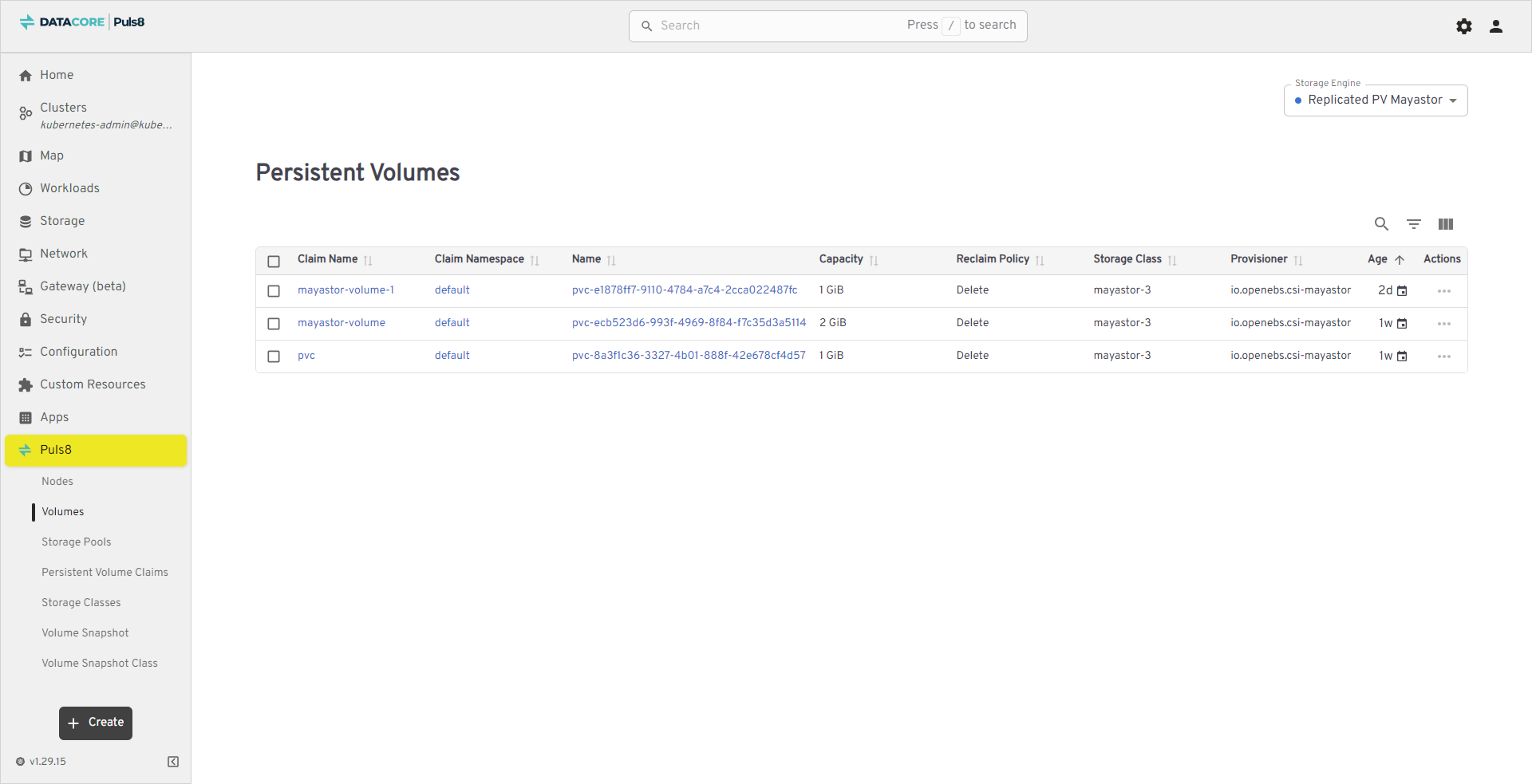
The Volumes section provides a centralized view of all storage volumes provisioned through Puls8. It enables you to monitor storage allocations and validate that workloads have the correct volumes provisioned. The fields shown depend on the selected Storage Engine.
The table below lists the fields shown for Replicated PV Mayastor volumes.
| Field | Description |
|---|---|
| Name | The volume's PVC name (clickable). Opens detailed volume information. |
| Volume ID | The volume's underlying UUID. |
| Status | The volume's current status (example, Online). |
| Size | The volume's provisioned size. |
| Replicas | The number of replicas configured for the volume. |
| Target Node | The node the volume is currently published to, if any (clickable). |
| Affinity Group | The affinity group the volume belongs to, if any. |
| Snapshots | The number of snapshots taken of the volume. |
| Encrypted | Whether the volume is encrypted (Yes or No). |
| Provisioning | Whether the volume is Thin- or Thick-provisioned. |
For Local PV LVM, Local PV ZFS, and Local PV Hostpath, the table below lists all available volumes and provides detailed information about their claims, provisioning, and lifecycle. These views are titled LVM Volumes, ZFS Volumes, and Persistent Volumes respectively.
| Field | Description |
|---|---|
| Claim Name | The PVC bound to this volume. |
| Claim Namespace | The namespace where the claim resides. |
| Name | Unique identifier for the PV object. |
| Capacity | Allocated storage size for the volume. |
| Reclaim Policy | Defines what happens to the volume after the claim is deleted (example, Delete). |
| Storage Class | The storage class used to provision this volume. |
| Provisioner | Identifies the provisioner plugin (example, io.openebs.csi-mayastor). |
| Age | Time since the volume was created. |
| Actions | Contextual actions available for the volume (view, edit, or manage). |
Viewing and Managing Volumes
- From the left navigation panel, click Puls8.
- Select Volumes from the list.
- Click a Name to view detailed metrics and replica distribution.
- Use the Actions (⋮) menu to manage lifecycle tasks such as deleting or viewing logs.
- Use the Storage Engine dropdown (upper-right corner) to switch between Replicated PV Mayastor, Local PV LVM, Local PV ZFS, and Local PV Hostpath views.
Volume Actions
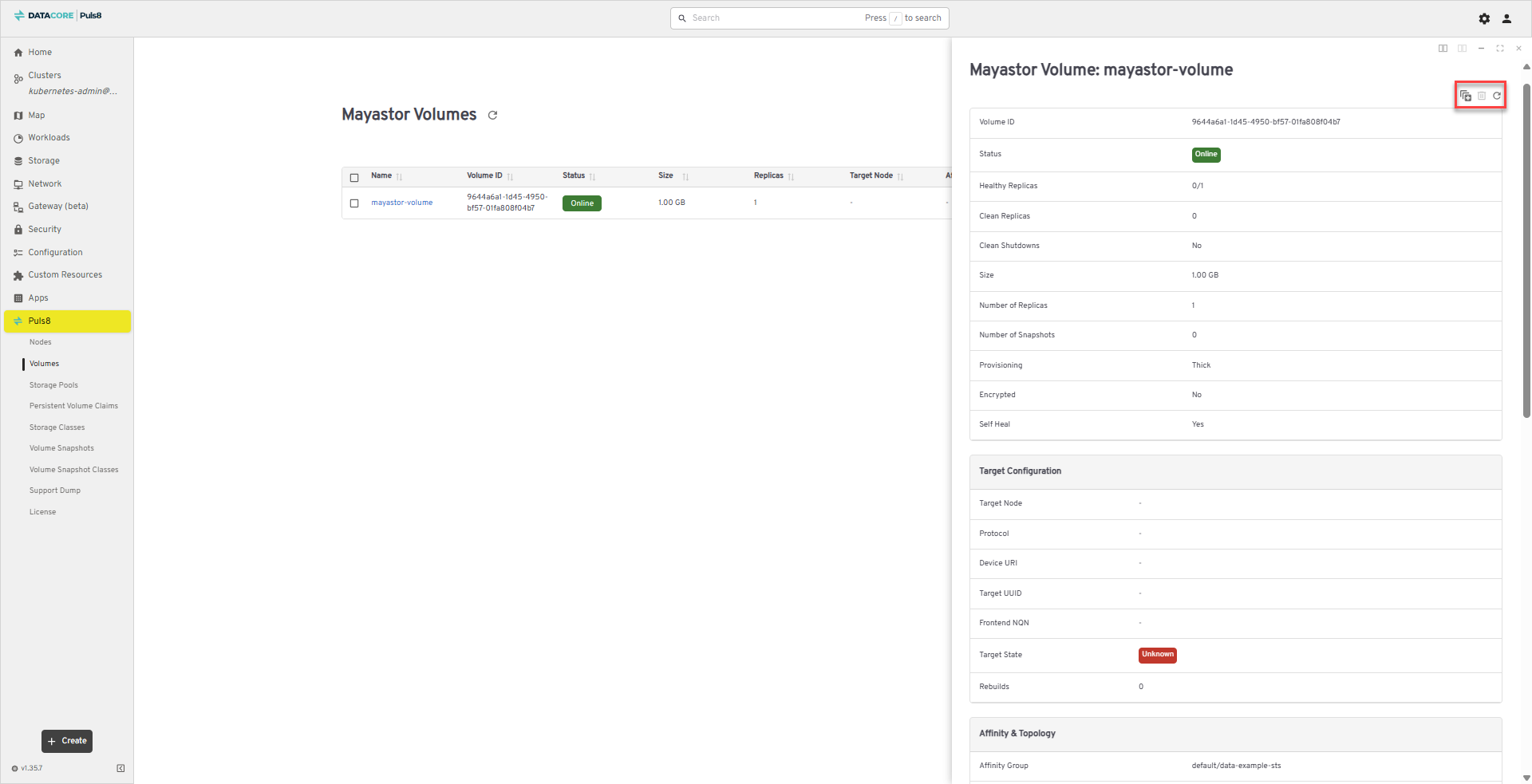
For Replicated PV Mayastor, clicking a volume name opens a detail panel showing the volume's configuration, replica topology, storage usage, and associated Kubernetes components. The following actions are available at the top of the panel:
| Icon | Action | Description |
|---|---|---|

|
Scale Volume | Changes the number of replicas for the volume. Set the required replica count and click Scale. |

|
Delete Volume | Deletes the volume. This action is unavailable while a PersistentVolume still references the volume; delete the PVC first. |
|
|
Refresh | Reloads the volume's details. |
The Mayastor Volumes table also provides checkboxes in the first column, allowing several volumes to be selected and acted on together.
For Local PV LVM, Local PV ZFS, and Local PV Hostpath, use the row menu in the Actions column, or click a volume name to open the Headlamp resource page.
Best Practices
- Cross-check Provisioner with the corresponding StorageClass to confirm consistent driver usage.
- Review Reclaim Policy before deleting workloads to ensure data retention aligns with policy.
Storage Pools
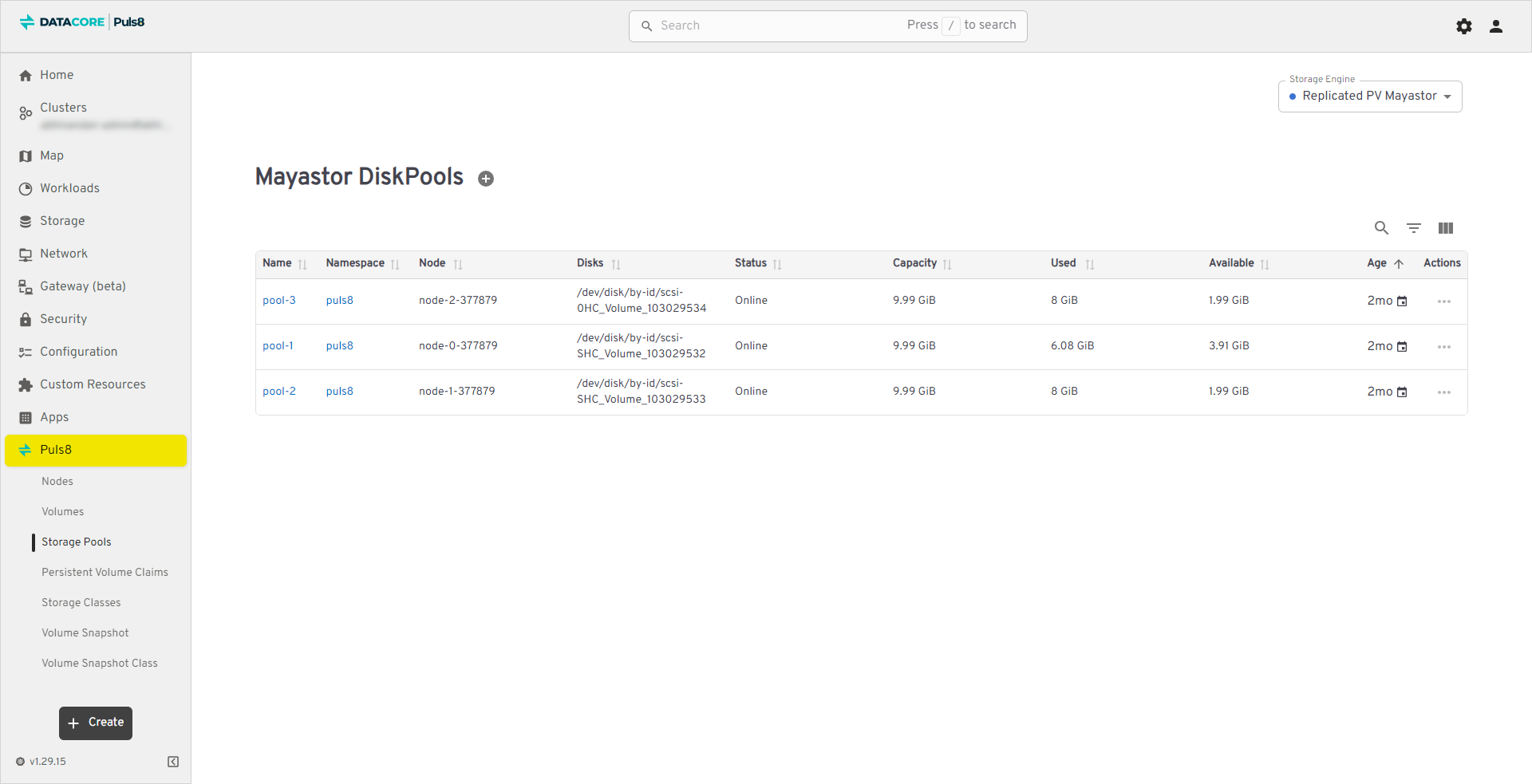
The Storage Pools section provides visibility into available storage resources aggregated from underlying disks. Storage pools are the foundation for provisioning volumes and managing capacity across nodes. The fields shown depend on the selected Storage Engine.
The table below lists the fields shown for Replicated PV Mayastor pools.
| Field | Description |
|---|---|
| Name | Name of the pool (clickable). Opens detailed pool information. |
| Status | The pool's current status (example, Online). |
| Node | The node hosting the pool (clickable). |
| Utilization | The percentage of the pool's capacity currently used. |
| Used | The amount of capacity currently used. |
| Available | The remaining unused capacity in the pool. |
| Capacity | The pool's total capacity. |
| Committed | The capacity committed to provisioned volumes. This can exceed the physical capacity when volumes are thin-provisioned. |
| Encrypted | Whether the pool is encrypted (Yes or No). |
For Local PV LVM, the section is titled LVM Volume Groups and lists the volume groups available on each node.
| Field | Description |
|---|---|
| Volume Group Name | The name of the LVM volume group. |
| Node | The node the volume group is on. |
| Namespace | The namespace the volume group is reported in. |
| Total | The total capacity of the volume group. |
| Used | The capacity currently used. |
| Free | The capacity still available. |
For Local PV ZFS, the section is titled ZFS Pools and lists the ZFS pools available on each node.
| Field | Description |
|---|---|
| Pool Name | The name of the ZFS pool. |
| Node | The node the pool is on. |
| Namespace | The namespace the pool is reported in. |
| Total | The total capacity of the pool. |
| Used | The capacity currently used. |
| Free | The capacity still available. |
Viewing and Managing Storage Pools
- From the left navigation panel, click Puls8.
- Select Storage Pools from the list.
- Click a Name to view pool capacity, disk details, and node association.
- Use Used / Available to track capacity consumption.
- Use the Storage Engine dropdown (upper-right corner) to switch between Replicated PV Mayastor, Local PV LVM, and Local PV ZFS views.
Storage Pool Actions
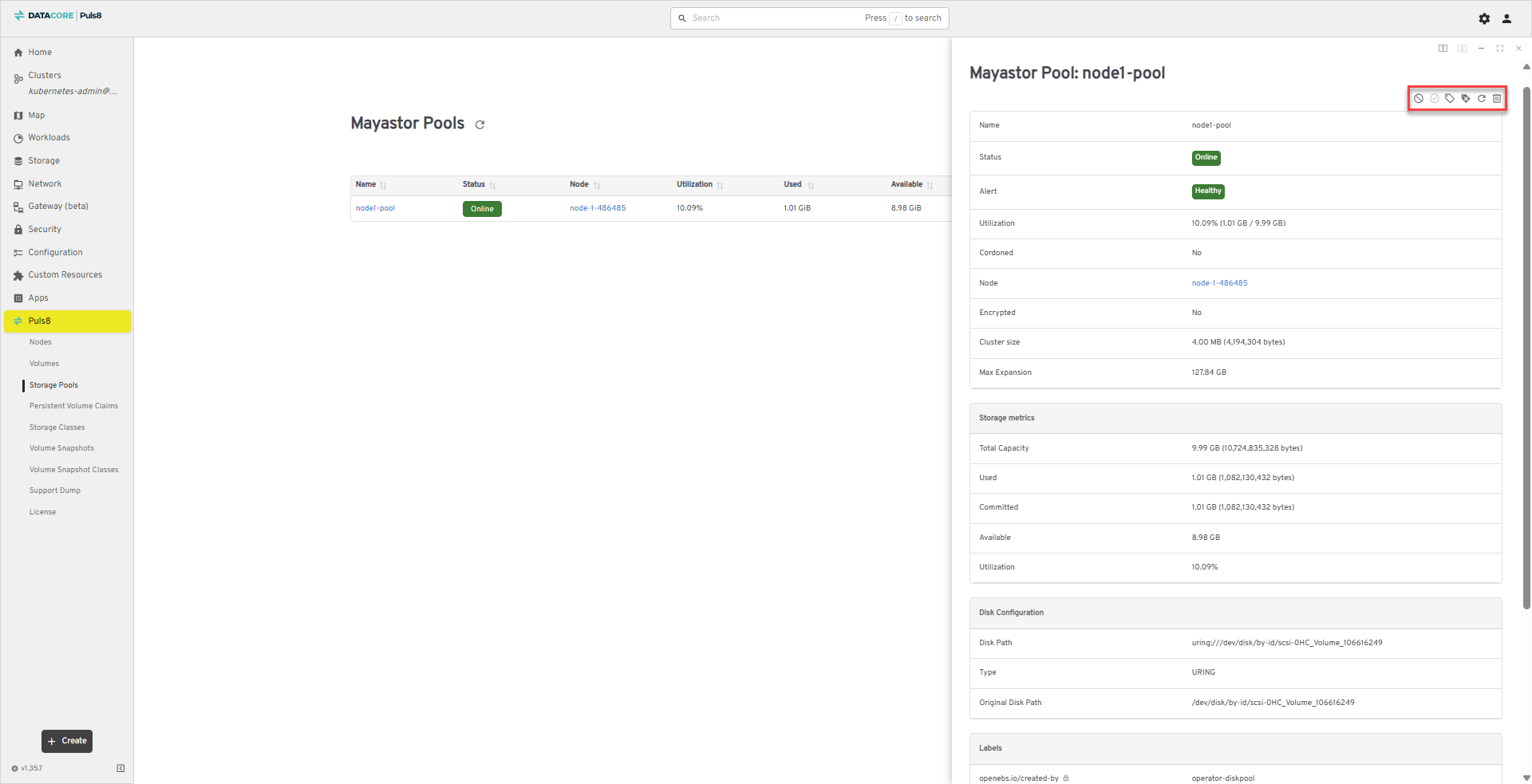
For Replicated PV Mayastor, clicking a pool name opens a detail panel. The following actions are available at the top of the panel:
| Icon | Action | Description |
|---|---|---|
|
|
Cordon Pool | Marks the pool as unschedulable so that no new volume replicas are placed on it. |
|
|
Uncordon Pool | Returns a cordoned pool to normal scheduling. |
|
|
Label Pool | Adds a label to the pool. |
|
|
Delete Pool Label | Removes a label from the pool. |
|
|
Refresh | Reloads the pool's details. |
|
|
Delete Pool | Deletes the pool. |
LVM volume groups and ZFS pools are read-only in the dashboard. Their detail pages provide no actions other than returning to the list.
Best Practices
- Monitor capacity utilization to prevent overcommitment and ensure adequate free space for future allocations.
- Reserve headroom for replica rebuilds and volume expansion, especially in production clusters.
Persistent Volume Claims
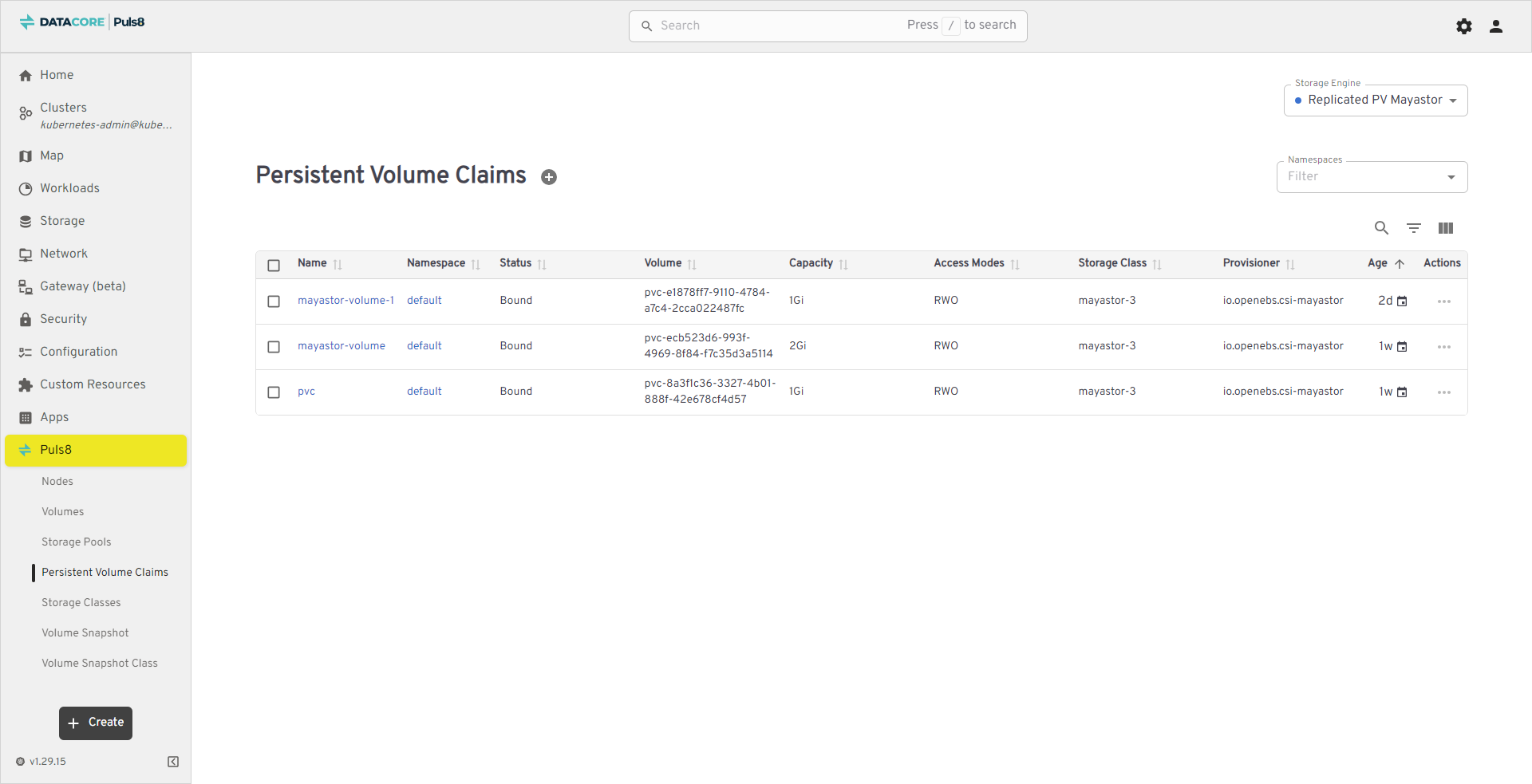
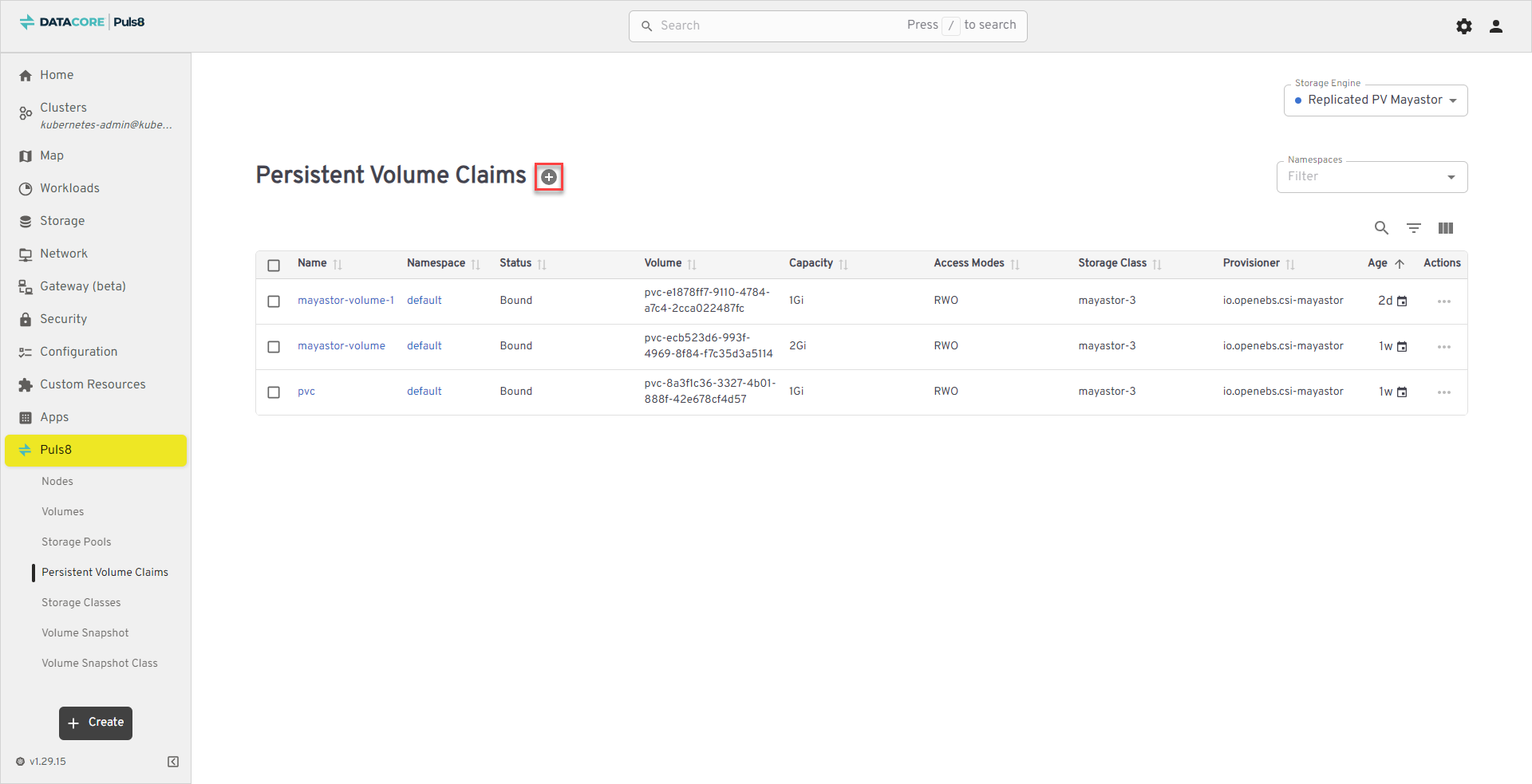
The PVCs section displays all PVCs requested by applications in the Kubernetes cluster. This view helps track application-level storage consumption and binding status with underlying volumes.
The table below lists all PVCs in the cluster and provides details about their binding status, associated volumes, and storage configuration.
| Field | Description |
|---|---|
| Name | Unique identifier of the PVC. (Clickable to view claim details.) |
| Namespace | Kubernetes namespace where the claim resides. |
| Status | Current claim status (example, Bound, Pending, Released). |
| Volume | Bound Persistent Volume (PV) name. |
| Capacity | Storage capacity requested in the claim. |
| Access Modes | Access modes requested (example, RWO, RWX). |
| Storage Class | StorageClass used to provision the PVC. |
| Provisioner | CSI driver responsible for volume provisioning. |
| Age | Time elapsed since the PVC was created. |
| Actions | Row menu (⋮) for claim-level operations. |
Viewing and Managing PVCs
- From the left navigation panel, click Puls8.
- Select Persistent Volume Claims from the list.
- Click a Name to view PVC details including capacity, access modes, and bound volume.
- Use the Actions (⋮) menu for PVC-level operations.
- Use the Storage Engine dropdown (upper-right corner) to switch between Replicated PV Mayastor, Local PV LVM, Local PV ZFS, and Local PV Hostpath views.
Creating PVCs
- Click the Create PersistentVolumeClaim button to create a new PVC.
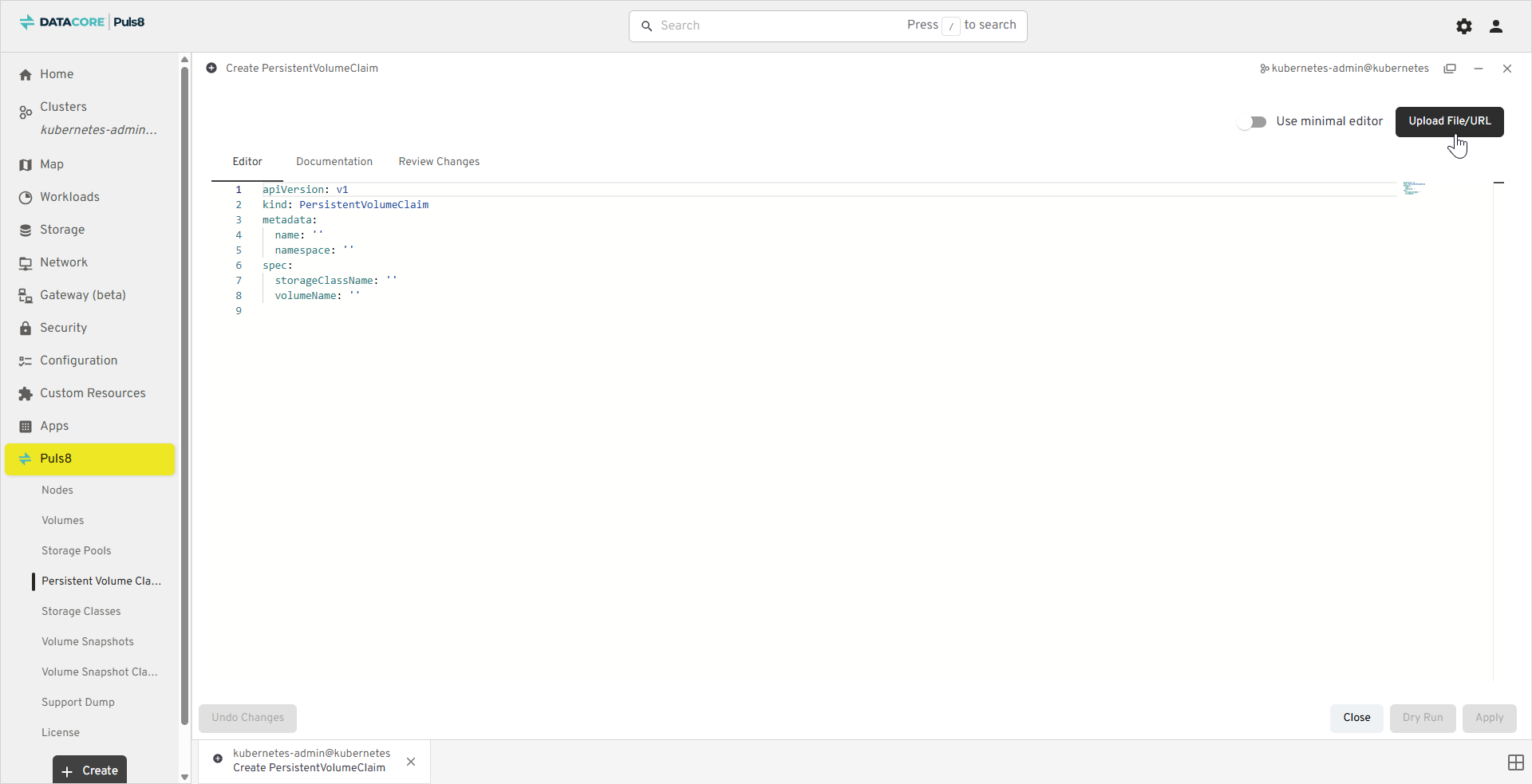
- A Create window opens with a YAML editor.
- Click Upload File/URL.
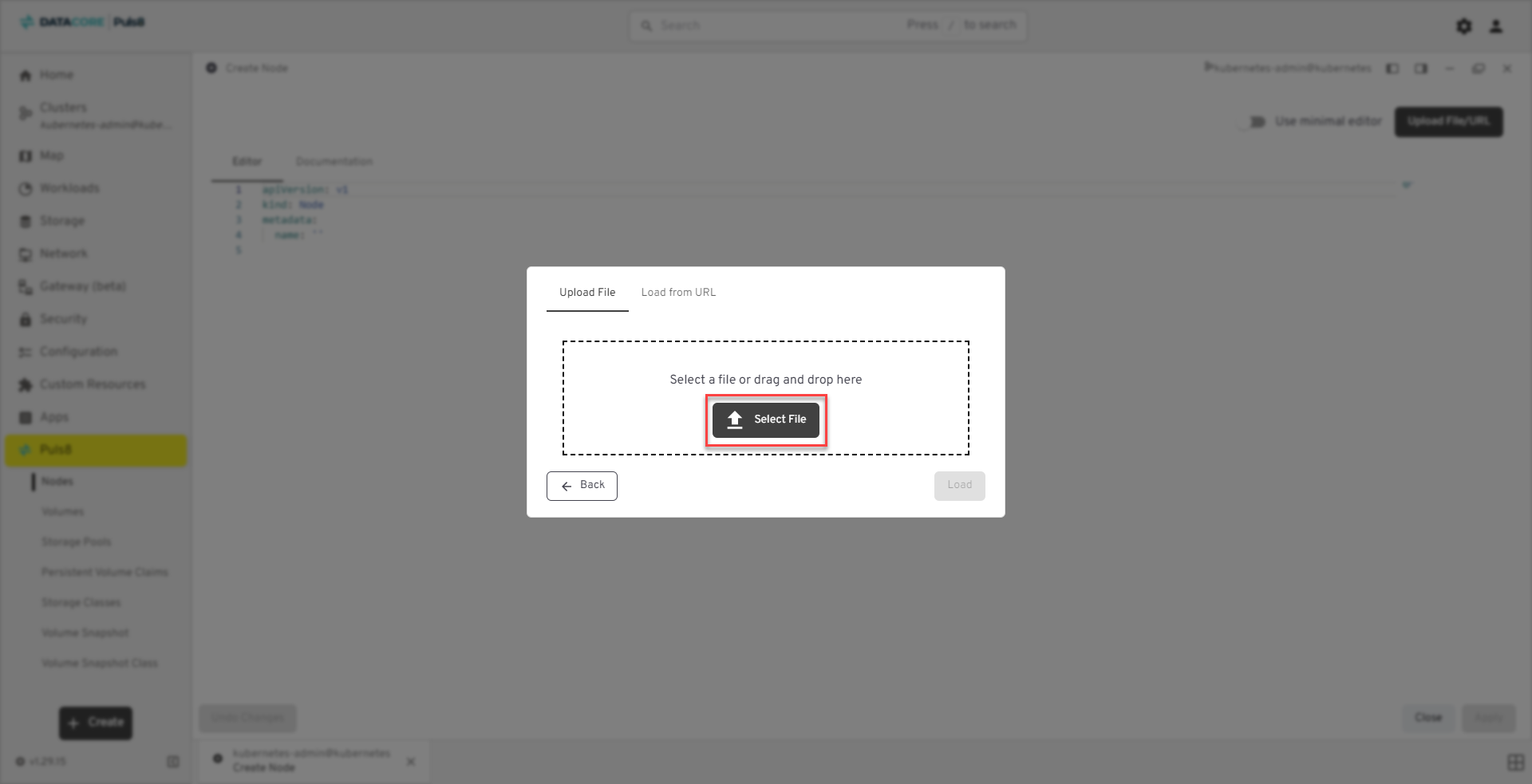
- In the popup dialog, choose one of the following:
- Upload File - Select a local YAML file defining your PVC.
- Load from URL - Provide a direct URL to the YAML manifest.
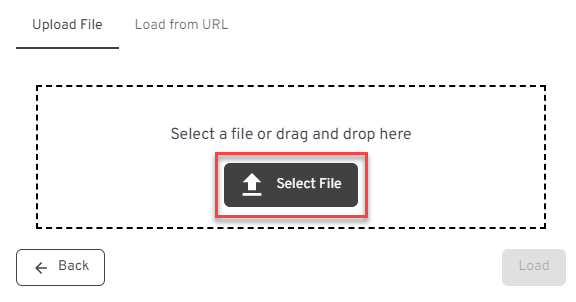
- If you choose Upload File, click Select File and navigate to your YAML file in File Explorer.
- From the file type dropdown, select All Files and choose the appropriate YAML manifest.
- Click Load to import the file.
- Review the YAML definition (for example, confirm the PVC name, namespace, and requested capacity).
- Click Apply (lower-right corner) to create the PVC.
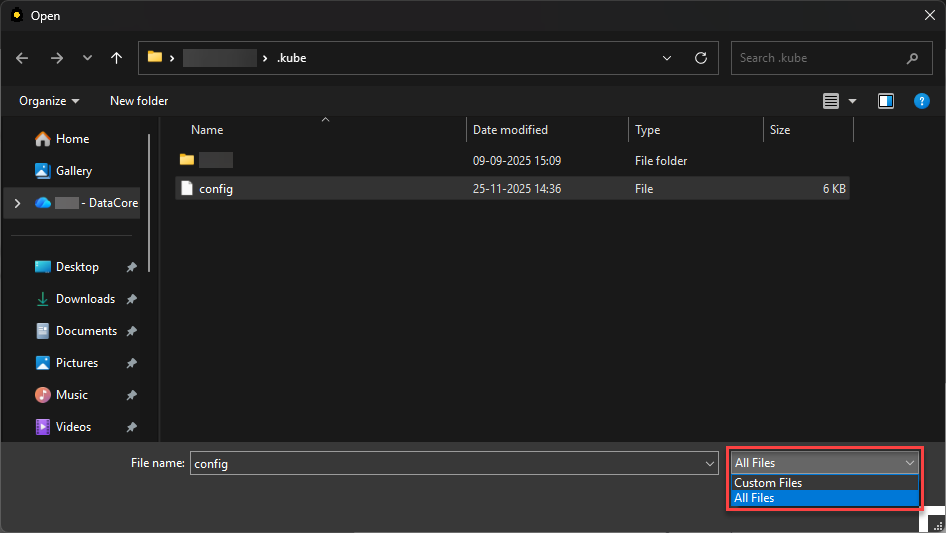
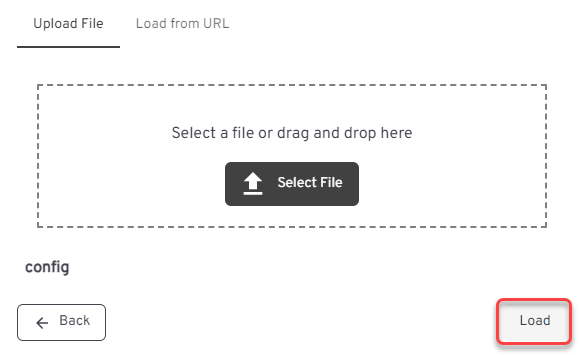
The new PVC appears in the table once successfully bound to a corresponding PV.
Best Practices
- Check Status to confirm whether PVCs are successfully bound.
- Use Namespace filtering to isolate claims for specific workloads.
- Cross-reference PVCs with Volumes to verify successful provisioning.
Storage Classes
The Storage Classes section provides an overview of all available storage classes configured. Storage classes define how PVs are provisioned, bound, and reclaimed, ensuring flexibility in data replication and expansion policies.
The table below lists all available storage classes and provides information about their provisioning behavior, expansion capability, and reclaim policies.
| Field | Description |
|---|---|
| Name | The name of the storage class. Click the name to view or edit its configuration. |
| Provisioner | Indicates the CSI (Container Storage Interface) provisioner responsible for dynamic volume creation. (example, io.openebs.csi-mayastor) |
| Volume Binding Mode | Specifies when volume binding and dynamic provisioning occur (example, Immediate or WaitForFirstConsumer). |
| Reclaim Policy | Defines what happens to a persistent volume when it is released from its claim (example, Delete or Retain). |
| Allow Expansion | Indicates whether the size of an existing volume can be increased. |
| Default | Specifies whether this storage class is the default for new persistent volume claims. |
| Age | Displays how long the storage class has existed since creation. |
| Actions | Contextual options to manage, edit, or delete the selected storage class. |
Viewing and Managing Storage Classes
- From the left navigation panel, click Puls8.
- Select Storage Classes from the list.
- Click a Name to view or modify configuration details.
- Use the Actions (⋮) menu to manage or delete storage classes.
- Use the Storage Engine dropdown (upper-right corner) to switch between Replicated PV Mayastor, Local PV LVM, Local PV ZFS, and Local PV Hostpath views.
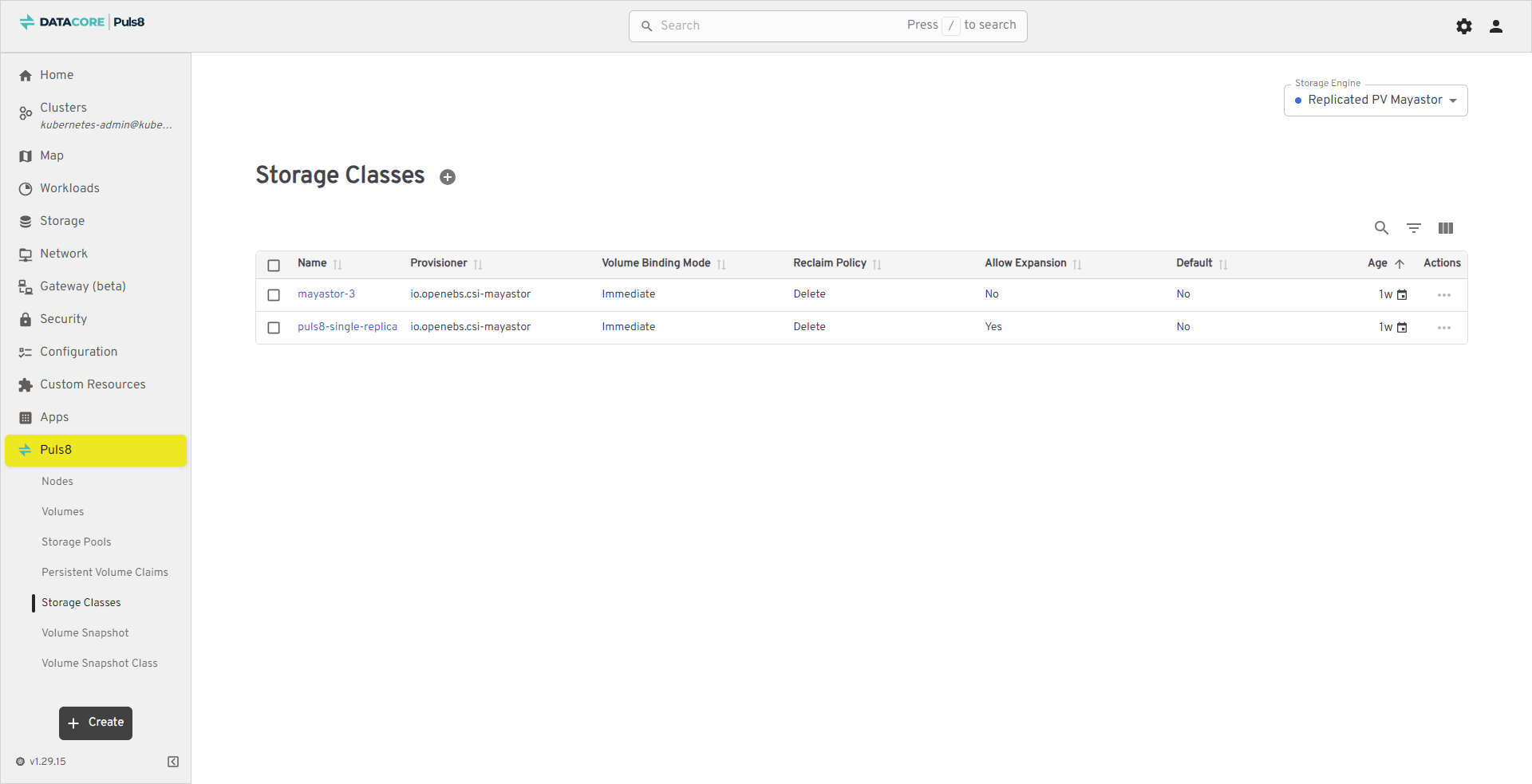
Creating Storage Classes
- Click the Create StorageClass button to create a new Storage Class.
- A Create window opens with a YAML editor.
- Click Upload File/URL.
- In the popup dialog, choose one of the following:
- Upload File - Select a local YAML file defining your Storage Class.
- Load from URL - Provide a direct URL to the YAML manifest.
- If you choose Upload File, click Select File and navigate to your YAML file in File Explorer.
- From the file type dropdown, select All Files and choose the appropriate YAML manifest.
- Click Load to import the file.
- Review the YAML definition (for example, verify the provisioner, reclaim policy, and binding mode).
- Click Apply (lower-right corner) to create the Storage Class.
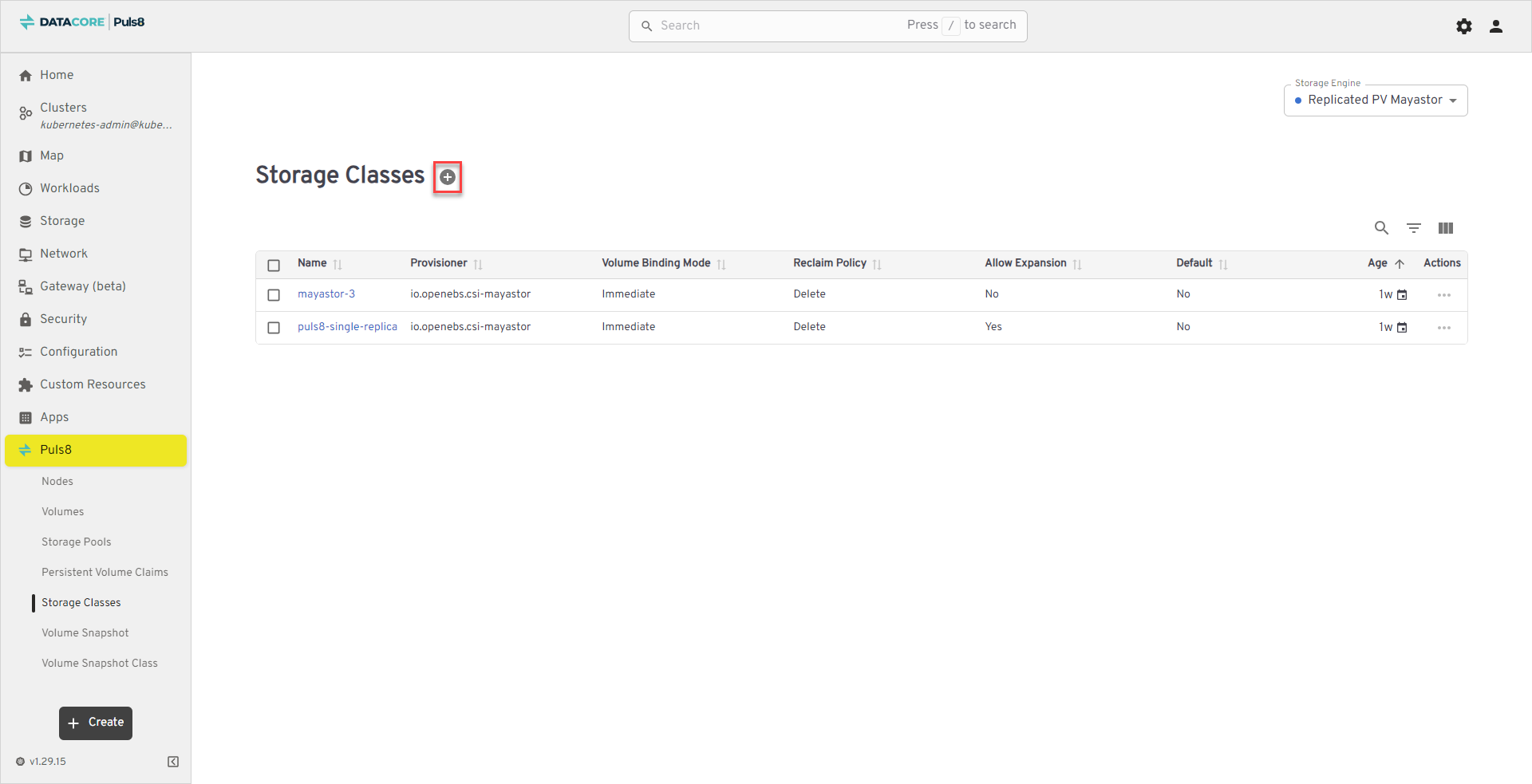
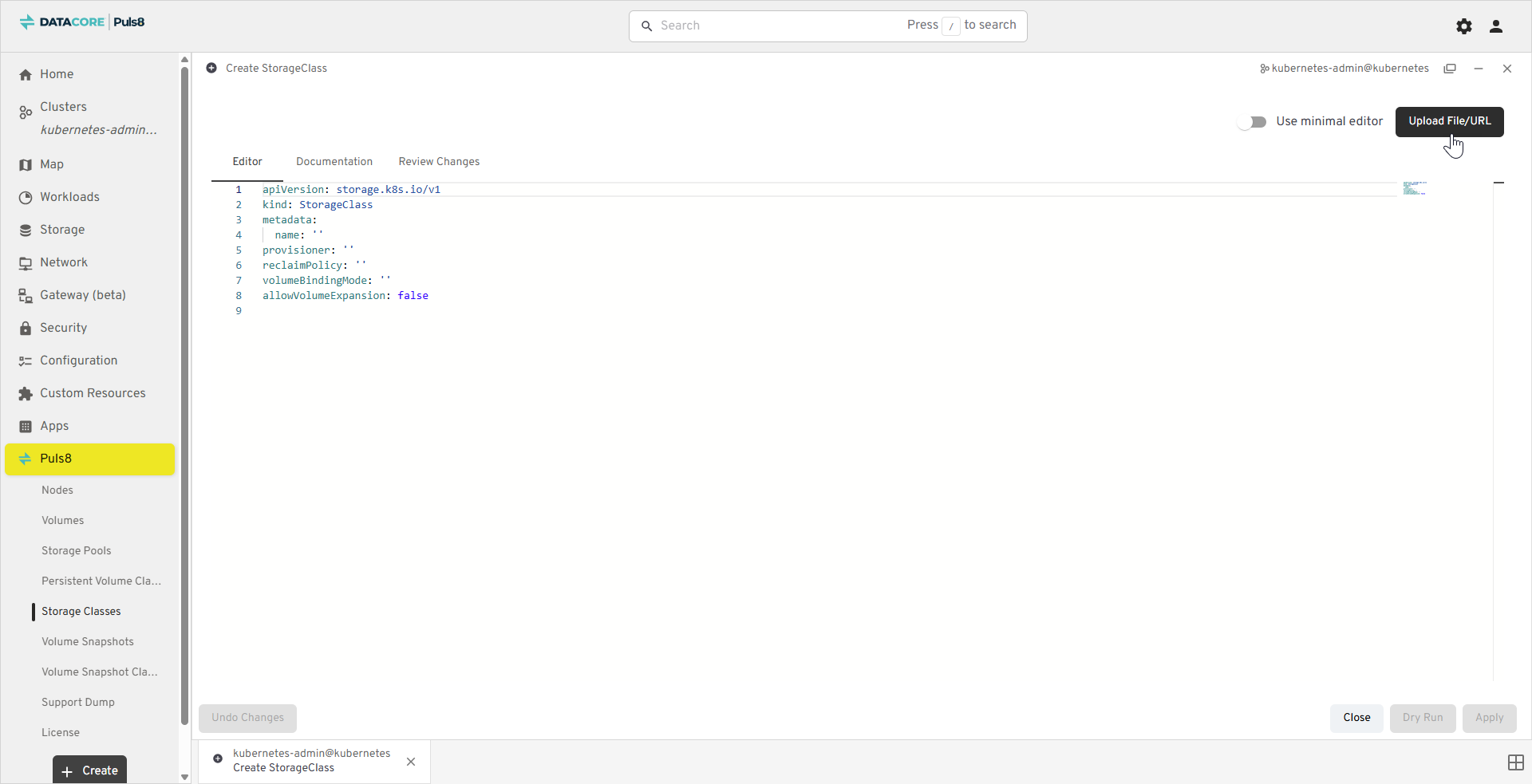
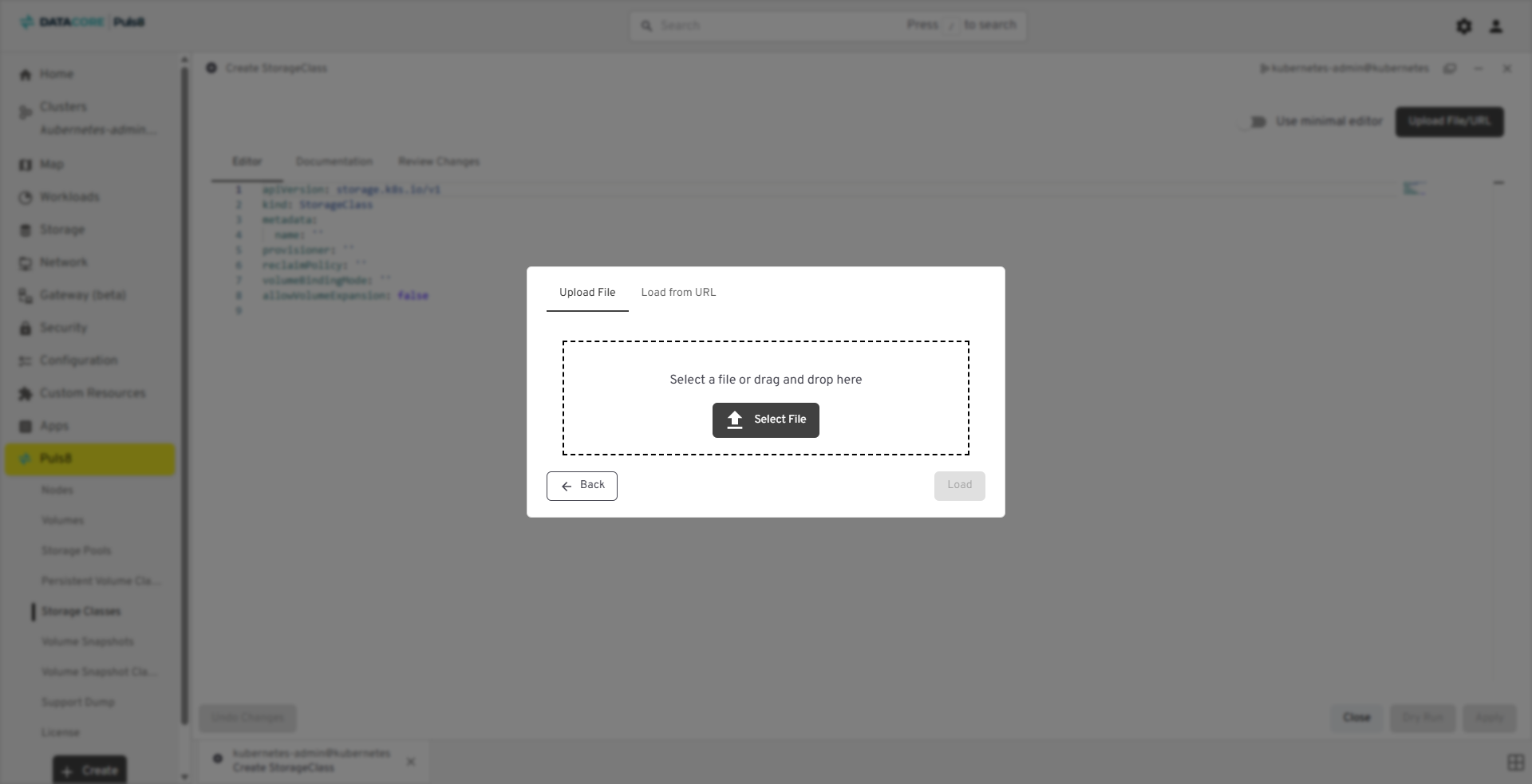
The new storage class appears in the list with its defined provisioner, reclaim policy, and expansion settings.
Best Practices
- Use
Allow Expansion = Yesfor workloads that may require volume resizing. - Verify the Reclaim Policy aligns with your data retention requirements before deleting workloads.
- Ensure that a Default Storage Class is configured for seamless PVC provisioning.
Volume Snapshots
The Volume Snapshots section provides visibility into all snapshots created for persistent volumes managed by the storage engine. Snapshots capture point-in-time copies of data, enabling quick recovery or cloning of volumes without data loss or downtime. The heading and fields shown depend on the selected Storage Engine: Mayastor Snapshots for Replicated PV Mayastor, LVM Snapshots for Local PV LVM, and ZFS Snapshots for Local PV ZFS.
The table below lists the fields shown for Replicated PV Mayastor snapshots.
| Field | Description |
|---|---|
| Name | The name of the snapshot (clickable). Opens detailed snapshot information. |
| Status | The snapshot's current status (example, Created). |
| Source Volume | The volume the snapshot was taken from (clickable, if the source volume still exists). |
| Timestamp | The date and time the snapshot was created. |
| Size | The snapshot's requested size. |
| Allocated | The storage capacity actually allocated to the snapshot. |
| Replicas | The number of snapshot replicas and their status. |
| Restores | The number of volumes restored from the snapshot. |
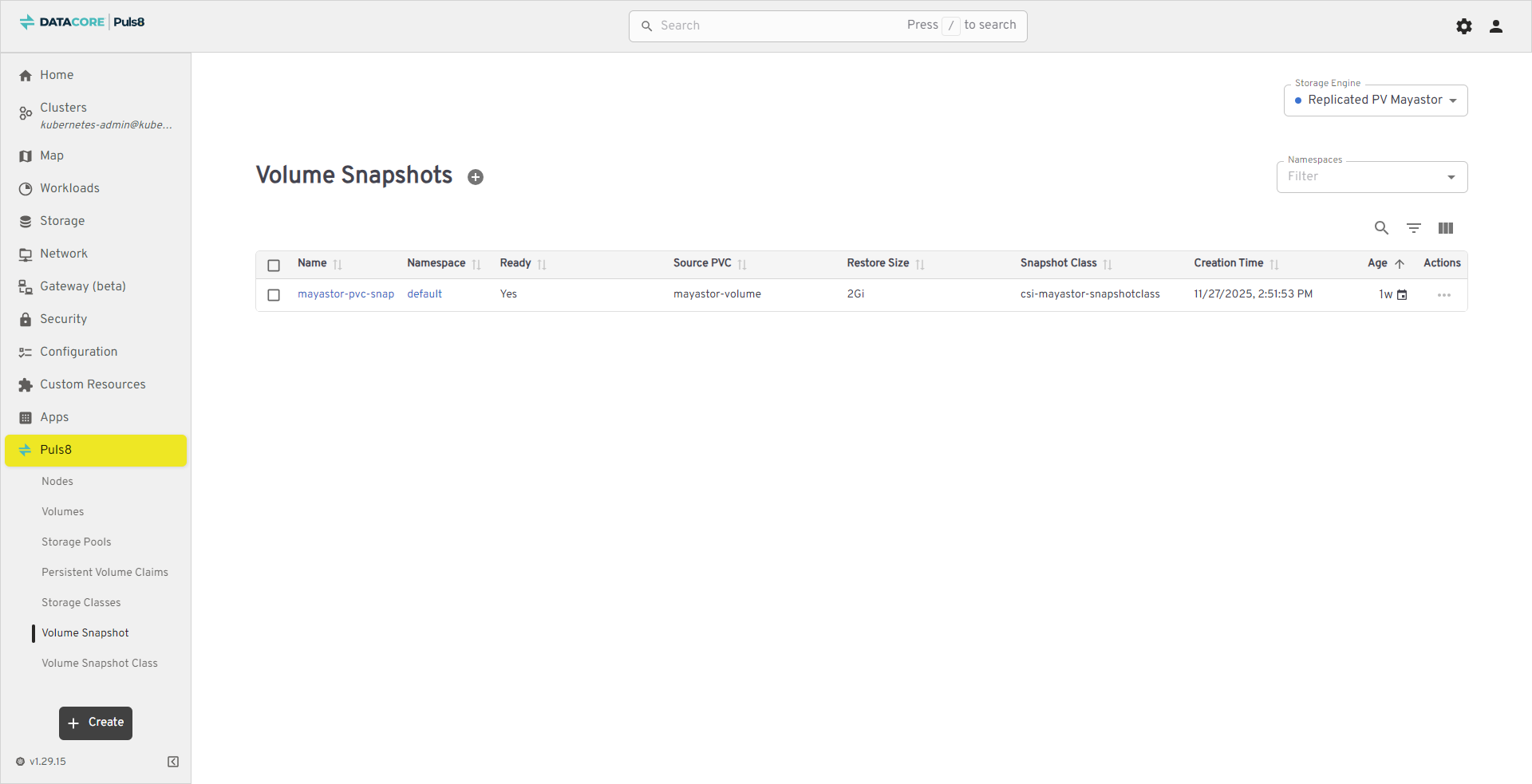
For Local PV LVM and Local PV ZFS, the table below lists all existing volume snapshots and provides information about their readiness, source PVC, and snapshot configuration.
| Field | Description |
|---|---|
| Name | The name of the volume snapshot. Click the name to view details or manage the snapshot. |
| Namespace | The Kubernetes namespace where the snapshot is created. |
| Ready | Indicates whether the snapshot is fully ready and available for use. |
| Source PVC | The name of the PVC from which the snapshot was taken. |
| Restore Size | The total size of the volume that will be restored from the snapshot. |
| Snapshot Class | The snapshot class used to define snapshot creation parameters (example, driver and deletion policy). |
| Creation Time | The timestamp indicating when the snapshot was created. |
| Age | How long the snapshot has existed since its creation. |
| Actions | Contextual options to manage or delete the snapshot. |
Viewing and Managing Volume Snapshots
- From the left navigation panel, click Puls8.
- Select Volume Snapshots.
- Click a Name to view snapshot metadata and restore size.
- Use the Actions (⋮) menu to manage snapshot lifecycle.
- Use the Storage Engine dropdown (upper-right corner) to switch between Replicated PV Mayastor, Local PV LVM, and Local PV ZFS views.
Volume Snapshot Actions
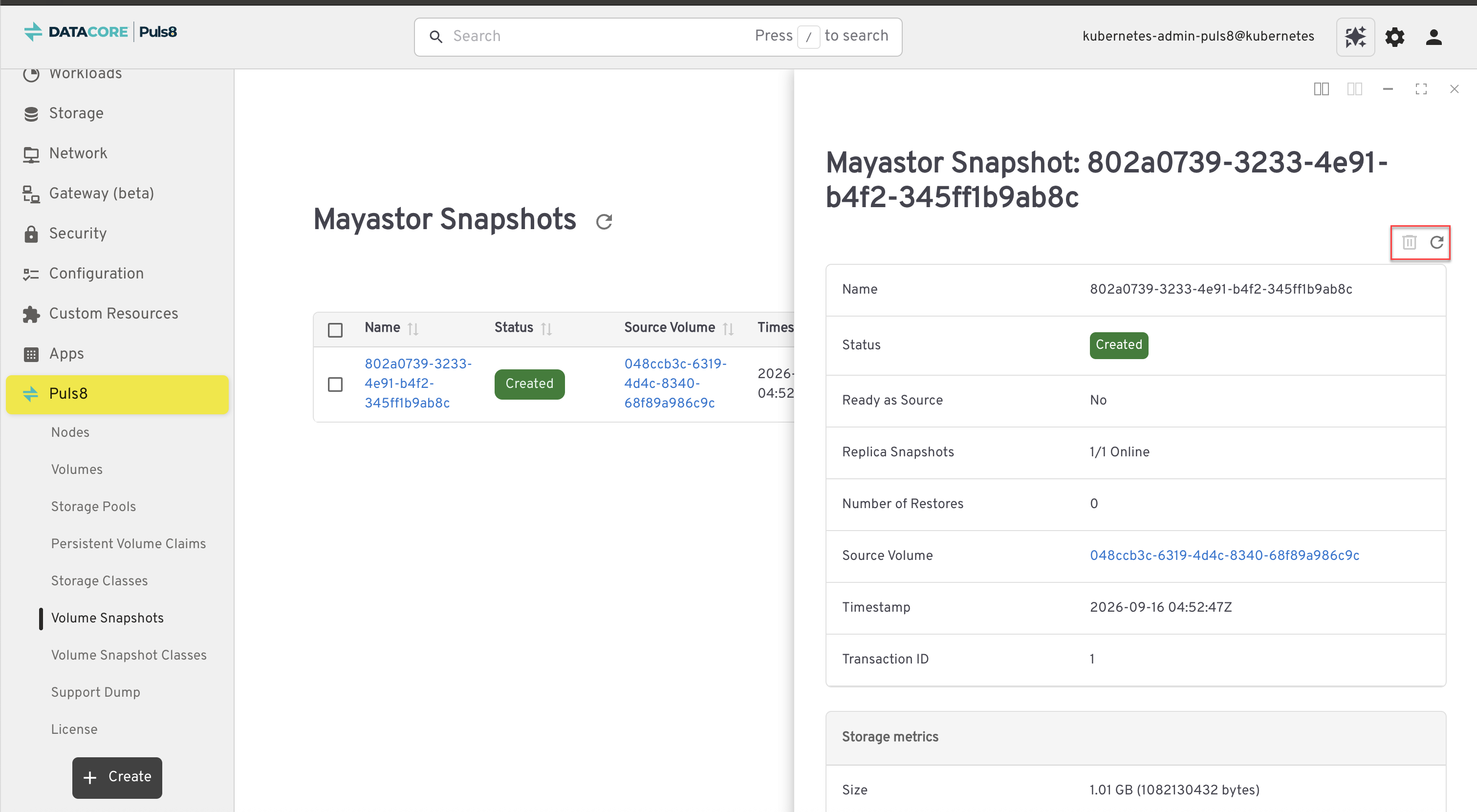
For Replicated PV Mayastor, clicking a snapshot name opens a detail panel. The following actions are available at the top of the panel:
| Icon | Action | Description |
|---|---|---|
|
|
Delete Snapshot | Deletes the snapshot. This action is unavailable while a VolumeSnapshotContent object still references the snapshot. |
|
|
Refresh | Reloads the snapshot's details. |
For Local PV LVM and Local PV ZFS, use the row menu in the Actions column, or click a snapshot name to open its details page.
Creating Volume Snapshots
Volume snapshots can be created from the dashboard for Local PV LVM and Local PV ZFS. For Replicated PV Mayastor, create snapshots using the DataCore Puls8 Kubectl Plugin.
- Click the Create VolumeSnapshot button to create a new Volume Snapshot.
- A Create window opens with a YAML editor.
- Click Upload File/URL.
- In the popup dialog, choose one of the following:
- Upload File - Select a local YAML file defining your Volume Snapshot.
- Load from URL - Provide a direct URL to the YAML manifest.
- If you choose Upload File, click Select File and navigate to your YAML file in File Explorer.
- From the file type dropdown, select All Files and choose the appropriate YAML manifest.
- Click Load to import the file.
- Review the YAML definition (for example, verify the snapshot name and source PVC).
- Click Apply (lower-right corner) to create the Volume Snapshot.
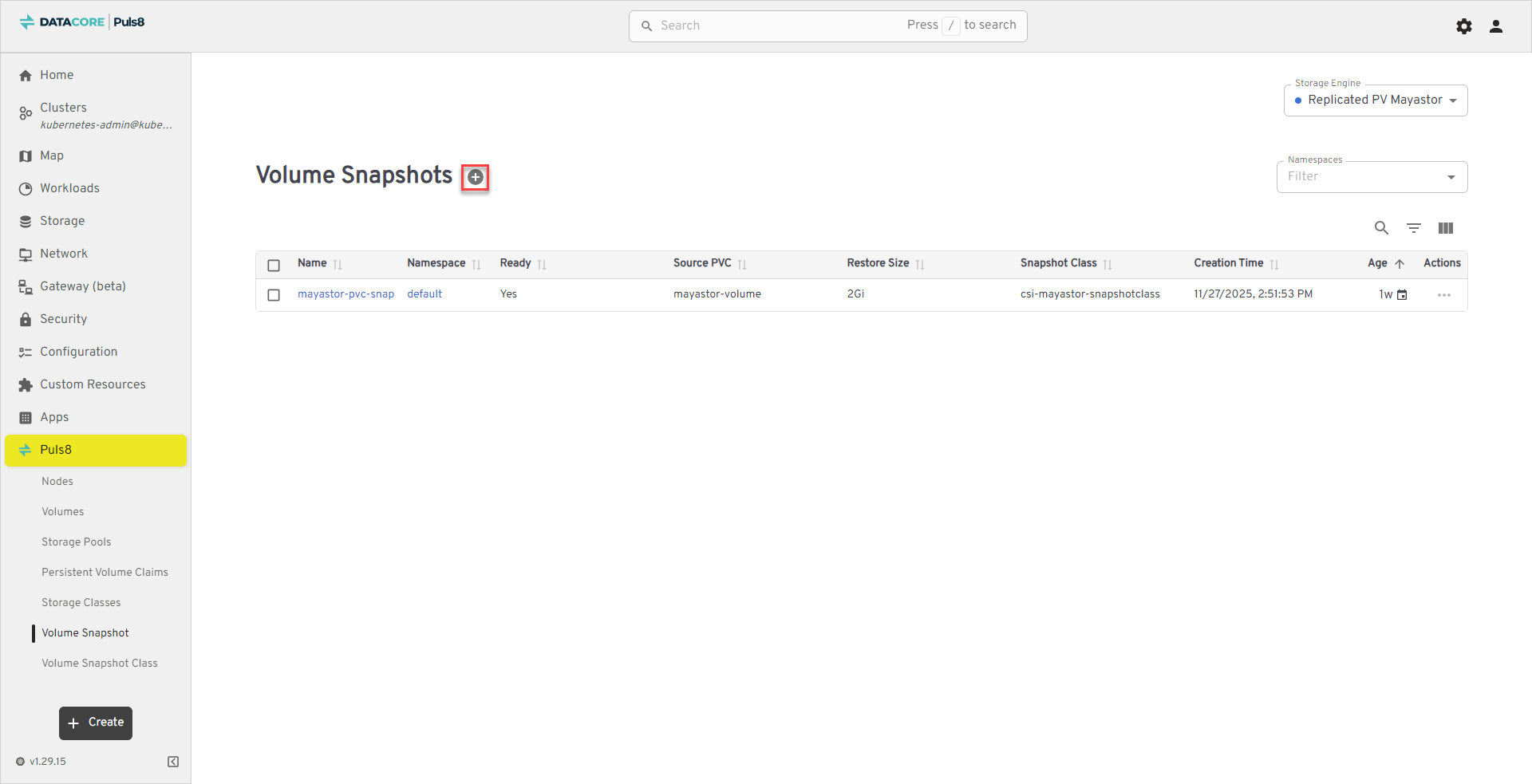
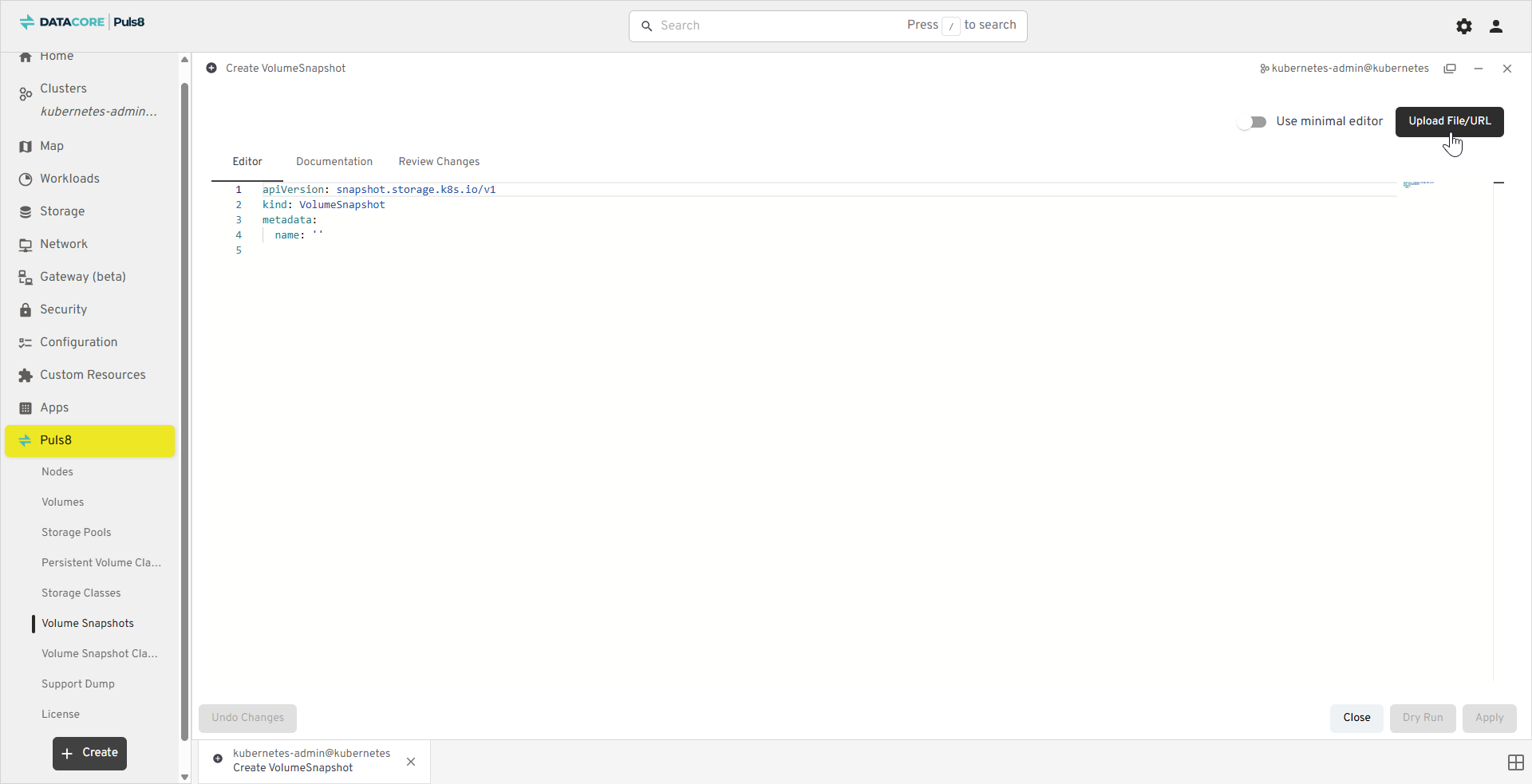
The new volume snapshot appears in the list with its status marked as Ready once successfully created.
Best Practices
- Ensure the Source PVC is in a Bound and Ready state before creating a snapshot.
- Use snapshots to back up important data before performing upgrades or configuration changes.
- Regularly review Age and Creation Time to clean up outdated snapshots and optimize storage space.
- Use the same Snapshot Class across environments to maintain consistent backup behavior.
Volume Snapshot Classes
The Volume Snapshot Classes section provides information about the available snapshot class configurations used by the storage engine. A volume snapshot class defines the driver, deletion policy, and parameters applied when creating snapshots, ensuring consistency and predictable behavior across all snapshot operations.
The table below lists all available snapshot classes and provides information about their associated drivers, deletion policies, and configuration parameters.
| Field | Description |
|---|---|
| Name | The name of the snapshot class. Click the name to view or modify configuration details. |
| Driver | Identifies the CSI driver that handles snapshot creation and restoration (e.g, io.openebs.csi-mayastor). |
| Deletion Policy | Specifies what happens to the underlying snapshot data when the snapshot object is deleted - Delete (removes snapshot data) or Retain (keeps data for manual management). |
| Parameters | Lists key-value pairs defining optional configuration parameters for snapshot creation. Displays None when no parameters are defined. |
| Default | Indicates whether this snapshot class is the default for creating new volume snapshots. |
| Age | Shows how long the snapshot class has existed since its creation. |
| Actions | Contextual options to edit or delete the snapshot class. |
Viewing and Managing Volume Snapshot Classes
- From the left navigation panel, click Puls8.
- Select Volume Snapshot Classes.
- Click a Name to view or edit class parameters, driver, and deletion policy.
- Use the Actions (⋮) menu to modify or delete snapshot classes.
- Use the Storage Engine dropdown (upper-right corner) to switch between Replicated PV Mayastor, Local PV LVM, and Local PV ZFS views.
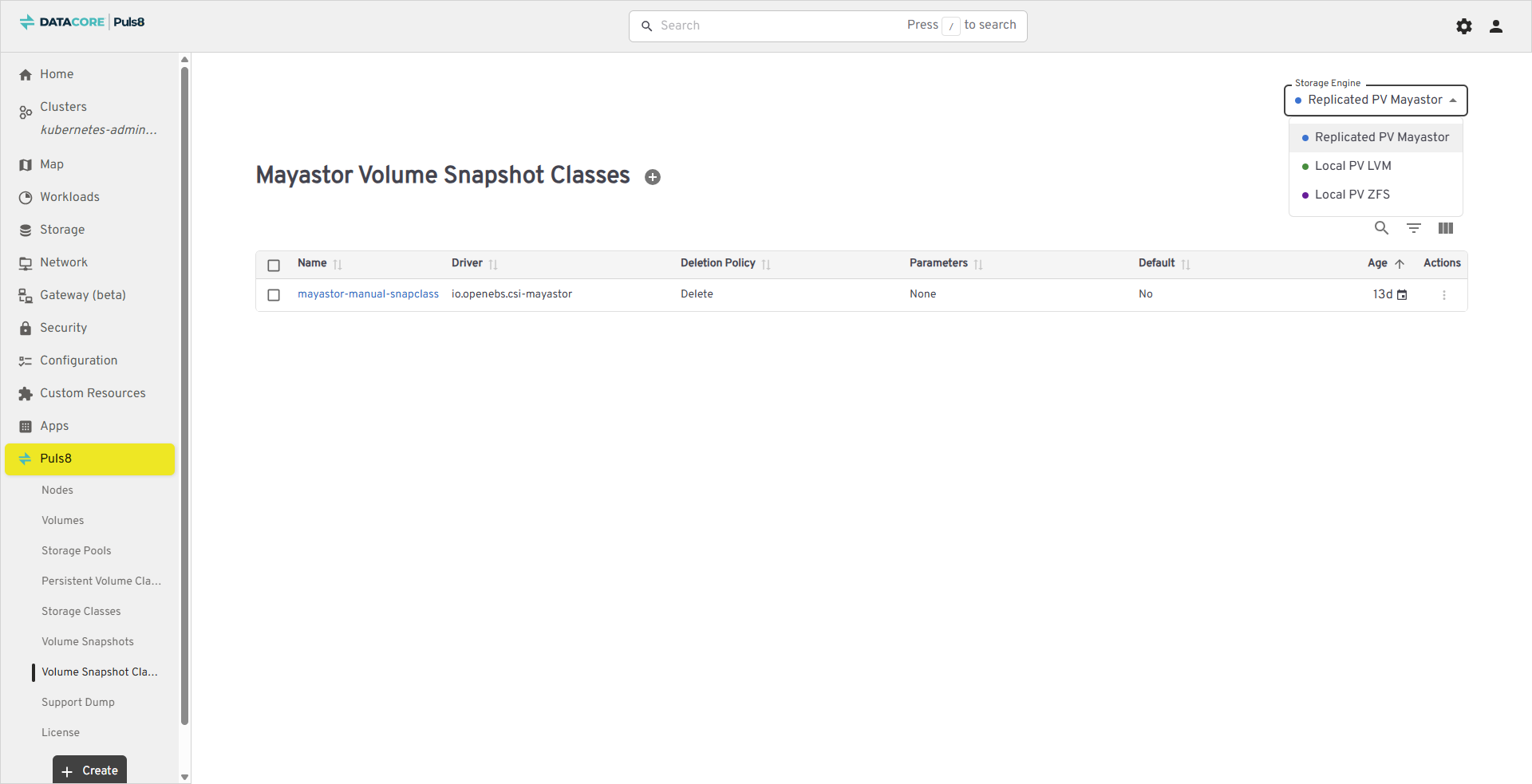
Creating Volume Snapshot Classes
- Click the Create VolumeSnapshotClass button to define a new snapshot class.
- A Create window opens with a YAML editor.
- Click Upload File/URL.
- In the popup dialog, choose one of the following:
- Upload File - Select a local YAML file defining your snapshot class.
- Load from URL - Provide a direct URL to the YAML manifest.
- If you choose Upload File, click Select File and navigate to your YAML file in File Explorer.
- From the file type dropdown, select All Files and choose the appropriate YAML manifest.
- Click Load to import the file.
- Review the YAML definition (for example, verify the snapshot class name, driver, and deletion policy).
- Click Apply (lower-right corner) to create the snapshot class.
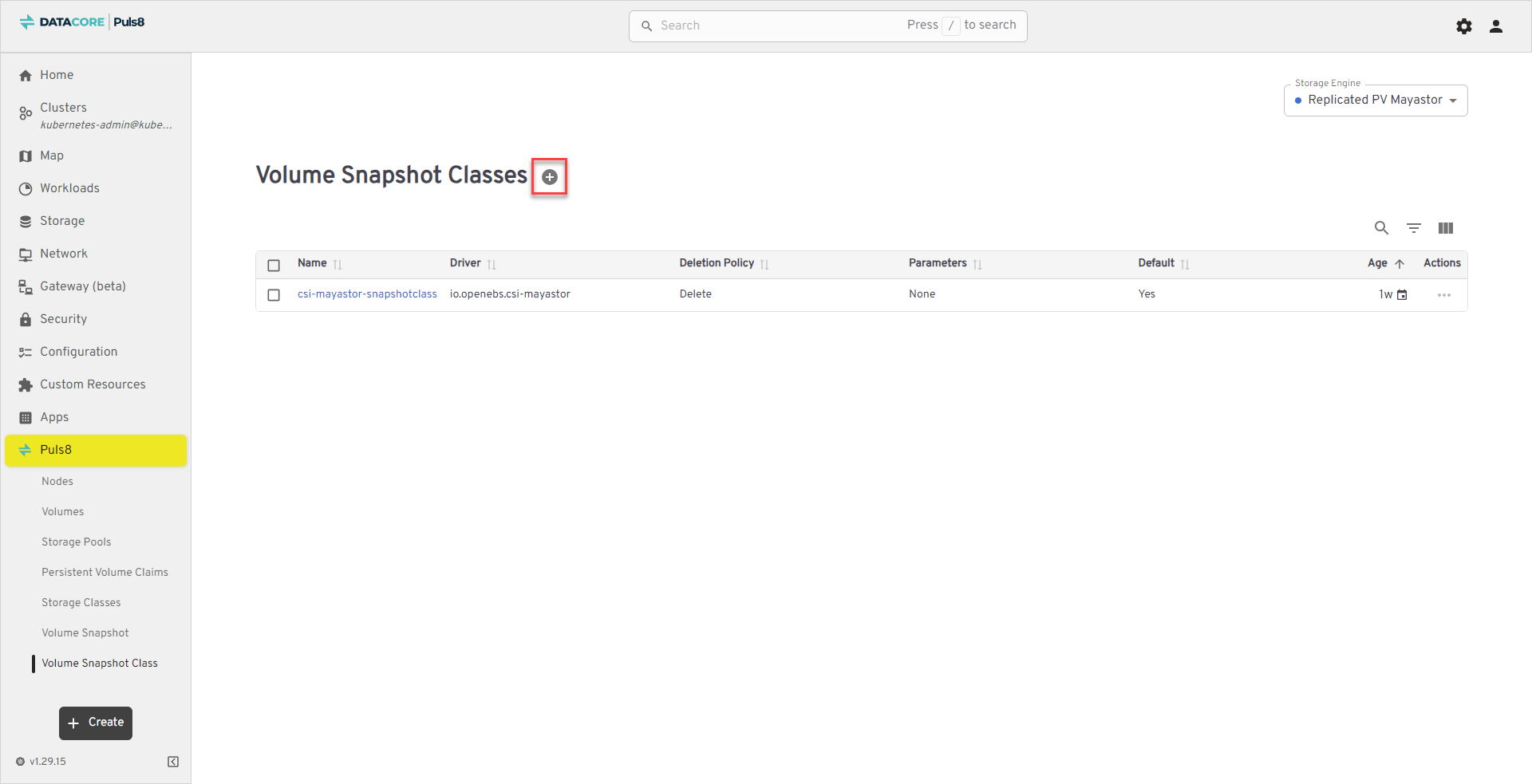
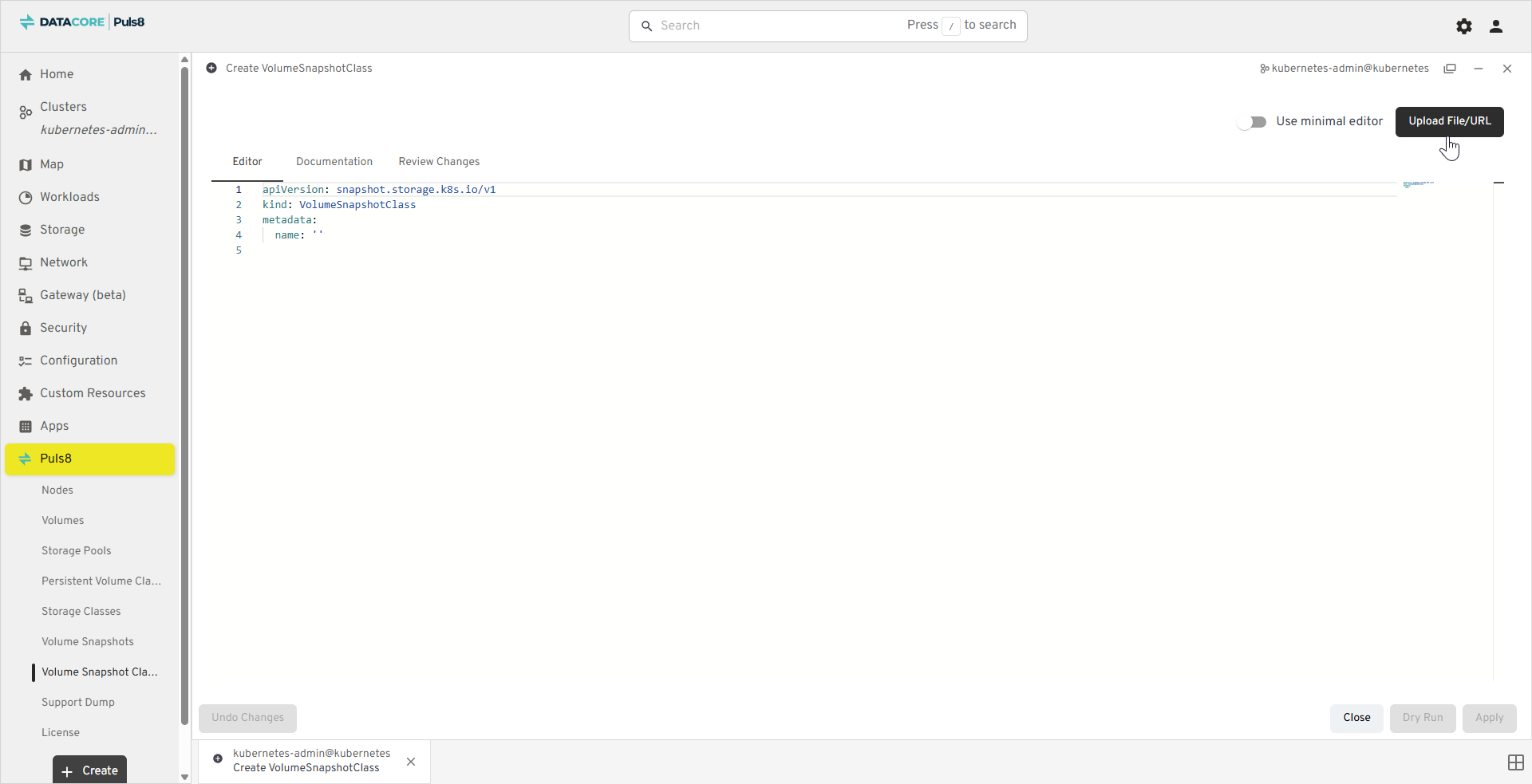
The new snapshot class appears in the table with its corresponding driver, deletion policy, and parameters.
Best Practices
- Use Deletion
Policy = Retainfor snapshots that need to persist beyond their Kubernetes object lifecycle. - Confirm that the Driver matches the active storage engine to avoid snapshot creation errors.
- Set one snapshot class as Default to simplify snapshot creation for workloads.
- Regularly review existing snapshot classes to maintain consistency across storage policies.
Support Dump
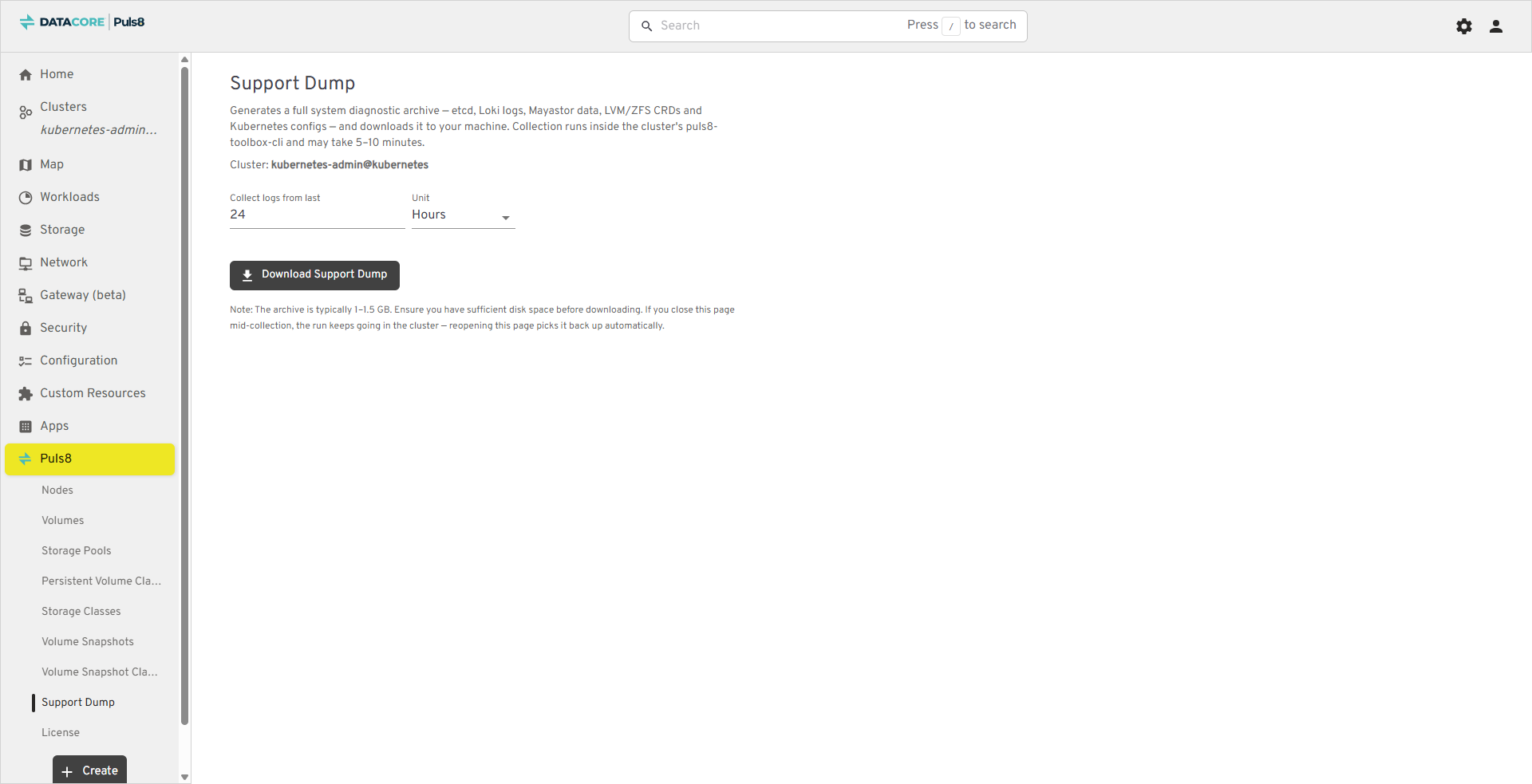
The Support Dump section collects a diagnostic archive from the cluster, etcd, Loki logs, Mayastor data, LVM/ZFS CRDs, and Kubernetes configuration, and downloads it to your machine. Collection runs inside the cluster and typically takes 5-10 minutes.
| Field | Description |
|---|---|
| Collect logs from last | The lookback window for collected logs, entered as a whole number of 1 or more. |
| Unit | The unit applied to the lookback window: Minutes, Hours, or Days. The default is 24 Hours. |
Collecting and Downloading a Support Dump
- From the left navigation panel, click Puls8.
- Select Support Dump from the list.
- Set Collect logs from last and Unit to the required lookback window.
- Click Download Support Dump to start collection. The button displays Working... while the dump is being collected.
- Wait for collection to finish. You can navigate away and return; an in-progress dump keeps running and resumes tracking automatically.
- When the archive is ready, click Save Support Dump and choose where to save the file.
- Alternatively, click Discard & Start Fresh to discard a completed dump and start a new one, or Cancel to stop a dump that is still collecting.
- After a dump completes or fails, click Reset to clear the page and start again.
The archive is typically 1-1.5 GB. Ensure the destination has sufficient free space before downloading.
License
The License section shows the current license status for the cluster and lets you activate, verify, or deactivate a license without leaving the dashboard.
| Field | Description |
|---|---|
| License Type | The type of the currently installed license (example, Trial). |
| Status | Whether the license is Active, Expired, or Invalid. |
| Compliance | Whether the cluster's current node count is Compliant or Noncompliant with the license's node limit. |
| Node Usage | The number of nodes in use out of the license's maximum allowed nodes, shown as a count and a percentage. |
| Expiration Date | The date the license expires, and the number of days remaining. |
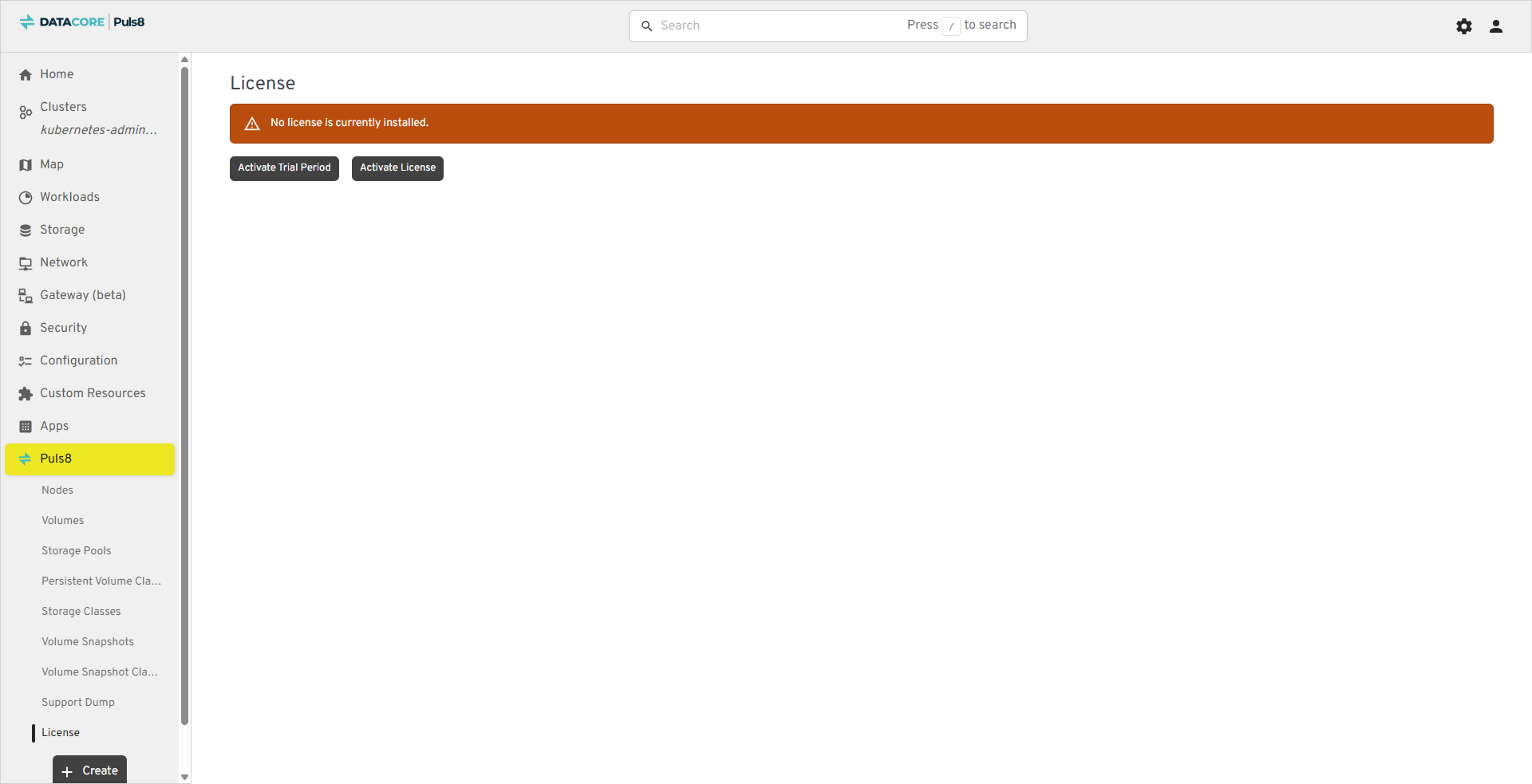
When no license is installed, the page shows the message No license is currently installed along with the Activate Trial Period and Activate License buttons.
Activating a Trial Period
- From the left navigation panel, click Puls8 and select License.
- Click Activate Trial Period.
- In the End User License Agreement dialog, read the agreement and select I have read and accept the terms of this agreement.
- Click Accept & Activate.
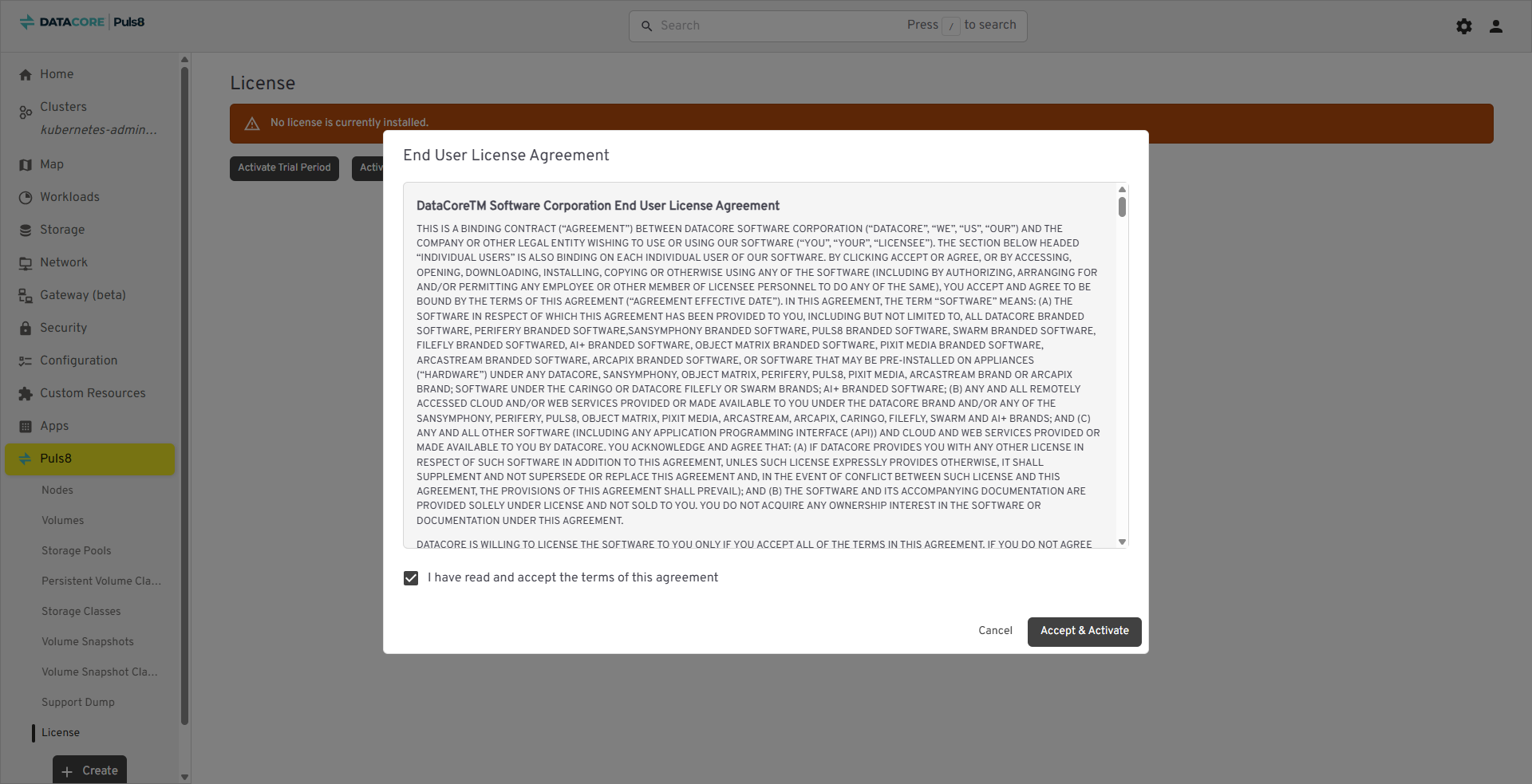
The trial does not require a license key. Once a license is active, the Activate Trial Period button is no longer displayed.
The trial period is 30 days measured from the day DataCore Puls8 is installed, not from the day the trial is activated. If you activate the trial some time after installing, the remaining trial period is correspondingly shorter.
Activating an Issued License
An issued license is activated in three steps: generating an activation request, submitting it to the licensing portal, and uploading the license file you receive. For details on obtaining a license key, see License Activation.
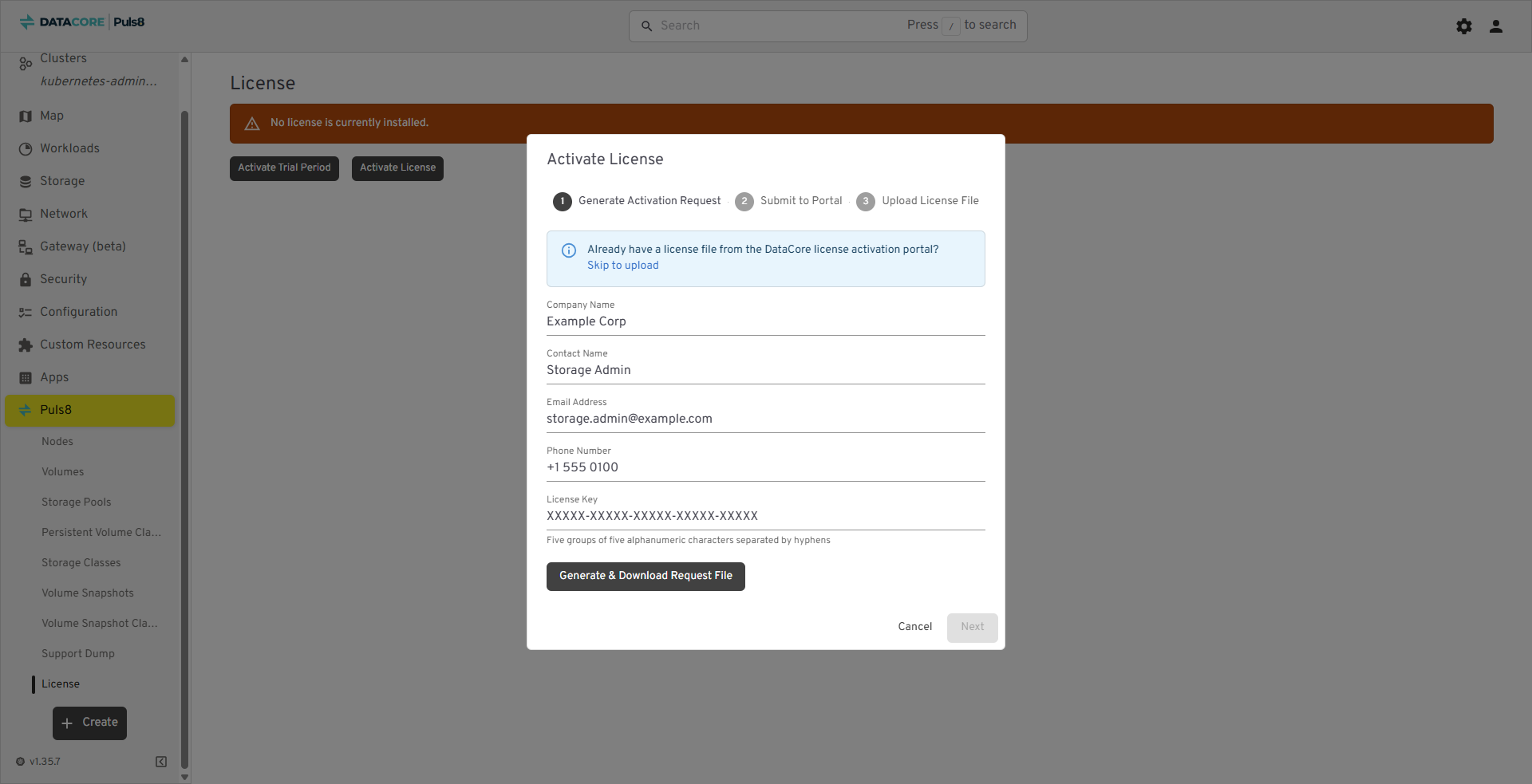
- On the License page, click Activate License.
- Generate Activation Request - Enter the Company Name, Contact Name, Email Address, Phone Number, and License Key.
The license key consists of five groups of five alphanumeric characters separated by hyphens. If you already have a license file from the licensing portal, click Skip to upload.
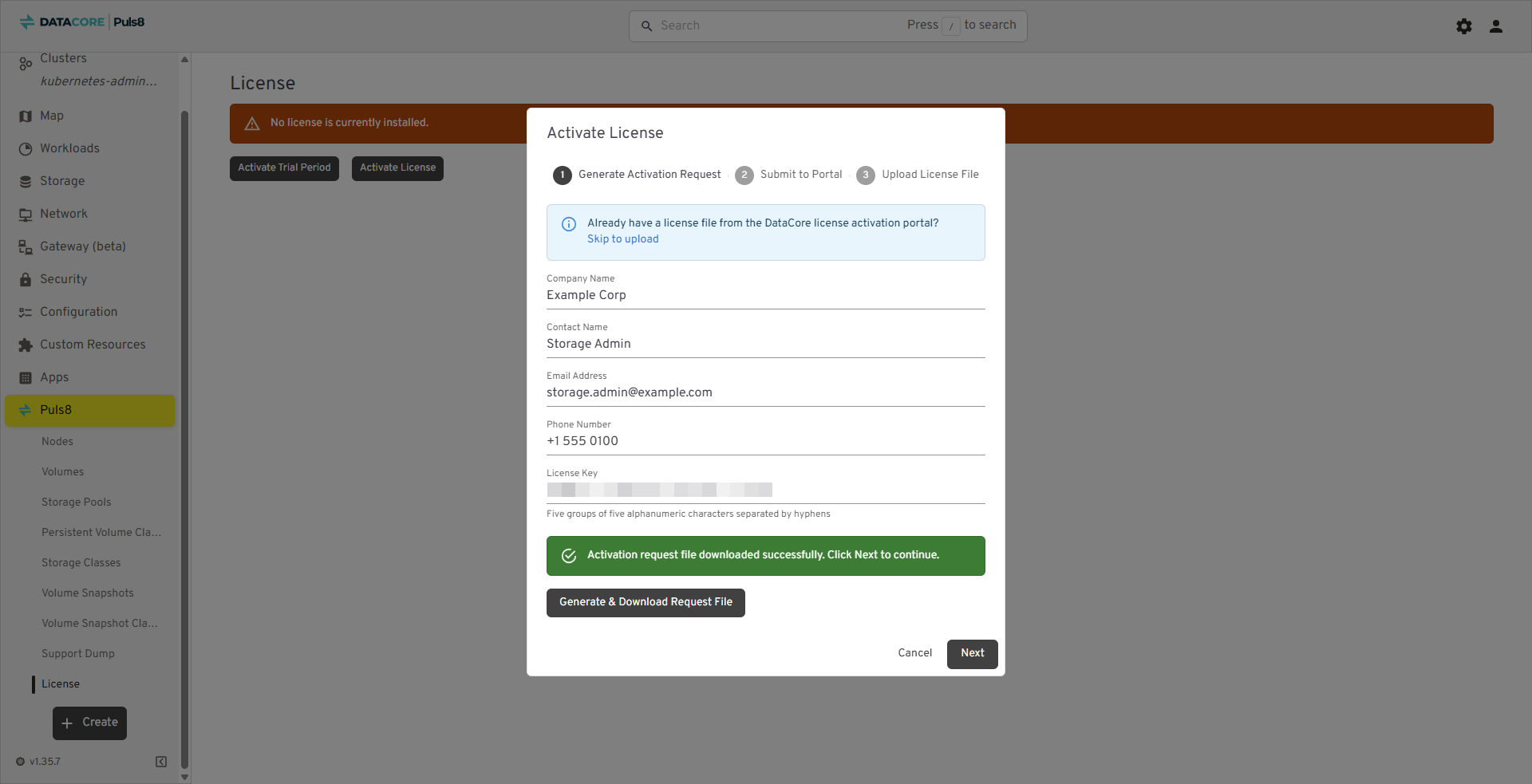
- Click Generate & Download Request File, and save the generated activation request file (
.xml) when prompted. - Confirm that the message Activation request file downloaded successfully. Click Next to continue. is displayed, and then click Next.
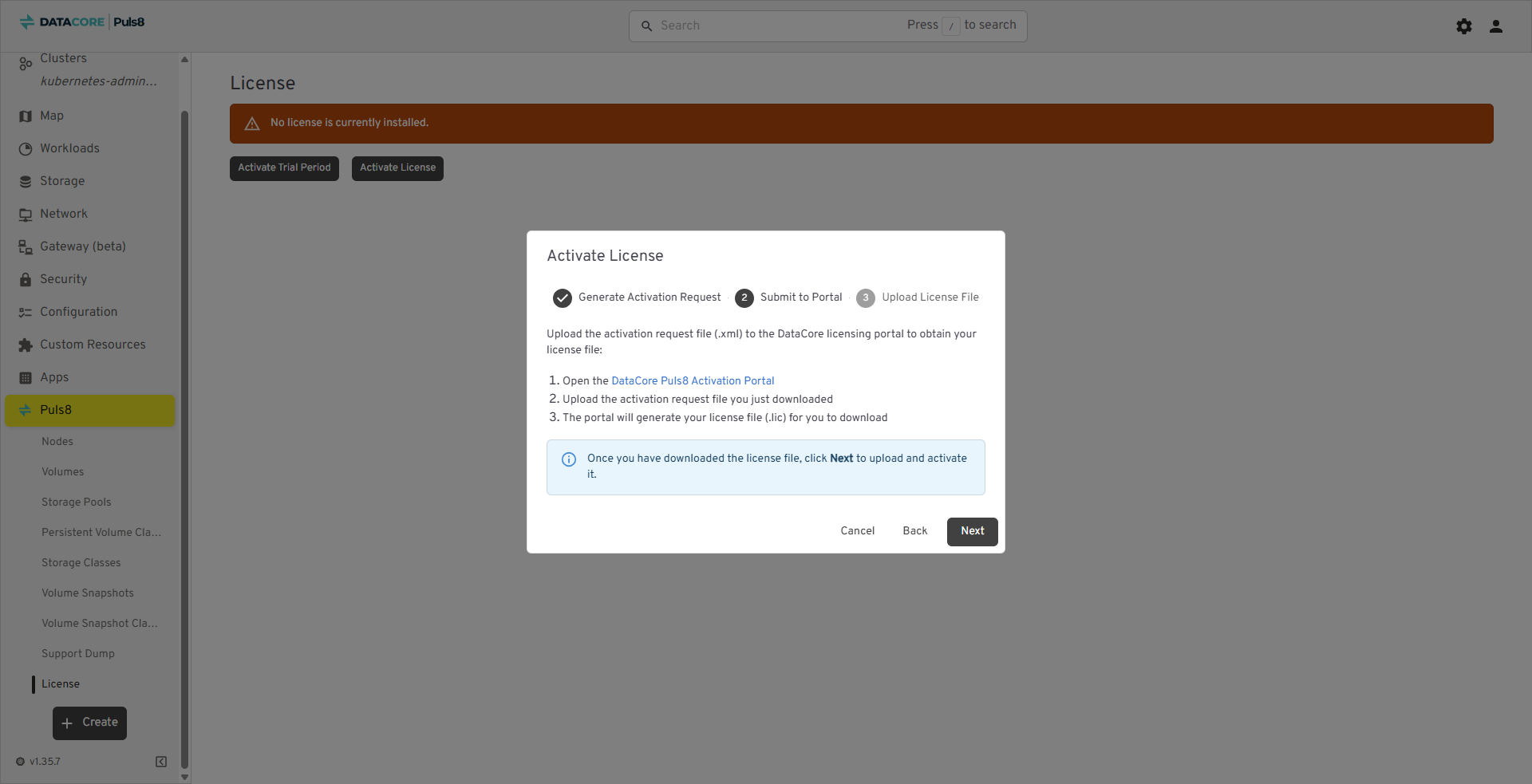
- Submit to Portal - Upload the activation request file (
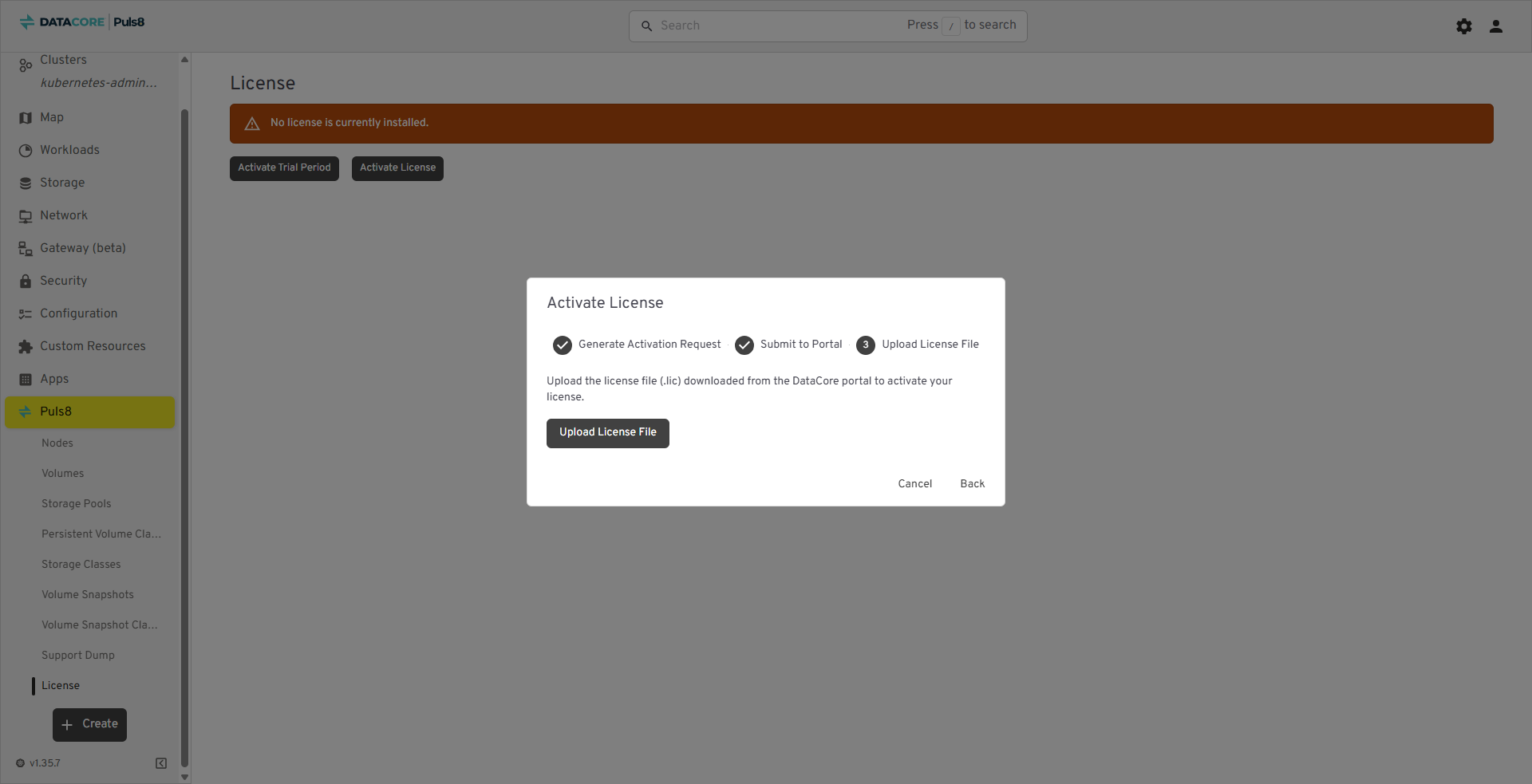
.xml) to the DataCore Puls8 licensing portal and download the license file (.lic) that the portal generates. For details, see License Activation. - Upload License File - Click Upload License File and select the license file (
.lic) you downloaded from the portal. - In the End User License Agreement dialog, accept the agreement to complete activation.
If a license is already installed, a Replace existing license? confirmation is displayed. Click Yes, Replace It to continue, or No to keep the current license.
Viewing and Managing the License
- From the left navigation panel, click Puls8 and select License.
- Review the License Type, Status, Compliance, Node Usage, and Expiration Date.
- Click Refresh to reload the license information.
- Click Verify Compliance to re-check the license against the cluster's current node count.
License Status and Expiration
The DataCore Puls8 Headlamp Plugin warns you before a license expires, after it has expired, and when the cluster approaches or exceeds the licensed node limit.
When a license has expired or is due to expire within 30 days, a banner is displayed at the top of the DataCore Puls8 pages with a Go to License page link. You can dismiss the banner for the current session; it is displayed again when the page is reloaded.
| Condition | Message displayed |
|---|---|
| The license expires within 30 days | Banner: Your Puls8 license expires in <number> days. License page: Your license expires in <number> days. Please renew soon. |
| The license has expired | Banner: Your Puls8 license has expired. License page: Your license expired on <date>. Please renew your license. |
| The cluster exceeds the licensed node limit | License is non-compliant. Your cluster has <number> nodes but the license allows a maximum of <number>. |
| The cluster is using 80% or more of the licensed nodes | Approaching node limit - <number> out of <number> nodes in use (<percentage>%). |
| No license is installed | No license is currently installed. |
The Compliance field is evaluated independently of the expiration date. An expired license can still display Compliant, because compliance reports only whether the cluster meets the license's node limit and cluster identity. Always use the Status field to determine whether a license is currently valid.
Renewing an Expired License
When a license expires, the License page continues to display the license details, with Status set to Expired. Existing volumes continue to serve data; however, operations that require a valid license are refused until a valid license is installed.
To renew an expired license:
- From the left navigation panel, click Puls8 and select License.
- Click Activate License.
- Complete the activation steps described in Activating an Issued License.
- Confirm that Status is set to Active and that the Expiration Date is updated.
When a license is expired, the Activate Trial Period button is displayed again. A trial period that has already been used cannot be reactivated; attempting to do so displays the message Your trial period has expired and cannot be reactivated. Please contact sales@datacore.com to obtain a license.
Deactivating a License
- On the License page, click Deactivate License.
- In the confirmation dialog, click Deactivate.
Benefits of Puls8 Plugin in Headlamp
- Unified Operational Visibility: Consolidates cluster metrics, storage resources, nodes, and workloads into a single dashboard for faster decision-making.
- Accelerated Troubleshooting: Real-time health indicators, events, and drill-down views reduce the time to identify and resolve storage or node issues.
- Simplified Storage Management: Enables creation and management of volumes, pools, PVCs, Storage Classes, and snapshots directly through the UI without relying on CLI commands.
- Reduced Configuration Errors: Guided YAML workflows ensure that storage resources are provisioned with accurate and consistent parameters across environments.
Learn More