Identifying Physical Disks Using Disk Indicator LED
Explore this Page
Overview
The Disk Indicator LED feature helps you quickly to identify and locate a physical disk in the storage enclosure by turning its identification LED on or off in DataCore SANsymphony. This allows you to visually confirm the correct disk before performing any action, reducing the risk of errors.
This feature relies on the storage backplane supporting SCSI Enclosure Services (SES), which enables SANsymphony to control the physical disk identification LED’s. It applies to hardware physical disks managed by SANsymphony and visible in the DataCore Management Console, including:
- Physical disks directly accessible to DataCore SANsymphony
- Disks inside a disk pool
- Mirrored physical disks
It does not apply to disks behind hardware RAID controllers that lack SES, direct SATA disks, or virtual disks.
Refer to SCSI Enclosure Services (SES) for more information.
The Disk Indicator LED feature works only if the storage enclosure supports SES and the disks are directly accessible by SANsymphony. You can check SES support using the Windows PowerShell cmdlets Enable-PhysicalDiskIdentification and Disable-PhysicalDiskIdentification. If these commands run successfully, SES is supported. If not, the commands fail. Also, when you run the DataCore cmdlet “Set-DcsPhysicalDiskIndicatorLed”, it will throw an error if SES is not supported.
Prerequisites
- The disk backplane (the circuit board inside the storage enclosure or server that connects the disks) must support SES (SCSI Enclosure Services).
- This feature requires DataCore SANsymphony PSP21 or higher.
- If SES is not supported by the backplane, the Turn Disk Identifier On/Off options will be unavailable in the DataCore Management Console.
- The LED pattern (blinking, color, or steady light) depends on your storage enclosure and the physical disks directly managed by SANsymphony.
- The disk LED stays on even if the SANsymphony service is stopped and restarted. The LED state resets only after a full server reboot.
- The Disk Indicator LED feature is not supported in the following cases:
- Disks behind RAID controllers that do not present drives directly to the operating system or do not provide enclosure details.
- Directly attached SATA disks.
- Virtual disks
Controlling the Disk Indicator LED
This section helps you use the DataCore Management Console to identify physical disks by turning their indicator LEDs ON or OFF. This is useful during maintenance or troubleshooting to visually confirm the correct disk.
-
In the DataCore Management Console, you can turn a physical disk LED On or OFF from any of the following context menus:
- The main Physical Disks list of the server group
- The Physical Disks list of a specific server
- The Physical Disks list of a disk pool
- Mirrored physical disks within a disk pool
- To turn on a disk LED:
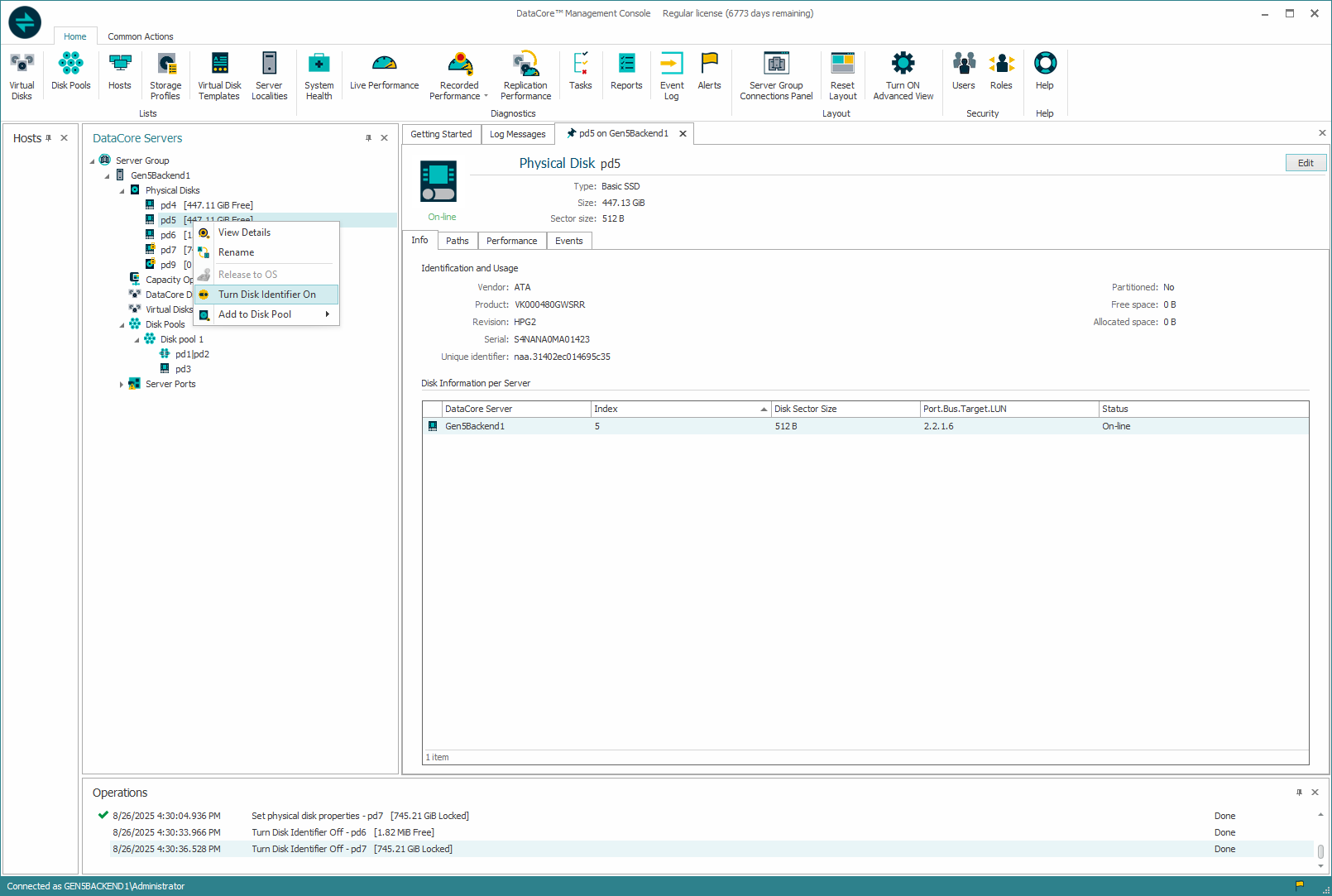
- Right-click the required disk and select Turn Disk Identifier On.
- The disk icon updates to show the LED is on.
- The physical identification LED on the disk backplane lights up.
- To turn off a disk LED:
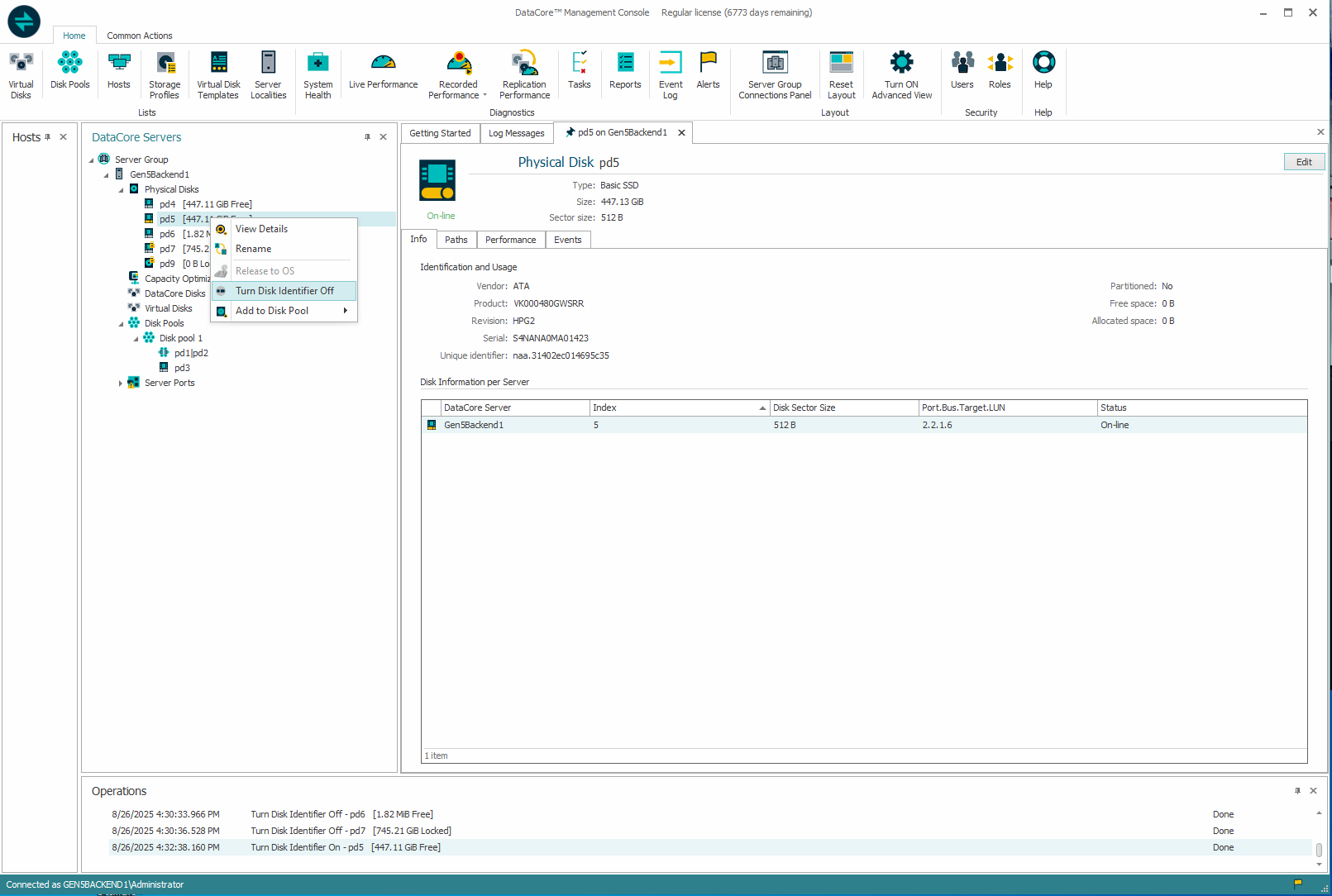
- Right-click the required disk and select Turn Disk Identifier Off.
- The disk icon updates to show the LED is off.
- The physical identification LED on the disk backplane turns off.
- Turn Disk Identifier On option is available only if the disk is attached to a SES-supported backplane and the LED is currently off.
- Turn Disk Identifier Off option is available only if the disk is attached to a backplane that supports SES, and the LED is currently on.
- You can also control the Disk Identifier LED using the DataCore PowerShell cmdlet. See Set-DcsPhysicalDiskIndicatorLed in the DataCore Cmdlets documentation for more details.
- Right-click the required disk and select Turn Disk Identifier Off.
Learn More