Monitoring and Canceling Support Bundles
Explore this page
Overview
This page explains how to monitor the status of support bundle collection and upload from the DataCore Management Console. It shows where to view the support bundle progress and describes the different status states that may appear during collection, transfer, or cancellation.
Monitoring Support Bundle Status
When a support bundle is collected in the DataCore Management Console, you can monitor the progress of support bundle file collection
- In the DataCore Servers panel, double-click the server group to open the Task Details page.
- Click the DataCore Server tab. See the Support State column. Event log messages are also provided when support bundles are created
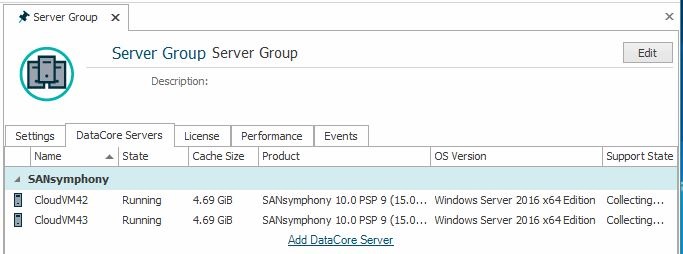
States include:
- Idle - There is no support bundle collection
- Collecting... - Files for support bundle are being collected.
- Sending... - Support bundle files are being uploaded to DataCore Technical Support.
- Sending(Communication failed)" - Trying to send a support bundle, but is prevented due to a communications problem, possibly because a firewall is blocking access or the network connection failed between the server group and the support bundle destination, which may be a Support Bundle Relay Server if configured.
- Unavailable - A support bundle cannot be collected
- There is no connection to a server in a server group with two servers. The servers have lost access to each other.
- The server is unreachable for any reason.
- The support bundle service is not running on a server, possibly because the server has crashed or the service was stopped.
- Canceling - This is a transient state lasting until the Cancel operation is complete.
Canceling a Support Bundle
To cancel the support bundle upload:
- In the DataCore Servers panel, right-click the server group.
- Select Cancel Upload from the menu.
Learn More