Encryption Key Management
Explore this Page
Overview
This page describes the methods available for managing encryption keys used by the Data-at-Rest Encryption feature in DataCore SANsymphony. Encryption keys can be managed locally using the Data-at-Rest Pool Key tool (DcsPoolKeyCli) or externally through Key Management Servers (KMS) using the Key Management Interoperability Protocol (KMIP). These options provide flexibility for exporting, importing, and protecting encryption keys, as well as integrating with centralized key management solutions.
Managing Pool Encryption Keys with DcsPoolKeyCli
The Data-at-Rest Pool Key tool (DcsPoolKeyCli) allows you to export, import, and delete keys, as well as list all available pool encryption keys used for the Data-at-Rest Encryption feature.
For one pool encryption key, there is a corresponding RSA key which is used to encrypt/decrypt the pool. The pool encryption key is stored in the registry under SOFTWARE\DataCore\SANsymphony\PoolKeys, encrypted, and the key used for decrypting it is stored in the Microsoft Software Key Storage Provider.
The tool supports the following commands:
| Command | Procedure |
|---|---|
| List All Available Key Pairs |
Use the
|
|
Export |
Use the
Include the curly brackets for the
|
|
Import |
Use the
|
|
Delete |
Use the
Understand the risk of using this command before using it as it will permanently delete the key. Back up (export) the key before running this command. |
When running the DcsPoolKeyCli.exe, always use the PowerShell console or Windows command prompt as an administrator.
Retrieving the Pool ID
To retrieve the pool ID:
- Open the DataCore Cmdlets.
- Run "Connect-DcsServer"
- Run "Get-DcsPool -Pool <PoolName>"
- The pool ID will be the value after the colon, enclosed in curly brackets. For example,
{xxxxxxxx-xxxx-xxxx-xxxx-xxxxxxxxxxxx}
Key Management Servers (KMIP)
DataCore SANsymphony supports the use of key management servers (KMS), using Key Management Interoperability Protocol (KMIP). In turn, KMIP utilizes Transport Layer Security (TSL) and certificates to set up a Secure Socket Layer (SSL) connection for communication between DataCore Servers and a key management server.
By default, the key management server configuration will be applied to all DataCore Servers in the same server group.
Requirements
Connecting to a key management server requires the following:
- IP address of the key management server
- User name and password for account with appropriate access to acquire certificates to be used by KMIP. The password for the user account will be encrypted before being saved in DataCore SANsymphony.
Enabling Key Management
You can configure the key management servers for DataCore SANsymphony in two ways:
- DataCore SANsymphony PowerShell Cmdlets: See Set-DcsKMIPEndpointProperties in the DataCore Cmdlet Reference Guide.
- DataCore Management Console: On the Server Group Setting tab, expand, under Encryption Key Management, select the KMIP key management check box. ; once selected the remaining fields become active. The Test Address button will test the connection from each DataCore Server to the configured KMS server.
To configure a key management server from the Server Group Details page:
- Click the Server Group Setting tab and expand the Encryption Key Management section.
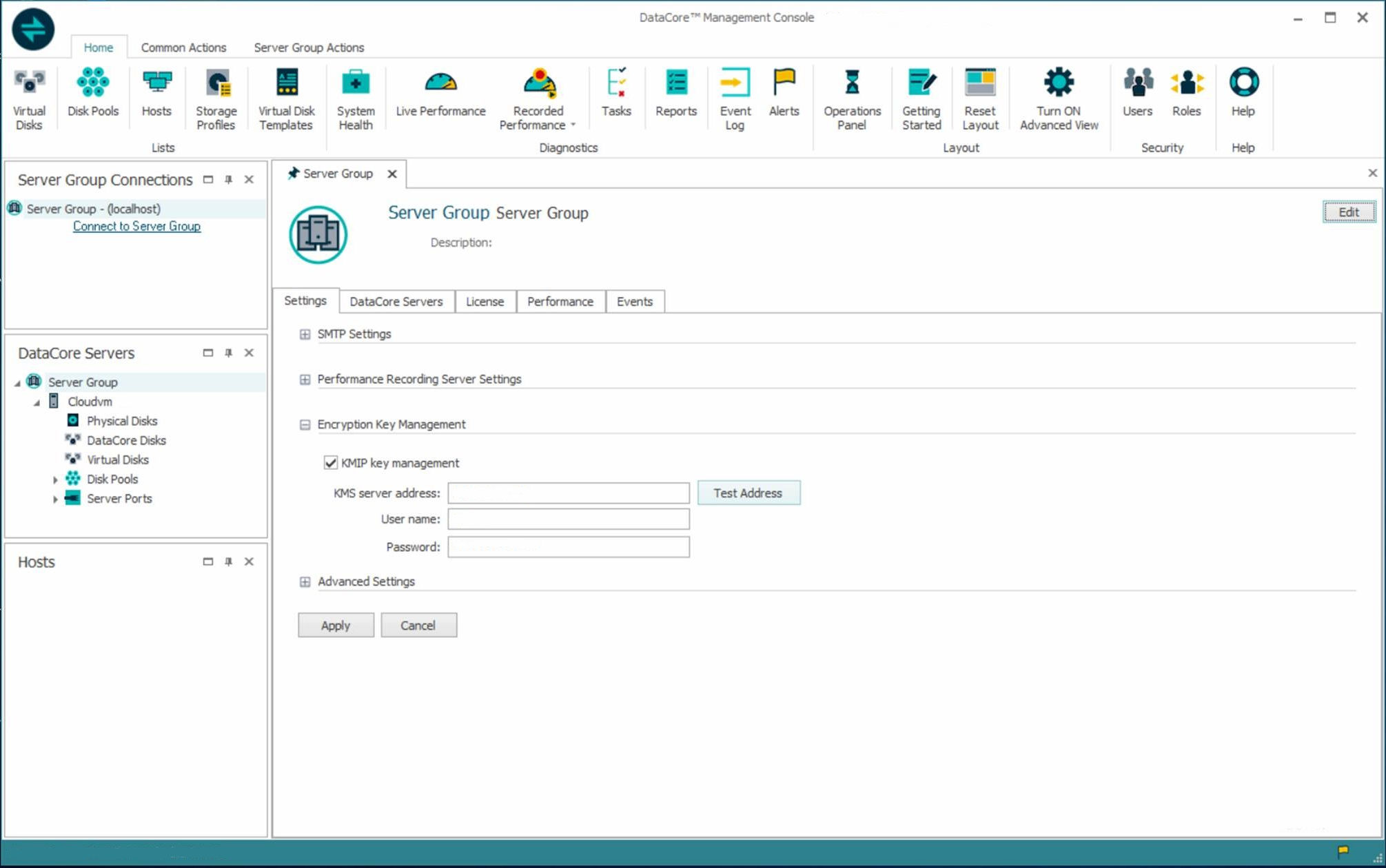
- Select the KMIP key management check box.
- In the KMS server address field, enter the IP address for the key management server.
Use the Test Address button to test the connection from each DataCore Server to the configured key management server.
- In the User name and Password fields, enter the credentials for the account to be used by KMIP.
- Click Apply to save your changes.
Learn More