Known Issues in DataCore SANsymphony 10.0 PSP22
Explore this Page
- Draft Documentation – For Internal Review Only!
- Draft Documentation – For Internal Review Only!
- Draft Documentation – For Internal Review Only!
- Draft Documentation – For Internal Review Only!
- Draft Documentation – For Internal Review Only!
- Draft Documentation – For Internal Review Only!
- Draft Documentation – For Internal Review Only!
- Draft Documentation – For Internal Review Only!
- Draft Documentation – For Internal Review Only!
- Draft Documentation – For Internal Review Only!
- Draft Documentation – For Internal Review Only!
- Draft Documentation – For Internal Review Only!
- Draft Documentation – For Internal Review Only!
- Draft Documentation – For Internal Review Only!
- Draft Documentation – For Internal Review Only!
- Draft Documentation – For Internal Review Only!
- Draft Documentation – For Internal Review Only!
- Draft Documentation – For Internal Review Only!
- Draft Documentation – For Internal Review Only!
- Draft Documentation – For Internal Review Only!
- Draft Documentation – For Internal Review Only!
- Draft Documentation – For Internal Review Only!
- Draft Documentation – For Internal Review Only!
- Draft Documentation – For Internal Review Only!
- Draft Documentation – For Internal Review Only!
- Draft Documentation – For Internal Review Only!
- Draft Documentation – For Internal Review Only!
Issue: Creating a replication on a destination disk already served via loop back might fail and leave both sides on standby or only one side with successful replication.
Workaround: if only one side knows about the replication, perform a forced split and start over. If both are stating standby - activate the one that should be active.
Issue: Backup software running on Windows Hosts with WIK 4.1.2 (or earlier) may fail to create backups as expected when the VSS Hardware Provider component from WIK 4.1.2 is installed. This issue may prevent proper backup creation.
Workaround: Use the native VSS provider from the Windows Host OS instead of the VSS Hardware Provider from WIK. Before using the VSS Hardware Provider for offloading snapshot creation as part of the host backup process, check the Release Notes of future WIK releases to verify that this issue is not identified as a Known Issue.
Issue: Capacity Optimization cannot be enabled on a disk pool configured with a sector size of 4KiB. To support capacity optimization on disk pools, the ZFS driver creates Zvols with a sector size of 512B, which are added as physical disks to the disk pool. But the disk pool requires that all physical disks in the pool have the same sector size.
Workaround: Configure the disk pool with a sector size of 512B to enable capacity optimization on the disk pool.
Issue: In an NWAY setup, when the parent server is unplugged and restarted, the full log recovery process takes an unusually long time to complete. Although the recovery eventually occurs, the delay can be significant, negatively impacting overall recovery performance.
Workaround: To temporarily resolve the issue, rescan the ports on both the parent and backup SSV devices to restore normal recovery operations.
Issue: The DataCore Deployment Wizard HA pair deployment may fail at the RunPortConfiguration step due to incorrect port role assignment.
Workaround: Do not assign port roles to SANsymphony management ports. If port roles have already been assigned to a management port, restore the port's default settings before rerunning the deployment:
-
On the target machine, locate the Set-iSCSIPortSettingsHost.ps1 script in the following folder:
Copy
C:\Program Files\DataCore\SANsymphony - Run the script against the affected management port using the -restoreDefaults parameter.
- For example, if the management port is Ethernet 4, run the following command:Copy
.\Set-iSCSIPortSettingsHost.ps1 -adapterIdentifier "Ethernet 4" -restoreDefaults
- For example, if the management port is Ethernet 4, run the following command:
- In the DataCore Deployment Wizard, click Rerun to continue the deployment.
Issue: In a disk pool with mirrored physical disks, the physical disk’s Mirror State still shows as Healthy even after the mirrored physical disk is no longer available and the missing physical disk itself reports as failed.
Workaround: No action is required. The disk pool physical disk’s Mirror State will auto-correct itself after a few minutes. Recovery will start automatically when the physical disk becomes available again.
Issue: When encrypted Continuous Data Protection (CDP) enabled or Sequential Storage-enabled virtual disks (vDisks) are imported with the encryption key to a different machine, disable the encryption on them. If re-imported to the parent machine with the encryption key, those vDisks will be in the failed state.
Issue: Opening too many separate PowerShell connections at the same time can prevent you from connecting to the DataCore Server Group using the DataCore Management Console or from running the Connect-DcsServer PowerShell cmdlet in future attempts.
Workaround: Run PowerShell connections one at a time, making sure to disconnect before starting the next Connect-DcsServer. Alternatively, create a script that uses a single connection to run all queries within the same session.
Issue: When a single virtual disk is created while the server is in maintenance mode, the virtual disk status may not update correctly after exiting maintenance mode (for example, it may not display as Online). This is a display-only issue; the virtual disk remains functional, can serve data, and supports I/O operations.
Workaround: The status updates automatically when any of the following actions are performed:
- Perform I/O operations on the virtual disk.
- Create the virtual disk after the server exits maintenance mode.
- Re-enter and then exit maintenance mode on the server that owns the storage source.
Entering and exiting maintenance mode disables front-end (FE) port mapping and triggers failover for mirrored or N-way virtual disks. However, mirror paths remain active.
Issue: Log recovery didn't start after upgrading backup server from PSP19 to a later version in a Virtual Disk NWAY setup. The log recovery process can be restarted with the two following methods as workaround:
Workaround 1: Once the server is rebooted after the backup upgrade, manually stop and then start the updated server again.
Workaround 2: Follow these steps to restart the log recovery:
- On all nodes, navigate to C:\Program Files\DataCore\SANsymphony and run the “dcshadump /dump > outputfile.txt” command in administrative mode using Command Prompt. A new output file will be generated.
- In the output file, verify whether there is any line containing "IOsPaused = 1" (under the "TertiaryDevice" section) on all nodes. If you do not find any such lines, this workaround does not apply to your issue, and you should not continue.
-
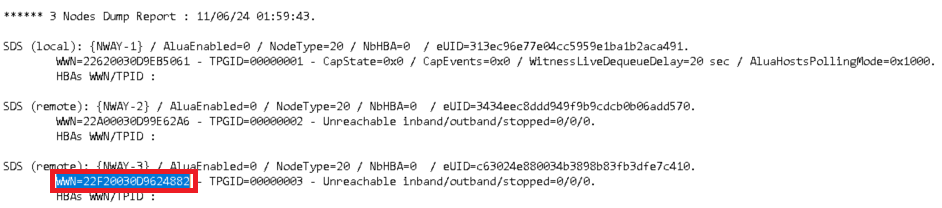
Run the dcscaptool.exe /dump DC.txt command (from the same C:\Program Files\DataCore\SANsymphony folder) and locate the WWN name of the updated node in the DC.txt file. For example, the WWN name in the DC.txt file is shown in the image below.
- Then, on all other nodes that have a mirror with the updated server, run the “dcscaptool /signalnodestart "updated node WWN" 1” command in administrative mode (from C:\Program Files\DataCore\SANsymphony). Example: “dcscaptool /signalnodestart 227D0030D9CAD4BE 1”.
-
The log recovery will restart in approximately 2 minutes.
Issue: When the Windows Integration Kit (WIK) is installed on SANsymphony 10.0 PSP22 servers, the DataCore MPIO console does not display the mirror paths of mirrored virtual disks. The paths continue to be managed and controlled correctly by the DataCore DSM (Device-Specific Module).
Issue: On a three-way mirrored Virtual Disk (vDisk) configuration, the log recovery does not start following a replace or split-and-unserve on the mirror.
Workaround: Rescan the ports.
Issue: Creating multiple connections to the SANsymphony NVMeTCP target using different IP endpoints of the initiator is not possible. Attempts to use multiple initiator IPs for a single target may fail, or only one connection will remain active.
Issue: Changing the Host Path Access setting on one path of a virtual disk (for example, from Read/Write to No Access and back to Read/Write) may cause I/O to the virtual disk to stop, even though another path to the same virtual disk remains set to Read/Write. This has been observed on virtual disks served over NVMe/TCP and iSCSI.
Workaround: Avoid changing Host Path Access settings on a virtual disk while I/O is active. If a path's access setting must be changed, verify that I/O resumes normally on the remaining path(s) afterward.
Issue: Microsoft Multipath I/O (MPIO) must be enabled on Windows servers before installing SANsymphony. If MPIO is not already enabled, the SANsymphony installer attempts to enable it automatically. If enabling MPIO requires a system restart, the installer will abort the installation and cannot continue until the server is restarted. This issue affects both standalone SANsymphony installations and deployments performed using the SANsymphony Deployment Wizard (SDW).
After the restart:
- For standalone installations, relaunch the SANsymphony installer. The installation will proceed successfully.
- For SANsymphony Deployment Wizard (SDW) deployments, rerun the deployment. It will resume from the step where it previously stopped.
Workaround: To avoid interruptions, ensure that MPIO is enabled on all target Windows servers before installing SANsymphony. To enable MPIO, run the following PowerShell command as an administrator:
If the command prompts a restart, restart the server before proceeding with the SANsymphony installation.
Issue: Using double quotes (" ") around parameter values that contain special characters (e.g., parentheses, comparison operators) can cause PowerShell cmdlets to fail with an error.
Workaround: Use single quotes (' ') around such strings when running the cmdlet.
Issue: When a disk pool contains a mirrored encrypted virtual disk (vDisk), purging the failed disks in this pool may result in data corruption. Follow the steps below as a Workaround:
- Disable Auto Recovery for the encrypted mirror vDisk.
- Purge the failed disk.
- Click Replace on the out-of-sync side.
-
Enable Auto Recovery for the vDisk.
Issue: Formatting a virtual disk (vDisk) with Microsoft ReFS (Resilient File System) that is mapped over a loopback port will fail with an error stating the drive is not accessible.
Issue: If the DataCore Server being removed is the controller node of the server group, it may continue to appear in the DataCore Management Console after removal. This occurs because the controller node automatically becomes part of a new, standalone server group once it is removed.
Workaround: To refresh the view and reconnect to the original server group, use either of the following options:
- The Server Group Connections window, or
-
The Connect to Server Group option from the Common Actions menu.
Issue: When SANsymphony is installed on the Hyper-V parent OS and asynchronous replication is configured for virtual disks, replication may get stuck in standby mode.
Workaround: To temporarily avoid this issue, install SANsymphony on a virtual machine (VM) instead of the parent OS.
Issue 1: The Smart Deployment Wizard (SDW) did not start the DataCore Executive Service (DCSX.exe) in the SDW-Clustered Virtual Machines Deployment Scenario after deploying the SANsymphony.
Workaround: Check if the DCSX.exe is running in the target server. If not, start it manually and click "re-run" to continue the deployment in the SDW.
Issue 2: The Smart Deployment Wizard (SDW) failed to create the NFS share. Intermittently, SDW may fail to create the NFS share for the NAS Clustered configuration menu option and it does not report this failure.
Workaround: Create the NFS share manually from Windows server > Failover Cluster Manager.
Issue 1: The Events tab of the Snapshot in the DataCore Management Console may not display the operation completion message of a snapshot update procedure. However, the message does reflect in the DCS trace messaging and may be viewed by the support personnel if necessary.
Workaround: Contact DataCore Technical Support for assistance with the trace messaging analysis.
Issue 2: When attempting to split a full snapshot, an error is displayed stating that the snapshots are not fully migrated as the migration map percentage is stuck.
Workaround: Update the snapshot and retry splitting the snapshot.
Issue 3: Promoting a snapshot may fail if the underlying pool is full. The snapshot may not indicate a failed state automatically, and its data might be unreliable.
Workaround: Manually delete any snapshots that were attempted to be promoted when the pool was full.
Issue: Immutable snapshot retention relies on system time integrity. If the system clock is manually changed, retention behavior may be affected. This is a general limitation of time-based systems and not specific to DataCore SANsymphony.
Issue: After deleting the virtual disks (vDisks) and rebooting the servers, the name of some objects may display with extra spacing. This should be a non-functional problem as the object ID remains the same.
Issue: When I/Os are not running on a served NVMe namespace virtual disk, modifying certain virtual disk settings such as Name, Vendor, Product, or Revision may cause abnormal behavior in the nvme list command on the initiator. The affected virtual disk may not appear in the list.
Workaround: Modify these virtual disk settings only when the virtual disk is not served.
Issue: Enabling the SANsymphony NVMeoF feature on a front-end Fibre Channel port that has QLogic host adapters logged into it may cause loss of access to virtual disks already served to those hosts, if the NVMe feature is also enabled in the QLogic driver on the host. It is enabled by default. QLogic adapters cannot maintain an NVMeoF login and a standard Fibre Channel login at the same time.
Hosts that connect to the port after NVMeoF is enabled do not lose access, but they cannot see new virtual disk mappings.
Hosts with Emulex Fibre Channel adapters are not affected.
Workaround: Disable the NVMe feature in the QLogic driver on the affected hosts. No change is required to the SANsymphony server port configuration. The procedure depends on the host operating system.
VMware ESXi hosts: Run the following command, and then reboot the host for the change to take effect.
Linux and Proxmox hosts: Run the following command to disable NVMe support in the qla2xxx driver.
Rebuild the boot image so that the change persists. On Debian-based hosts, including Proxmox, run the following command.
On Red Hat Enterprise Linux, Rocky Linux, and SUSE Linux Enterprise Server hosts, run the following command instead.
Reboot the host for the change to take effect.
Issue: In the DataCore Management Console, creating a backup storage source using pass-through physical disks is not supported for 3-way virtual disks. Backup storage sources can only be created from disk pools.
Workaround: Use disk pools to create the backup storage source instead of pass-through physical disks.