DataCore Puls8 License Activation
Explore this Page
Overview
DataCore Puls8 requires a valid license to operate beyond its basic capabilities. The platform supports two types of licenses:
- Trial License for evaluation purposes
- An issued license for extended production use
This document outlines the steps to activate both license types, verify license status, and perform license compliance checks.
Requirements
Before activating a license, ensure the following requirements are met:
- DataCore Puls8 must already be installed and running in the target namespace.
- The DataCore Puls8 Kubectl Plugin must be installed. Refer to the DataCore Puls8 Kubectl Plugin document for installation instructions.
Activating an issued license additionally requires:
- A valid license key, obtained through the sales and onboarding process. See Obtaining a License Key.
- Network access, from any machine (not necessarily the cluster itself), to the DataCore Puls8 licensing portal, to upload the offline activation request and download the resulting license file.
Obtaining a License Key
License keys for DataCore Puls8 are generated as part of the sales and onboarding process. Once your purchase or agreement is finalized through a DataCore sales representative or an authorized partner, the license key is created and sent directly to your registered email address.
If you have not received your license key after completing the sales process, contact your DataCore sales representative or support team.
The license key is required only for activating an issued license. Trial licenses do not require a license key.
Trial License
The Trial License allows you to evaluate DataCore Puls8 with a full set of features for a limited period of 30 days. You can activate it directly using the DataCore Puls8 CLI plugin.
No license key is required to activate a trial license.
The 30-day trial period is measured from the day DataCore Puls8 is installed, not from the day the trial is activated. If you activate the trial some time after installing, the remaining trial period is correspondingly shorter.
Activating an Issued License
An issued license is a purchased or evaluation license that enables continued use of DataCore Puls8 beyond the trial period. Activation involves generating an offline activation request, submitting the request to the licensing server, and applying the received license file.
Generate an Offline Activation Request
Run the following command to generate the activation request file:
kubectl puls8 license activate offline-request \
  --company-name <company> \
  --contact-name <contact> \
  --email-address <email> \
  --phone-number <phone> \
  --license-key <XXXXX-XXXXX-XXXXX-XXXXX-XXXXX> \
  --output-file <file>
This command creates a license activation request in the specified output file. Submit this file to the DataCore Puls8 licensing portal to obtain your license.
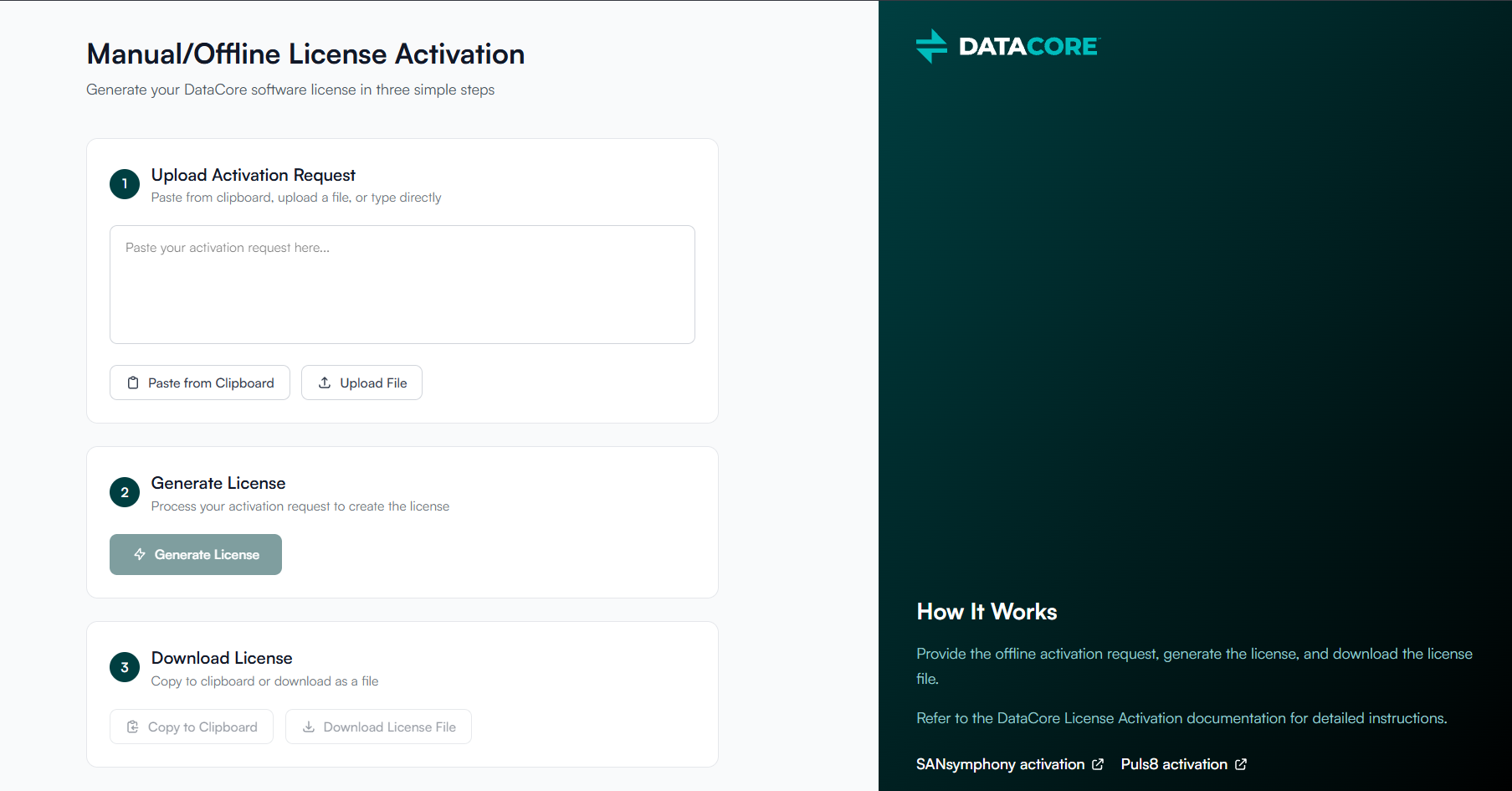
Obtain the License File from the Licensing Portal
To exchange the activation request for a license file:
- Open the DataCore Puls8 licensing portal. No sign-in is required.
- Provide the activation request. You can upload the request file created by the previous command, or paste the contents of the file directly.
- Generate the license.
- Download the license file, or copy its contents and save them to a file on the machine from which you run the DataCore Puls8 Kubectl Plugin.
The licensing portal is shared across DataCore products. Follow the DataCore Puls8 activation path rather than the path for another product.
Activate the License
After receiving the license file from the licensing portal, apply it to your DataCore Puls8 cluster using the following command:
kubectl puls8 -n <puls8_namespace> license activate offline --license-file <filename>Verify License Status
Use the following command to check the current license status:
 TYPE   STATUS  COMPLIANT  EXPIRY   VALIDITY    MAX-NODES
 Trial  Active  Compliant  ~ 1m 0d  2026-08-29  500
For information about license compliance, what happens when a license expires, and how to diagnose licensing-related failures, refer to DataCore Puls8 License Compliance and Expiration.
Learn More