Performing OS Hardening Actions
Explore this Page
Overview
This page explains how to perform OS hardening actions using the DCS Hardening Tool (DcsHardeningTool.ps1) in both interactive and non-interactive modes. It covers the available actions for applying hardening, running audits, creating backups, and restoring previous configurations, along with command-line examples for automation and large-scale deployments.
Performing OS Hardening Actions
The DCS Hardening Tool (DcsHardeningTool.ps1) provides a centralized interface to manage OS hardening operations, including applying configurations, auditing the system, and managing backups and restores.
- The following steps describe how to use the tool in interactive mode, where actions are selected through the on-screen menu. For automation and command-line usage, see Non-Interactive Mode (Automation).
- Before performing any action with the DCS Hardening Tool, DataCore recommends following the recommended OS hardening workflow to ensure changes are applied and validated in the proper order. For more information, refer to OS Hardening Workflow.
- Open PowerShell as Administrator.
- Navigate to the extracted OS Hardening package directory.
- Run the command:
- Alternatively, you can open the extracted OS Hardening package directory, right-click DcsHardeningTool.ps1 script file, and select Run with PowerShell.
- From the interactive menu, select the required action. See OS Hardening Actions.
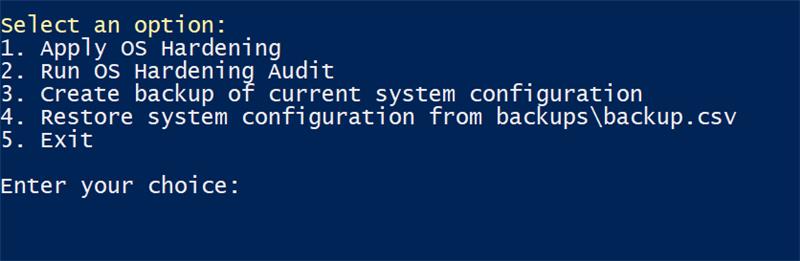
OS Hardening Actions
Use the following actions in the DCS Hardening Tool to perform OS hardening operations on the operating system.
Apply OS Hardening
- From the interactive menu, enter the number corresponding to Apply OS Hardening.
- Select the displayed OS hardening profile that matches the operating system of the server (for example, DataCore Profile for Windows Server 2022).
- This action applies OS security configurations based on the selected profile and ensures compatibility with SANsymphony.
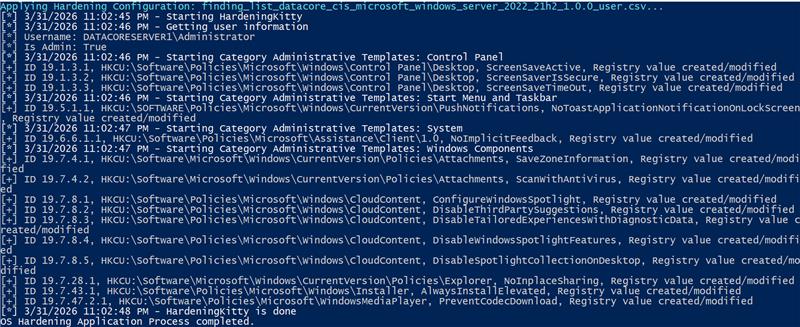
- Example Output
- When Apply OS Hardening is executed, the tool applies the security settings from the selected OS hardening profile and displays the progress in the console. The output includes the selected profile or configuration file and the settings being applied. A successful execution ends with a completion message.
- Execute this action only once.
- A system reboot is required for the changes to take effect. Run an audit before and after applying hardening to validate the system configuration.
Run OS Hardening Audit
- From the interactive menu, enter the number corresponding to Run OS Hardening Audit.
- Select the displayed OS hardening profile that matches the operating system of the server (for example, DataCore Profile for Windows Server 2022).
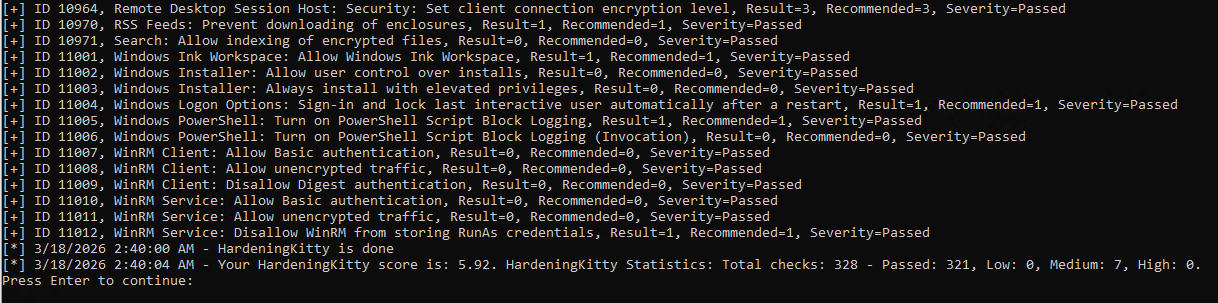
- The tool runs the audit for the selected profile and displays the results for each available finding list.
- As each finding list is processed, the tool also generates the corresponding audit log entries and stores them in the log folder.
- After each finding list is displayed, press Enter to continue to the next audit result screen.
- Repeat this until all finding lists have been processed and the audit completes.
This action performs a read-only evaluation of the system against the selected OS hardening profile and displays the audit results for each finding list. The audit output includes:
- Configuration status
- Deviations from recommended settings
- Severity of findings
- Audit completion status
- Overall hardening score
- Summary statistics
Example output
The following example shows a sample audit result.
Backup Current System Configuration
- From the interactive menu, enter the number corresponding to Create backup of current system configuration.
- This action exports the current OS security settings and saves them as a timestamped CSV backup file in the backups folder.
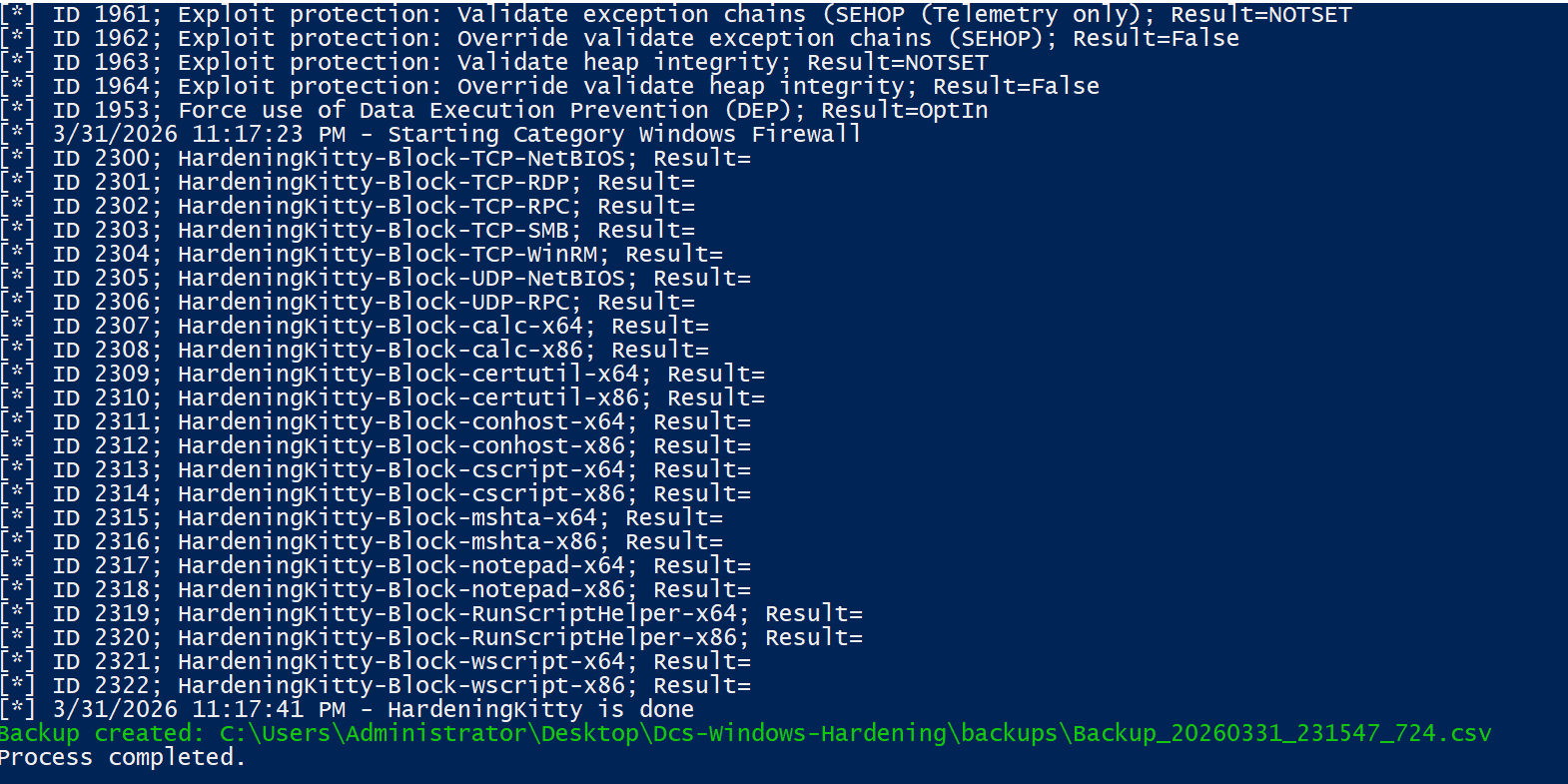
- Example Output
- When Create backup of current system configuration is executed, the tool exports the current OS security settings and displays the progress in the console. The output includes the settings being processed and the location of the generated CSV backup file. A successful execution displays the backup file path and confirms that the process is completed.
This action can be run multiple times to capture the current system state.
Restore System Configuration
- From the interactive menu, enter the number corresponding to Restore system configuration from backups\backup.csv.
- When prompted, enter the path or name of the backup CSV file to restore.
This action reapplies the OS security settings stored in a previously created backup file and restores the system to the saved configuration.
A valid backup CSV file must be available before running this action. Use this action with caution, as it reverts the system to a previous configuration.
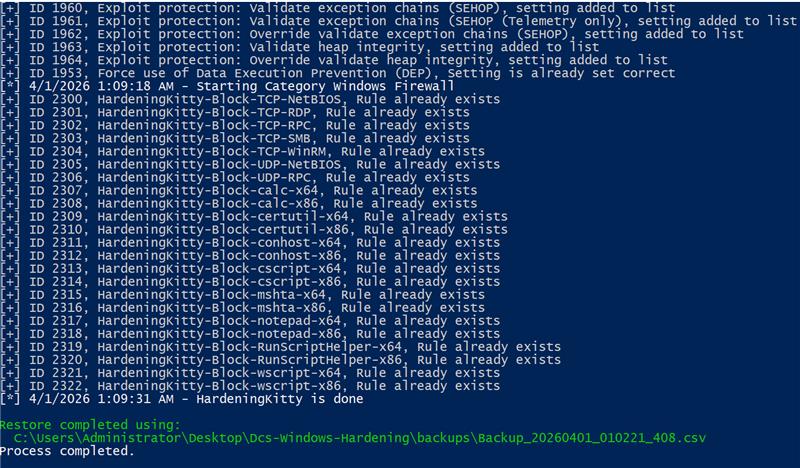
Example Output
When Restore System Configuration is executed, the tool reapplies the OS security settings from the selected backup CSV file and shows the restore activity in the console. The output includes the settings being restored and the backup file used for the operation. A successful execution ends with a completion message.
Non-Interactive Mode (Automation)
Non-interactive mode allows you to run OS hardening actions using command-line parameters without user prompts. This is useful for automation, scripting, and large-scale deployments.
Non-Interactive Mode Examples
The following examples show how to execute the available OS hardening actions directly from the command line. Replace <Repository-Path> with the path where the OS Hardening package is extracted.
- Run Audit (Non-Interactive)
CopyCommand
.\DcsHardeningTool.ps1 -NonInteractive -ActionToRun Audit -OsHardeningProfile DCS-WS2025 -LocalRepositoryPath <Repository-Path> - Apply OS Hardening (Auto Profile)
CopyCommand
.\DcsHardeningTool.ps1 -NonInteractive -ActionToRun Apply -OsHardeningProfile Auto -LocalRepositoryPath <Repository-Path> - Backup Current ConfigurationCopyCommand
.\DcsHardeningTool.ps1 -NonInteractive -ActionToRun Backup -LocalRepositoryPath <Repository-Path> - Restore ConfigurationCopyCommand
.\DcsHardeningTool.ps1 -NonInteractive -ActionToRun Backup -LocalRepositoryPath <Repository-Path>
Parameters
The following table describes the parameters available for use with non-interactive mode commands.
| Parameter | Required | Description |
| -ActionToRun | Yes | Specifies the action to perform: Apply, Audit, Backup, or Restore |
| -LocalRepositoryPath | Yes | Path to the extracted OS Hardening package |
| -OsHardeningProfile | No | Specifies the OS profile (for example, DCS-WS2019). Use Auto to detect automatically |
| -RestoreBackupFile | Yes (Restore only) | Name or full path of the backup CSV file to restore |
- Some security settings are adjusted to ensure SANsymphony compatibility, including network communication, administrative access, and upgrade processes.
- Hardening reduces the system attack surface but may affect non-standard configurations.
- Backup and restore operations apply only to OS security settings and do not replace full system backups.
Learn More