Completing the Deployment
- The main DataCore Installation Manager for Proxmox window displays the default deployment plan. You can accept the default plan or edit it as needed. Click Deploy to begin the process of deploying the DataCore Server virtual machines. Deployment may take some time, while DataCore Installation Manager for Proxmox performs several steps during the creation of the virtual machines.
- To edit the deployment hosts, network settings, or virtual machine settings, click Edit for the relevant section and then click Deploy when you are ready.
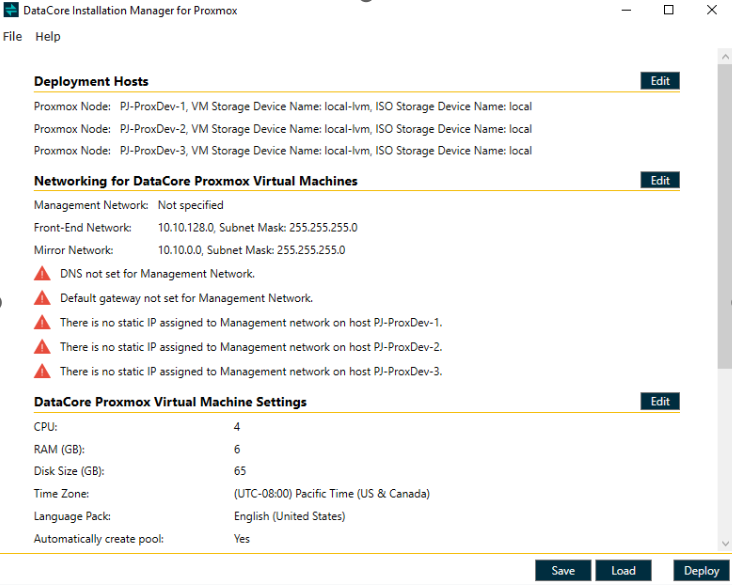
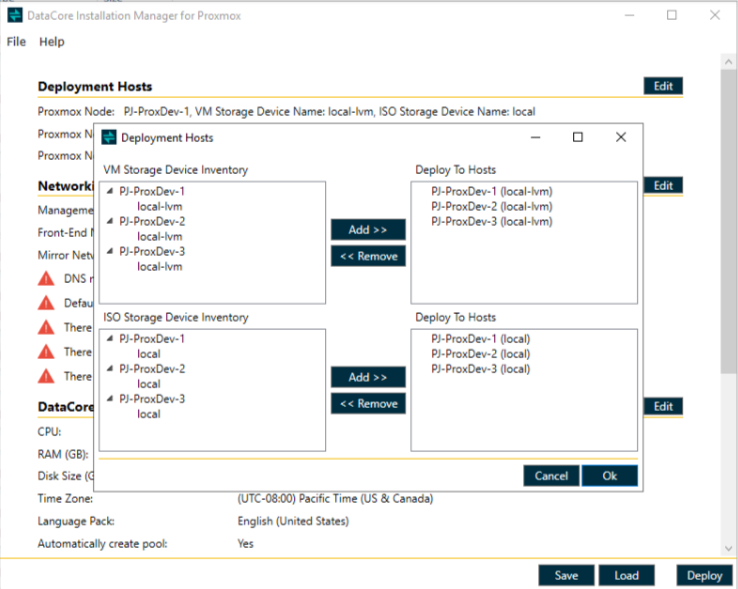
- In the Deployment Hosts and Storage section, you can add or remove deployment hosts and select the appropriate storage devices for storing virtual machine and ISO files.
- Networking for DataCore Proxmox Virtual Machines: The Networking for DataCore Proxmox Virtual Machines section displays network information. During the deployment process, each virtual machine will be created with one management port, two front-end ports, and two mirror ports.
- Management Network: This network is used for DataCore communication and is the network (TCP/IP) through which the virtual machines communicate status with one another. This is also the network that the DataCore Management Console connects to. Additionally, the management network will be pinged during validation.
- Mirror Networks: These networks (iSCSI) are for storage mirroring and target functions; they are automatically configured. The mirroring networks provide iSCSI target and initiator between DataCore Servers for mirrors.
- Target Networks: The target networks provide iSCSI targets on DataCore Servers for front-end paths. IP addresses may be modified, but must be available for all networks.
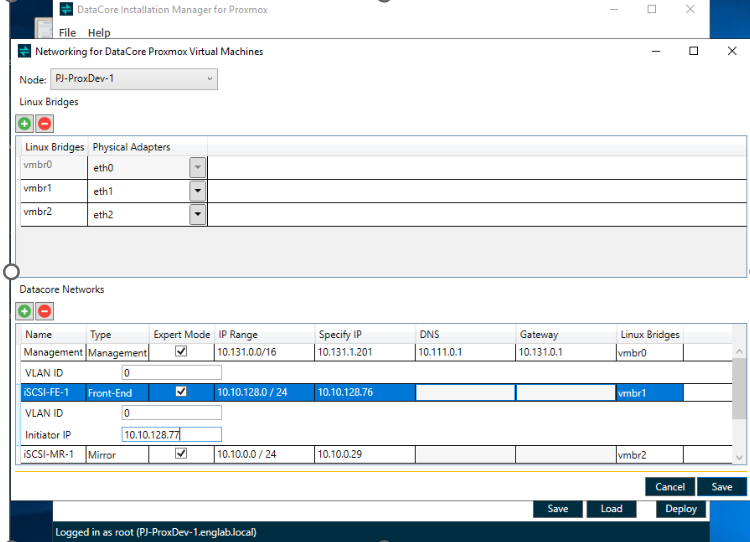
For Management ports, you can specify multiple DNS server IP addresses if required for your environment. Enter the DNS server IP addresses as a comma-separated list (for example, 10.10.7.8,10.10.7.9). Ensure that all specified DNS servers are reachable from the configured management network.
- DataCore Expert Mode Network Configuration: This feature in the DataCore Installation Manager for Proxmox provides precise and deterministic IP layout configuration to meet the expert requirements. The configuration reduces the need for post-deployment manual adjustments, streamlining the implementation process. The feature provides enhanced network configuration flexibility and sophistication through VLAN tagging.
- When you click on Export Mode under DataCore Networks, the following settings will be displayed, providing the following capabilities:
- Expert Configuration Option: An optional "Expert" configuration mode that allows detailed and manual network setup.
- Manual IP Configuration: Manual configuration of the IP addresses for any network port.
- ISCSI initiator IP configuration: Manual configuration of iSCSI initiator IP. This IP gets applied to the appropriate network bridge to enable the iSCSI packets to traverse from SANsymphony VM to Proxmox host.
- VLAN Tags Configuration: Optional configuration option of the VLAN tags for interfaces, that enables integration with advanced network configurations. It must be same for the Port groups in different Proxmox hosts. This feature is not supported in the current release. Any configured VLAN tags will be ignored.
- When you click on Export Mode under DataCore Networks, the following settings will be displayed, providing the following capabilities:
- DataCore Proxmox Virtual Machine Settings: The DataCore Proxmox Virtual Machine Settings section displays settings for the Proxmox virtual machines.
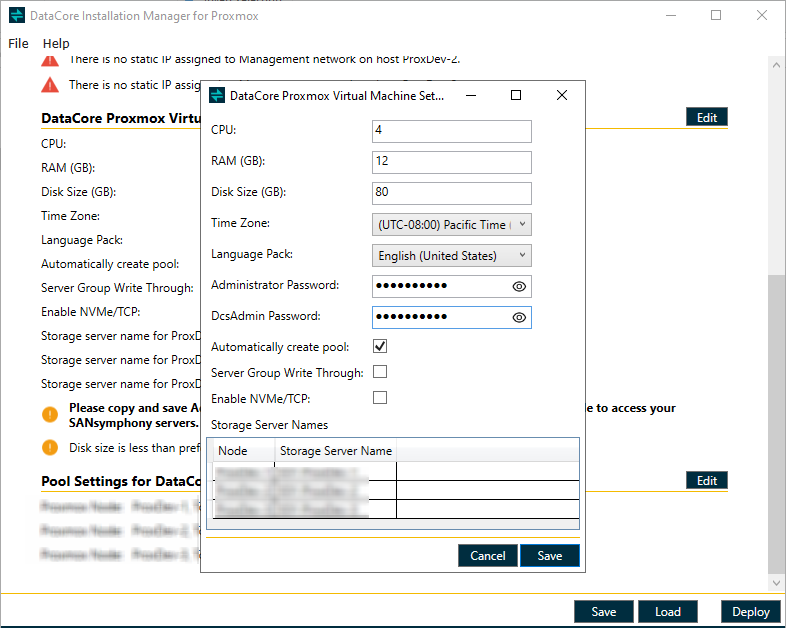
- Provide custom passwords for the Administrator and DcsAdmin usernames of the SANsymphony virtual machines.
- To deploy the Virtual Machine in the desired language, click the Language Pack drop-down in the DataCore Proxmox virtual machine settings. A list of supported languages is displayed. Select the applicable language.
- By default, the Automatically Create Pool check box is cleared. Select the check box if you want to create a pool automatically. When selected, a storage pool is created using the selected devices.
- By default, the Server Group Write Through check box is cleared. Select the check box to enable Write Through mode. When enabled, the server group writes data directly to storage instead of using cache.
- By default, the Enable NVMe/TCP check box is cleared. Select the check box to enable NVMe/TCP support. When enabled, DataCore Installation Manager for Proxmox creates a separate virtual disk template and Proxmox storage class for NVMe/TCP, in addition to the existing iSCSI template and storage class.
- Click Save to save the configuration.
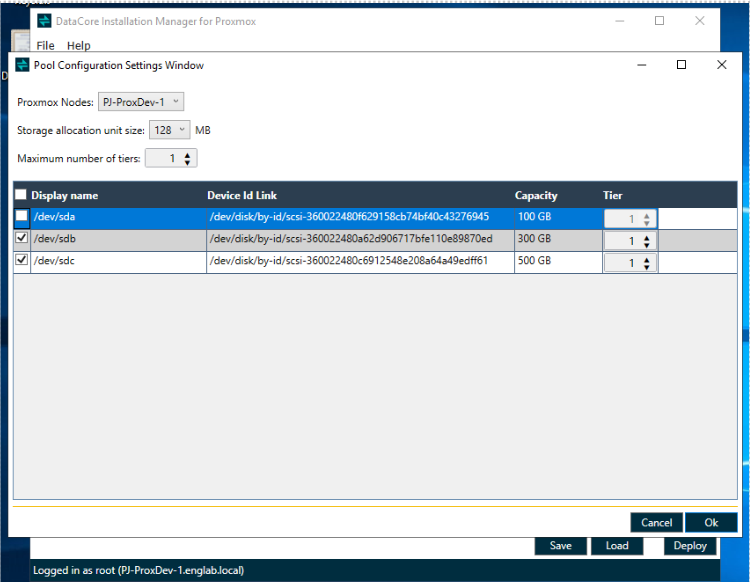
- Pool Settings for DataCore Proxmox Virtual Machines: When you click Edit, the Pool Configuration Settings Window opens, allowing you to set custom DataCore Pool settings for the SANsymphony virtual machine.
- The Pool Creation feature in the DataCore Installation Manager for Proxmox provides greater control and flexibility over the pool creation process and allows better control over the pool creation, which prevents further errors. You may customize the pools to fit specific requirements, which minimizes post-installation adjustments. Further, this improves deployment efficiency and reduces installation errors.
- The Pool Creation feature in the DataCore Installation Manager for Proxmox provides greater control and flexibility over the pool creation process and allows better control over the pool creation, which prevents further errors. You may customize the pools to fit specific requirements, which minimizes post-installation adjustments. Further, this improves deployment efficiency and reduces installation errors.
-
In the Pool Configuration Settings Window, you can configure the following:
- Discovered Storage Devices List: You may view all discovered storage devices in Pool Configuration Settings Window and select the applicable ones to include in a pool. This allows for more precise control of which devices are included, ensuring only suitable devices are selected.
- Maximum Tiers Definition: Allows you to define the maximum number of tiers for a pool.
- Select Tier Class per Storage Device: Allows you to select a tier class for each selected storage device.
- SAU Size Selection: Allows you to specify the pool's Storage Allocation Unit (SAU) size.
After storage devices are selected on the pool creation page, only those devices are exposed as physical devices to the SANsymphony machine after installation. If the Automatically create pool checkbox is unchecked, the DataCore Installation Manager for Proxmox will not attach any storage devices to SANsymphony. In this case, you must manually add the storage devices through the virtual machine settings in the Proxmox host.
Deployment Progress and Completion
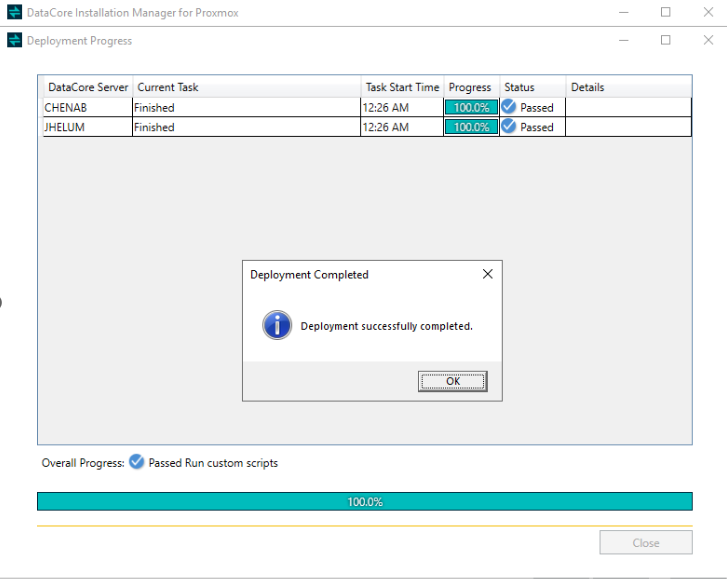
- Once you click Deploy, the Deployment Progress window will open and show the current step of the deployment process for all DataCore Server virtual machines being created.
- In the Proxmox cluster, DataCore Server virtual machines will be created, configured, and powered on.
- Deployment may take some time as this process performs several steps while creating the virtual machines.
- The deployment of all DataCore Server virtual machines occurs in parallel. When the process is complete, DataCore Installation Manager for Proxmox will display a confirmation message. Now you can create virtual disks and present them to the hosts using Server Manager.
If the deployment fails, resolve the error and click Resume to finish the deployment.